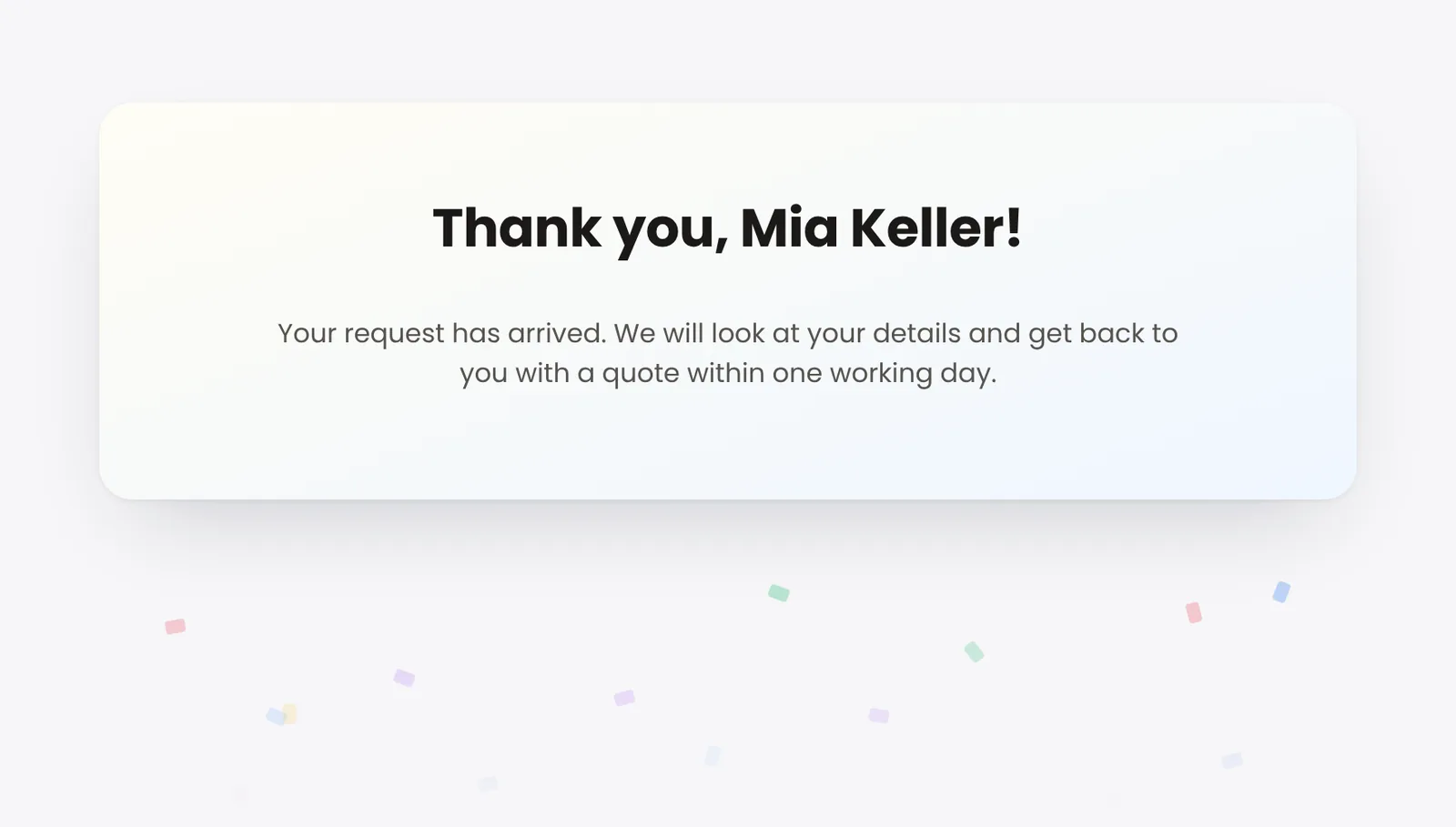
At the end of the form you decide what visitors see after sending: a thank-you message with a picture, an animation, their answers, downloads and a button, a redirect to another page, or the message first and the redirect after it. The redirect can pass answers to the target page. The thank-you page and the redirect are part of Funnelforms Free and Pro.
Requirements
- You can edit the form in the editor.
- Changes to redirects need the right to see entries, because a redirect can carry answers in its address. Without this right you can prepare them; someone with the right publishes them.
- Thank-you message and redirect are available in Funnelforms Free and Funnelforms Pro. Passing answers to the target page, as parameters or as placeholders in the redirect address, is Pro only. Parameters with a fixed value are in Free too.
Where to find it
Open the form in the editor, stay in the Structure workspace and click the end (End) on the canvas. Its settings appear on the right. You add another end from the palette with End.
Features at a glance
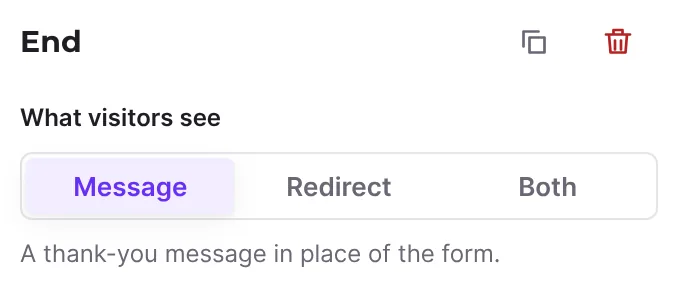
- What visitors see: Message, Redirect or Both.
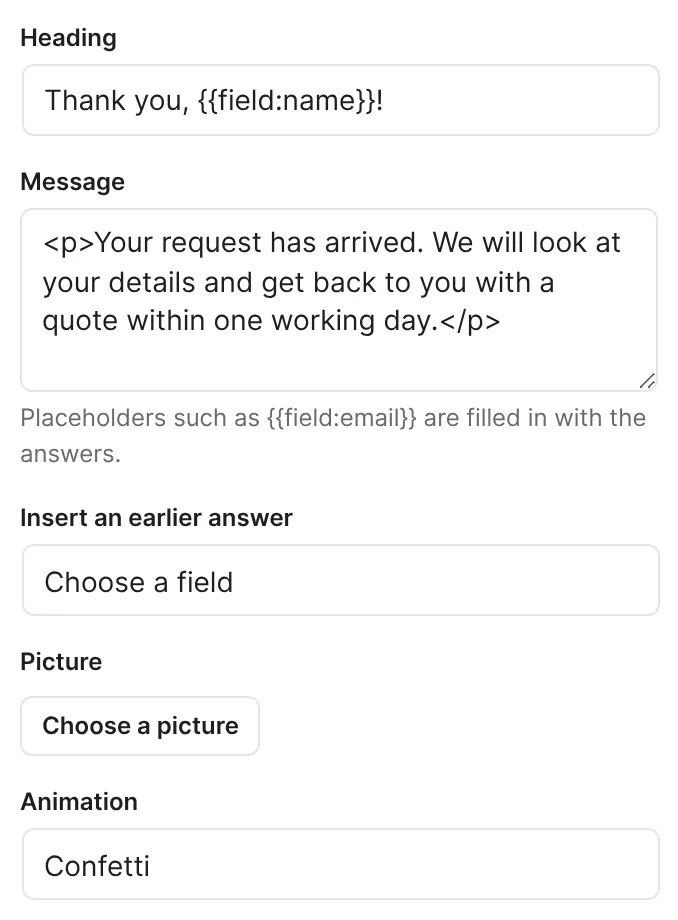
- Message with Heading, Message and Insert an earlier answer.
- Picture from the media library.
- Animation: None, Check mark or Confetti.
- List the visitor's answers.
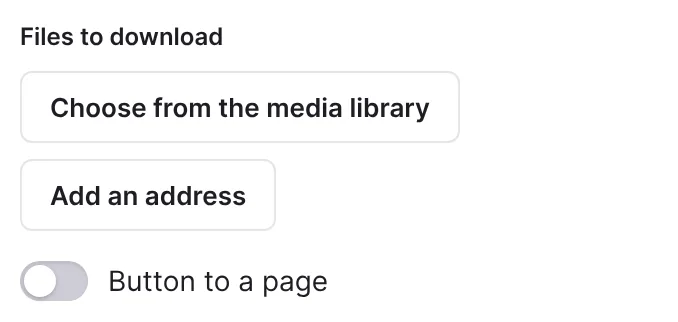
- Files to download (up to 10), from the media library or by address.
- Button to a page with Button text, Button address and Open the button in a new tab.
- Redirect with Page or address, Choose a page of the site, Pass answers to the page (up to 20 parameters, Pro only; in Free Parameters of the address with fixed values), Open in a new tab, Wait before (seconds) and Show a countdown.
Step by step
Thank-you message
- Open the form in the editor and click the end in the Structure workspace.
- Under What visitors see, click Message.
- Enter a Heading and a Message. With Insert an earlier answer you insert an answer, for example the name.
- Under Picture, click Choose a picture if a picture should appear above the heading.
- Under Animation, choose for example Check mark or Confetti.
- Switch on List the visitor's answers if visitors should see their entries again.
- Under Files to download, click Choose from the media library or Add an address. Adjust Name of the file and Address of the file.
- Switch on Button to a page and enter Button text and Button address.
- Publish the form with Publish and test it with an entry.
Redirect
- Under What visitors see, click Redirect or, for the message first and then the page, Both.
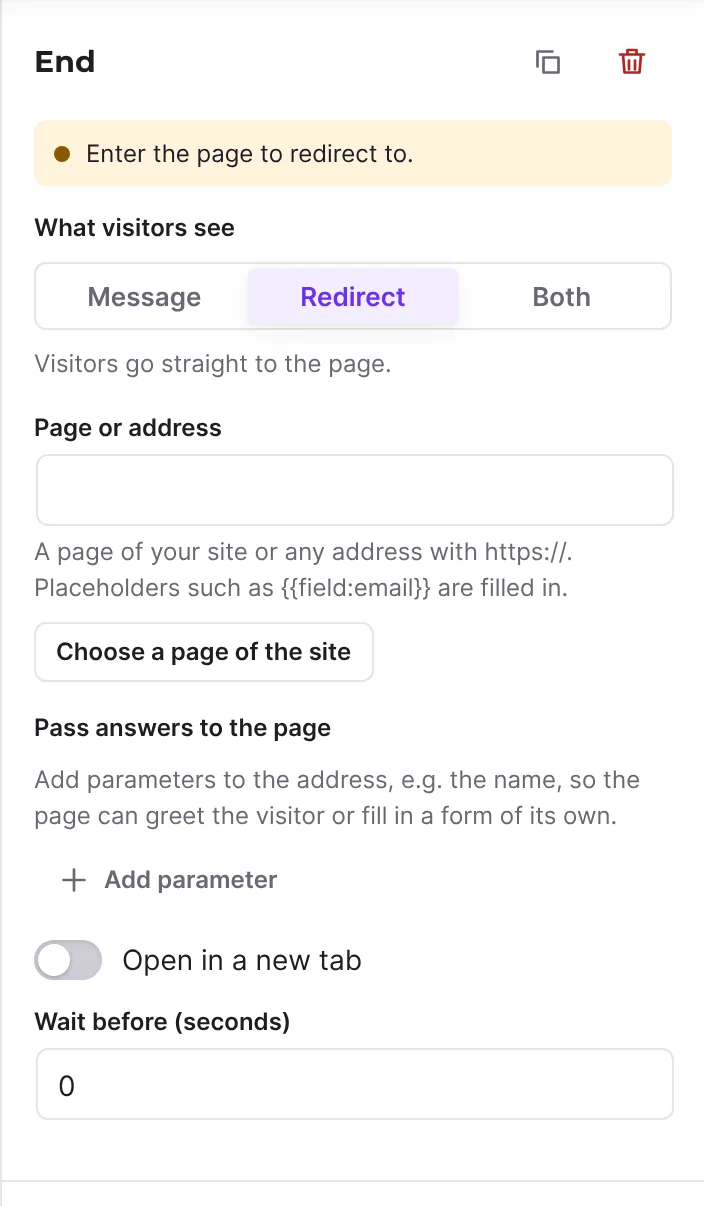
- Click Choose a page of the site, look for the page in Search pages and click it. Or enter an address with
https://in Page or address. - If you want to pass answers (Pro only), click Add parameter under Pass answers to the page. Enter the name in Parameter, such as
name, and choose the field for the Value in Insert an earlier answer. In Free, click Add parameter under Parameters of the address and enter a fixed Value. - Check the line Address for example:. It shows what the address looks like.
- Set a wait time under Wait before (seconds). From one second on, you can switch on Show a countdown.
- Publish the form and test it on the published page.
How it works
What do visitors see after sending?
With Message, the thank-you message replaces the form, in this order: animation, picture, heading, message, answers, downloads, button. With Redirect, visitors go straight to the page. With Both, the message comes first and the page follows after the wait time. When you choose Both, Funnelforms sets a wait time of 5 seconds with a countdown if no wait time of at least one second was set yet. When you choose Redirect, it sets the wait time to 0.
How do I pass answers to the target page? (Pro only)
Under Pass answers to the page you add parameters to the address, such as ?name= with the visitor's name. The target page can then greet the visitor or prefill a form of its own. Each parameter has a Parameter name (letters, digits, _, ., - and square brackets) and a Value, usually a placeholder such as {{field:name}}. Funnelforms encodes the values for the address; spaces become + as in Funnelforms 3. Up to 20 parameters are possible.
Parameters with a fixed value in Funnelforms Free
In Free this part is called Parameters of the address. There Add parameter adds parameters with a fixed value, for example a source for your own statistics. As long as there is none, it says "Add parameters with a fixed value to the address, e.g. a source for your own statistics." Earlier answers in the Value are part of Pro: if a value holds a placeholder such as {{field:name}}, it shows "Inserting earlier answers comes with Funnelforms Pro." with the Pro badge, and Free cannot publish the form. Free does not show an already published form with such placeholders on the website.
How do placeholders work?
Heading, message, button address and redirect address take the placeholders of the mails. For a single field you need the variable name of the field: {{field:variable name}}. Insert an earlier answer inserts this placeholder for you. For a quiz or a calculation (Pro only), {{calc:...}} and {{quiz:max}} show the points. In addresses, Funnelforms inserts the values URL-encoded. In Free, placeholders in the redirect address are part of Pro: the hint under Page or address doesn't mention them there, and a form with such a placeholder can't be published in Free. In heading, message and button address they work in Free too.
What happens when I set a wait time?
The wait time is between 0 and 60 seconds, adjustable in half seconds. With Show a countdown (from one second of wait time) the sentence "You will be forwarded in 3 seconds." appears below the message, with the link Go now that visitors can use to leave at once.
What happens in the preview?
The preview in the editor does not redirect. It shows "Visitors are now sent to …" with the destination instead.
What applies to addresses?
Redirect, button and downloads only open web addresses with https or http. Other addresses are ignored. A download without a name shows the file name from the address.
What happens when the end lies directly behind a question?
If a question leads straight to an end without a contact step, no entry is stored and no mail is sent. Visitors see the thank-you page or are redirected, parameters included, and leave the form. Under How visitors get here, the end shows "Leaves without sending: no entry, no mails." for this path.
Best Practices
- Keep the message short and say what happens next.
- With Both, keep at least two to three seconds of wait time and the countdown, so nobody misses the message.
- Only pass to the target page what it really needs. Addresses with answers end up in browser histories and server logs.
- Give downloads a descriptive name, such as "Price list 2026".
Troubleshooting
| Problem | Cause | Solution |
|---|---|---|
| Visitors see an empty form after sending | Neither Message nor Redirect is chosen at the end. | Choose one under What visitors see. |
| The countdown is missing | The wait time is shorter than one second. | Set at least 1 second under Wait before (seconds). |
| A download or the button does not appear | The address is empty or not a web address. | Enter a complete address with https://. |
| No redirect happens in the preview | The preview deliberately does not redirect. | Test on the published page. |
| A parameter is missing in the address | The Parameter name is empty. | Enter a name; Address for example: shows the result. |
| A placeholder stays empty | The variable name does not match the field, or the field was not filled in. | Insert the placeholder again with Insert an earlier answer. |
| A change cannot be published | You lack the right to see entries. | Ask someone with this right to publish the form. |
| Free: "Inserting earlier answers comes with Funnelforms Pro." under a parameter | The Value holds a placeholder such as {{field:name}}. | Enter a fixed value or use Funnelforms Pro. |
Tips
- With several ends you show different thank-you pages depending on the answers. You set the paths there with conditions.
- A picture such as a logo or a photo of your team makes the thank-you page more personal.
- You maintain the texts of the thank-you page per language (forms in several languages are Pro only).
FAQ
Can I redirect visitors to a page of my own? Yes. Choose Redirect and then pick the page with Choose a page of the site or enter its address.
Can I have both, message and redirect? Yes. Choose Both. The message appears first, the redirect follows after the wait time.
How many downloads can I offer? Up to ten.
Can I give the visitor's answers to the target page? In Pro, yes, with Pass answers to the page or with placeholders in the address. Because the address then contains answers, the change needs the right to see entries. In Free you add parameters with a fixed value only.