For every booked appointment, Funnelforms sends e-mails: a confirmation with a calendar file, a message with the new time when the appointment is moved, reminders if you want them, and a notice when an appointment is cancelled. You can word the subject and opening text of the mails to visitors yourself, per appointment type. This helps visitors not to forget their appointment, and people booked have it in their calendar right away.
Requirements
- Funnelforms Pro. This feature is not included in Funnelforms Free. There the Appointment tile in the builder carries a Pro badge and cannot be added.
- You have the right "Edit forms" to change the appointment type and to word the mail texts.
- The visitor only gets mails if the contact step contains an E-mail address field with a valid address.
- People booked get mails at the e-mail address of their WordPress user account.
Where to find it
- Switch on the invitation and reminders: Funnelforms → Forms → open a form → Structure → select the Appointment question → Edit appointment type → Messages section.
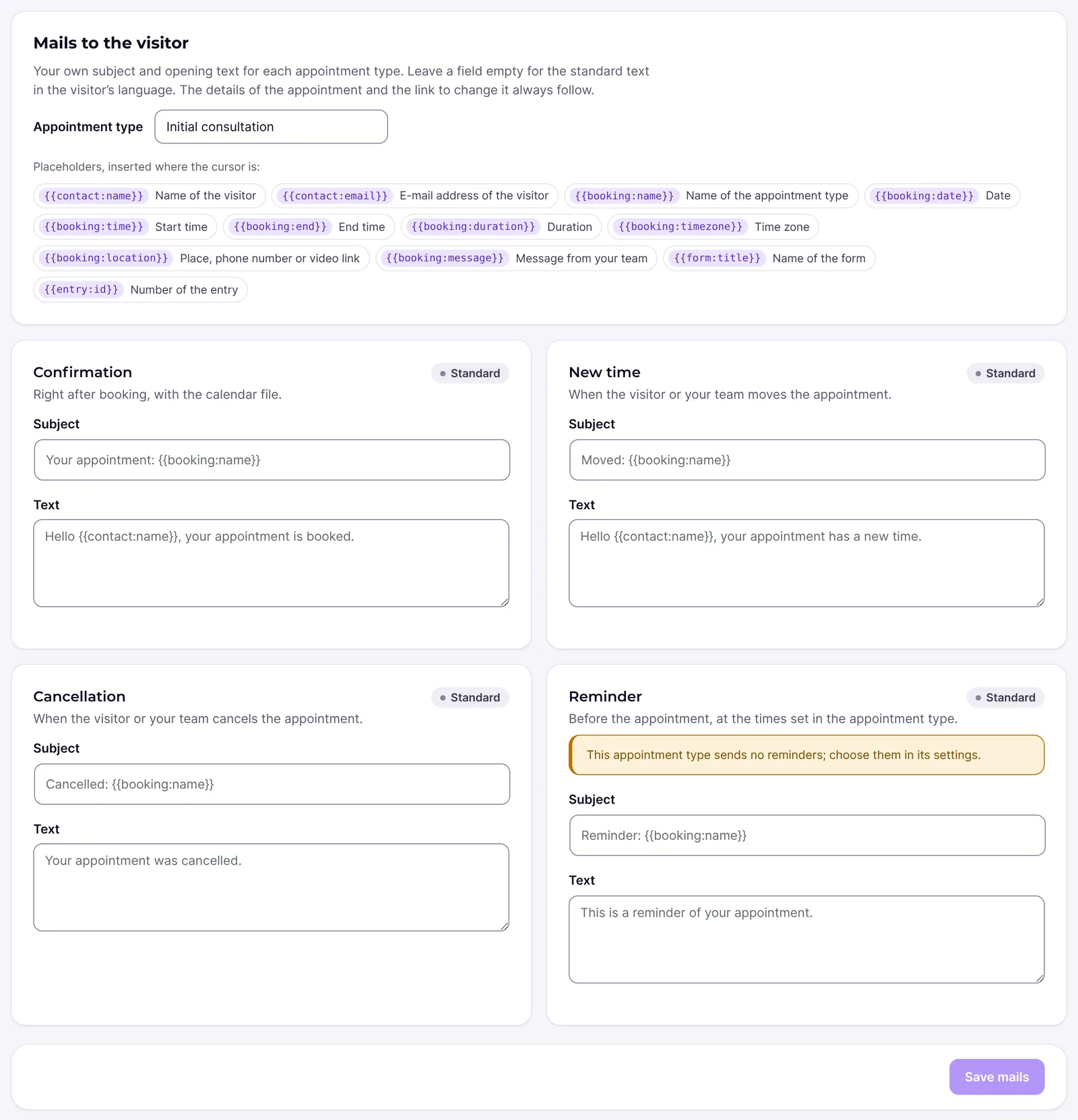
- Own texts: Funnelforms → Appointments → Mails tab.
- Check delivery: Funnelforms → Entries → open an entry → Sent to section.
Features at a glance
- Confirmation to the visitor with the appointment details, the link "Change or cancel the appointment" and a calendar file (
invite.ics). The same calendar file goes to every person booked. - New time to the visitor and the people booked when the visitor or your team moves the appointment.
- Reminders by e-mail to the visitor, 15 minutes, 1 hour, 1 day or 2 days before the appointment.
- Cancellation to the visitor and all people booked.
- Own Subject and Text per appointment type for confirmation, new time, cancellation and reminder, with placeholders.
- A Message to the visitor that your team writes when moving or cancelling on the Appointments page appears in the mail.
- Delivery runs in the background. Failed mails are tried again.
Step by step
Switch on the invitation and reminders
- Open the appointment type in Structure through the Appointment question and Edit appointment type.
- Go to the Messages section.

- Switch Send an invitation with a calendar file on or off.
- Under "Reminders by e-mail:", tick the times you want, for example "1 day(s) before".
- Click Save and publish the form.
Word your own texts
- Open Funnelforms → Appointments and choose the Mails tab at the top.
- Choose the appointment type under Appointment type.
- Under Confirmation, New time, Cancellation or Reminder, enter a Subject and a Text. A mail with its own text carries the badge Own text, otherwise Standard.
- Put the cursor where you want it and click a placeholder, for example "Date". It is inserted there.
- Click Save mails. "The mails are saved." appears.
- Make a test booking and check the mails.
With Use the standard text you empty the subject and text of a mail again.
How it works
Which mails go to whom?
| Occasion | Recipient | Subject (standard) |
|---|---|---|
| Booking | Visitor | Your appointment: [appointment type] |
| Booking | People booked | New appointment: [appointment type] with [name] |
| Moved | Visitor | Moved: [appointment type] |
| Moved | People booked | Moved: [appointment type] with [name] |
| Reminder | Visitor | Reminder: [appointment type] |
| Cancellation | Visitor | Cancelled: [appointment type] | | Cancellation | People booked | Cancelled: [appointment type] with [name] |
The mail to the visitor is written in the language of the entry, the mail to people booked in the language of the website. It contains the appointment type, the date and time with the time zone, the duration and, if entered, the place, phone number or video link. The mail to people booked also contains the visitor's e-mail address and the link "Open the entry".

What can I change with own texts?
Own texts exist for the four mails to the visitor. They replace the subject and the opening text. The appointment details and the link "Change or cancel the appointment" always follow below, except in the cancellation, which has no link. If you leave a field empty, the standard text in the visitor's language applies. An own text is the same in every language. The mails to people booked have no own text.
The text is plain text: a blank line starts a new paragraph, a single line break is kept. The subject can be at most 200 characters long, the text at most 5000 characters.
Which placeholders are there?
| Placeholder | Content |
|---|---|
{{contact:name}} | Name of the visitor |
{{contact:email}} | E-mail address of the visitor |
{{booking:name}} | Name of the appointment type |
{{booking:date}} | Date |
{{booking:time}} | Start time |
{{booking:end}} | End time |
{{booking:duration}} | Duration |
{{booking:timezone}} | Time zone |
{{booking:location}} | Place, phone number or video link |
{{booking:message}} | Message from your team |
{{form:title}} | Name of the form |
{{entry:id}} | Number of the entry |
How does my team's message get into the mail?
If your team writes a Message to the visitor when moving or cancelling on the Appointments page, it appears in the mail to the visitor under the heading "Our message to you". If your own text uses the placeholder {{booking:message}}, it appears there instead. In the mail to people booked it appears under "Message to the visitor". Reminders do not contain the message.
What happens if the invitation is switched off?
Then there is no confirmation and no calendar file after booking, for the visitor and for the people booked. In the Mails tab, Confirmation shows "Off for this appointment type: turn on “Send an invitation with a calendar file” in its settings." New time, reminders and cancellations are still sent, but without a calendar file.
When are reminders sent?
Reminders are planned for their time when the appointment is booked. If a time is already in the past or less than a minute ahead, that reminder is dropped. If the appointment is moved, reminders are planned for the new time and the old ones are dropped. After a cancellation, nothing is reminded any more. If an appointment type sends no reminders, the Mails tab shows "This appointment type sends no reminders; choose them in its settings."
What happens when an appointment is moved?
The visitor and the people booked get the New time mail, whether the visitor or your team moved it. If the invitation is on, a calendar file with a higher version number is attached, so that calendar programs move the existing appointment instead of creating a second one.
What happens with double opt-in?
If the form requires confirming the e-mail address, the appointment confirmation is only sent after the address is confirmed.
Where do I see whether everything was sent?
In the entry under Sent to, "Appointment invitation", "Appointment reminder", "Appointment cancellation" and "Calendar entry" appear with their status: Waiting, Sent, Failed or Skipped. The New time mail is listed there as "Appointment invitation" too. Failed mails are tried up to three times. Skipped means there was nothing to send, for example because the appointment was moved or cancelled in the meantime or there was no e-mail address.
Best practices
- For appointments that involve travel, choose a reminder on the day before.
- For short-notice appointments, "1 hour(s) before" is enough.
- Enter the place, phone number or video link in the appointment type. It then appears in every mail.
- Keep own texts short. Funnelforms adds the appointment details anyway.
- If your form has several languages, write own texts in the language most visitors book in.
Troubleshooting
| Problem | Cause | Solution |
|---|---|---|
| The visitor gets no confirmation | No valid e-mail address in the contact step, Send an invitation with a calendar file is off, or double opt-in is not confirmed yet | Check the E-mail address field, the setting and the confirmation |
| A reminder is missing | Its time was already in the past or less than a minute ahead | This is intended. Short-notice bookings drop the reminder |
| The entry shows Failed | The website's mail delivery rejected the mail | Check the website's e-mail delivery and the error message in the entry |
| The entry shows Skipped | The appointment was moved or cancelled in the meantime, or there was no address | No action needed if this is expected |
| The person booked gets nothing | Their user account has no valid e-mail address | Enter a valid address in the WordPress profile |
| The Mails tab is missing on the Appointments page | You do not have the right "Edit forms" | Ask an administrator for the right |
| "No appointment types yet" in the Mails tab | There is no appointment type yet | Add a booking question to a form and create an appointment type there |
| "Save this appointment type in the form builder first." | The appointment type comes from Funnelforms 3 and used Cronofy | Open it in the builder, save it there and then word the mails |
| A placeholder appears word for word in the mail | The placeholder is misspelled | Insert it with the placeholder's button |
Tips
- Reminders only go to the visitor, not to the people booked.
- In addition to the mails, Funnelforms can add the appointment to your calendar.
- If you choose another appointment type with unsaved changes, Funnelforms asks "Discard the changes to the mails?". While something is unsaved, "Unsaved changes" appears next to the button.
FAQ
Can I change the text of the confirmation? Yes. Word it under Funnelforms → Appointments → Mails for the appointment type.
Do people booked get reminders too? No. Reminders go to the visitor.
How many reminders can I set? Up to five times per appointment type. The choices are 15 minutes, 1 hour, 1 day and 2 days before.
Can I switch a mail off completely? The confirmation and reminders yes, in the appointment type. New time and cancellation are always sent.
What is the invite.ics file? A calendar file that opens in Outlook, Apple Calendar, Google Calendar and other programs. It creates the appointment in the calendar.