You move and cancel booked appointments on the Appointments page, and after an appointment you mark there whether it took place. You can also cancel an appointment in the entry. Visitors can move or cancel their appointment themselves through a link in the e-mail, without an account and without asking you. This saves you back-and-forth, and the time becomes free again right away.
Requirements
- Funnelforms Pro. This feature is not included in Funnelforms Free. There is no Appointments page there, and the Appointment tile in the builder carries a Pro badge.
- For the Appointments page and the Appointments section in the entry, you need the right "See entries".
- Visitors need the link from the confirmation, the new-time mail or the reminder. It is there under "Change or cancel the appointment".
- If Send an invitation with a calendar file is switched off in the appointment type, visitors receive no confirmation. The link is then only in the reminders and, after a move, in the new-time mail.
Where to find it
- Team: Funnelforms → Appointments → click an appointment.
- Team, cancelling only: Funnelforms → Entries → open an entry → Appointments section.
- Visitors: the link "Change or cancel the appointment" in the e-mail.
Features at a glance
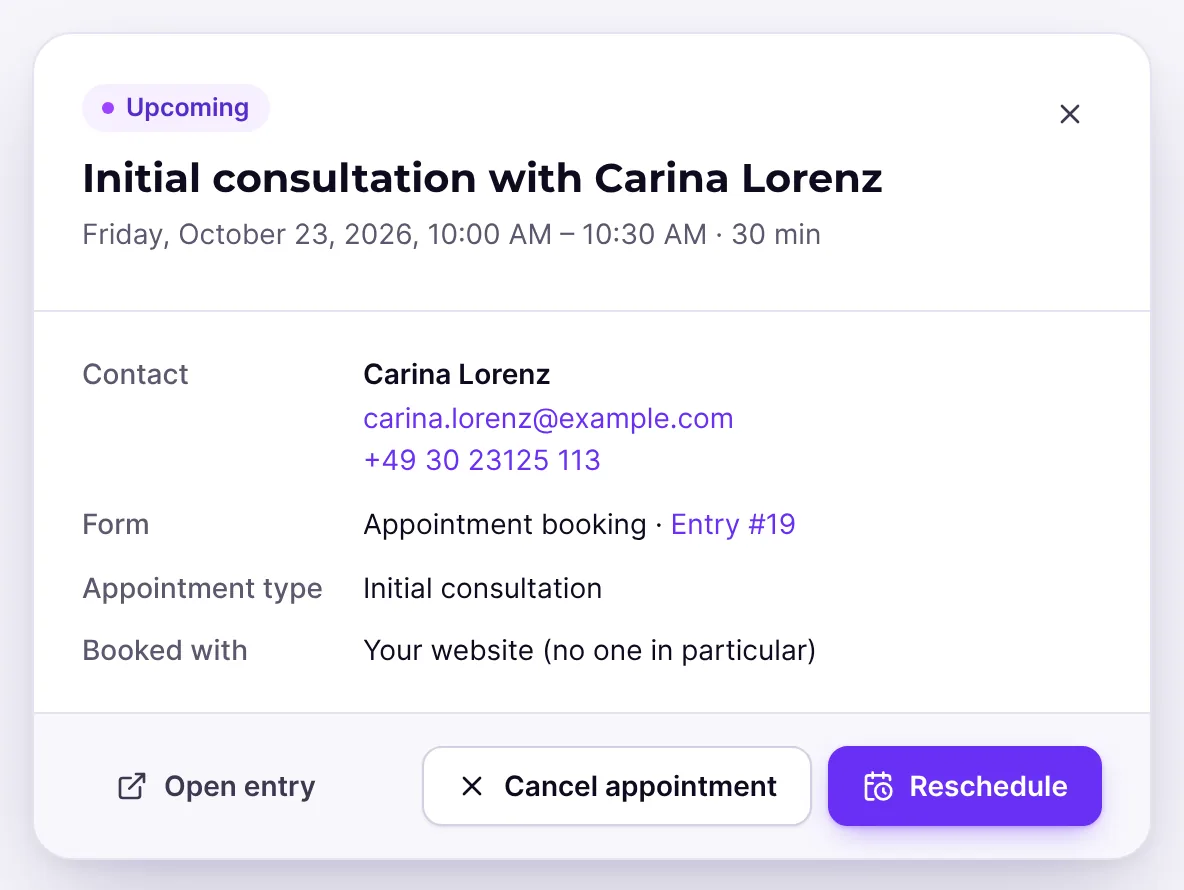
- On the Appointments page, a click on an appointment opens its details with Reschedule, Cancel appointment and Open entry.
- When moving, Funnelforms shows the free times of the appointment type for the booked duration. You can send a Message to the visitor with it.
- After an appointment has started, you mark it as Done or No-show. Take back the mark undoes this.
- In the entry, you cancel appointments with Cancel appointment.
- Visitors choose a new time with Choose another time or cancel with Cancel appointment.
- Moving and cancelling are possible until the appointment starts.
- When an appointment is moved, the visitor and the people booked get the new time by e-mail, reminders are planned again, and the calendar event is updated.
Step by step
Move an appointment on the Appointments page
- Open Funnelforms → Appointments and click the appointment.
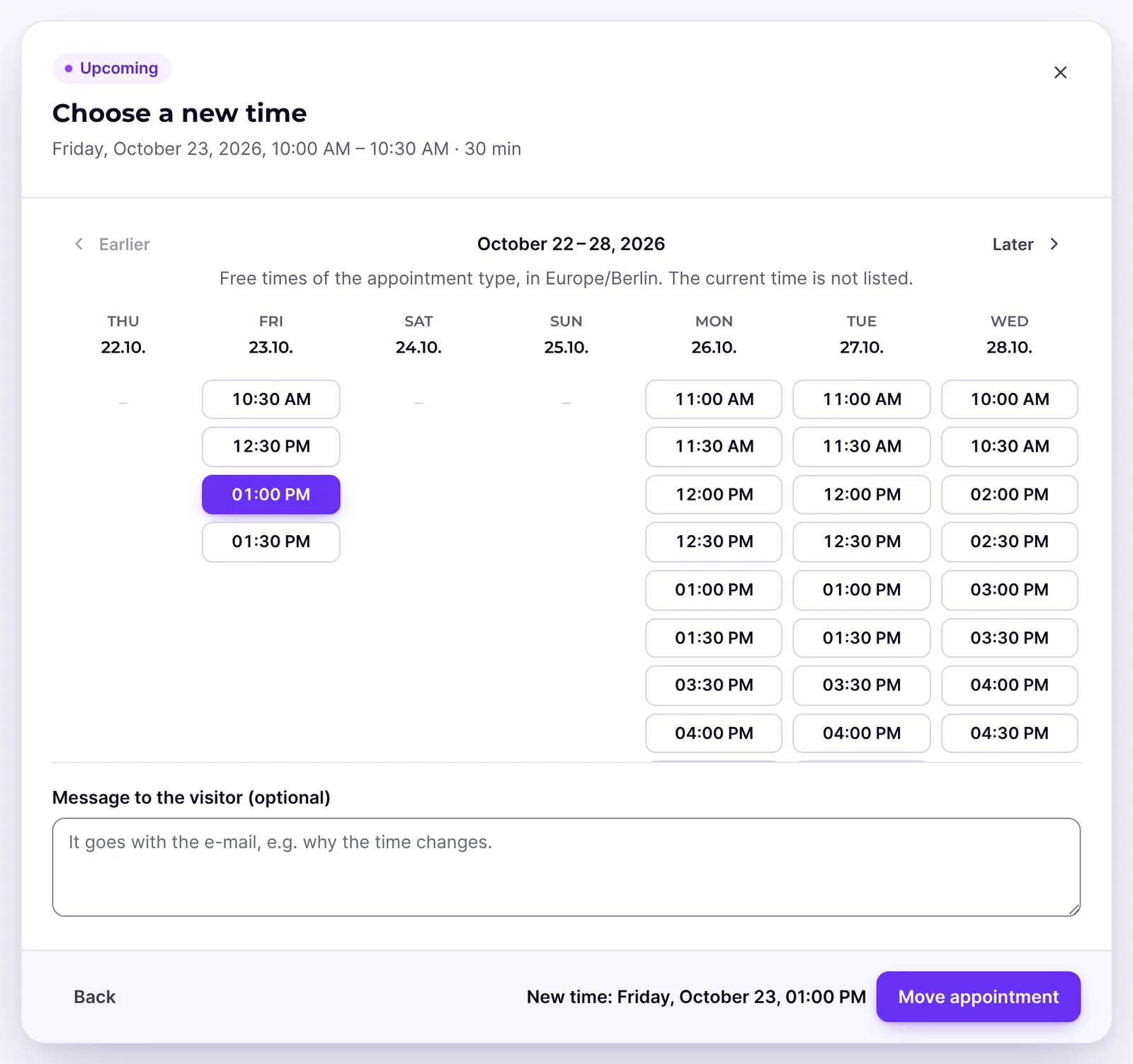
- Click Reschedule. The dialog Choose a new time shows a week of free times.
- Page with Earlier and Later and click a free time. Below it, "New time: …" appears.
- If you like, write a Message to the visitor (optional), for example why the time changes.
- Click Move appointment. "The appointment is moved. … gets the new time by e-mail." appears.
Cancel an appointment on the Appointments page
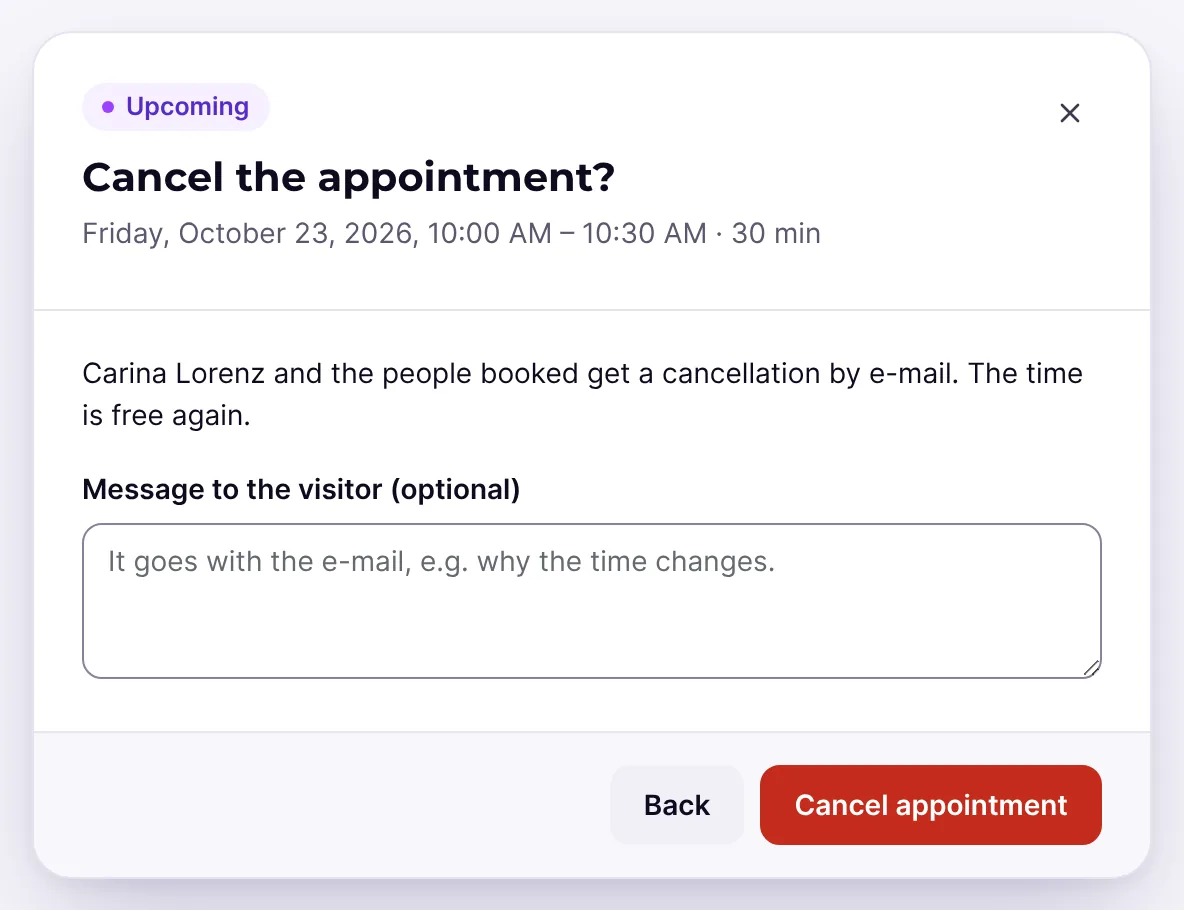
- On the Appointments page, click the appointment and then Cancel appointment.
- Read the note "… and the people booked get a cancellation by e-mail. The time is free again."
- If you like, write a Message to the visitor (optional).
- Confirm with Cancel appointment. "The appointment is cancelled." appears.
Mark a past appointment
- On the Appointments page, click an appointment that has already started. Such appointments carry the label To mark.
- Click Done or No-show. "Marked as done." or "Marked as no-show." appears.
- If you made a mistake, open the appointment again and click Take back the mark.
Cancel an appointment in the entry
- Open Funnelforms → Entries and the entry with the appointment.
- In the Appointments section, click Cancel appointment next to the appointment.
- Confirm the question "Cancel this appointment? The visitor and the people booked get a cancellation by e-mail."
- The message "The appointment is cancelled." appears, and the appointment carries the label Cancelled.
Move an appointment as a visitor
- Open the link "Change or cancel the appointment" from the e-mail.
- The page "Your appointment" shows the appointment. Click Choose another time.
- Choose a free time in the week view. With Earlier and Later you go a week back or forward, with Back you return to the overview.
- You get the message "Your appointment is moved. You get the new invitation by e-mail."
Cancel an appointment as a visitor
- Open the link "Change or cancel the appointment".
- Click Cancel appointment.
- You get the message "Your appointment is cancelled. You get a confirmation by e-mail."
How it works
What happens when an appointment is moved?
- The new time is checked by the same rules as a booking: available hours, breaks, busy times in connected calendars, always for the booked duration. The previous time does not count as busy, and it is not offered again.
- If the time was taken in the meantime, the team sees "This time is no longer free. Choose another one." and the visitor "This time is no longer free. Please choose another one."
- Whoever had the appointment keeps it, as long as that person is free at the new time. Otherwise it is assigned as for a new booking.
- The entry then shows the new time. Lists, mails and exports use it.
- The visitor and the people booked get the new-time mail. Reminders are planned again for the new time. Jobs for the old time are skipped.
- A connected calendar gets the new time.
- In the appointment's details, Changed shows who moved it, for example "Moved by the visitor" or "Moved by …" with the name from your team.
What happens when an appointment is cancelled?
- The time is free again right away.
- The visitor and the people booked get a cancellation, and the calendar event is removed.
- The appointment stays visible in the entry and on the Appointments page with the label Cancelled. Changed shows "Cancelled by the visitor", "Cancelled by …" or "Cancelled automatically".
What does the message to the visitor do?
The message appears in the mail to the visitor under "Our message to you" and in the mail to the people booked under "Message to the visitor". It can be at most 2000 characters long. In the appointment's details you see it under Message to the visitor. With the placeholder {{booking:message}} you put it at a specific place in your own mail texts.
What are the marks for?
Done and No-show record how an appointment went. You can only mark confirmed appointments that have already started. The Appointments page counts the key figures To mark and No-shows from them. A mark sends no mail.
What do visitors see when nothing can be changed any more?
Depending on the situation, the page shows "This appointment was cancelled.", "This appointment has passed." or "This appointment can no longer be changed." An invalid link leads to "This link is not valid."
Why does opening the link change nothing?
Cancelling and moving only happen when the button is clicked. Programs that check links in e-mails automatically therefore cancel no appointments. The link is bound to the entry and cannot be guessed for other entries.
Best practices
- In your confirmation, tell visitors that they can change appointments themselves through the link in the e-mail.
- Move appointments you cannot keep on the Appointments page and add a short note why. The visitor learns about it by e-mail right away.
- Mark past appointments regularly. The No-shows key figure then gives an honest picture.
- Check in the entry under "Sent to" whether the mails were delivered.
Troubleshooting
| Problem | Cause | Solution |
|---|---|---|
| Reschedule and Cancel appointment are missing | The appointment is already cancelled or has started | Only confirmed appointments that have not started can be changed |
| Done and No-show are missing | The appointment has not started yet, is cancelled or is already marked | Wait until it starts. With a mark, Take back the mark appears |
| "This time is no longer free. Choose another one." | Someone booked the time in the meantime | Choose another free time |
| "This appointment can no longer be changed." | The appointment has started or was cancelled | Create a new appointment if needed |
| "Only an appointment that has started can be marked." | The appointment is still in the future | Mark it after it starts |
| "The appointment does not exist." | The appointment or its entry was deleted | Reload the page |
| "No free times in these days." when moving | Nothing is free in this week | Page on with Later. The booking period of the appointment type limits the choice |
| "This link is not valid." | The link was copied incompletely or does not belong to an entry | Open the link from the mail again in full |
| The visitor did not get a link | There is no valid e-mail address in the contact step, or the invitation is switched off | Check the E-mail address field and the setting Send an invitation with a calendar file |
| The calendar still shows the old appointment | The "Calendar entry" job failed | Check the status in the entry under "Sent to" |
Tips
- The visitor page appears in the language of the entry.
- The appointment is updated in the entry. You do not need to add anything.
- With Open entry you jump from the Appointments page straight to the entry with all answers.
- With Only mine on the Appointments page you only see appointments you are booked for.
FAQ
Can a visitor still cancel an appointment after it has started? No. Moving and cancelling are only possible until the appointment starts. This applies to your team too.
Do the people booked get notified too? Yes. On cancellation and moving, the mails go to the visitor and to all people booked.
Is the appointment updated in the calendar? Yes, if a calendar is chosen under Add appointments to in the appointment type. The event is moved or removed.
Can I restore a cancelled appointment? There is no button for this in the interface. The visitor can book again through the form.
Can I move an appointment to a specific person on my team? No. When moving, the person booked keeps the appointment as long as they are free at the new time; otherwise Funnelforms assigns it as for a new booking.