The Appointments page shows everything booked in your forms in one place: as a list of the next days, as a week or as a month. Key figures for today, the next seven days and past appointments sit at the top. When you click an appointment, you see all its details and can move, cancel or mark it as done or no-show right there. You no longer need to open every entry on its own.
Requirements
- Funnelforms Pro. This feature is not included in Funnelforms Free. There the menu entry Appointments is missing, and the Appointment tile in the builder carries a Pro badge.
- You have the right "See entries". For the Appointment types and Mails tabs you also need the right "Edit forms".
- At least one form has an appointment question with an appointment type.
- JavaScript is on in the browser. Without it, "The appointments need JavaScript." appears.
Where to find it
Funnelforms → Appointments. The menu entry sits between Entries and Statistics.
Features at a glance
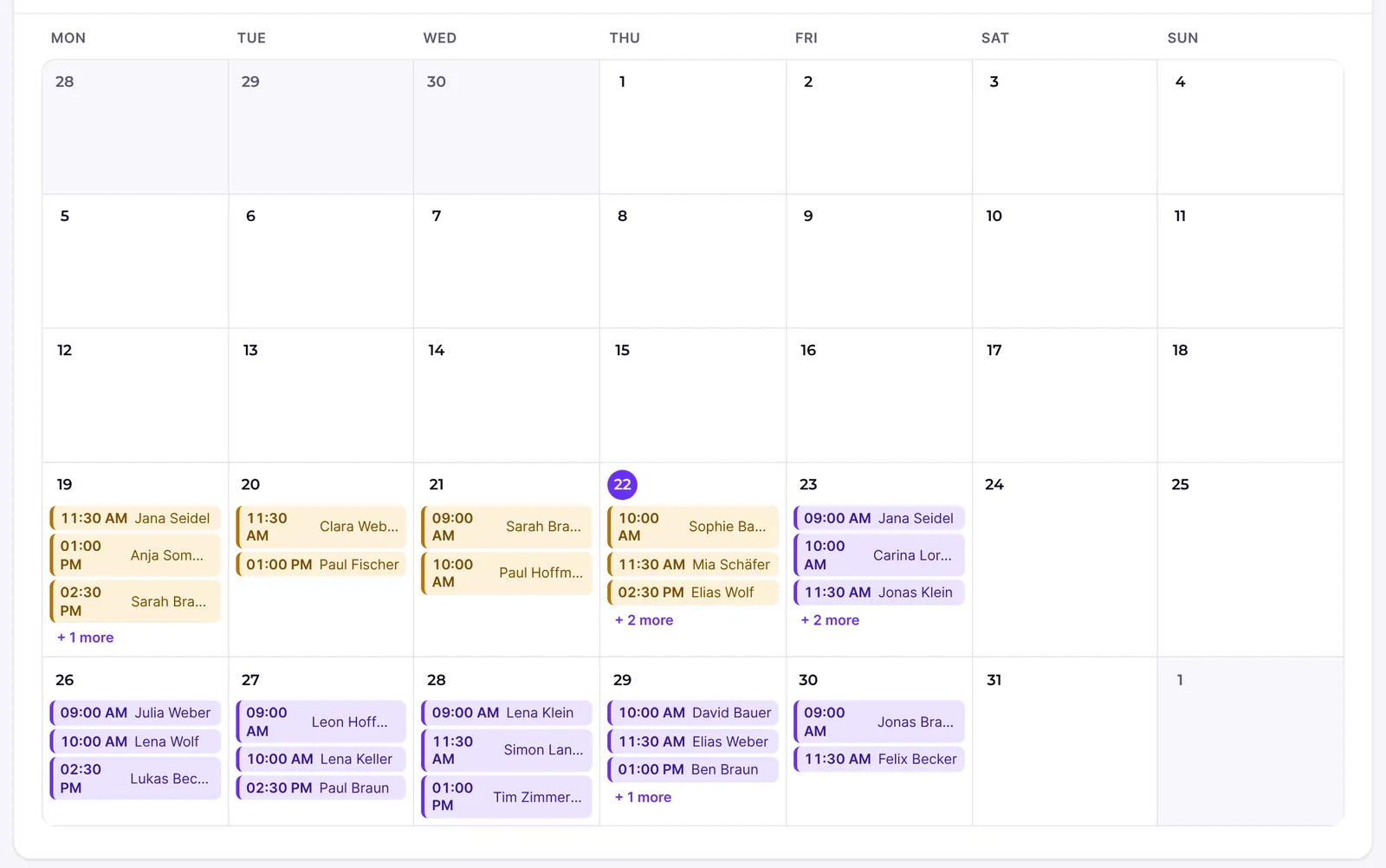
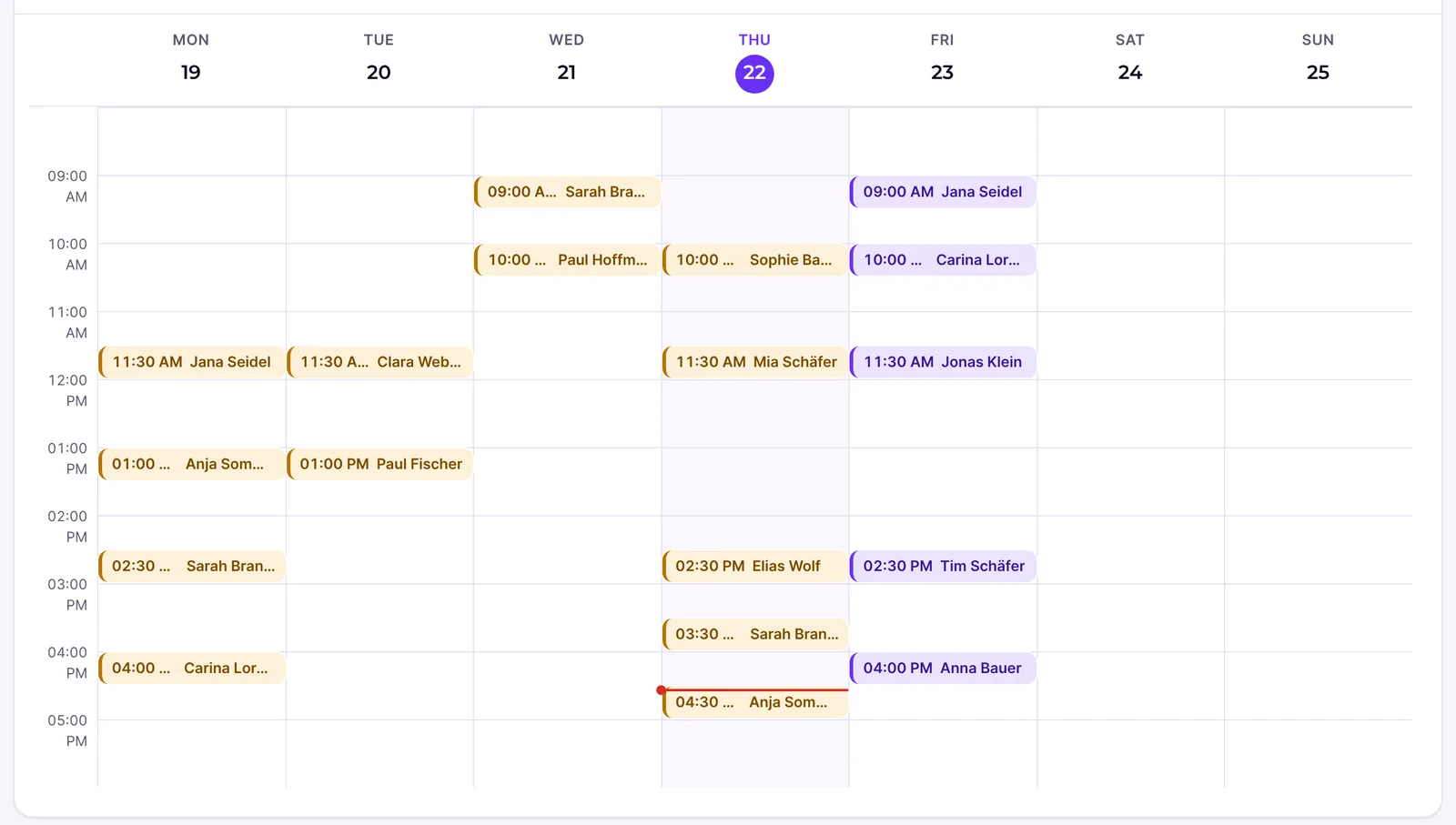
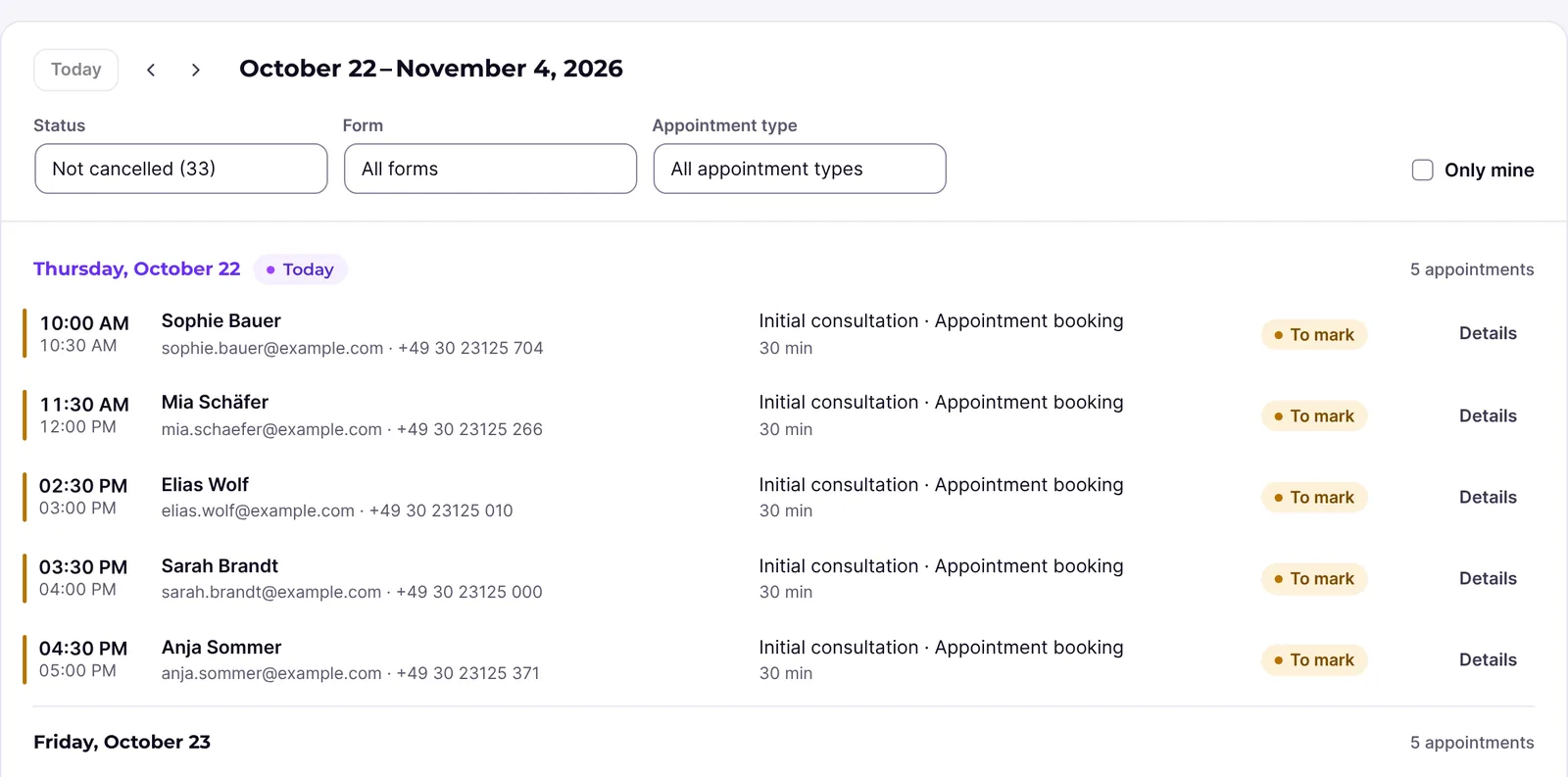
- Three views: List (14 days), Week and Month.
- Four key figures: Today, Next 7 days, To mark and No-shows.
- Filters by Status, Form and Appointment type, plus Only mine.
- Details of every appointment with contact, form, appointment type, place, person booked, time zone, changes and your team's message.
- Actions: Reschedule, Cancel appointment, Done, No-show, Take back the mark and Open entry.
- Appointment types tab with all appointment types of the website, to create and edit them.
- Mails tab for your own texts of the mails to visitors, per appointment type.
- The page address keeps the view, day and filters. A bookmark or a reload opens the same view.
Step by step
View appointments
- Open Funnelforms → Appointments.
- Under View, choose List, Week or Month.
- Page with Earlier and Later. Today takes you back to today.
- Narrow down with Status, Form and Appointment type if needed, or tick Only mine.

- Click an appointment to open its details.
Move an appointment
- Open the appointment and click Reschedule.
- In the dialog Choose a new time, choose a free time. With Earlier and Later you change the week.
- If you like, write a Message to the visitor (optional).
- Click Move appointment.
Cancel an appointment
- Open the appointment and click Cancel appointment.
- If you like, write a Message to the visitor (optional).
- Confirm with Cancel appointment.
Mark past appointments
- In the To mark key figure, click "Mark as done or no-show". The list jumps to the first open appointment.
- Open the appointment and click Done or No-show.
- Repeat this for the other appointments labelled To mark.
How it works
What do the views show?
| View | Content |
|---|---|
| List | The appointments of the next 14 days from the chosen day, grouped by day. Days without appointments are left out. |
| Week | Seven days side by side with hours from 8 to 18. If an appointment is earlier or later, the range grows with it. |
| Month | The whole month as a calendar. Each day lists up to three appointments; more are shown as "+ … more". A click on it opens the list from that day. |
The week starts on Monday, or on Sunday if that is set as the start of the week in the WordPress settings under Settings → General. All days and times appear in your website's time zone. If the appointment type's time zone differs, it is shown in the appointment's details.
What do the key figures mean?
| Key figure | Meaning |
|---|---|
| Today | Today's appointments, with the next one's time and name below, or "None left for today" or "Nothing booked for today". |
| Next 7 days | Appointments of the coming seven days and the hours booked. |
| To mark | Appointments of the last 30 days that have started and are not marked yet. |
| No-shows | Appointments of the last 30 days marked as no-show, with their share of all past appointments. |
Cancelled appointments count in no key figure.
Which statuses are there?
| Status | Meaning |
|---|---|
| Upcoming | Confirmed, in the future. |
| To mark | Confirmed, has started, not marked yet. |
| Done | Marked as done. |
| No-show | Marked as no-show. |
| Cancelled | Cancelled by the visitor, by your team or automatically. |
The Status filter also offers Not cancelled (all except cancelled ones, the default) and All. Each status shows in brackets how many appointments it lists.
What do the details of an appointment show?
- Contact: name, e-mail address and, if given, phone number from the contact step.
- Form with a link to the entry, for example "Request · Entry #12".
- Appointment type and Place, Phone or Video call, if the appointment type gives one.
- Booked with: the people booked from your team, or "Your website (no one in particular)" if the appointment type selects nobody.
- Time zone of the type, if it differs from the website's time zone.
- Changed: who last moved or cancelled the appointment.
- Message to the visitor: the message your team sent with the last move or cancellation.
Which actions are there and when?
| State of the appointment | Actions |
|---|---|
| Confirmed, not started yet | Cancel appointment, Reschedule |
| Confirmed, has started, not marked | No-show, Done |
| Marked | Take back the mark |
| Always | Open entry |
How does Funnelforms find free times when moving?
The dialog shows the free times of the appointment type for the duration that was booked, in the appointment type's time zone. Above them it says "Free times of the appointment type, in …. The current time is not listed." The same rules as for a booking apply: available hours, breaks, lead time, booking period and busy times of connected calendars. The appointment's own booking does not count as busy. If nothing is free in the first week, Funnelforms searches up to eight weeks ahead.
After the move, the visitor and the people booked get the new-time mail, and a connected calendar is updated. The article on managing appointments has more on this.
What is the Appointment types tab for?
If you may edit forms, you see the tabs Appointments, Appointment types and Mails at the top. The Appointment types tab lists all appointment types of the website with weekly hours, duration, breaks, people booked and target calendar. New appointment type creates one, Edit opens the same dialog as in the form builder. Below, the link Integrations leads to the page where you connect calendars (only with the right "Change settings"). The details are in the article on appointment types.
What is the Mails tab for?
In the Mails tab you word, per appointment type, the subject and text of the four mails to visitors: Confirmation, New time, Cancellation and Reminder. If there is no appointment type yet, it says "No appointment types yet". The article on notifications and reminders has the details.
Best practices
- Start the day with the Today key figure and the List view.
- Mark past appointments regularly through To mark, so that the No-shows rate is right.
- Tick Only mine if several people hold appointments and you only want to see yours. Save the view as a bookmark.
- When moving, add a short note why. It saves follow-up questions.
Troubleshooting
| Problem | Cause | Solution |
|---|---|---|
| The menu entry Appointments is missing | Funnelforms Free is active, or you do not have the right "See entries" | Use Funnelforms Pro or ask an administrator for the right |
| "No appointments in these days" | There are no appointments in the chosen period that match the filters | Go to later days, or change the filters |
| An appointment is missing from the list | Status is set to Not cancelled and the appointment is cancelled, or Only mine is ticked | Set Status to All and untick Only mine |
| The Appointment types and Mails tabs are missing | You do not have the right "Edit forms" | Ask an administrator for the right |
| "This time is no longer free. Choose another one." | The time was booked in the meantime | Choose another free time |
| "No free times in these days." | Nothing is free in the week shown | Page on with Later |
| "This appointment can no longer be changed." | The appointment has started or was cancelled | Reload the page. A past appointment can only be marked |
| "Only an appointment that has started can be marked." | The appointment is in the future | Mark it after it starts |
| "The form builder is missing from this copy of the plugin. Install the plugin from its ZIP file." | The plugin files are incomplete | Install Funnelforms Pro again from the ZIP file |
| The times differ from the appointment type | The page shows the website's time zone and the appointment type has another one | This is intended. The appointment type's time zone is shown in the details |
Tips
- Appointments from Funnelforms 3 also appear on the page after the move.
- An appointment with a deleted appointment type shows "Deleted appointment type".
- Open entry takes you to all of the visitor's answers.
- Marks send no mails. You can take them back at any time.
FAQ
Can I create a new appointment on the page? No. Appointments are created when visitors send a form with an appointment question.
Do I see appointments from all forms? Yes. With the Form filter you narrow down to one.
Who sees which appointments? Everyone with the right "See entries" sees all appointments. Only mine hides other people's appointments.
Does the page remember my view? Yes, in its address. Save it as a bookmark, and it opens with the same view and filters.