An appointment type describes what visitors can book, for example a "First consultation": when you are available, how long the appointment lasts and who holds it. Appointment types belong to the website. Several forms can use the same appointment type.
Requirements
- Funnelforms Pro. This feature is not included in Funnelforms Free. There the Appointment tile in the builder carries a Pro badge and cannot be added.
- You have the right "Edit forms". Without this right, the Appointment types tab is missing on the Appointments page.
- To connect a calendar from the appointment type, you also need the right "Change settings".
Where to find it
- Funnelforms → Appointments → Appointment types tab → New appointment type, or Edit next to an appointment type.
- In the form: Funnelforms → Forms → open a form → Structure → select the Appointment question → Appointment type → New appointment type or Edit appointment type.
Features at a glance
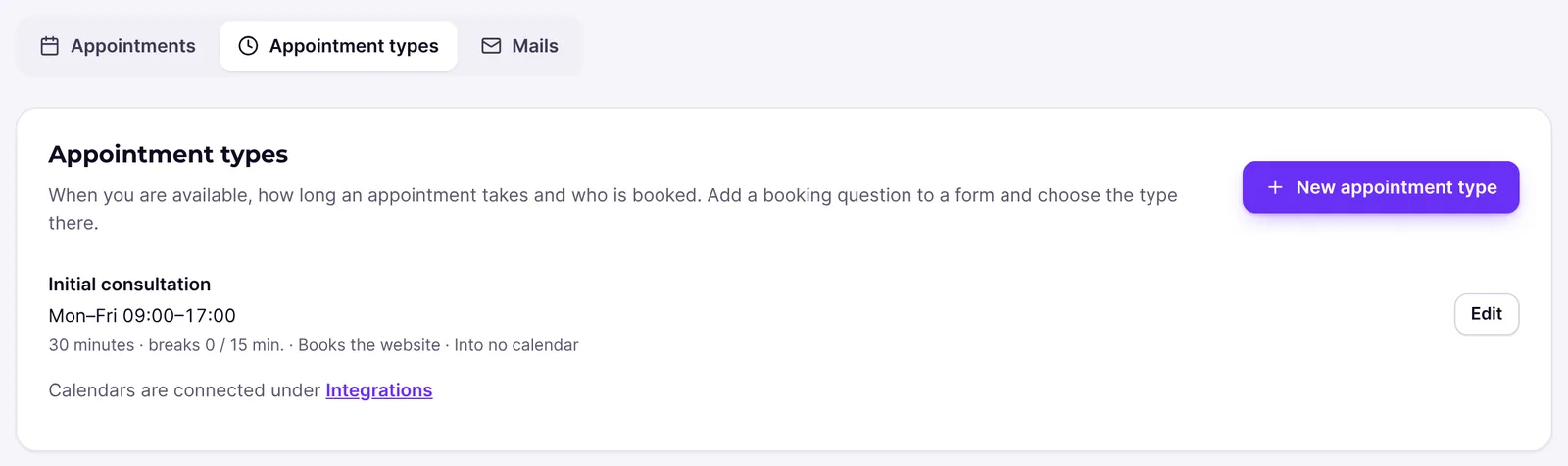
- The Appointment types tab with all appointment types of the website: weekly hours, duration, breaks, days with other hours, people booked and target calendar at a glance.
- Name and Kind: In person, Phone call or Video call with an address, phone number or video link.
- When you are available: one row per weekday with a switch, one or more time spans and copying to the other days, plus the Time zone of the hours.
- Days with other hours: single dates with hours of their own, for example a short Christmas Eve or an open Saturday.
- Closed days for vacation and holidays.
- Duration and breaks: duration (several to choose from), start time grid, Break before (minutes) and Break after (minutes).
- Booking window: the earliest start in minutes, hours or days, how far ahead visitors can book, and appointments per day.
- Who is booked: the website, or one or more people, in turn or together.
- Calendars: check busy times and add appointments, also to the calendar of the person booked.
- Messages: invitation with a calendar file and reminders by e-mail. You word the texts of these mails under Funnelforms → Appointments → Mails.
Step by step
- Open Funnelforms → Appointments and choose the Appointment types tab. Click New appointment type. Alternatively, click New appointment type at the Appointment question in the form.
- Enter a Name. Visitors see it in the invitation, for example "First consultation".
- Choose the Kind and enter the Address, Phone number or Video link. A video link must start with https://.
- Under When you are available, switch on the weekdays on which you offer appointments and enter From and To for each day. A day you switch on starts with 09:00 to 17:00.
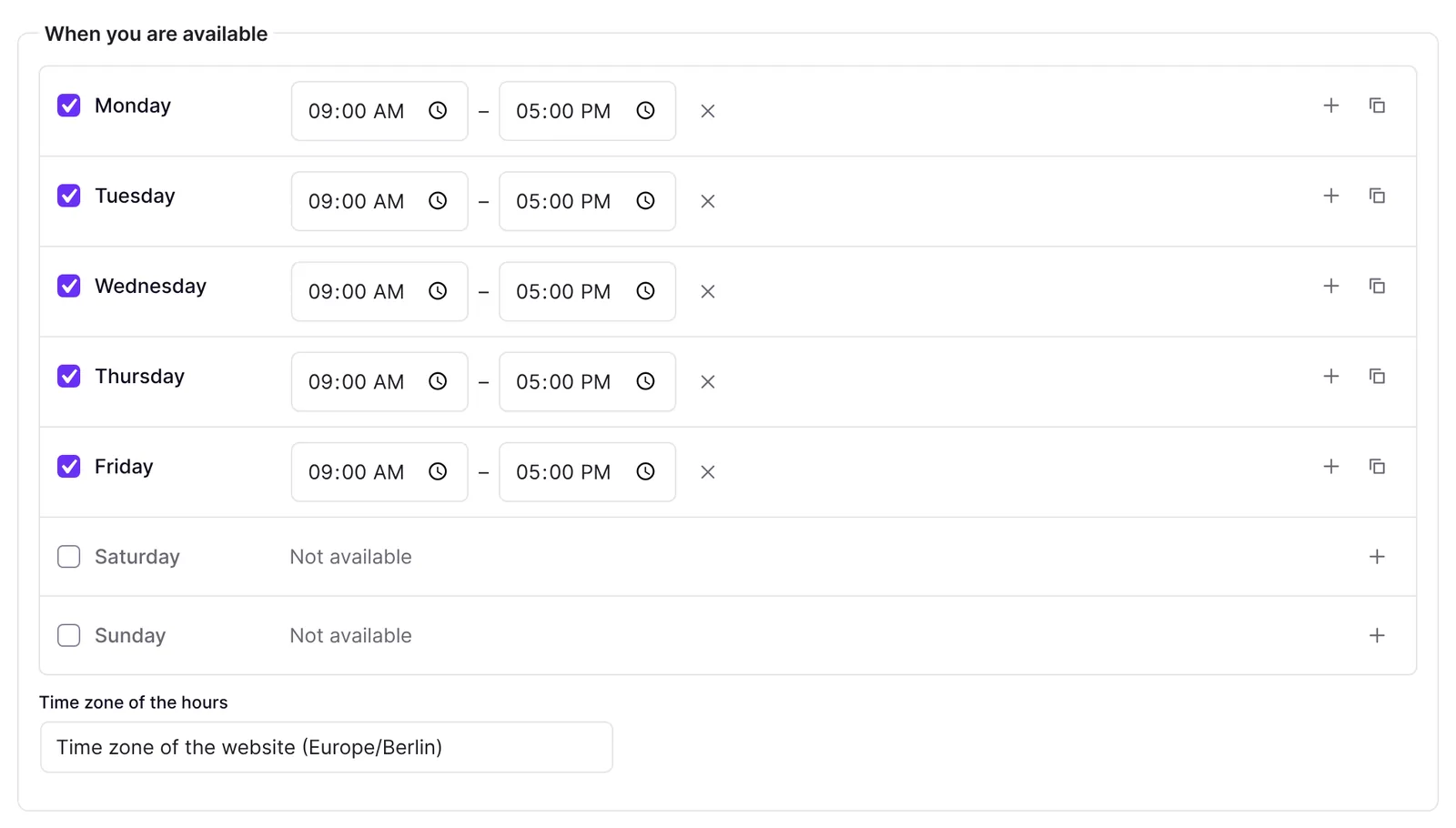
- If you need a lunch break, click the plus at the day ("Add a time span, e.g. after a lunch break") and enter the second time span.
- At a finished day, click Copy to the other days to copy its hours.
- If needed, choose the Time zone of the hours. Without a choice, the time zone of the website applies.
- Under Days with other hours, add single dates with Add a day with other hours. Enter the date and the time spans. If you remove every time span, the day is "Closed all day".
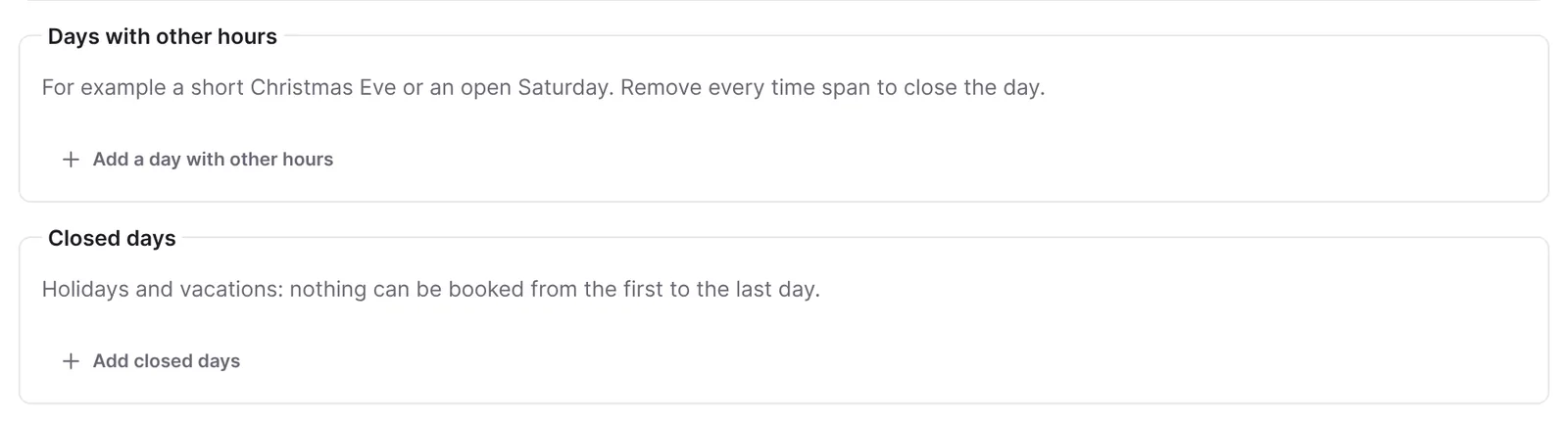
- Under Closed days, use Add closed days to enter vacation or holidays from a first to a last day.
- Under Duration and breaks, enter the Durations (minutes). Separate several values with commas, for example "30, 60". Visitors then choose.
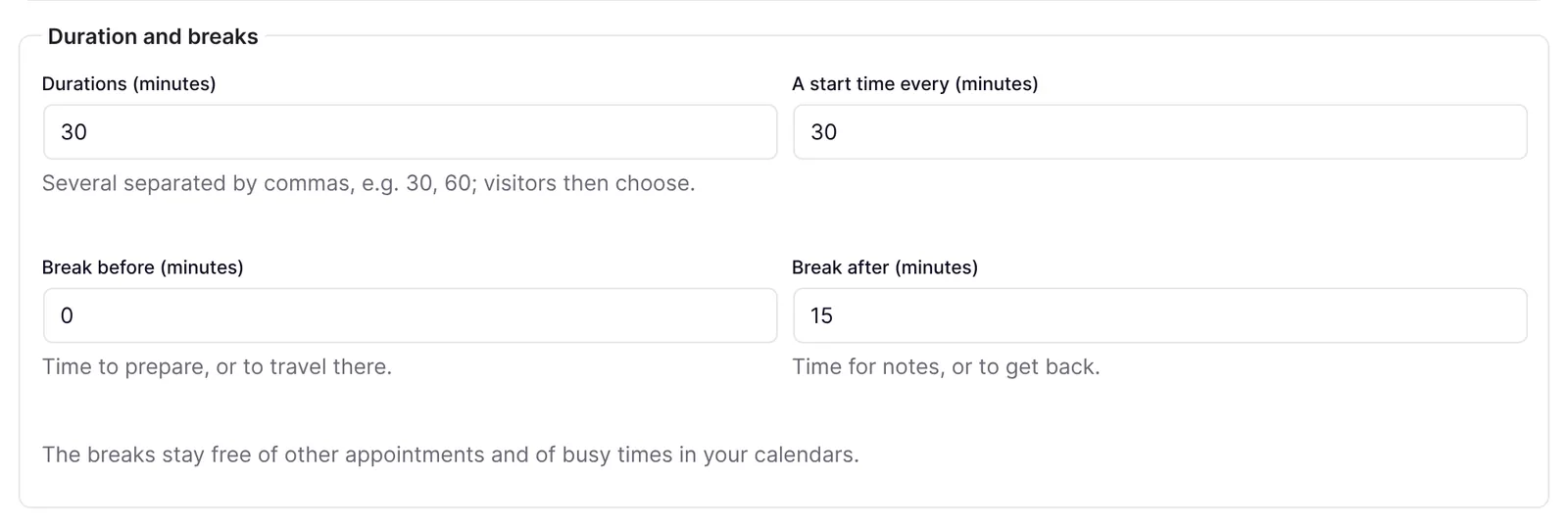
- Set A start time every (minutes), Break before (minutes) and Break after (minutes).
- Under Booking window, set a number for Bookable at the earliest and the Unit: Minutes ahead, Hours ahead or Days ahead.
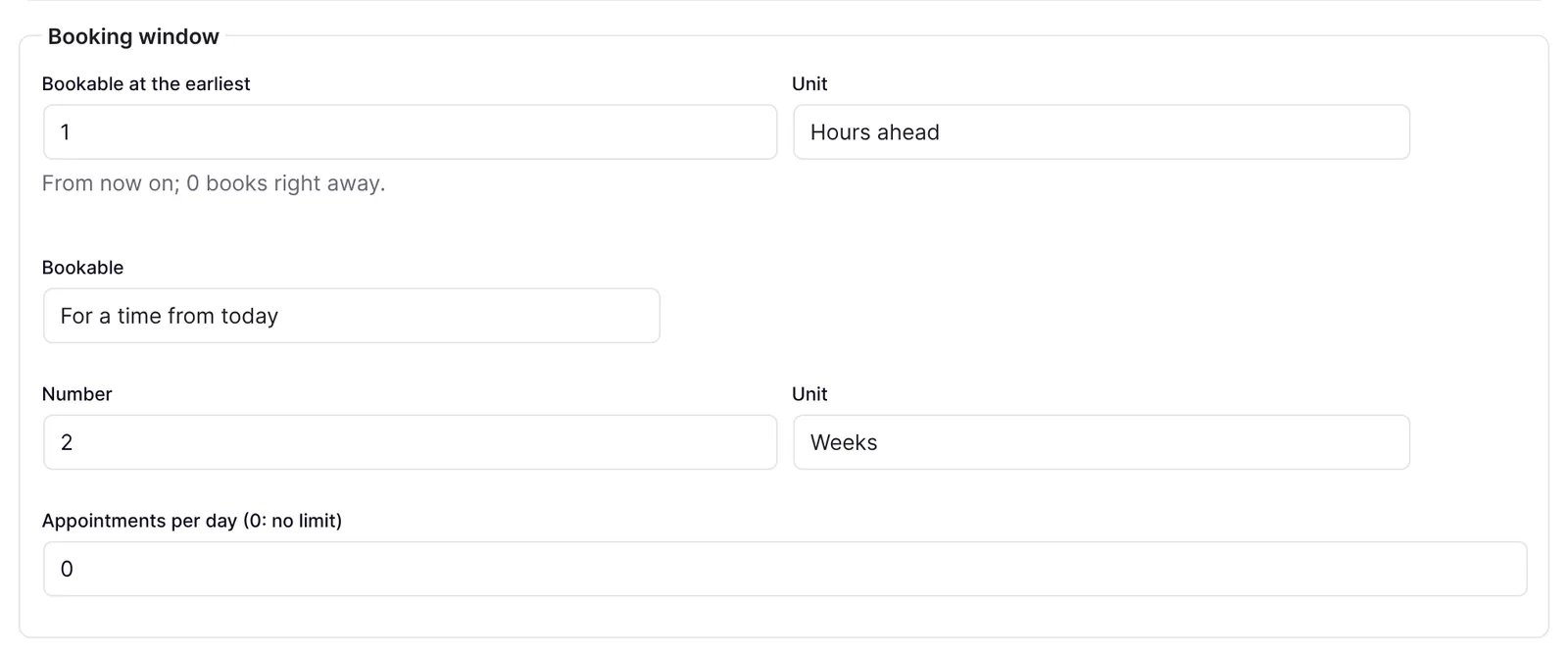
- Under Bookable, decide how far ahead visitors can book: For a time from today (with Number and Unit), Between two days (with First day and Last day) or Without a limit. Set Appointments per day (0: no limit).
- Under Who is booked, tick people. With several people, choose under Several people between One of them, in turn and All of them together.
- Under Calendars, tick the calendars whose busy times count, and choose the calendar for the appointments under Add appointments to. You connect new calendars under Funnelforms → Integrations or here with Connect calendar.
- Under Messages, set whether an invitation with a calendar file is sent, and tick the reminders.
- Click Save. Then choose the appointment type at the Appointment question of the form and publish the form.
How it works
How does the weekly schedule work?
Each weekday has a row of its own. If the switch is off, the row says "Not available". A day can have several time spans, for example 09:00 to 12:00 and 13:00 to 17:00. The plus adds a time span one hour after the last one ends, one hour long. If time spans overlap, the row shows "The time spans overlap." Copy to the other days copies the hours to all days that are switched on. If only this one day is on, it copies them to Monday to Friday.
What are days with other hours?
On such a date, only its own time spans apply instead of the weekly hours. This way you offer appointments on a single Saturday or close earlier on Christmas Eve. A day without time spans is closed all day. If a date lies in a period under Closed days, it stays closed. An appointment type can have up to 200 such days, each with up to six time spans.
How do the break before and the break after work?
- Break before (minutes): time to prepare, or to travel there. Nothing else may lie in this time before the appointment.
- Break after (minutes): time for notes, or to get back. This time stays free after the appointment.
- Both breaks stay free of other appointments and of busy times in your calendars. Two appointments are therefore at least the longer of both breaks apart, and an appointment and a calendar event at least the break on the event's side.
- Each allows 0 to 240 minutes. An appointment type you saved before this change had one break around appointments. It now counts as the break before and as the break after.
What do the other values mean?
- A start time every (minutes): Start times are offered in this grid, for example every 30 minutes. Allowed values are 5 to 240 minutes.
- Bookable at the earliest: The minimum lead time of an appointment, counted from now. With 0 it can be booked right away; at most 60 days are possible.
- Appointments per day (0: no limit): At most this many appointments per day and person. Up to 100 are allowed.
- Durations (minutes): Allowed are 5 to 720 minutes and up to five values.
- Bookable: The period is limited to 366 days ahead at most. With Without a limit, it is 183 days.
What does the Appointment types tab show?
Each row names the appointment type, its weekly hours in short form (days in a row with the same hours are merged), the duration, the breaks ("breaks 0 / 15 min."), the number of days with other hours, the people booked or "Books the website", and where appointments are added. Appointment types from Funnelforms 3 that still use a Cronofy calendar carry the badge Save again. If there is no appointment type yet, it says "No appointment types yet" with the New appointment type button.
What happens if nobody is selected?
Then one appointment at a time is booked for the website. A time is busy as soon as an appointment exists for it.
What happens with several people?
You can choose among people who may see entries. With One of them, in turn, a time is free as long as at least one person is free. The free person with the fewest appointments gets the booking. With All of them together, a time is only free when all people are free. Then all of them are booked.
How do connected calendars work?
Busy times in the ticked calendars of the website cannot be booked for any person of the appointment type. If a booked person has a calendar of their own under Funnelforms → Integrations, it counts for them anyway. The calendar of a person this appointment type does not book does not count, even if it is ticked. If the appointment type books no people, a ticked team calendar blocks the times for all bookings. If you remove a calendar under Integrations, Funnelforms takes it out of the appointment type. Under Add appointments to, you choose No calendar, a connected calendar or, once people are booked, The calendar of the person booked. Then each appointment goes into the main calendar of the person booked.
What happens with a form from a template?
If you create a form from a template with an appointment question, Funnelforms looks for an appointment type with the name the template provides. If it exists, the form uses it. Otherwise Funnelforms creates a new appointment type with this name, with the standard values and the template's duration (at least 15 minutes). Check the hours and people of this appointment type afterwards.
What happens if I delete an appointment type?
You are asked to confirm: "Delete the appointment type …? Booked appointments stay." Forms that still use the appointment type show "(deleted appointment type)". When publishing, the form reports "An appointment question has no appointment type."
What happens if the appointment type is incomplete?
A message appears when you save, for example "Please enter a name.", "Add at least one time span.", "Each time span has to end after it starts.", "Each day with other hours needs a date, and each of its time spans has to end after it starts.", "Choose the first and the last day.", "This time zone is not known." or "The video link has to start with https://."
Best Practices
- Add a break before if you need to travel or prepare, and a break after for notes.
- Keep special openings and shorter days under Days with other hours instead of changing the weekly schedule.
- Offer only the durations you really offer. Several durations make the choice longer for visitors.
- Enter vacation and holidays early under Closed days.
- Create a separate appointment type for each offer instead of using one for everything.
Troubleshooting
| Problem | Cause | Solution |
|---|---|---|
| Saving shows "Add at least one time span." | No weekday is switched on | Switch on at least one day under When you are available |
| Saving shows "Each time span has to end after it starts." | To is not after From | Correct the times. The time span concerned is marked |
| Saving shows "Each day with other hours needs a date, …" | A day with other hours has no date or a wrong time span | Enter the date and correct the times, or remove the day with Remove the day |
| "The time spans overlap." | Two time spans of a day lie on top of each other | Adjust the times so they do not overlap |
| Visitors see no free times | No day switched on, everything lies before Bookable at the earliest, the period has ended, the breaks are too long or the calendars are busy | Check the weekly schedule, Bookable at the earliest, Bookable, the breaks and the closed days |
| A date does not follow the weekly hours | A day with other hours is set for this date | Check the list under Days with other hours |
| The form shows "No appointments can be booked at the moment." | The period under Bookable has ended or is incomplete | Adjust Bookable |
| The form shows "No free times this month." | Nothing is free in this month | Visitors move on with "Next month" |
| The Appointment types tab is missing | You do not have the right "Edit forms" | Ask an administrator for the right |
| The calendar of the person booked is missing under Add appointments to | Nobody is ticked under Who is booked | Tick at least one person |
| A person you want is missing from the list | The person may not see entries | Give the person the right "See entries" |
Tips
- A new appointment type starts with Monday to Friday from 09:00 to 17:00, a duration of 30 minutes, a start time every 30 minutes, a 0-minute break before, a 15-minute break after, one hour of lead time and a period of two weeks.
- A new day with other hours starts with tomorrow's date and 09:00 to 13:00.
- The hours apply in the time zone of the appointment type. Visitors see the times in their own time zone.
- In the form preview, the free times are real. Nothing is booked, though.
- An appointment counts as booked when the visitor submits the form. Until then, the time is not reserved.
FAQ
Can I offer other hours on a single day? Yes. Add the date with its time spans under Days with other hours. Without a time span, the day is closed.
Can I offer several durations? Yes. Enter them separated by commas, for example "30, 60". Visitors choose the duration in the form.
Do I have to create an appointment type for every form? No. An appointment type belongs to the website and can be used in several forms.
What happens to booked appointments if I delete the appointment type? They stay. The entry then shows "Deleted appointment type".