With the Appointment question, visitors book an appointment directly in the form. They only see free times, and the appointment is booked for good when they submit. This helps when you offer consultations, viewings or callbacks and want to avoid back-and-forth by e-mail.
Requirements
- Funnelforms Pro. This feature is not included in Funnelforms Free. There the Appointment tile in the builder carries a Pro badge, cannot be added and shows "Appointment: in Funnelforms Pro" when you point at it.
- You have the right "Edit forms".
- The appointment field needs an appointment type. You can create it right in the field.
- For the visitor to receive an invitation by e-mail, the contact step of the form needs an E-mail address field.
Where to find it
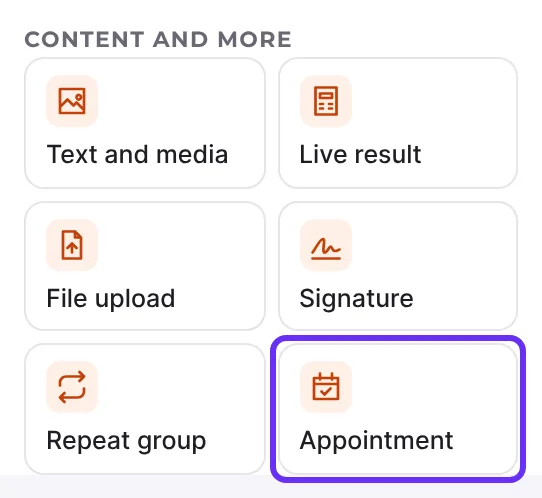
Funnelforms → Forms → open a form → Structure → question type Appointment (group Content and more)
Features at a glance
- Visitors choose the duration (if there are several), the day and the time from the free times.
- Times appear in the visitor's time zone. The time zone is named.
- On submit, Funnelforms checks the time once more so that nobody gets the same time.
- The booked appointment appears in the entry and can be used in mails through placeholders.
- With Required switched on, the visitor has to choose an appointment.
Step by step
- Open the form and switch to Structure.
- In the group Content and more, click the question type Appointment or drag it into the step you want.
- Under Question, enter what visitors should read, for example "When suits you?".
- Under Appointment type, choose an appointment type or click New appointment type.
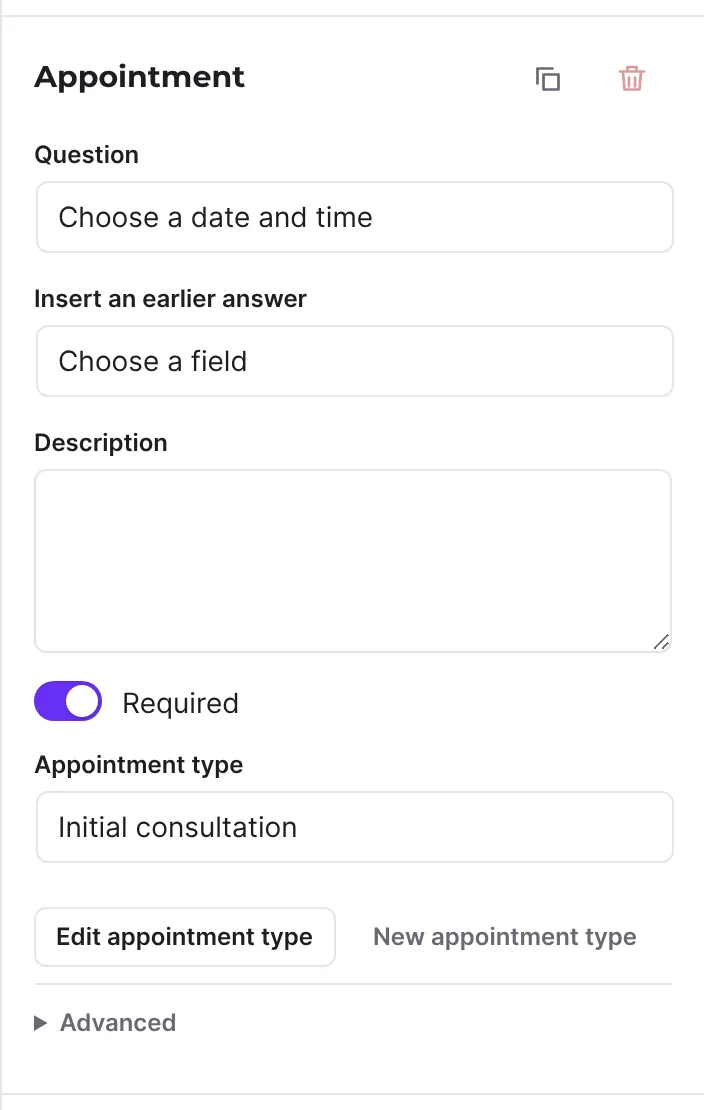
- Switch on Required if every visitor has to choose an appointment.
- Check that the contact step contains an E-mail address field.
- Open Preview and choose an appointment. The free times are real, but nothing is booked.
- Click Publish.
How it works
How do visitors book?
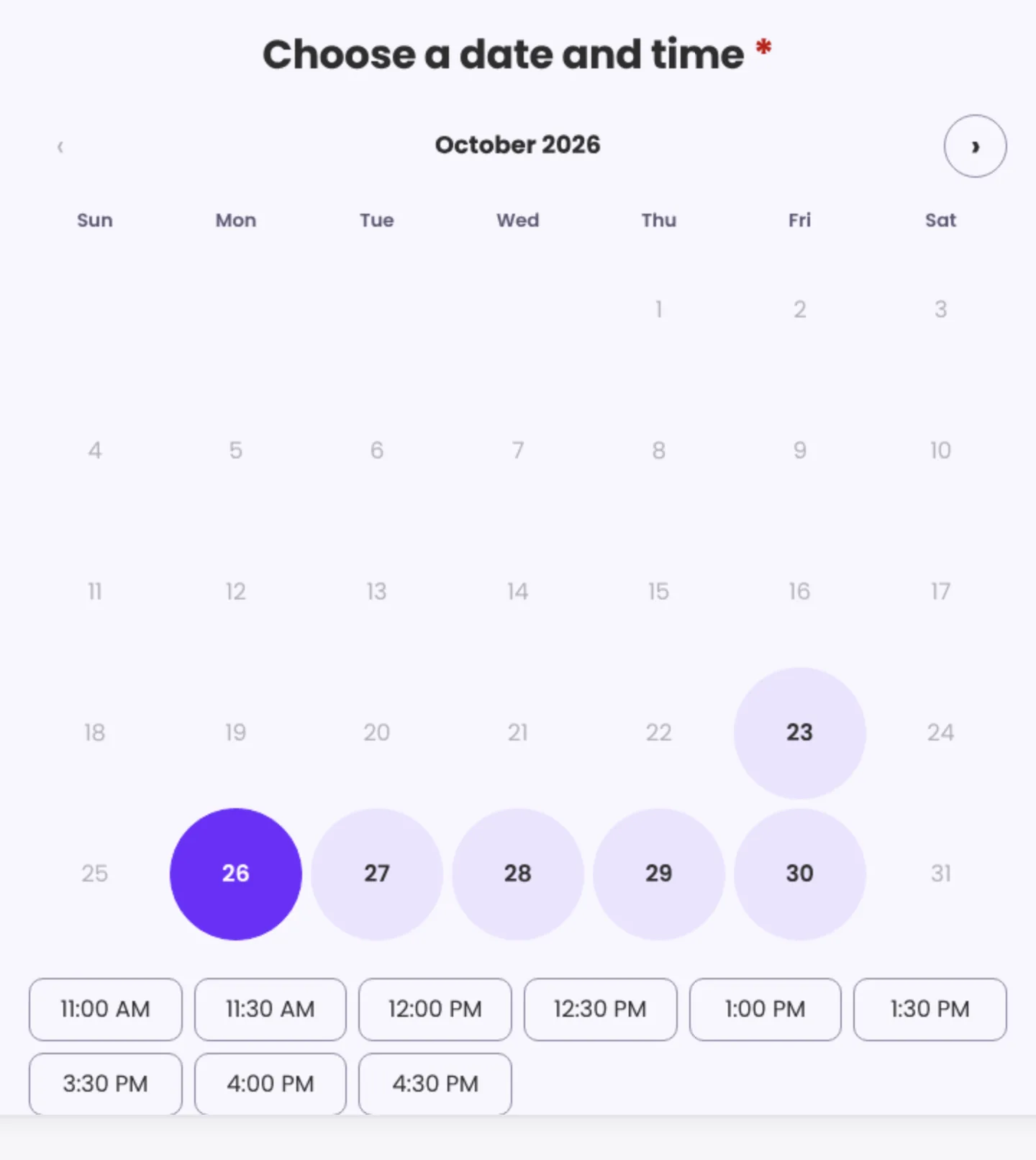
If there are several durations, visitors first see the Duration choice. Below it is a month calendar with the days that have free times, with arrows for Previous month and Next month. After clicking a day, the times appear. Below them it says "Times in your time zone (…)". After the choice, the form shows "Your appointment: …". On first load, the form opens the first month that has free times. The week in the month calendar starts as is usual in the region of the form language shown: mostly on Monday, for example on Sunday for English (United States) or Portuguese (Brazil).
When is the appointment booked?
When the form is submitted, before the entry is stored. Until then, the time is not reserved for the visitor.
What happens if a time was taken in the meantime?
The entry is not accepted. The form says "This time has just been booked. Please choose another one." and reloads the free times. The visitor chooses another time and submits again.
What is stored in the entry?
The entry shows the appointment as text with the date, the start and end time and the time zone. The entry also has the Appointments section with time, appointment type, duration, people booked and time zone. In mails and other texts you can insert the appointment through placeholders: {{booking:date}} (Date of the appointment), {{booking:time}} (Time of the appointment), {{booking:name}} (Type of the appointment) and {{booking:duration}} (Duration of the appointment). They are available in the Placeholders choice as soon as the form has an appointment field.
What happens with double opt-in?
If the confirmation of the e-mail address is switched on, the invitation also waits until the address is confirmed.
What happens in Funnelforms Free?
In Funnelforms Free you cannot add an appointment field. If a form already has one, for example because the website used Funnelforms Pro before, Funnelforms Free does not show the form on the page. When publishing, "The form uses “Appointment booking”, which is part of Funnelforms Pro, so Funnelforms Free cannot publish it." appears. Booked appointments and appointment types stay stored and are back after switching to Pro.
What happens if the appointment type is missing or was deleted?
The field shows "(deleted appointment type)". When publishing, the message "An appointment question has no appointment type." appears. Choose an appointment type before you publish.
Best Practices
- Put the appointment field in a step of its own so that visitors can concentrate on the choice.
- Ask for name and e-mail address in the contact step. They appear in the invitation and in the calendar event.
- Test the booking once from a second device before you promote the form.
- Use
{{booking:date}}and{{booking:time}}in the confirmation mail to the visitor.
Troubleshooting
| Problem | Cause | Solution |
|---|---|---|
| "Please choose a time." | No valid time was submitted | Visitors choose day and time again |
| "The free times could not be loaded. Please try again later." | The list of free times could not be loaded | Reload the page. Check that an appointment type is selected |
| "No appointments can be booked at the moment." | The appointment type has no bookable period | Adjust Bookable in the appointment type |
| "No free times this month." | Nothing is free in the month shown | Keep looking with Next month |
| The visitor gets no invitation | There is no valid e-mail address in the contact step, or the invitation is switched off in the appointment type | Check the E-mail address field and Send an invitation with a calendar file |
| The time zone in the form differs from mine | Visitors see their own time zone | This is intended. The appointment type applies in its own time zone |
| The form stays on the display of Funnelforms 3 | The appointment type still uses a calendar that was connected through Cronofy in Funnelforms 3 | Save the appointment type again in the builder |
Tips
- An appointment type can be used in several forms.
- If you create a form from a template with an appointment question, Funnelforms picks the matching appointment type itself or creates it. Check its hours afterwards.
- You see all booked appointments under Funnelforms → Appointments.
- If a visitor changes the duration, the chosen time is reset and the free times are loaded again.
- The preview books nothing but shows the real free times.
FAQ
Is the chosen time reserved for the visitor while they fill in the form? No. The booking only happens on submit. If the time is taken by then, the visitor chooses another one.
Can the visitor change the appointment later? Yes, through the link "Change or cancel the appointment" in the invitation. Until the appointment starts, the visitor can choose another time or cancel.
Are appointments checked against my calendar? Yes, if you connected a calendar in the appointment type. Busy times are then not offered.