With a connected calendar, Funnelforms checks on every booking whether you already have something at that time, and it adds new appointments straight to your calendar. This helps you avoid double bookings without copying appointments by hand. You manage all calendars of your website and your team in one place, the Integrations page. You can connect Google Calendar, Microsoft Outlook, Apple iCloud and other calendars that support CalDAV.
Requirements
- Funnelforms Pro. This feature is not included in Funnelforms Free. There the Integrations menu entry is missing, and the Appointment tile in the builder carries a Pro badge.
- You have the right "Change settings". Administrators always have it. Without this right, the Integrations page is missing, and the appointment type has no Connect calendar and Connect again.
- For Google Calendar and Microsoft Outlook, your website is connected to your Funnelforms account (page Funnelforms → Account). A running plan is not needed for this. Apple iCloud and other CalDAV calendars work without this connection.
- For Apple iCloud you need an app-specific password. Your normal Apple ID password does not work here.
Where to find it
- Funnelforms → Integrations, card Calendars. The menu entry sits before Settings.
- In every appointment type, in the Calendars section, with Connect calendar and the link Manage calendars under Integrations. You open the appointment type under Funnelforms → Appointments → Appointment types tab, or in the form via the Appointment question → Edit appointment type.
Features at a glance
- Four tiles to connect: Google Calendar (Google Workspace and Gmail), Microsoft Outlook (Microsoft 365, Outlook.com and Exchange Online), Apple iCloud and Other calendar (CalDAV) (for example Nextcloud, Fastmail, mailbox.org).
- The list Connected calendars with the state of each connection: Connected, Access expired or Not reachable lately.
- Test reads the calendar once as a trial.
- Calendars opens the choice of the Main calendar, which gets the appointments, and of the calendars Funnelforms should Check for busy times, for example a shared or family calendar.
- Belongs to assigns a connection to the website or to a team member. A team calendar only counts for that person's appointments.
- Remove takes a connection off the website.
- Connect again renews an expired access to Google or Microsoft.
- New password replaces a password that no longer works, for Apple iCloud and CalDAV.
Step by step
Google Calendar or Microsoft Outlook
- Open Funnelforms → Integrations. If it says "Google and Microsoft sign in through your Funnelforms account. …" at the top, click Connect the website and connect the website first.
- Click the Google Calendar or Microsoft Outlook tile.

- In the dialog, click Sign in to Google or Sign in to Microsoft.
- The new window first shows a page of Funnelforms. Confirm the sign-in there.
- Sign in to Google or Microsoft and allow Funnelforms to read busy times and add appointments.
- Wait until the window shows "The calendar is connected. You can close this window." The dialog waits up to 15 minutes for the sign-in ("Waiting for the sign-in…").
- If your account has several writable calendars, choose the calendar for the appointments under Calendar and click Done.
- The calendar appears under Connected calendars. Then choose it in your appointment types (see below).
Apple iCloud
- At account.apple.com, create a password under "Sign-In and Security" → "App-Specific Passwords".
- Under Funnelforms → Integrations, click the Apple iCloud tile.
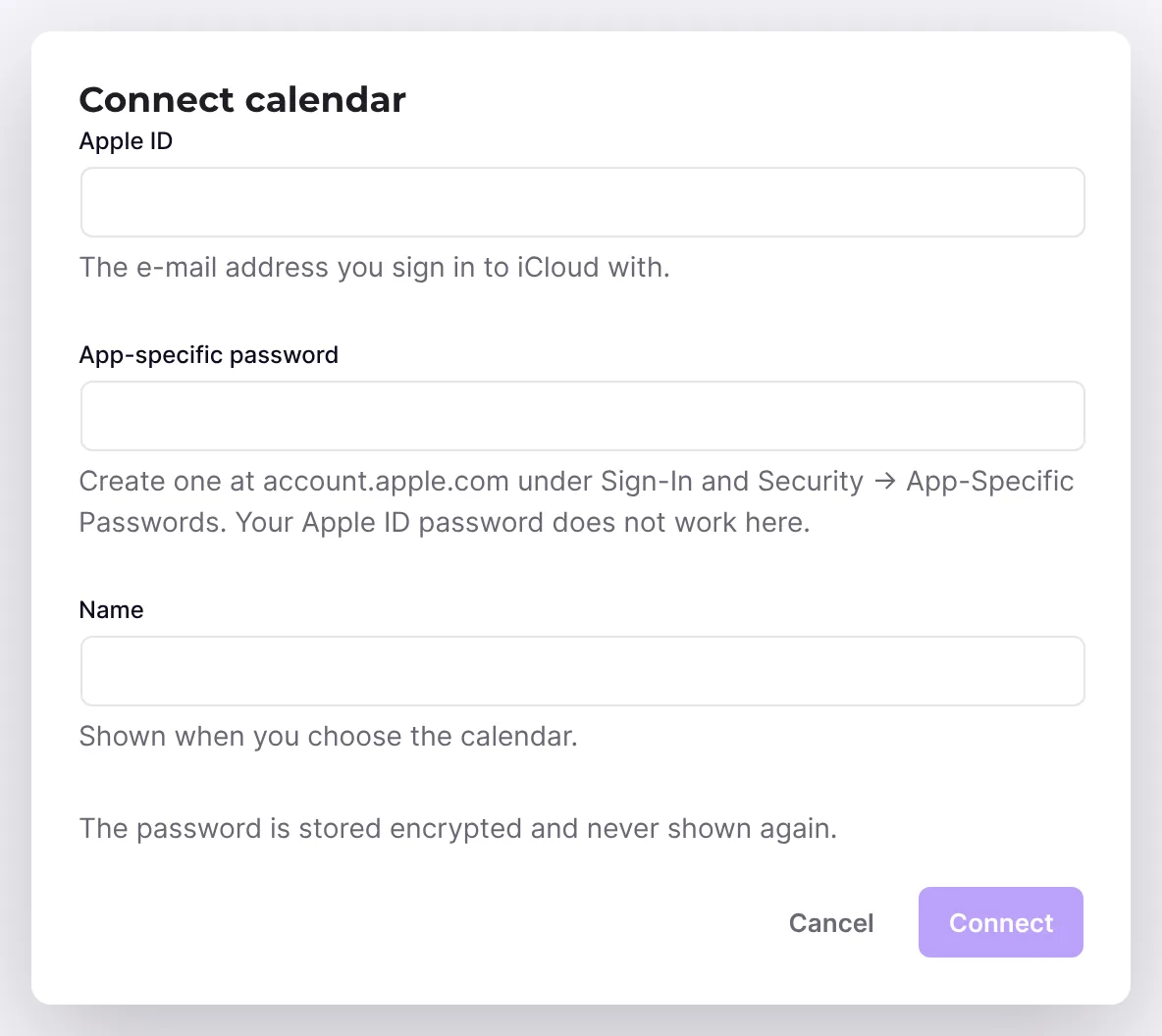
- Under Apple ID, enter the e-mail address you sign in to iCloud with, and under App-specific password the new password.
- Optionally enter a Name. It is shown in the list and in the appointment types.
- Click Connect. If the account has several calendars, choose one under Calendar and click Connect again.
Other calendar (CalDAV)
- Click the Other calendar (CalDAV) tile.
- Under Server, enter the address, for example the address of your Nextcloud. You find the CalDAV address of other providers in their help pages.
- Enter the User name (usually your e-mail address) and the Password. Fastmail and some other providers need an app-specific password.
- Click Connect. If there are several calendars, choose one and click Connect again.
Choose the main calendar and the checked calendars
- In the row of the connection, click Calendars. Funnelforms reads the calendars of the account ("Reading the calendars…").
- Under Main calendar, choose the calendar that gets the appointments. Only calendars you may change are offered.
- Under Check for busy times, tick every calendar whose events should block times. Calendars you may only read carry the note "read only".
- Every change is saved right away.
Assign a calendar to a team member
- In the row of the connection, choose the person under Belongs to. People who may see entries are offered.
- The website (counts for everyone) takes the assignment back.
- Below the field you see which appointment types the calendar counts for ("Counts for: …").
Use the calendar in an appointment type
- Open the appointment type and go to the Calendars section.
- Under "Busy times in these calendars cannot be booked:", tick the connections you want.
- Under Add appointments to, choose a connection or, if people are booked, The calendar of the person booked.
- Click Save.
Test, connect again and remove
- Click Test. The badge shows Testing… and then Works or Not working with the reason below.
- If a Google or Microsoft connection shows Access expired or the test fails, click Connect again and sign in with the same account. The appointment types keep their selection.
- To remove, click Remove and confirm in the Remove calendar dialog: "Remove … from this website? Appointments already in the calendar stay there." If appointment types use the calendar, it also says "Appointment types that use this calendar lose it and need another calendar: …" with their names.
Save a new password for Apple iCloud or CalDAV
- Create a new password with your provider, for Apple iCloud a new app-specific password.
- Under Funnelforms → Integrations, enter it in the row of the connection under New password. Empty keeps the current password.
- Click Save password. Funnelforms reads the calendar with the new password. If that works, it says "… was saved." Otherwise the error of the calendar appears and the previous password stays stored.
The connection stays, and the appointment types keep their selection.
How it works
Why do Google and Microsoft need the Funnelforms account?
The sign-in to Google and Microsoft runs through a sign-in service of Funnelforms. When you click Sign in to Google, your website asks this service for a one-time sign-in, using its connection to your Funnelforms account. The service only answers a website it knows. That is why the sign-in window first shows a page of Funnelforms where you confirm the sign-in before it goes on to Google or Microsoft. If you cancel there, "The sign-in was cancelled." appears. Without the website connection, the Google Calendar and Microsoft Outlook tiles are locked and show "Needs the Funnelforms account".
How does Funnelforms check busy times?
- Each connection checks the calendars ticked under Check for busy times. If you have not chosen any there, the main calendar counts. If you remove every tick, the connection only receives appointments.
- A connection of the website blocks its busy times for all people of the appointment type when you tick it in the appointment type.
- A team calendar blocks only the person it belongs to. It counts in every appointment type that books this person, even without a tick in the appointment type. In an appointment type that books other people, it does not count, even if it is ticked there.
- If an appointment type books no people, a team calendar ticked there blocks the times for all bookings of this appointment type.
- Events marked as "free" or cancelled block nothing. All-day events block the whole day.
- Appointments that Funnelforms added itself are not counted twice.
- A calendar's answers are valid for five minutes. When the actual booking or move happens, Funnelforms asks again.
- Visitors only see free times, never the content of your calendar. Titles and guests of your events are not stored.
Where are appointments added?
For every confirmed appointment, a job writes the event to the main calendar of the connection chosen under Add appointments to. With The calendar of the person booked, each appointment goes into the main calendar of the booked person's team calendar. Nothing is added for people without a calendar of their own. The title is made of the appointment type and the visitor's name; the description contains the name, the e-mail address and a link to the entry. If the appointment is moved, the event is written again; if it is cancelled, the event is removed. You see the status in the entry under "Sent to" as "Calendar entry".
What happens if a calendar cannot be reached?
Bookings carry on. The calendar's last known answer applies, or none if there was none yet. The list shows Not reachable lately, the appointment type the note "The calendar … could not be reached lately (…). Bookings go on without its busy times." For Google and Microsoft, a withdrawn or expired access shows Access expired and Connect again. If the brackets show not_connected, site_unknown or return_url_forbidden, the website's connection to the Funnelforms account is the reason. When that connection is the cause, the Connect calendar dialog and the calendar selection of the connection show the link Connect the website next to the message, which leads to Funnelforms → Account.
What happens when I remove a calendar?
The connection and its stored access are deleted from the website. For Google, the access is also withdrawn at Google. Appointments already in the calendar stay there. Funnelforms takes the calendar out of every appointment type: they no longer check it, and if it was chosen under Add appointments to, that field then says "No calendar". Bookings carry on, but without a calendar entry. So choose another calendar in those appointment types. Connections taken over from Funnelforms 3 carry the note "From Funnelforms 3" and cannot be removed here.
Where do my credentials go?
The access is stored encrypted on your website. Calendar data goes from your website straight to your calendar. Only the sign-in to Google and Microsoft and the renewal of their access run through the Funnelforms sign-in service, which does not keep the access keys after the handover.
Best practices
- Connect each calendar once under Integrations and then choose it in the appointment types.
- Use a main calendar of its own for the appointments and also tick your personal calendar under Check for busy times.
- If an appointment type books several people, assign each team member their own calendar under Belongs to. A private appointment then blocks only that person, not the whole team.
- Connect the website to your Funnelforms account before you connect Google or Microsoft, and keep this connection while you use the calendars.
- After connecting, click Test and make a test booking in the form preview.
Troubleshooting
| Problem | Cause | Solution |
|---|---|---|
| The Integrations menu entry or the Connect calendar button is missing | You do not have the right "Change settings" | Ask an administrator to connect the calendar or to give you the right |
| The Google Calendar and Microsoft Outlook tiles are locked ("Needs the Funnelforms account") | The website is not connected to your Funnelforms account | Click Connect the website or open Funnelforms → Account |
| "Funnelforms no longer recognizes this website, …" | The website's connection to the Funnelforms account is no longer valid | Click Connect the website in the message or open Funnelforms → Account, reconnect the website and then connect the calendar again |
| "The address of this website differs from the one connected with Funnelforms, …" | The website is reached at another address than when it was connected to the account, for example after a move | Reconnect the website under Funnelforms → Account and then connect the calendar again |
| "This calendar service cannot be connected through Funnelforms yet. …" | The sign-in service does not offer Google or Microsoft at the moment | Try again later, or connect an Apple or other CalDAV calendar |
| "The sign-in could not be started (…). Try again in a moment." | The sign-in service could not be reached or answered unexpectedly | Try again after a short while. If the error stays, give support the code in brackets |
| The sign-in window does not open | The browser blocks pop-up windows | Click the Open the sign-in link that appears in the dialog |
| "The sign-in was cancelled." | The window was closed, or the sign-in was refused on the Funnelforms page or at the provider | Start the sign-in again and confirm it |
| "Funnelforms needs access to the calendar. Connect again and allow it." | The required permission was not granted | Connect the calendar again and allow all requested access |
| "The sign-in took too long. Please try again." | The sign-in was not completed within 15 minutes | Start the sign-in again and sign in promptly |
| "The server did not accept the user name and password. …" | Wrong credentials, or the normal password instead of an app-specific one | Create an app-specific password and enter it |
| "No calendar was found at this address." | The server address is wrong | Check the CalDAV address of your provider |
| Not working with "The calendar could not be read (…)." | The calendar does not answer, or the access is no longer valid | For Google or Microsoft, Connect again. For Apple iCloud and CalDAV, save the new password under New password |
| "Appointments cannot be added to this calendar. …" | The chosen calendar is read only | Choose a calendar you may change as Main calendar |
| "Only team members who see entries can have a calendar here." | The person does not have the right "See entries" | Give the person the right, or assign the calendar to the website |
| Remove is locked | The connection comes from Funnelforms 3 and is still used there | Keep it. Connect the calendar again in addition if you need to |
| A busy time can still be booked | The event is marked "free", its calendar is not ticked under Check for busy times, the connection is not chosen in the appointment type, or the change is less than five minutes old | Check both choices and wait a moment. The check runs again when booking |
| The appointment does not show up in the calendar | Add appointments to is set to "No calendar", the booked person has no team calendar, or the job failed | Choose a calendar or assign one to the person. Check the "Calendar entry" in the entry under "Sent to" |
Tips
- Funnelforms checks up to 20 calendars per connection; per appointment type you can choose up to ten connections to check and one to add appointments to.
- A team calendar needs no tick in the appointment type. It counts automatically for the person it belongs to.
- Renaming a calendar is not possible in the interface. This feature is currently in progress. For Google and Microsoft, the connection carries the name of the account and the main calendar.
- Cronofy is no longer supported. The article on moving Cronofy appointments explains how to keep using appointments from Funnelforms 3.
FAQ
Do I need a running plan for Google or Microsoft? No. The website must be connected to your Funnelforms account; a running plan is not needed.
Can I check several calendars of one account for conflicts? Yes. In the row of the connection, click Calendars and tick every calendar you want under Check for busy times. Appointments are added to the Main calendar.
Can every team member connect their own calendar? An administrator or a person with the right "Change settings" connects the calendar and chooses the person under Belongs to.
Do visitors see my calendar entries? No. Visitors only see the free times of the appointment type.