In Funnelforms 3 you connected calendars for appointment events through Cronofy. Funnelforms 5 no longer uses Cronofy. Instead you connect Google, Microsoft or a CalDAV calendar. This article shows what happens to your appointments during the move and what you need to do once by hand.
Requirements
- Funnelforms Pro. This feature is not included in Funnelforms Free. Funnelforms Free does not show forms with an appointment field.
- You have started the move from Funnelforms 3 to Funnelforms 5.
- You have the rights "Edit forms" and "Change settings".
- You have access to a Google, Microsoft or CalDAV calendar (for example Apple iCloud).
- For Google and Microsoft, your website is connected to your Funnelforms account (Funnelforms → Account). CalDAV calendars work without it.
Where to find it
- Funnelforms → Appointments → Appointment types tab → Edit at the appointment type with the Save again badge
- or Funnelforms → Forms → open a form with an appointment field → Structure → Appointment question → Edit appointment type
- Connect calendars: Funnelforms → Integrations
You can see the state of the move under Funnelforms → Migration.
Features at a glance
- Appointment events from Funnelforms 3 appear as appointment types. Days, times, durations, lead time, break, period and reminders are taken over. The break from Funnelforms 3 counts as Break before and as Break after.
- Booked appointments from Funnelforms 3 are taken over. Their times stay busy for the appointment type.
- Appointment types with a Cronofy calendar show a note in the builder and the badge Save again in the Appointment types tab until you save them again.
- Forms with such an appointment type stay on the display of Funnelforms 3 until the appointment type is saved again.
- The migration page shows the card A calendar needs to be connected again with the button Open in the form builder.
Step by step
- Run the move with the migration assistant.
- In Funnelforms → Forms, open a form with an appointment field.
- In the Structure view, select the Appointment question. For Cronofy appointment types it says: "This appointment type still uses the calendar connected in Funnelforms 3. Save it again here, so the new form can book it."
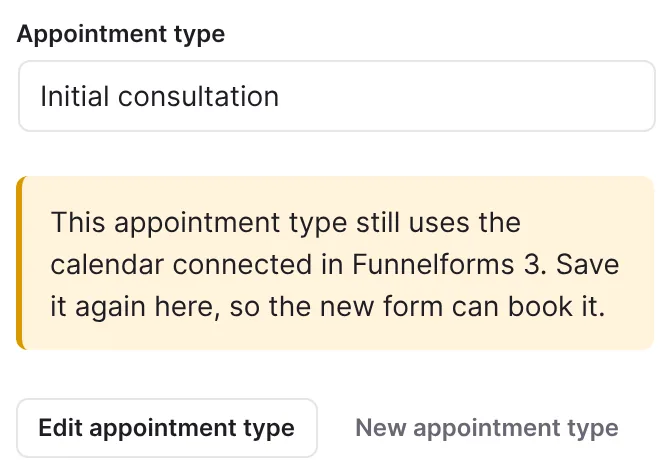
- Click Edit appointment type. Alternatively, open the appointment type under Funnelforms → Appointments → Appointment types tab with Edit.
- Connect Google Calendar, Microsoft Outlook, Apple iCloud or another CalDAV calendar under Funnelforms → Integrations, or in the appointment type in the Calendars section with Connect calendar. For Google and Microsoft, the website must be connected to your Funnelforms account first.
- Tick the calendar whose busy times should not be bookable, and choose the calendar for new appointments under Add appointments to.
- Click Save.
- Click Publish.
- If you like, word the appointment type's mails under Funnelforms → Appointments → Mails.
How it works
What happens to appointment events and appointments during the move?
Appointment events from Funnelforms 3 become appointment types, and the booked appointments are taken over. The Cronofy access is stored encrypted, but Funnelforms 5 does not use it to read busy times or add appointments. Your data in Funnelforms 3 stays unchanged.
Why does the form stay on Funnelforms 3?
Without the Cronofy calendar, Funnelforms 5 does not know the busy times. To prevent double bookings, the form keeps being delivered as in Funnelforms 3 until you have saved the appointment type again. In the builder and in the publishing check it says: "An appointment type still uses the calendar connected in Funnelforms 3. Connect a calendar for conflicts or save the appointment type again."
What happens if I only save again?
Then the form books with Funnelforms 5 again. Busy times of the former calendar are no longer taken into account, though. So connect a calendar and tick it for conflicts if you want to avoid double bookings with your calendar entries. Appointments already booked in Funnelforms 3 keep blocking their times.
What does the migration page show?
For a form concerned, the migration page shows the card A calendar needs to be connected again: "An appointment type of this form was connected to a calendar through Cronofy, which Funnelforms 5 no longer uses. Without the calendar, booked times could overlap with your other appointments." Below it, it says what to do: "Connect the calendar again in the form builder at the appointment type, or save the appointment type there once to use it without a calendar." If a booking question points to an appointment type that no longer exists, the card An appointment type is missing appears.
What about the mails of a Cronofy appointment type?
On the page Funnelforms → Appointments, in the Mails tab, you cannot save own texts for such an appointment type yet. "Save this appointment type in the form builder first." appears. Once it is saved in the builder, it works.
What changes for my visitors?
They book in the new form by day and time, receive an invitation with a calendar file and a link to move or cancel. Appointments taken over also appear on the page Funnelforms → Appointments.
Best Practices
- Move the appointment types before an action that brings many bookings.
- Connect the calendar you used through Cronofy in Funnelforms 3 directly with Google, Microsoft or CalDAV now.
- Make a test booking in the preview after saving.
Troubleshooting
| Problem | Cause | Solution |
|---|---|---|
| The builder shows: "This appointment type still uses the calendar connected in Funnelforms 3 …" | The appointment type has not been saved in Funnelforms 5 yet | Edit the appointment type, connect a calendar, save |
| The migration report says "the calendar of an appointment type was connected through Cronofy; connect a calendar for conflicts or save the appointment type again in the form builder" | The appointment event had a Cronofy calendar | Proceed as above |
| The migration report says "the appointment type of a booking question is missing" | An appointment field points to an appointment type that no longer exists | Choose an existing appointment type in the appointment field or create a new one |
| "Save this appointment type in the form builder first." in the Mails tab | The appointment type still uses the Cronofy calendar | Save the appointment type again in the builder |
| "Google and Microsoft calendars sign in through your Funnelforms account. …" | The website is not connected to the Funnelforms account | Connect it under Funnelforms → Account or use a CalDAV calendar |
| Busy times of the old calendar are missing | Cronofy is no longer read | Connect the calendar again and tick it for conflicts |
Tips
- The form only switches to the new display after the appointment type is saved.
- In Funnelforms 5, appointment types belong to the website. Several forms can use the same appointment type.
FAQ
Can I keep using Cronofy? No. Funnelforms 5 supports Google, Microsoft and CalDAV (for example Apple iCloud, Nextcloud, Fastmail).
Are appointments that are already booked lost? No. The appointments from Funnelforms 3 are taken over and stay busy for their appointment type.
Do I have to save every appointment type separately? Yes. Every appointment type that had a Cronofy calendar needs to be saved once again.
Are my old data changed? No. Funnelforms only reads the data from Funnelforms 3 and creates a restore point before the move.