You can give every published form an address of its own, for example your-website.com/funnelforms/offer. At that address WordPress shows only the form, without your theme's header, menu and sidebar. This is handy for ads, e-mails, social media profiles and links in posts when you do not want to build a page of your own. The feature is part of Funnelforms Free and Pro.
Requirements
- The form is published. Before that, the address does not show the form.
- The form runs on Funnelforms 5.
- You may edit forms (the right "Edit forms").
Where to find it
Open the form in the builder and choose Settings at the top. There you find the section Own page. In Funnelforms Free it comes right after General, in Funnelforms Pro at the end of the settings.
You can also set the same address in the builder under Embed → Direct link. There you copy the Link with Copy or open it with Open the page.
Features at a glance
- An address of its own per form, in the form
/funnelforms/<address>. - The address checks itself: it may only contain lowercase letters, digits and dashes. Below the field, the builder shows how the address looks once saved.
- You can open the finished link and put it on the clipboard with Copy.
- With Remove you take the address away again.
- The page contains only the form. Your website's scripts, styles and cookie or consent tools load as usual.
Step by step
- Open Funnelforms → Forms and click your form.
- Choose Settings at the top.
- Go to the section Own page.
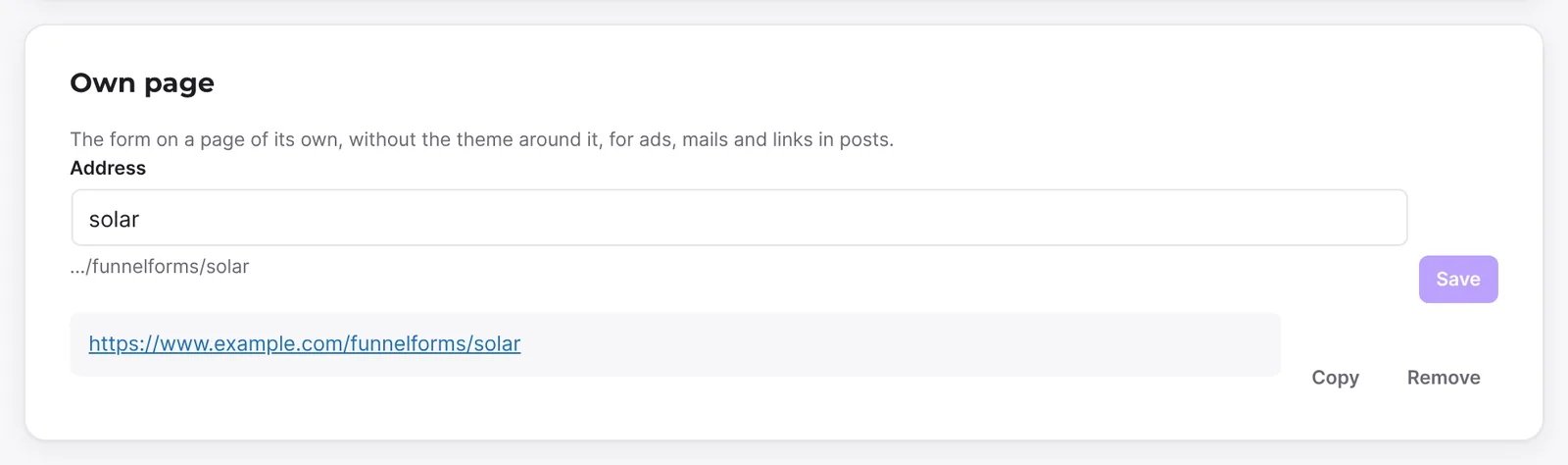
- In the field Address, enter a name, for example
offer. Below it, the address appears as it will be saved:…/funnelforms/offer. - Click Save.
- Click the link that appears afterwards to open the page. With Copy you put it on the clipboard.
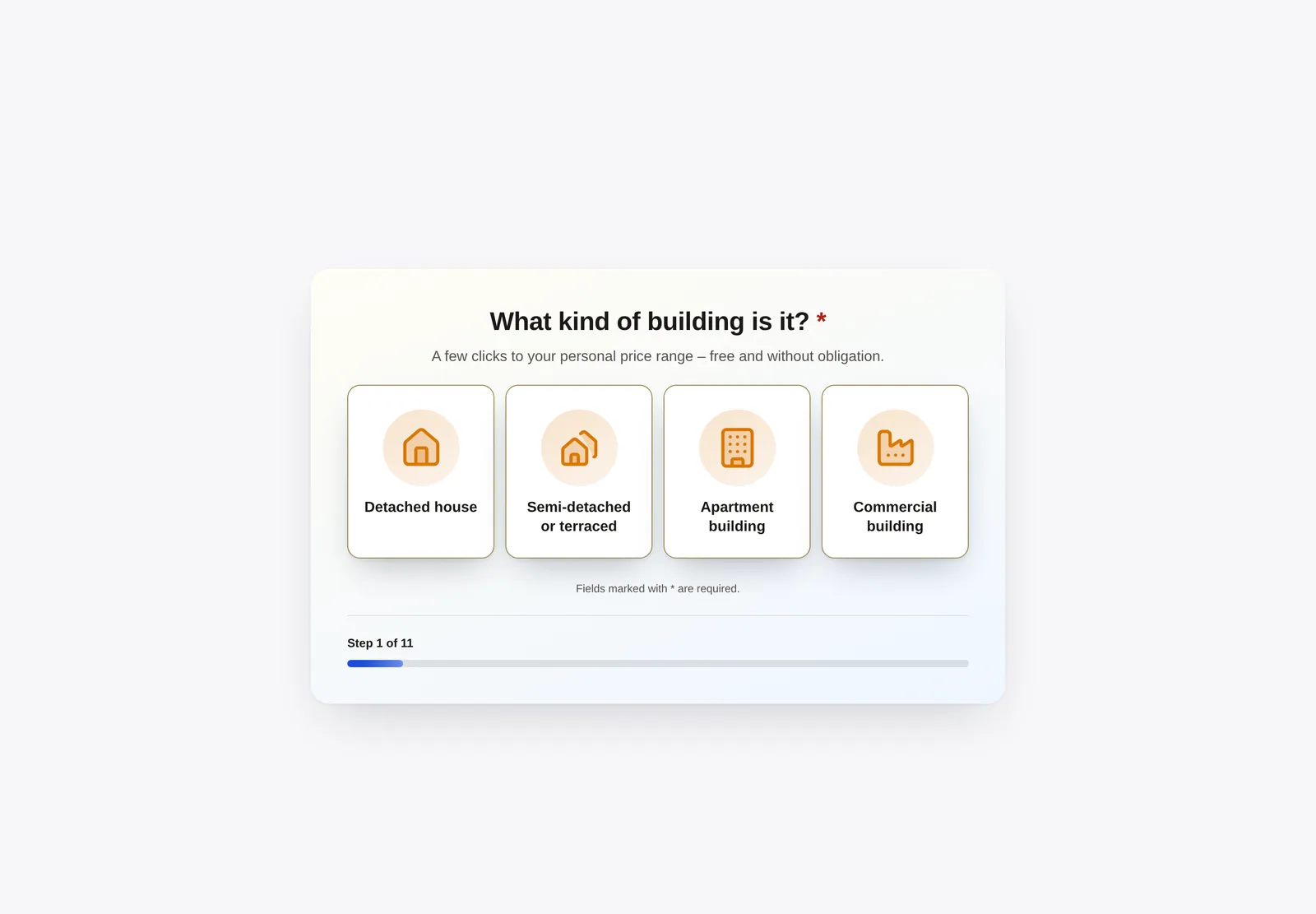

- If the form is not published yet, publish it. The note "The page shows the form once it is published." reminds you.
Change or remove the address
- Open Settings → Own page again.
- Change the address and click Save, or click Remove next to the link.
How it works
How is my address cleaned?
The builder and the plugin clean the input the same way: everything becomes lowercase, German umlauts are written out (ä becomes ae, ö becomes oe, ü becomes ue, ß becomes ss), and spaces and special characters become dashes. The address can be at most 100 characters long. If the field is empty, Save stays locked.
What happens if the address is already taken?
Each address exists only once. This also applies to direct links that forms from Funnelforms 3 already have. If the address is taken, the message "Another form has this address already." appears. Choose a different name then.
What happens to the old address when I change it?
After saving, only the new address applies. If you have already shared the old one (ads, e-mails, QR codes), it no longer shows the form. So change an address that is already in use only with care.
What can be seen on the page?
The page shows only the form, centred on a plain background. Your theme, its menu and its footer are missing. The page runs in the language of the form. If you add a query part to the link, for example a campaign's UTM values, they reach the form. The address also works for an installation in a subdirectory and with a trailing slash.
What happens with forms from Funnelforms 3?
If a form already had a direct link in Funnelforms 3, the builder shows this address under Own page until you save one of your own. The old direct link is answered by the Funnelforms 3 part of the plugin. Funnelforms Pro 5.0 loads it only while your website still needs it: while a form still runs on Funnelforms 3, after the website went back to Funnelforms 3, or while the Funnelforms app, Zapier or Make are connected. Funnelforms Free never loads it. When it is not loaded, the old direct link shows the imported form once it is published with Funnelforms 5. This applies as long as you have not saved another address under Own page.
Best practices
- Choose a short, meaningful address like
offerornewsletterthat you can show readably in ads and e-mails. - Set the address before you share it, and do not change it afterwards.
- For forms from Funnelforms 3, keep the old address if you have shared the link already. If you save another one under Own page, the old direct link no longer leads to the form.
- Check the page on a phone once after publishing.
Troubleshooting
| Problem | Cause | Solution |
|---|---|---|
| The address shows a "page not found" message. | The form is not published, or it still runs on Funnelforms 3. | Publish the form in the builder. |
| Under Embed → Direct link it says "This form still runs on Funnelforms 3. Its own page appears once it uses the new renderer." | The form is still delivered by Funnelforms 3. | Check on the page Funnelforms → Migration why the form does not run on Funnelforms 5 yet. |
| An old direct link from Funnelforms 3 no longer shows a form. | The form is not published with Funnelforms 5 yet, or another address is saved under Own page. | Publish the form in the builder, or save the old address again under Own page. |
| Save cannot be clicked. | The Address field is empty, contains nothing after cleaning, or matches the address shown. | Enter a name with letters or digits that differs from the address shown. |
| "Another form has this address already." | The address belongs to another form. | Choose a different address. |
| The page still shows the old version of the form. | The page is cached. | Clear the cache of your caching plugin. |
Tips
- The page works well as a target for QR codes and links in e-mail signatures.
- If you want to show a form in your website's design, embed it in a page instead.
- Under Embed → Direct link there is no Remove. You remove an address under Settings → Own page.
- Remove only takes away the address you saved under Own page. An old direct link from Funnelforms 3 then appears in the field again.
FAQ
Can I give a form several addresses? No. Every form has at most one address under Own page.
Do I have to create the page in WordPress? No. The page exists through the address alone; you do not create a WordPress page for it.
Can everyone see the page? Yes, everyone with the link, as long as the form is published. The settings under Settings → Access (Pro only), for example the visitor password, apply here too.
Is the own page also part of Funnelforms Free? Yes. The section Own page is available in Free and Pro.