A form can hold its texts in several languages. Visitors then see it in the language of the page or in a language they choose themselves. The article is for everyone who addresses visitors in more than one language.
Requirements
- Funnelforms Pro. This feature is not included in Funnelforms Free. Free shows Languages as an item on the More settings card with the Pro badge. The Languages card appears in Free only for forms that already use several languages or the language choice, so you can remove them.
- You need the right to edit forms.
- If you want the form to follow the language of the page, you need a multilingual plugin such as WPML or Polylang.
Where to find it
Funnelforms → Forms → open a form → Settings → Languages. You choose the language in which you edit texts in the top bar (globe symbol, Language of the texts).
Features at a glance
- Add other languages to the form and remove them again
- Edit texts in the chosen language; the default language stays visible as a hint
- A display of how many texts are still missing per language
- A language choice for visitors
- A preview in the language you are currently editing
Step by step
Add a language
- Open the Settings workspace and go to Languages.
- Under Add a language, choose a language from the list, for example English or French.
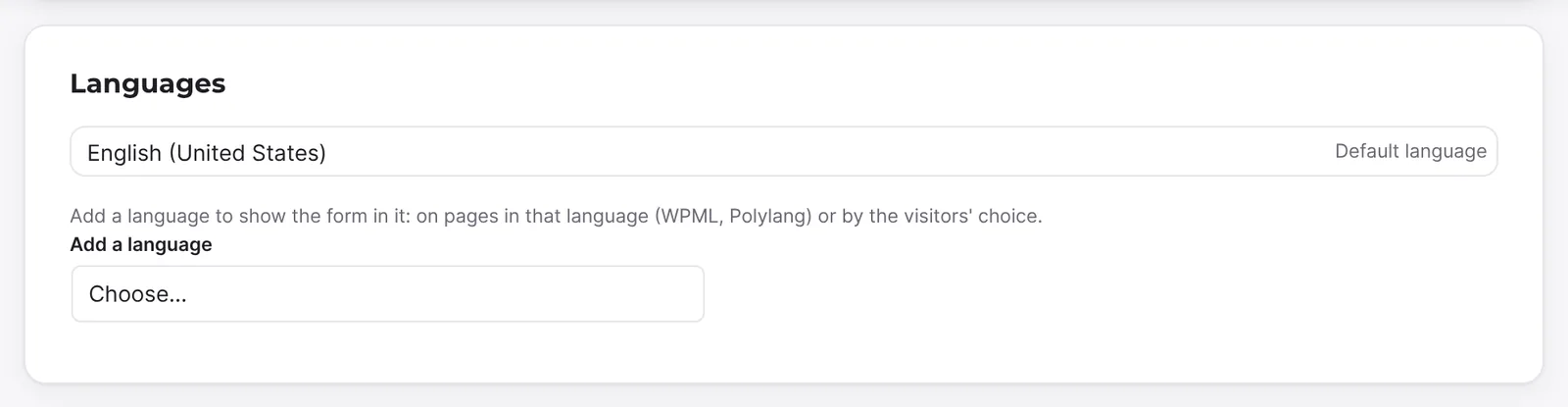
- The editor switches to this language automatically. The language choice now appears in the top bar.
Translate texts
- In the top bar, choose the language (Language of the texts).

- On the right, the note "You are translating into …" appears. Questions, answers, descriptions, buttons, thank-you texts and other texts show the default language as a placeholder.
- Enter the translation. A field you leave empty stays without a translation.
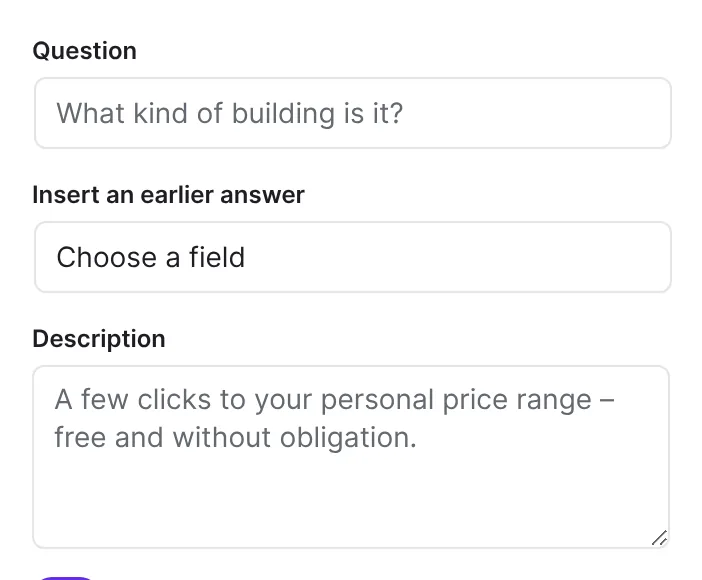
- Check the result with Preview. It shows the language you are currently editing.
Find missing translations
- Go to Settings → Languages.
- Each language shows Translated or Not translated: … with the number of missing texts.
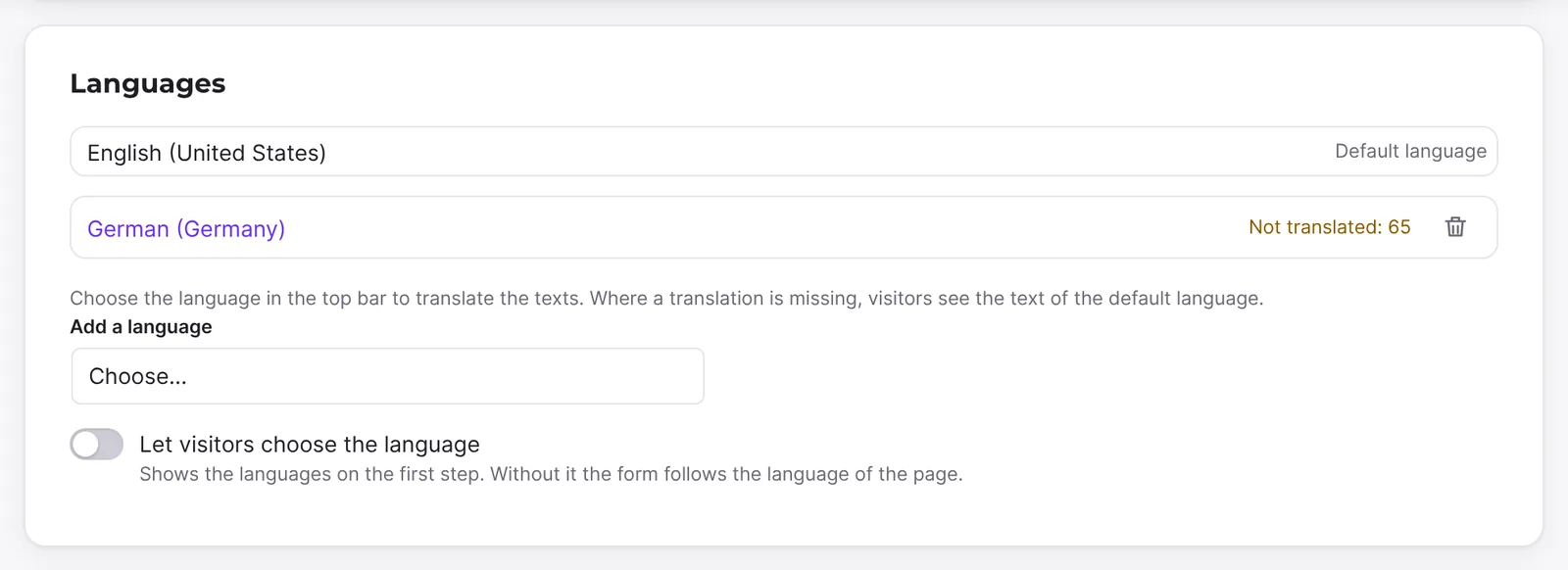
- Click the name of the language to switch to it and fill the gaps.
Offer visitors a language choice
- Under Settings → Languages, turn on the switch Let visitors choose the language. It appears as soon as there is at least one more language.
- Publish the form.
Remove a language
- On the language, click the trash symbol (Remove …).
- Confirm the question "Remove … and its translations?"
How it works
What is the default language?
The default language is the language in which the form was created. For an empty form this is the language of your website, for a template the language of the template. You cannot remove it. New fields get their default texts in the language of the form if that is the language of your website or your editor, otherwise in English.
What do visitors see if a translation is missing?
Where a translation is missing, they see the text of the default language. If you leave a field empty while translating, an existing translation is removed and the default text appears.
How does the form decide on its language?
- Without a language choice, the form follows the language of the page, for example through WPML or Polylang. If there is no translation for that language, the default language appears.
- With Let visitors choose the language, the form shows a row of links on the first step, one per language. When visitors click a language, the page reloads and the form appears in that language. The names of the languages appear in the respective language, for example "Deutsch" or "Français", and the current one is highlighted. Because they are links, moving with the arrow keys doesn't load another language by accident, and screen readers read each name in its own language.
- Texts of Funnelforms on the end screen, such as "Signed" or the number of uploaded files in the summary of answers, also appear in the form's language, not the website's.
What happens to multilingual forms in Funnelforms Free?
A form with more than one language or with the language choice turned on uses a Pro feature. Funnelforms Free doesn't publish it and reports "The form uses "Forms in several languages", which is part of Funnelforms Pro, so Funnelforms Free cannot publish it." If such a form is already published, for example after switching from Pro to Free, a Free website doesn't show it to visitors. For such a form Free shows the Languages card under Settings: remove the further languages with the trash symbol and turn off the language choice; then the form can be published in Free. This card has no Add a language, and the switch Let visitors choose the language appears only while it is on.
Which languages can I add?
German (Germany, Austria, Switzerland and the formal "Sie" address), English (US, UK), Spanish, French, Italian, Dutch, Polish, Portuguese (Portugal, Brazil), Danish, Swedish, Norwegian (Bokmål), Finnish, Czech, Turkish, Russian, Romanian, Hungarian, Greek, Japanese, Chinese (China), Korean, Vietnamese, Indonesian and Persian. For these languages Funnelforms also brings the texts of the buttons and messages in the form. Languages from imported forms are kept even if they are not in this list.
What is translated?
All texts that visitors read: questions, descriptions, answers, placeholders, buttons, headings, thank-you texts, notes while the form is closed and the texts of the confirmation e-mail. Values of answers, variable names and icons are the same for all languages.
Best practices
- First finish the form in the default language and translate afterwards; this leaves fewer gaps.
- Check under Settings → Languages that every language says Translated.
- Test each language in Preview.
- If you use WPML or Polylang, create the languages of the form to match the languages of your pages.
Troubleshooting
| Problem | Cause | Solution |
|---|---|---|
| The Languages card is missing, there is only More settings. | You use Funnelforms Free, and the form has only one language. | Multilingual forms are Pro only. |
| The language choice at the top is missing. | The form has only one language. | Add a language under Settings → Languages. |
| The switch Let visitors choose the language is missing. | There is no other language. | Add a language. |
| Visitors see texts in the wrong language. | A translation is missing for the language, so the default language appears. | Open the language and fill the gaps (Not translated: …). |
| A translation disappeared after I cleared it. | Empty translations are removed. | Enter the translation again. |
| The preview shows the default language. | You are currently editing the default language. | Choose the language you want at the top. |
Tips
- The names of the languages in the editor appear in the language of your WordPress admin.
- You can remove languages one by one without touching the others.
- Non-text content, such as images, has no translation; it applies to all languages.
FAQ
Can I change the default language? The editor has no function for this. The default language is the language in which the form was created.
Are texts translated automatically? No. You enter the translations yourself.
Do texts without a default text count as "not translated"? No. Only texts that have content in the default language are counted.
Do visitors see the language choice on every page? No. It appears on the first step of the form as a row of links.
Are multilingual forms available in Funnelforms Free? No. In Free a form has one language. Several languages and the language choice are part of Funnelforms Pro.