With the preview you try your form the way visitors see it, without anything being saved or sent. The list of forms shows all forms with status, entries, views and conversion and offers search and actions such as duplicating and exporting. Both help you feel sure before publishing and keep an overview when you have many forms.
Requirements
- For the list and the preview you need the right to edit forms.
- You see key figures, entries and the Statistics button only with the right to view entries.
- The list and the preview are the same in Funnelforms Free and Funnelforms Pro.
Where to find it
- List of forms: Funnelforms → Forms.
- Preview: in the editor, Preview at the top right. In the Design workspace there is also the Live preview.
Features at a glance
- Header with Import, From other plugins and New form
- Key figures for the last 30 days: Forms (with the number published), Views, Entries (compared with the 30 days before) and Conversion rate
- Status choice All, Published, Drafts and Trash, each with a count
- Search (Search forms), the choice All categories and pages (20 forms per page)
- For each form: status, category, Last change, a shortcode to copy, columns Entries, Views and Conversion
- For each form the actions Edit, Statistics, Duplicate, Export and Move to trash
- Preview in the sizes Desktop, Tablet and Mobile as a test run
Step by step
Test a form in the preview
- In the editor, click Preview at the top right. The editor first saves your latest changes.
- Choose Desktop, Tablet or Mobile at the top.
- Fill in the form and submit it. Above the form you see "Test run: nothing is saved or sent, and redirects are only named."
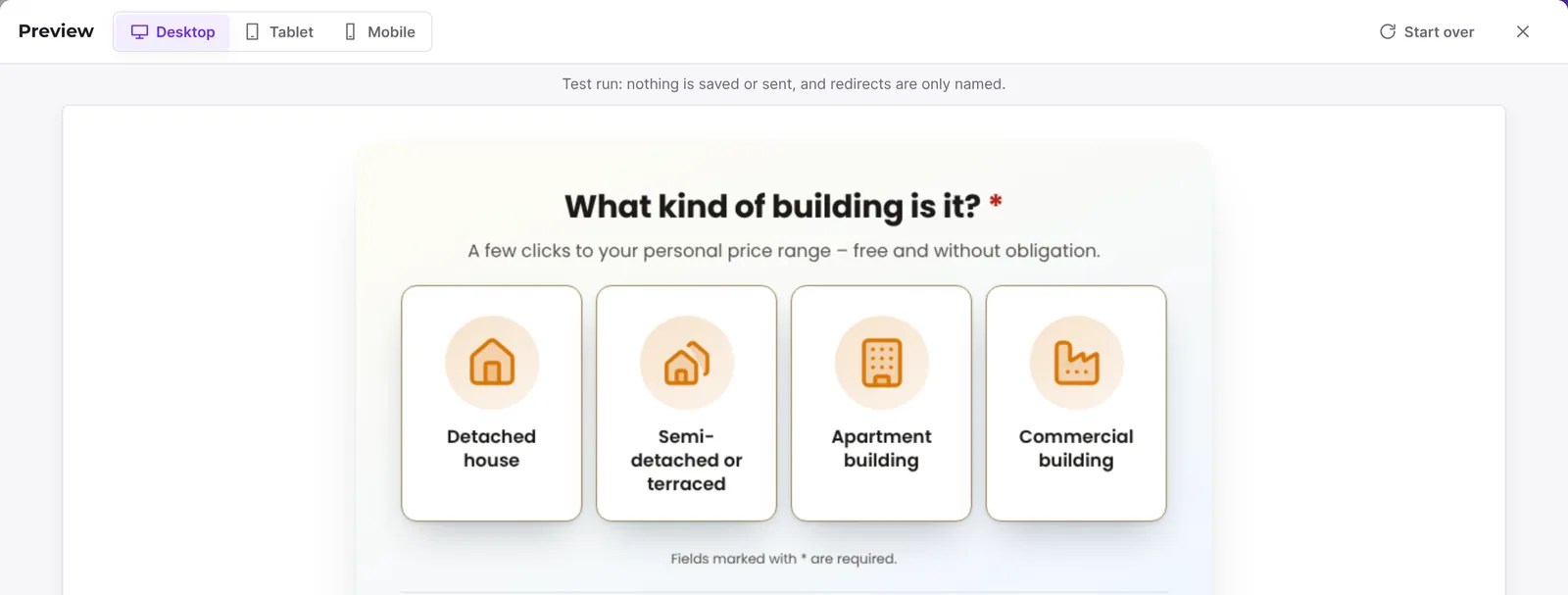
- Click Start over to begin again.
- Close the preview with Close preview.
Find forms in the list
- Open Funnelforms → Forms.
- Above the list, choose All, Published, Drafts or Trash. The number next to each shows how many forms there are.
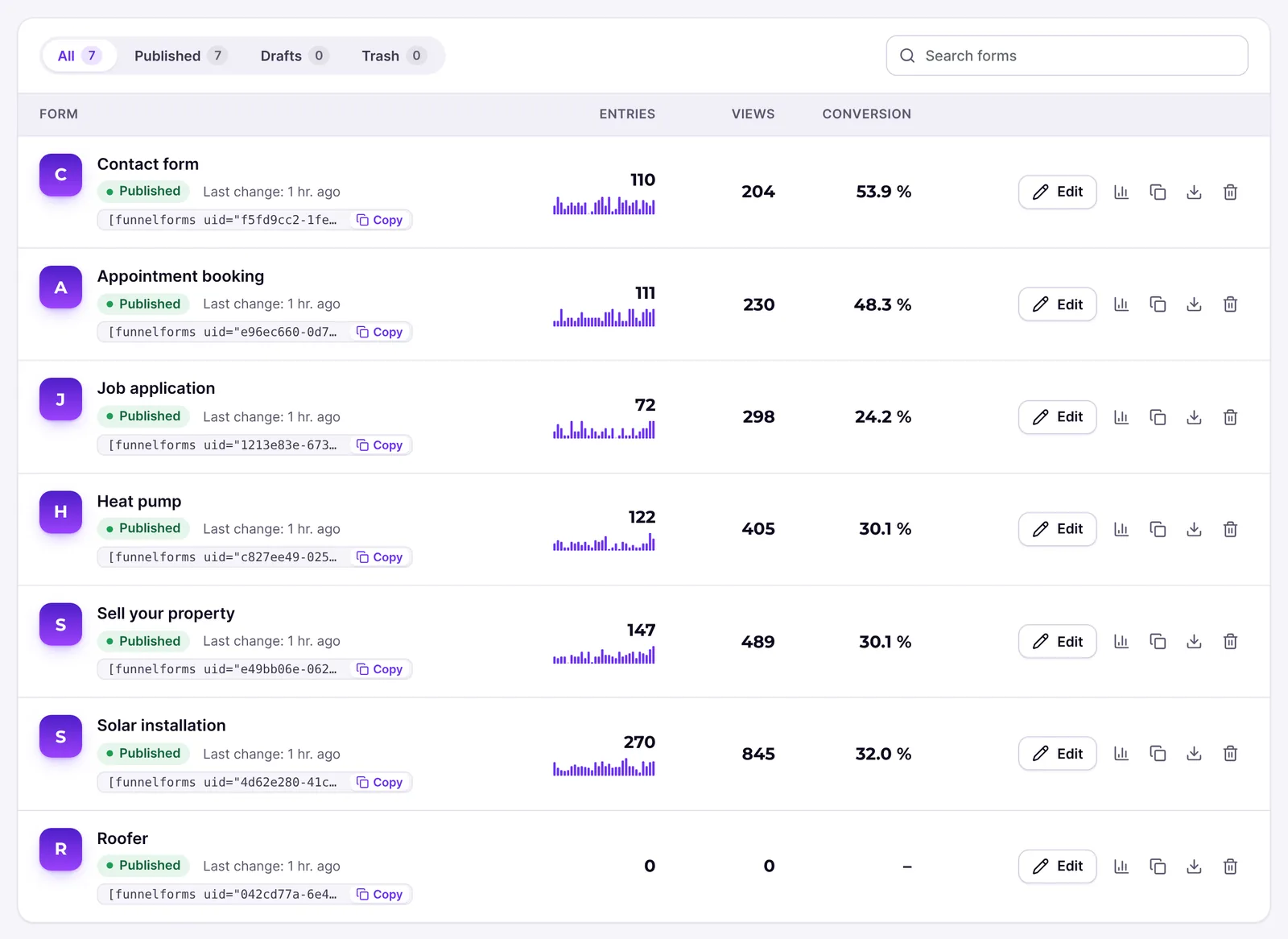
- Type a term into Search forms. The list filters as you type.
- If you use categories, the choice All categories narrows the list to one category.
Duplicate, export or delete a form
- Find the form in the list.
- Click the Duplicate icon on the right of the row. You see "Copy created as a draft."

- Click the Export icon to download a file ending in .funnelforms.json.
- Click the Move to trash icon. Under Trash you bring the form back with Restore or remove it with Delete permanently.
Import a form
- Click Import in the header.
- Choose a file (.json or .zip), for example an export from another Funnelforms website.
- The list switches to Drafts and shows the imported forms. Check them and publish them.
You bring in forms from other form plugins with From other plugins.

Copy the shortcode
- Click the shortcode in the form's row. Copied briefly appears next to it.
- Paste it into a page or post.
How it works
What do the key figures show?
The cards at the top count the last 30 days. Views count once per visit. Entries also show the change against the 30 days before in percent. The Conversion rate is entries per view. Each row shows the same for the single form, with a small daily curve for Entries. For forms that still run on Funnelforms 3, Funnelforms counts no views; you see "–" with the note "Views are measured once the form runs on Funnelforms 5."
What do the statuses in the list mean?
- Draft: never published.
- Published: visitors see the current version.
- Published, with changes: there is a newer draft that visitors don't see yet.
- Live on Funnelforms 3: a form taken over from version 3 that visitors still see in the Funnelforms 3 look.
- In the trash: the form is removed but can be restored.
Each row may also show the category, Last change: … and "… is editing" when another person has the form open.
What is the difference between the preview and the live preview?
The Preview opens its own dialog in which you play through the form. The Live preview in the Design workspace sits next to the settings and updates shortly after each change. Both show the saved draft.
What happens in the test run?
The form checks answers as on a real submission, but stores no entry, sends no emails and counts nothing in the statistics. Redirects at the end are only named, not followed. Uploaded files are not kept. Continue later is not available in the preview. If you are editing a translation, the preview shows that language.
Why does the editor warn about duplicate variable names?
Each field has a Variable name under Advanced. Calculations, placeholders and integrations address the field by this name. If two fields share a name, the editor takes only one of them. The warning appears in the field whose name is used twice: "The variable name "…" is used by "…" as well. Calculations, placeholders and integrations then take only one of them; change it under Advanced." Letters, digits, underscore and hyphen are allowed. New and duplicated fields get a unique name automatically.
Best practices
- Test every form on Mobile before publishing, because layout and size there often decide whether people finish.
- Play through different paths, especially ones with conditions.
- Compare the Conversion column in the list to find weak forms.
- Group many forms with categories and find them with the search.
Troubleshooting
| Problem | Cause | Solution |
|---|---|---|
| The preview shows "Fix these to see the preview". | The form has problems, for example an unfinished path. | Fix the listed points. |
| The preview doesn't load ("The preview could not be loaded."). | The draft could not be fetched. | Close the preview and open it again. |
| Key figures and the columns Entries, Views and Conversion are missing. | You lack the right to view entries. | Ask a person with administrator rights to give you that right. |
| A form has no Statistics icon. | The form is not published. | Publish the form. |
| Delete permanently can't be clicked. | The form was taken over from Funnelforms 3. | Leave it in the trash or bring it back with Restore. |
| "… forms imported as drafts, … could not be converted." | Some forms in the file could not be converted. | The others are created as drafts; check and publish them. |
| "No forms found" | Search, category or status exclude all forms. | Try another search or status. |
| "The forms could not be loaded." | The list could not be fetched. | Click Try again. |
Tips
- Clicking the name opens the editor, just like Edit.
- The search starts shortly after you type and jumps back to page 1.
- An empty trash shows "The trash is empty".
- If you see "… is editing", the form is locked for others. You can look at it, but you can only save after taking it over.
FAQ
Does testing in the preview send an email? No. The test run saves nothing and sends nothing.
Does the preview count in the statistics? No. The preview counts no views and no entries.
Can I copy forms between websites? Yes. Export the form on one website with Export and upload the file on the other with Import.
Can I get a form back from the trash? Yes. Open Trash and click Restore. The form comes back as a draft or as a published form, depending on whether it was published before.