The access settings control who may fill in a form and when: only visitors logged in to your website, only with a password, only within a time window, only up to a number of entries, or within a time limit with a countdown. This suits member areas, registrations with limited places, campaigns with a deadline and tests with a set time.
Requirements
- Funnelforms Pro. This feature is not included in Funnelforms Free.
- For Only for logged-in visitors: visitors need a user account on your WordPress site.
- Changes reach visitors only after you publish the form.
In Funnelforms Free, the Settings workspace shows More settings with "These come with Funnelforms Pro:" and Access in the list. If a form already uses access or a time limit, for example after switching from Pro to Free, Free also shows the Access card so you can switch them off; the form can be published only without them.
Where to find it
Funnelforms → Forms → open a form → workspace Settings → section Access.
Features at a glance
- Protect with a password: visitors see the form only after entering a password.
- Only for logged-in visitors: visitors not logged in to your website see a message with a login link instead of the form.
- Close after this many entries: the form closes when the number of entries is reached.
- Open from and Open until: a time window for entries.
- Time limit in minutes: visitors see a countdown and, shortly before the end, a warning with More time.
- Your own texts for visitors who are not logged in, for closed forms and for when time is up, per form language.
Step by step
Allow logged-in visitors only
- Open the Settings workspace → section Access.
- Turn on Only for logged-in visitors.

- Under Message for visitors who are not logged in, enter your own text, or leave it empty for "Please log in to use this form."
- Click Publish.
Set a password
- In the Access section, click Protect with a password.
- Enter the password under Password for visitors and click Save password.

- Publish the form.
Change sets a new password, Remove lifts the protection.
Set an entry limit and a time window
- Enter a number under Close after this many entries, for example 50.
- Choose date and time under Open from and Open until.
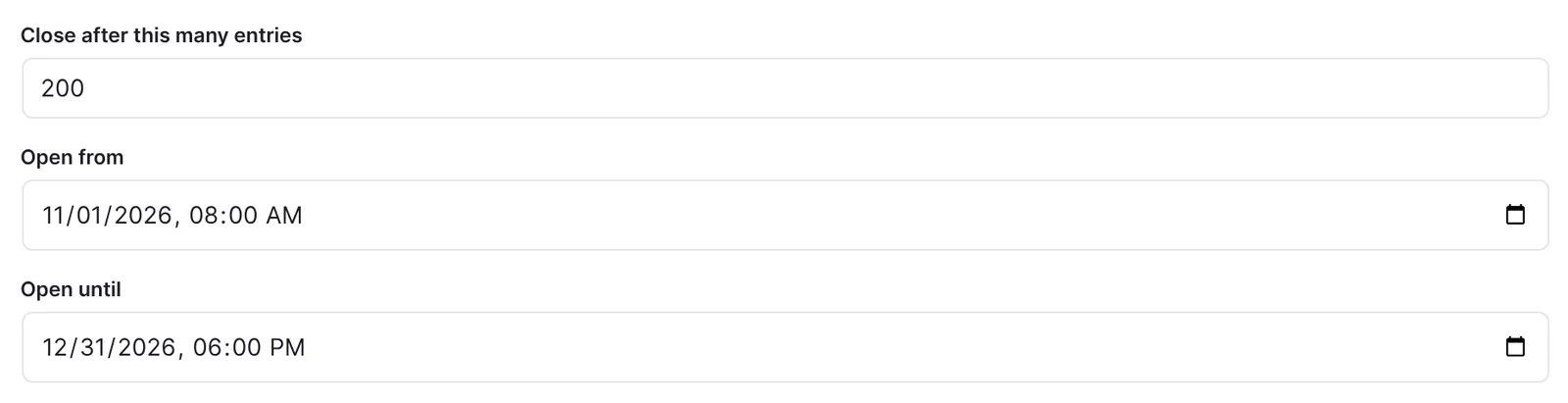
- Enter a text under Message while the form is closed, or leave it empty for the standard text.
- Publish the form.
Set a time limit
- Enter the duration under Time limit in minutes, from 1 to 1440 minutes.
- Enter your own text under Message when the time is up, or leave it empty.
- Publish the form.
To remove the time limit, empty Time limit in minutes.
How it works
What do visitors see who are not logged in?
Instead of the form they see your message or "Please log in to use this form." with the Log in button below. It leads to the WordPress login page and, after logging in, back to the page with the form.
Logged-in visitors get a key of their own when the page loads, valid for 12 hours. The plugin checks it on every request. If it expires, for example because the page was open for a long time, visitors see "Please reload the page to send the form.", or "Please reload the page and enter the password again." for a form with a password.
Login and password can be combined: visitors then have to be logged in and know the password.
What do visitors see with a password?
The page shows only "This form is protected by a password." with the Password field and the Open form button. The questions become part of the page only after unlocking. A wrong password shows "The password is not correct."
- Spaces at the start and end of the password do not count.
- After unlocking, the form stays accessible for 12 hours.
- After 10 wrong attempts in 10 minutes it says "Too many attempts. Please wait a few minutes and try again."
- If you change the password, everyone who unlocked before loses access.
Funnelforms stores only a hash of the password. You cannot show it again, only change it.
What happens while the form is closed?
Before Open from, after Open until and once Close after this many entries is reached, the form shows your message or "This form is not taking any more entries." The plugin checks this on the server on every request, even if a cached page still shows the form.
The entry limit counts complete entries. If two visitors send at the same moment, it can be exceeded by one entry. You enter the times in your browser's time zone. If Open until is before Open from, Funnelforms warns: "The form closes before it opens, so it never takes entries."
How does the time limit work?
Time runs from the first click in the form. Above the steps it says "Time left: 4:05". 20 seconds before the end, "Only 0:20 left." appears with the More time button. A click restarts the full time limit from that moment. This works once per visit, as long as the time has not run out. The button goes away with the click. Shortly before the new end "Only 0:20 left." appears again, then without a button. Visitors who need a little more time can still finish the form.
When time is up, your Message when the time is up replaces the questions, otherwise "The time for this form is up. Your answers can no longer be sent."
How safe is the time limit?
The plugin checks the time on the server. The start is signed and sent with the entry. An entry without a valid start, or arriving more than 30 seconds after the limit, is refused. With More time visitors extend the time limit once by the full time, so they have about twice the time at most. Reloading the page starts a new visit with new time.
What does Funnelforms Free do with a protected form?
Free has no access protection and no time limit. Free cannot publish a form that uses one of these settings. A form that is already published, for example after switching from Pro to Free, is not shown on the website at all rather than shown unprotected. The settings stay saved.
Best practices
- Test login, password, time window and time limit yourself before you announce the form, ideally in a private browser window.
- Tell visitors in advance how much time they have.
- Say in the message for closed forms when and how things continue.
- For a fixed number of places, the entry limit is more reliable than checking by hand.
Troubleshooting
| Problem | Cause | Solution |
|---|---|---|
| Visitors see "This form is not taking any more entries." | The entry limit is reached or the time window is over or has not begun. | Check Close after this many entries, Open from and Open until. |
| Logged-in visitors still see the message with Log in. | A cached page for guests is delivered. | Exclude the page from the page cache, or serve logged-in visitors no cached page. |
| "Please reload the page and enter the password again." or "Please reload the page to send the form." | The key expired after 12 hours or the password was changed. | Reload the page; for a form with a password, enter it again. |
| "Too many attempts …" | More than 10 passwords in 10 minutes. | Wait a few minutes. |
| An entry is refused because time is up. | Time ran out before the visitor clicked More time or sent the form. | Reload and fill in the form again. Raise the time limit if it is too tight. |
| Message while the form is closed is missing. | It appears only with an entry limit or a time window. | Set one of them. |
Tips
- With a time window you can prepare a form and open it at a fixed moment.
- The time limit applies to the whole visit, not per step. The maximum is 1440 minutes.
- For member-only forms you need no password: Only for logged-in visitors is enough.
FAQ
Can I open the form only to members of my website? Yes, with Only for logged-in visitors. Every user account of your WordPress site counts, whatever its role.
Does the time limit apply to all steps together? Yes. It runs from the first click until the form is sent.
Can a visitor extend the time limit? Yes, once per visit with More time shortly before the end. The full time limit then runs again; there is no second extension.