Measure conversions accurately: set up Google Ads, Meta Pixel, and tracking correctly
With conversion tracking, you can measure which ad campaign actually generates leads through your Funnelforms form. For Google Ads, a native integration is available that automatically adds the tracking snippet to the form. Meta Pixel and similar pixels are added through the tracking field.
Requirements
- A published form that you can open in the Form Editor.
- For Google Ads: an active Google Ads account and a configured website conversion action with a conversion ID and conversion label.
- For Meta Pixel: a pixel ID from Meta Business Manager.
- For server-side Google Ads uploads: a stored Google click identifier, such as GCLID, GBRAID, or WBRAID, if you want to use Offline Conversions or Enhanced Conversions for Leads.
Where to set up conversion tracking
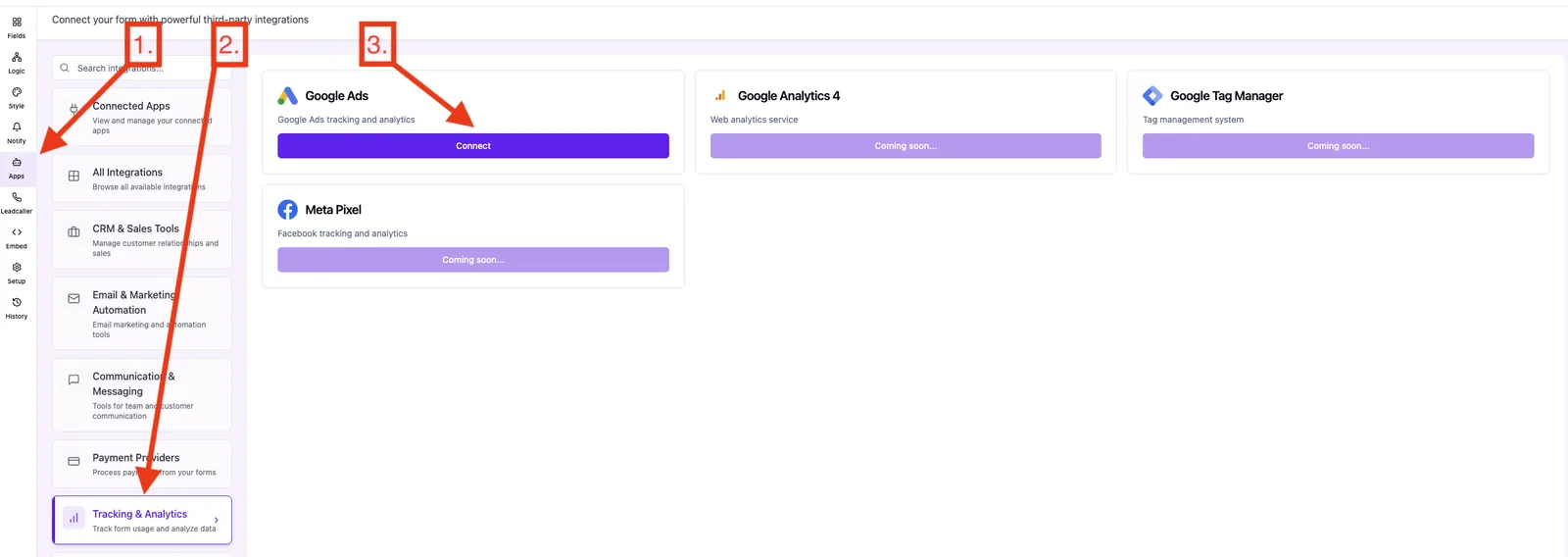
- Open the form and go to the Form Editor.
- Open the Apps tab.
- In the Tracking & Analytics category, you will find the available integrations.
Uploaded image
Google Ads native integration
What happens technically
Funnelforms writes the Google Ads snippet into the customJavaScript area of the form settings, wrapped between /* === GOOGLE ADS START === / and / === GOOGLE ADS END === */.
The snippet is loaded when the form is rendered and fires the conversion event after a successful submission.
When the integration is removed, Funnelforms automatically deletes the marked block from the JavaScript area.
Step by step
- Open Apps → Google Ads.
- Enter the conversion ID and conversion label.
- Save the connection.
- Publish the form and submit a test lead.
- Check the conversion action in Google Ads under Conversions or Goals. Depending on your Google Ads interface, you may find this area under Goals, Conversions, or Tools & Settings.
- Use Google Tag Assistant to check whether the tag loads on the page and whether the conversion event is triggered.
Meta Pixel and other pixels
Meta Pixel, Google Analytics 4, and Google Tag Manager are listed in the Apps overview, but are currently not connected as native integrations. You add them through the tracking field or the thank-you page.
Step by step: Meta Pixel
- Get the full pixel snippet from Meta Business Manager, including the base code and the desired event, for example fbq('track', 'Lead').
- Open the tracking field or thank-you page in the Form Editor.
- Paste the snippet into the JavaScript Code field.
- Publish the form and check the pixel with the Meta Pixel Helper.
Best practices
- Use only one source per provider for each conversion: either the native integration or your own snippet.
- Place the event where it actually happens: the lead event after successful submission or on the thank-you page, not as a page-view event on every form step.
- Use UTM parameters in your ads and additionally store available click IDs such as GCLID, GBRAID, or WBRAID if you want to use Google Ads Offline Conversions or server-side uploads later.
- Create a version of the form before every tracking change, so you can roll back precisely if needed.
- Check Google Ads tags with Google Tag Assistant before relying only on the conversion overview in Google Ads.
Troubleshooting
Google Ads does not count anything: Check whether the conversion ID and conversion label are entered correctly, whether the form was published after connecting the integration, and whether the tag is triggered in Google Tag Assistant. Also keep in mind that Google Ads status and reporting data can update with a delay.
The conversion action stays on “Unverified” or “No recent conversions”: This does not automatically mean that the integration is wrong. First use Tag Assistant to check whether the tag is present on the page and whether the event is triggered. After that, it may take some time for Google Ads to update the status.
Meta Pixel does not fire: The pixel snippet may contain syntax errors or may have been placed in the wrong node. Check the save error or use the Meta Pixel Helper.
The conversion is counted twice: The same code is active in multiple nodes or additionally through the native integration. Remove the duplicate.
The snippet is missing after removing the integration: The integration only removes its own marked block. Custom pixels in the tracking field must be deleted manually.
Tips
- The native Google Ads integration helps avoid common snippet errors and removes itself completely when disconnected.
- The fastest way to test custom pixels is in a private browser window so caching does not interfere.
- After changing Google Ads tags, always check both the form trigger and the Google Ads status display.
- If you use Google Tag Manager, make sure the Conversion Linker is set up correctly.
GDPR & Consent
Enable Consent Mode v2 for Google Ads if you use Google tags in the European Economic Area or for users who require consent.
Set the relevant consent signals according to the user’s decision. These include in particular:
- ad_storage
- analytics_storage
- ad_user_data
- ad_personalization
Google Ads and Analytics tags should not be loaded before consent as if the user had allowed marketing or analytics tracking. Your consent tool must set the consent signals accordingly and update them after consent is given.
Meta Pixel may only be loaded after explicit opt-in. Place fbq('init', ...) behind the marketing toggle in your consent tool.
Alternative: server-side conversion tracking
Cookie banner rejections, ad blockers, and browser protection mechanisms can reduce client-side tracking. As a supplement, you can send certain conversion data server-side, triggered by the Funnelforms webhook when a lead is received.
Possible variants:
- Meta Conversions API (CAPI): Webhook → Make/Zapier → CAPI endpoint with event_name: 'Lead', hashed email address, and event_id for deduplication with the pixel.
- GA4 Measurement Protocol: Webhook → Make/Zapier → GA4 Measurement Protocol endpoint with measurement ID and API secret. The API secret must not be exposed in client-side code.
- Google Ads Offline Conversions: Webhook → Google Ads API or supported upload process with a stored click ID, such as GCLID, GBRAID, or WBRAID. UTM parameters alone are not sufficient for this.
Benefit: server-side tracking can be more robust against browser restrictions and provide better data quality. The requirement is that consent, legal basis, data minimization, and platform requirements are handled correctly.
FAQ
Where does Funnelforms store the Google Ads snippet? In the form settings in the customJavaScript area, wrapped with clearly recognizable markers so it can be managed automatically.
Can I run multiple pixels at the same time? Yes. Google Ads, Meta Pixel, GA4, or other scripts can technically run in parallel. What matters is that they do not count the same conversion multiple times.
Why is there no native Meta Pixel integration? Meta Pixel is listed in the Apps overview, but currently runs through the tracking field. This keeps full flexibility, including custom events.
How long does it take for conversions to appear in Google Ads? Individual tests may appear with a delay. After implementing or correcting a tag, the conversion status in Google Ads can take up to 48 hours to update.
Are UTM parameters enough for Google Ads Offline Conversions? No. UTM parameters help with campaign attribution, but they do not replace Google click IDs. For Google Ads Offline Conversions, you usually need a stored click ID such as GCLID, GBRAID, or WBRAID.
Related articles
- Analytics & Tracking: Overview
- Analyze referrers and UTM sources
- Understanding the analytics dashboard