Manage Leads Faster: Filter, Review and Export Form Responses With Ease
Lead management bundles every form submission into one searchable view: filterable by time range, domain and device, with a per-lead detail view and several export paths. You can process inbound leads in a structured way instead of digging through individual email notifications.
Requirements
- An active Funnelforms account with at least one published form.
- At least one submitted lead – fresh submissions appear in real time.
Where to find leads
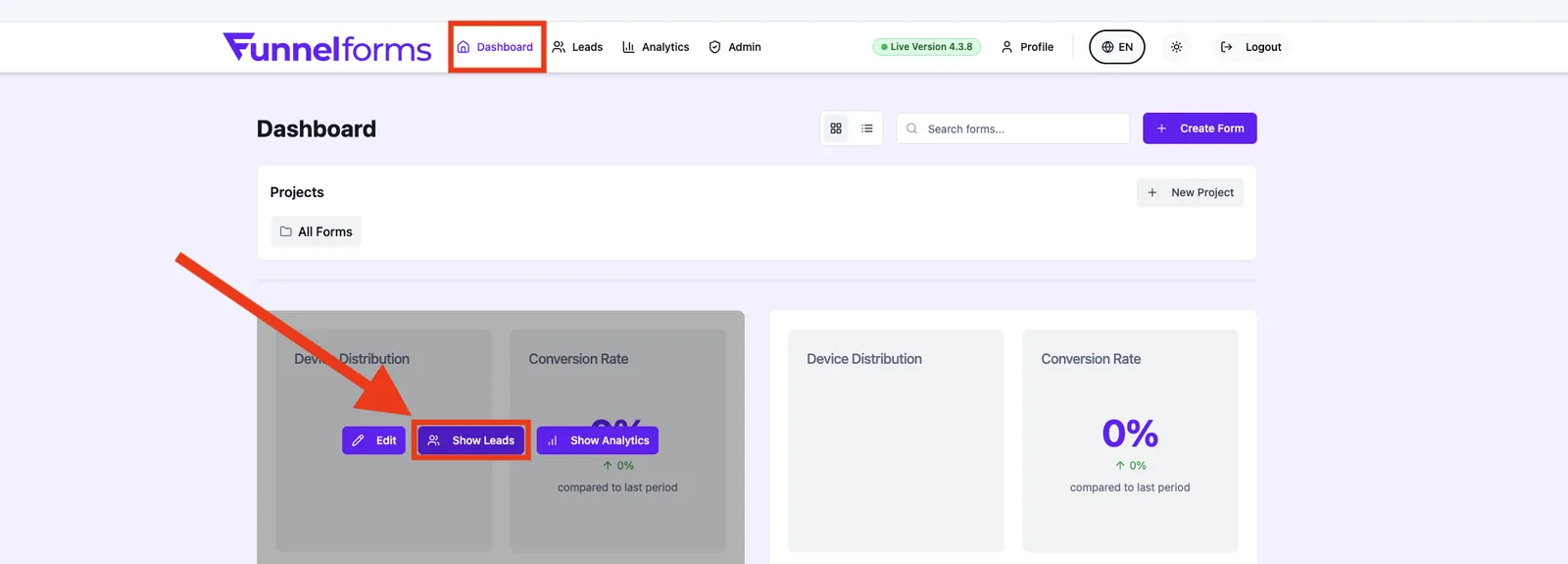
- Open Leads in the main navigation.
- Choose the form whose leads you want to inspect, or show all forms.
- Optional: append
?formId=...or?leadId=...to the URL to jump straight into a lead.
Features at a glance
Views
Use the view toggle to switch between Table and Cards. The choice persists across pages.
Filters
- Search: full-text search across name, email and answers.
- Time range: any range via the date range picker.
- Domain: restrict leads to a specific domain or explicitly to unassigned.
- Device: desktop, mobile or tablet.
- Reset: clears all filters.
Detail view
Click a lead to open the full response including contact details, device and domain information.
Bulk actions
Use the checkboxes to select multiple leads and run actions such as changing the status (e.g. new, in progress, contacted, qualified) or deleting them in one go.
Step by step: exporting leads
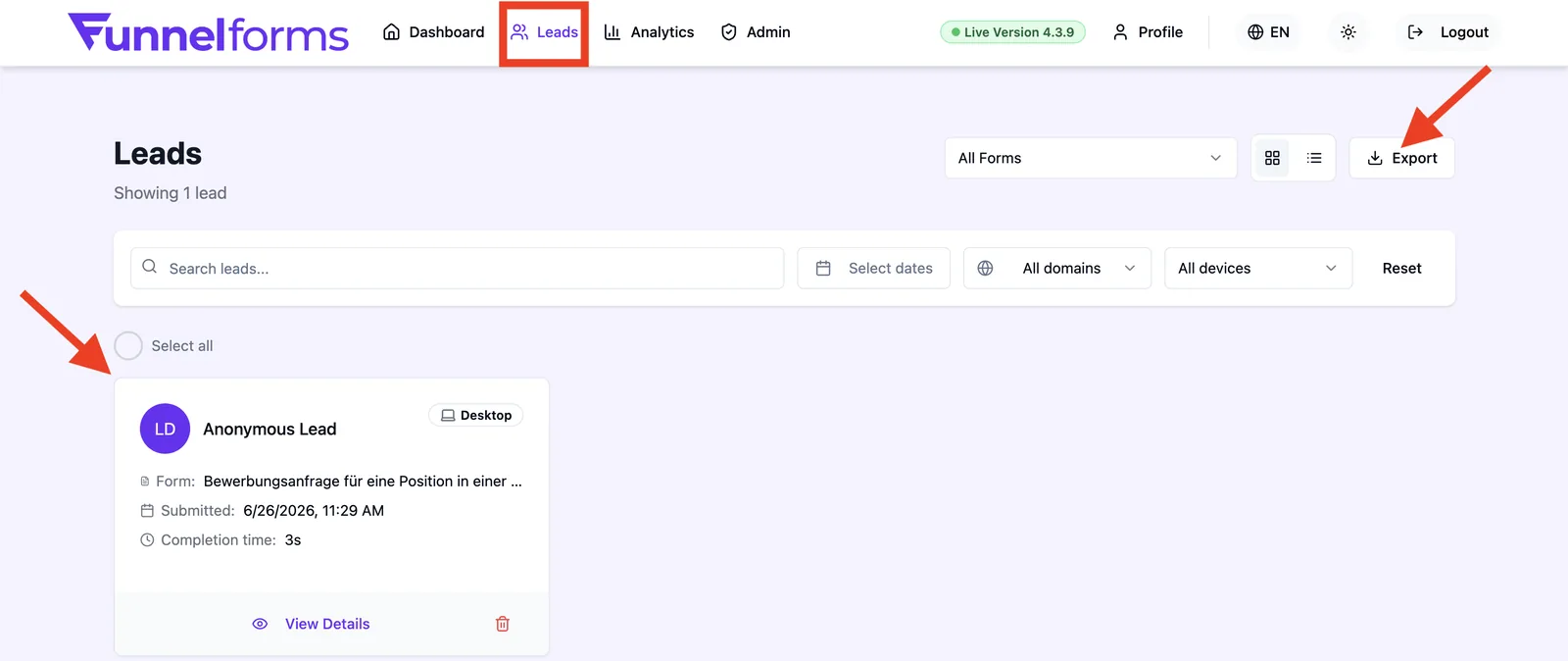
- Open Leads and pick a form if needed.
- Apply the desired filters (time range, domain, device, search).
- Click Export.
- Choose a variant: - Export all – every lead of the form. - Export current view – exactly what the active filters return. - Export selected – only the leads you ticked.
- The CSV file downloads automatically.
Best practices
- Apply filters before exporting – this saves post-processing in Excel or your CRM.
- Use the domain filter when one form is embedded on multiple websites.
- Check unassigned regularly: submissions without a recognizable domain land there.
Troubleshooting
- Lead is missing: widen the time range or hit reset.
- Export is empty: the current filters return no data – relax filters or pick Export all.
- Detail view shows no content: the form was abandoned, only a partial record exists.
- Export button does nothing: the plan may not include export – this is indicated by the restricted feature notice.
Tips
- Use URL parameters like
?formId=...&leadId=...to jump from a notification straight into a lead. - Keep CSV exports ready for GDPR requests – they contain every stored field of a lead.
- Enable Debug Mode (browser console:
localStorage.setItem('ff:debug_mode', 'true')) to additionally show technical IDs (lead ID, field IDs) in the lead detail view – useful for webhook or integration debugging.
FAQ
Which format is used for export?
CSV (UTF-8) with all form fields, a timestamp in DD.MM.YYYY format, device type, domain and – if captured – the UTM parameters (source, medium, campaign, term, content). UTM columns are hidden in the default table view but are always included in the export.
Do filters persist when switching forms?
Search and time range persist, form-specific fields reset – this prevents empty results.
Can I delete leads?
Yes, individually or via bulk action. Deletion is final and cannot be undone.
Do new leads appear automatically?
Yes, the list refreshes. With very large data sets a manual reload may be required.