Read Your Dashboard Right: Understand and Improve Form Performance at a Glance
The Analytics dashboard is the central overview of how your funnelforms forms perform. It bundles four core metrics, compares them against the previous month and can be filtered per form or aggregated across your portfolio. This article explains the dashboard layout and how to interpret the numbers correctly.
Prerequisites
- At least one published funnelforms form.
- Incoming views or submissions so that values can be calculated.
- A correct domain assignment so that views are attributed cleanly to the form.
Where to find it
Main menu → Analytics
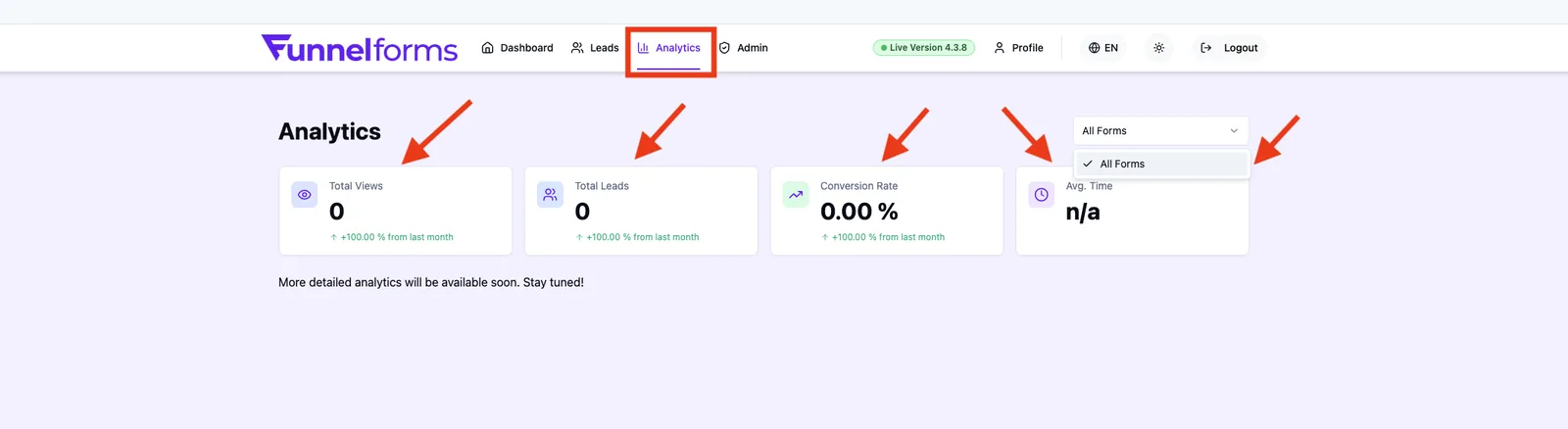
What does the dashboard show?
- Total Views — number of views of the published form.
- Total Leads — number of completed submissions.
- Conversion Rate — ratio of leads to views.
- Avg. Time — average completion time per lead.
- Form filter — evaluate across all forms or focus on a single form.
- Month-over-month change — arrow and percentage per metric (except average time).
Step-by-step
- Open Main menu → Analytics.
- Pick a form in the dropdown on the top right or keep All Forms active.
- Read the four metric cards from left to right: Total Views, Total Leads, Conversion Rate, Avg. Time.
- Below each card (except the time card) check the month-over-month change — green arrow up, red arrow down or yellow minus for unchanged values.
- Switch the form in the dropdown whenever you want to inspect another form.
How are the values calculated?
Conversion rate
The conversion rate is the ratio of completed leads to views. If views grow but leads do not grow at the same pace, the rate drops.
Average completion time
Measures the span between the start and the completion of a lead. Very short values often indicate bot traffic or test submissions; very long values often point to complex or unclear questions.
Month-over-month change
The current value is compared to the equivalent period of the previous month. Positive changes are shown in green, negative in red and unchanged values in yellow.
Best practices
- Never read a single metric in isolation — views without leads are as telling as leads without growing views.
- Toggle deliberately between single form and All Forms to spot distortions caused by individual top performers.
- Hold a short monthly review to reconcile the change percentages with concrete funnel changes.
- Keep a separate log of relevant marketing activities (campaign launches, pricing tests) so you can attribute spikes in the dashboard.
Common pitfalls & troubleshooting
- Empty cards: the form is not published or no data has been collected yet.
- Very high conversion rate (> 90%): usually a sign of very few views — the rate is statistically unreliable.
- Very low average time: often skewed by test or bot calls. Do not publish test submissions on the live URL.
- Change value "0%" with yellow icon: identical values compared to the previous month — a hint that nothing has changed.
Tips & notes
Note: Further evaluations (conversion funnel, device distribution, geography, question performance, activity heatmap, referrer sources) are already prepared in the codebase and will be released inside the dashboard step by step. This feature is currently in progress.
Tip: For the content of the submissions (which answers were given) switch to Main menu → Leads.
Frequently asked questions
Which time ranges does the dashboard show by default?
The metrics are shown as totals; the percentage change is calculated against the previous month.
Why does the lead count differ from the entry count in the Leads area?
The dashboard counts completed, "live"-marked submissions. In the Leads area you can additionally see test or draft statuses.
Why are my test submissions counted?
Once they happen on the published URL they are technically real submissions. Mark test leads in your CRM or delete them in the Leads area.
Can I export the dashboard?
An export for the aggregated dashboard metrics is currently in progress. Lead data can be exported in the Leads area.
Is there a dashboard per team member?
The dashboard is account-wide. Team members with access see the same metrics as the account owner.
Related articles
- Analytics & Tracking: Overview
- Lead management: viewing, filtering and exporting leads
- Analyze referrers and UTM sources