Add, sort, and manage form fields
Fields are the building blocks of every Funnelforms form. In this article you will learn how to add, sort, duplicate, hide and delete fields – and what to keep in mind so your form stays clean, short and conversion-focused.
Prerequisites
- Active Funnelforms account (trial or active subscription).
- A form created under Forms.
- Some field types (e.g. Signature, Payment, File Upload) are plan-restricted – the Free tier also enforces a 10 MB file-size limit.
Where to find it
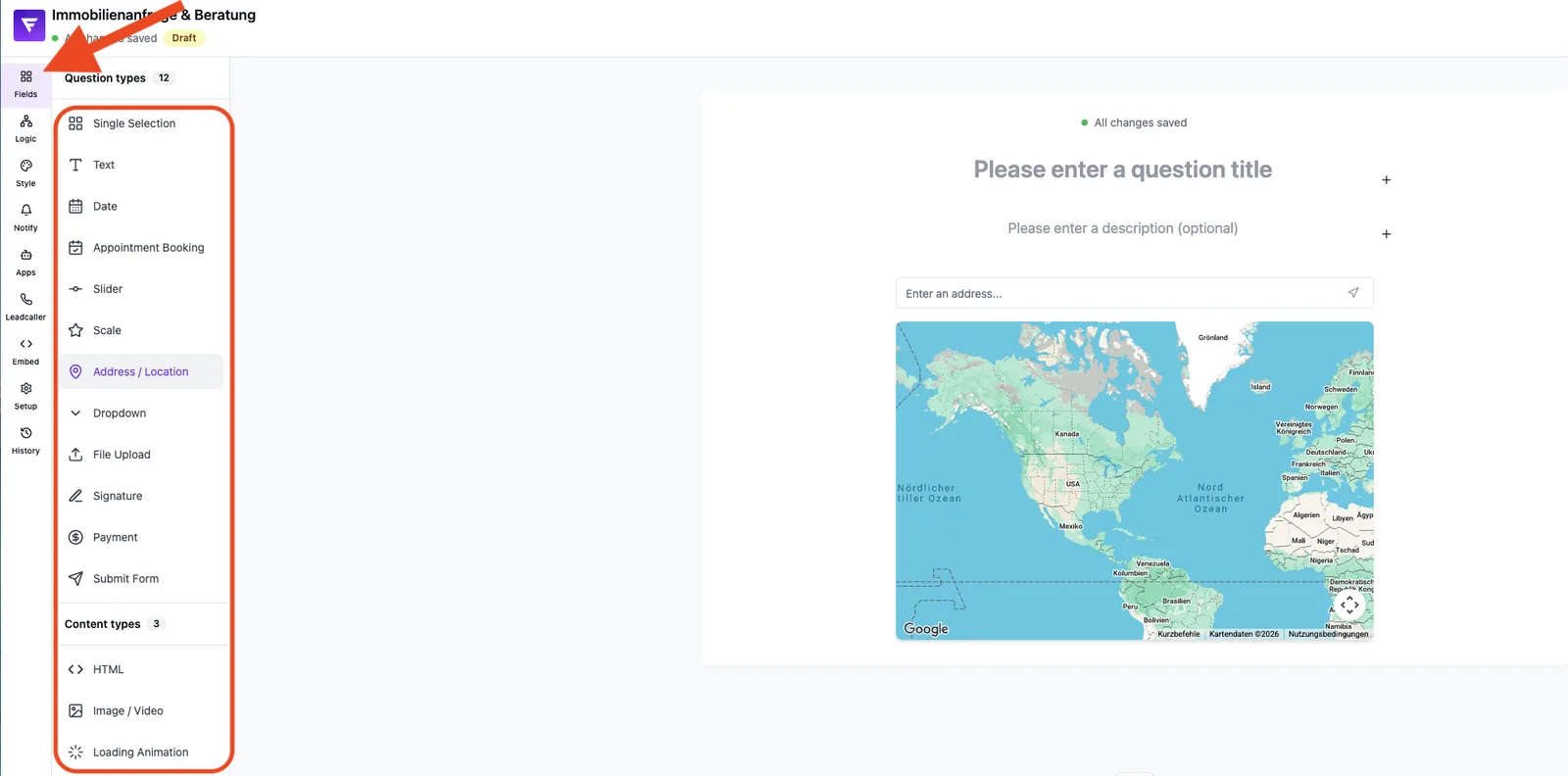
Path: Forms → select form → Editor → Fields. On the left you see the list of existing questions, in the middle the live preview, on the right (if shown) the detail panel of the selected field.
Features at a glance
- Add new fields by picking a field type.
- Reorder fields via drag and drop.
- Duplicate, rename and delete fields.
- Set the required and visibility state per field.
- Search existing questions and filter by required-only.
Available field types
Funnelforms provides the following field types in the field-type picker: Single Selection, Text, Date, Appointment Booking, Slider, Scale, Address / Location, Dropdown, File Upload, Signature, Payment (in development), Submit Form, HTML, Image / Video and Loading Animation. Some types offer variants in the field settings, e.g. Multiple Selection (Single Selection), Text Area (Text), Date Range (Date), Slider Range (Slider) and Multiple Dropdown (Dropdown).
Step-by-step: add a field
- Open your form and switch to the Fields tab.
- Click the action to add a new question.
- Pick the appropriate field type from the list.
- Give the question a descriptive question name – a unique label is recommended so leads, webhooks and exports stay readable.
- Configure field-specific options (e.g. options for a single selection, min/max values for a slider).
- Set the required state if needed.
- Check the result instantly in the live preview.
How do I sort fields?
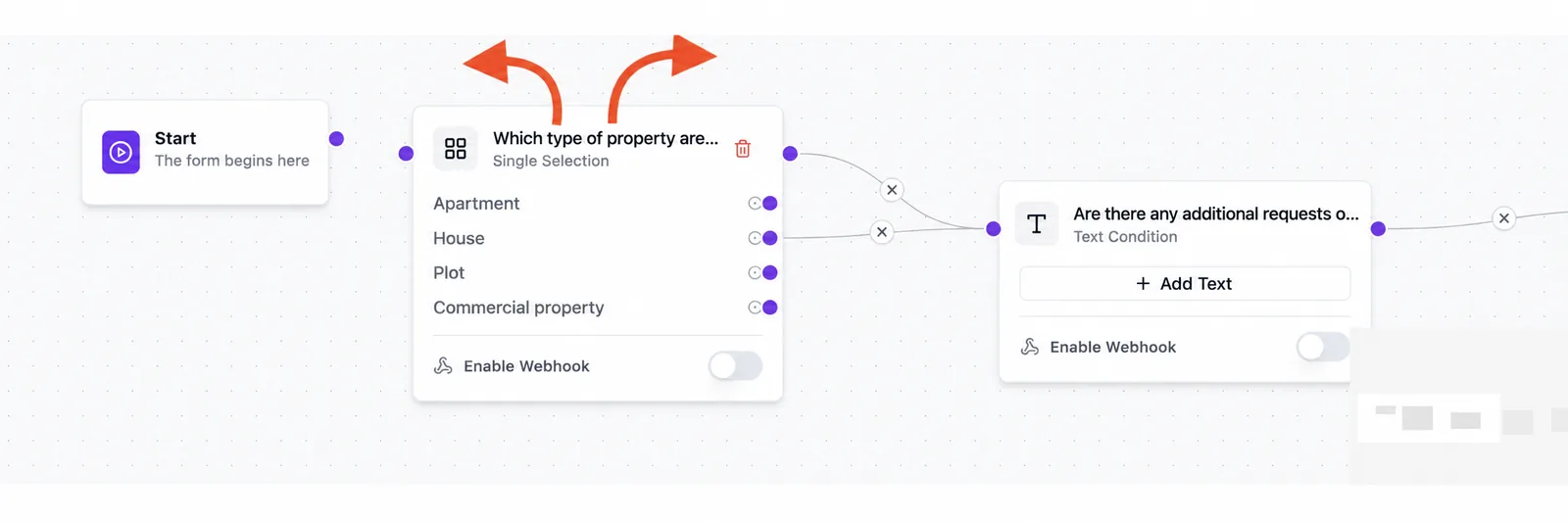
Grab a field in the question list at its drag handle and move it to the desired position. The order in the list matches the order shown in the form exactly.
How do I duplicate a field?
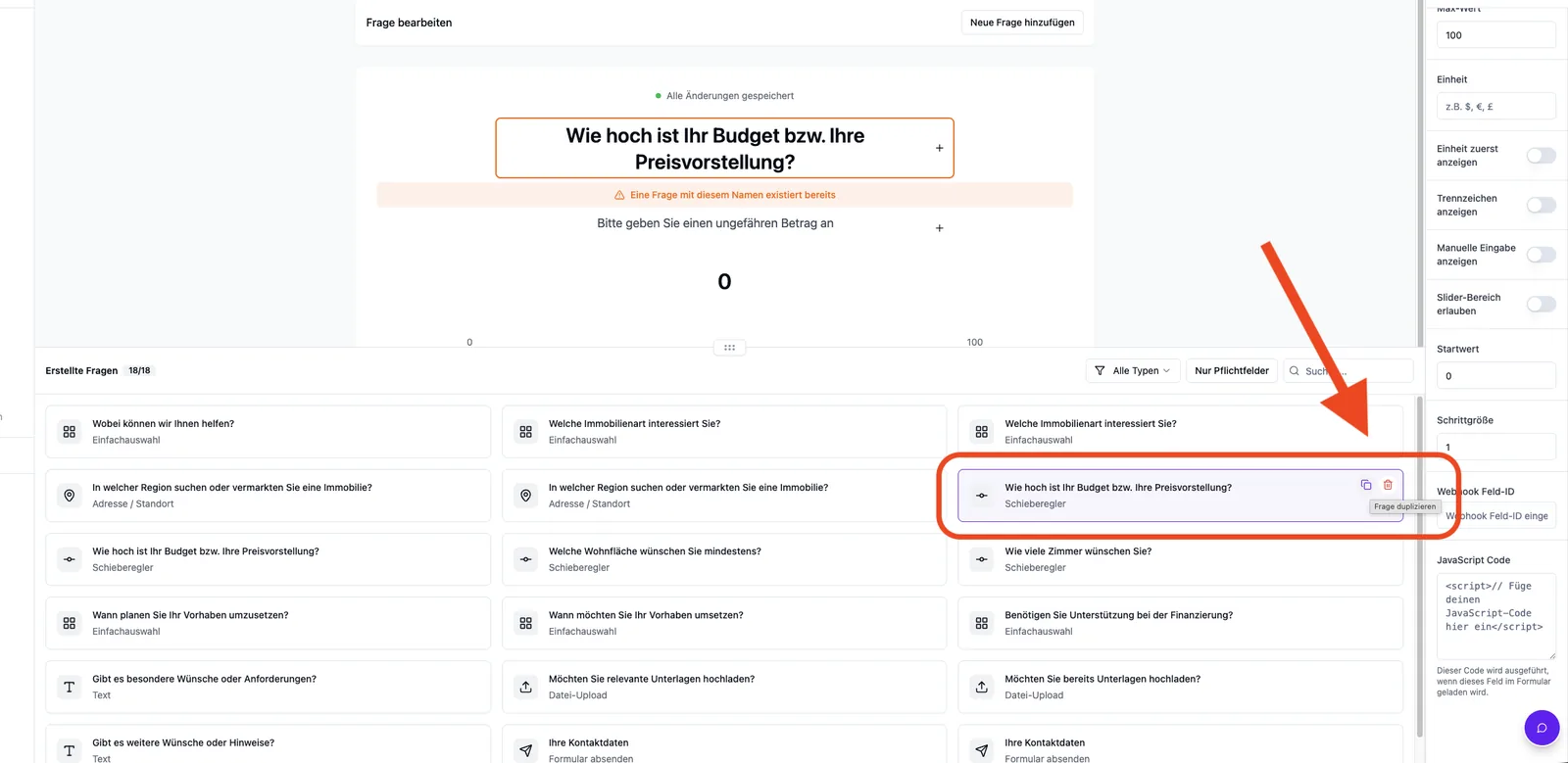
Each question row offers an action area. Use Duplicate question to create a copy including all settings. The question name is adjusted automatically to avoid duplicates.
How do I delete a field?
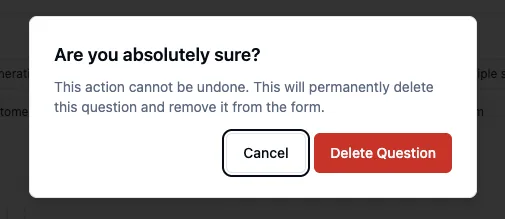
The delete icon on the question opens the confirmation dialog Are you absolutely sure?. Confirm with Delete Question. The action cannot be undone – consider creating a backup version under History beforehand.
Best practices
- Keep forms short: only ask what you really need.
- Use descriptive question names – they will appear later in leads, webhooks and exports.
- Use required fields with care – every required field increases drop-off risk.
- Prefer Single Selection/Dropdown over free text whenever possible – this improves data quality and reporting.
Common pitfalls
- Duplicate question name: Identical names are technically possible but make leads, webhooks and exports harder to map – use unique labels whenever possible.
- Field not visible in the preview: Check whether it is hidden by conditional logic or assigned to an inactive step.
- Field type not selectable: Some field types require a higher plan and are locked in the field-type picker – a tooltip indicates the required plan tier.
Tips & notes
Tip: Save a manual version under History before reordering or deleting many fields – this lets you restore the previous state at any time.
Note: Field changes are usually saved automatically; there is no separate save button. On slow connections wait briefly for the confirmation before switching tabs.
Caution: If you delete a field referenced by conditional logic, the affected rules need to be updated in the Logic tab.
Frequently asked questions (FAQ)
Can I convert an existing field into a different field type?
An existing field does not change its type. Create a new field, transfer the content and remove the old field afterwards.
How many fields can a single form contain?
There is no hard limit. From a UX perspective: the shorter the form, the higher the completion rate.
What happens to existing leads when I delete a field?
Lead data already stored remains unchanged. The field simply no longer appears in new submissions.
How can I show only required fields?
Use the Required only filter in the question list. All types resets the view at any time.
Why is my new field missing from the webhook payload?
Fields appear in the payload only after they have been saved and a new lead has been submitted. Existing field keys are preserved for compatibility.