Use the form preview and live test correctly
The preview inside the Form Editor shows your form just the way your prospects will see it. You can simulate entries, navigate through steps and check that fields, logic and styling work together – without ever producing real leads in your account.
Prerequisites
- Active Funnelforms account (trial or active subscription).
- At least one field under the Fields tab so the preview has something to render.
- No additional setup is required for the device preview.
Where to find it
Path: Forms → select form → Editor → Fields. The preview appears in the middle of the editor. An extended device preview (Desktop / Tablet / Mobile) is additionally available under the Style tab.
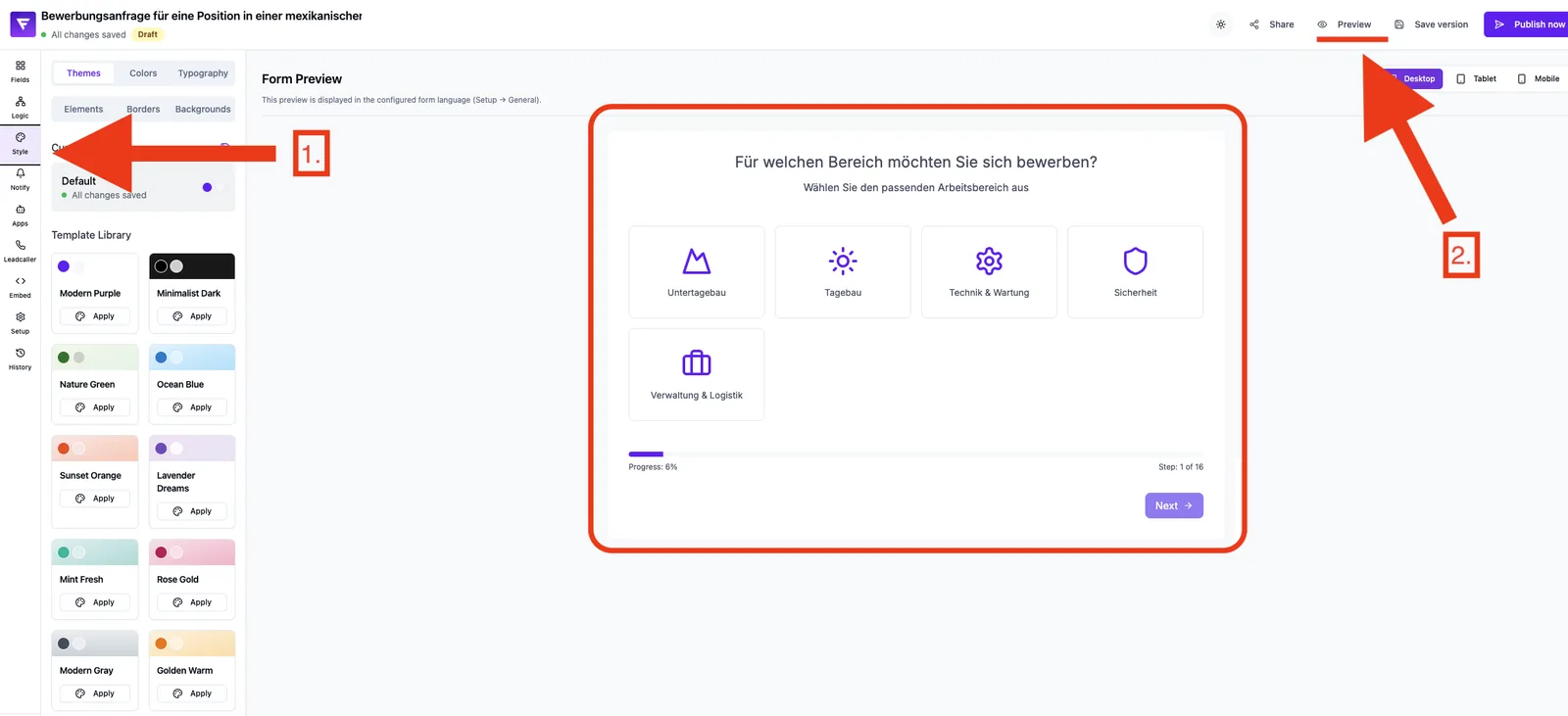
Features at a glance
- Live preview of all fields and their order.
- Step navigation for multi-step forms.
- Immediate effect of style and logic changes.
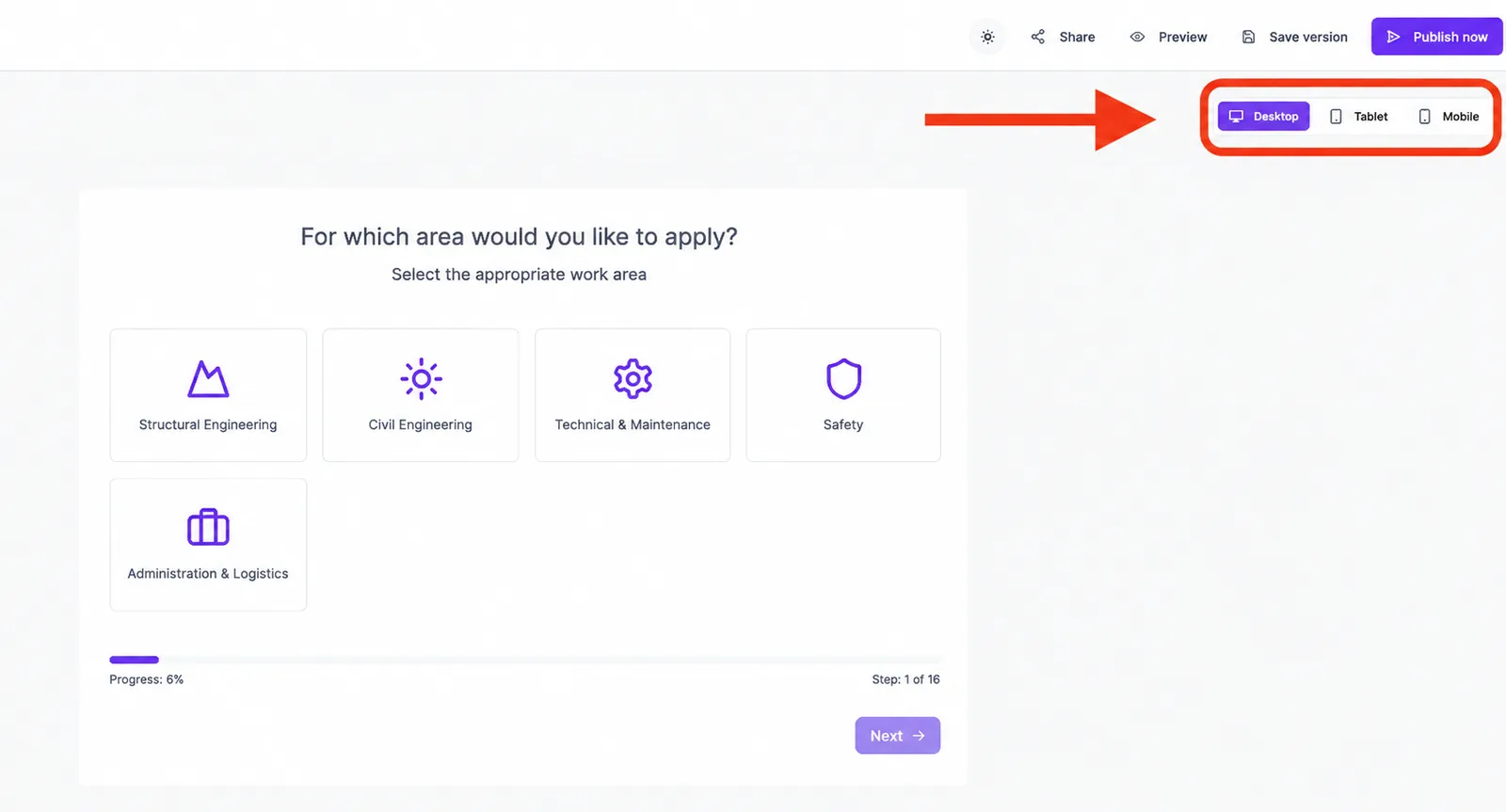
- Device preview for Desktop, Tablet and Mobile under the Style tab.
- Simulation of success and redirect events (e.g. Success, Redirect) without real data being submitted.
Step-by-step: test your form in the preview
- Open your form's editor and stay on the Fields tab.
- Fill in the fields in the middle preview as a real user would.
- Use the step navigation to walk through multi-step forms.
- Verify required fields, validations and conditional logic behave as expected.
- Switch to the Style tab to check the rendering for Desktop, Tablet and Mobile.
- Adjust fields, logic or style as needed – changes are saved automatically.
Do preview entries create real leads?
No. The editor preview is for testing only. Inputs, triggering the submit step and simulated redirects create no leads, webhook calls or email notifications.
How do I test redirects?
If your form triggers a redirect, the preview shows a Redirect notice with the target URL instead of actually leaving the page. This lets you check the path without losing the editor.
Which language is the preview shown in?
The preview uses the form language defined under Setup → General settings. Change it there if you want to inspect a different variant.
Best practices
- Run at least one full walkthrough after every significant change.
- Always check both Desktop and Mobile – most leads come from smartphones.
- Intentionally test "wrong" inputs to see validations and error messages.
- For conditional logic: walk through both branches, not only the happy path.
Common pitfalls
- Preview not available: No field exists yet – add one under the Fields tab first.
- Image/video does not load: Check the source; the preview may show Image could not be loaded or Video could not be loaded.
- Test input does not appear in leads: This is correct – the editor preview never produces productive leads.
- Logic does not trigger as expected: Check the connections under Logic; often a branch from the start node is missing.
Tips & notes
Note: The editor preview does not replace a live test. For a real end-to-end check, embed the form on a test page and submit a real entry.
Tip: Save a manual version under History before larger test runs so you can roll back at any time.
Caution: Simulated redirects do not navigate to the target URL. A real redirect can only be fully validated after publishing the form.
Frequently asked questions (FAQ)
Are preview entries visible in the leads list?
No. The preview never creates productive leads and is fully separated from your lead list.
Does a test trigger emails, SMS or webhooks?
No. Notifications and integrations are not triggered by the editor preview. For a full end-to-end test, submit a real entry through the embedded form.
Can I simulate the preview for different devices?
Yes. The Style tab provides the modes Desktop, Tablet and Mobile.
Why do I see "Preview not available"?
No field exists yet. Add at least one field under the Fields tab and the preview will render.
How can I test the live version without risk?
Embed the form on a test page that is not publicly linked and submit a real entry there. This lets you validate notifications, webhooks and redirects without creating public reach.