Understand and use the form editor confidently
The Form Editor is your central workspace in Funnelforms. This is where you build fields, define logic, design the look, connect notifications and grab the embed code. This article explains how the editor is structured, where to find what, and how to navigate it confidently.
Prerequisites
- Active Funnelforms account (trial or active subscription).
- At least one form created under Forms.
- The Free tier provides 1 domain, 1 form, 1 team member and a 10 MB file-size limit – higher limits with an active subscription.
Where to find it
Path: Forms → select form → open editor. You land directly on the Fields tab.
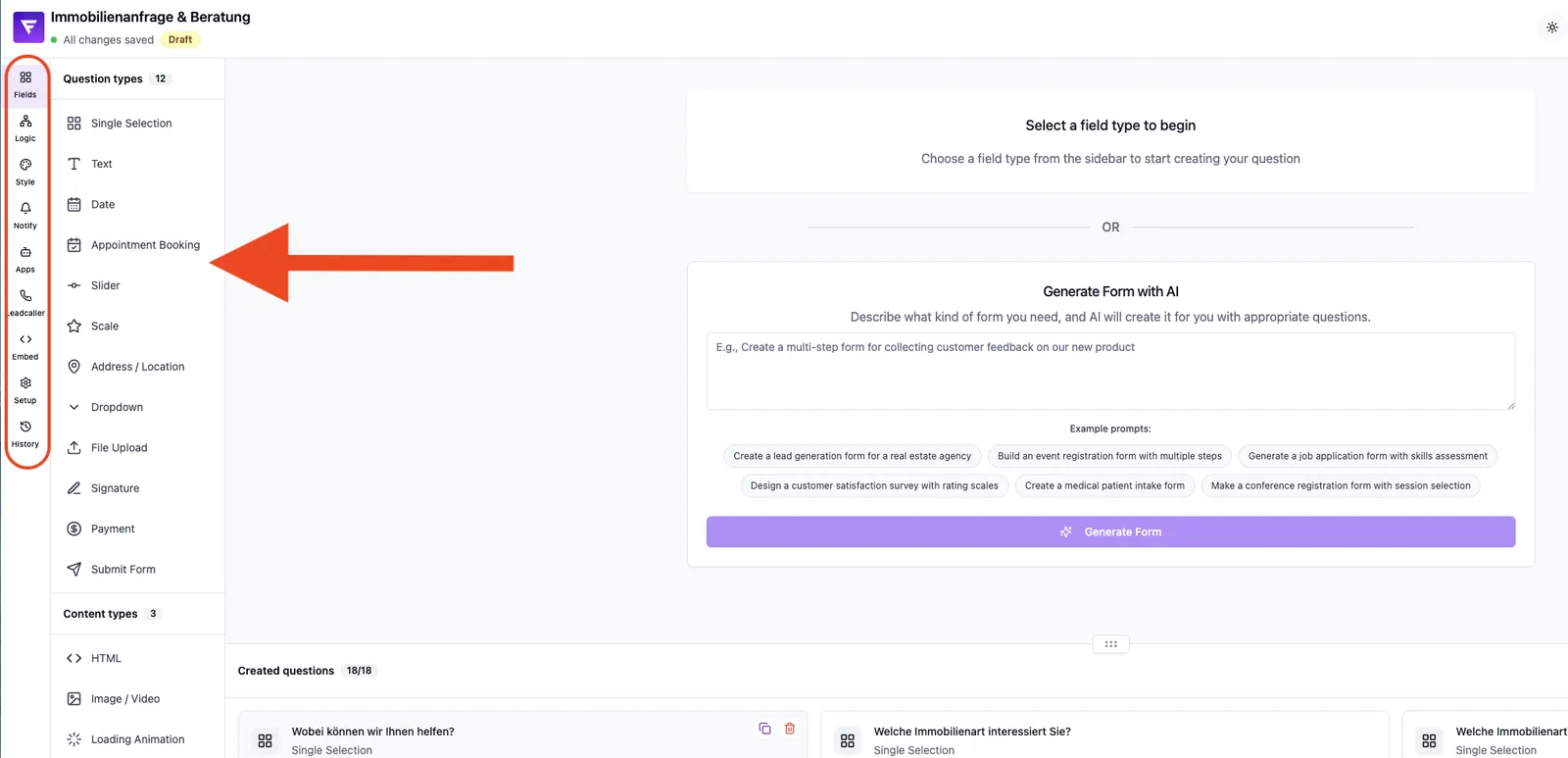
Features at a glance
- Fields – Add, sort, duplicate and delete fields.
- Logic – Configure conditional paths, branches and nodes.
- Style – Adjust colors, fonts, buttons and layout.
- Notify – Set up email, SMS and WhatsApp notifications.
- Apps – Connect integrations such as webhooks or third-party tools.
- Leadcaller – Automated voice calls to incoming leads.
- Embed – Generate embed code for your website or landing page.
- Setup – Base settings, domain assignment, metadata.
- History – Browse version history and restore earlier states.
- Delete – Permanently remove the form.
- Exit – Close the editor and return to the form overview.
Step-by-step: open the editor and get oriented
- Go to the Forms section.
- Click the form you want to edit.
- At the top you will find the tab navigation – the starting point is always Fields.
- Pick the tab matching the editor mode you need.
- On the right (if shown) you see the live preview of your form.
- Use Exit to return to the form overview at any time.
How does saving work?
Changes are saved automatically as you make them. There is no separate save button. In addition, the History tab lets you store a named version manually so you can restore a specific state later.
What about the live preview?
The preview inside the editor reflects your form's behavior and look in real time. Entries made in the preview are for testing only – no leads are created in your account.
Best practices
- Work tab by tab: fields first, then logic, then style – this avoids duplicate work.
- Save a manual version under History before larger changes.
- Test your form regularly inside the Fields preview before embedding it live.
- Use short, clear field labels – this improves readability in your leads later.
Common pitfalls
- Preview is empty: At least one field must exist in the Fields tab before the preview renders.
- Changes appear lost: Reload the page – auto-save has usually already stored them.
- A tab is missing (e.g. Leadcaller): Some features are shown or hidden depending on plan or feature flags.
Tips & notes
Note: Under History automatic daily snapshots are kept for up to 14 days. Manual snapshots and pre-restore snapshots are never auto-deleted.
Tip: Before embedding a form, check fields, logic and style in the preview – changes affect the live embed immediately.
Caution: Deleting a form via the Delete tab is permanent. Existing leads are preserved, the form itself is not.
Frequently asked questions (FAQ)
Do I need to save my changes manually?
No. Changes are saved automatically. For specific states you can store a named version under History.
Do test entries in the editor preview create real leads?
No. The preview inside the editor is for testing only and does not create productive leads.
How many versions can I restore?
Up to 14 versions per form, each kept for 14 days. Older versions are removed automatically.
Why don't I see the Leadcaller tab?
Leadcaller is an optional feature. If it is not enabled for your account, the tab is hidden.
Can team members work in the editor at the same time?
Several team members can open the same form. We recommend making changes sequentially, however, so auto-save operations don't overwrite each other.