Set up conditional logic and branching
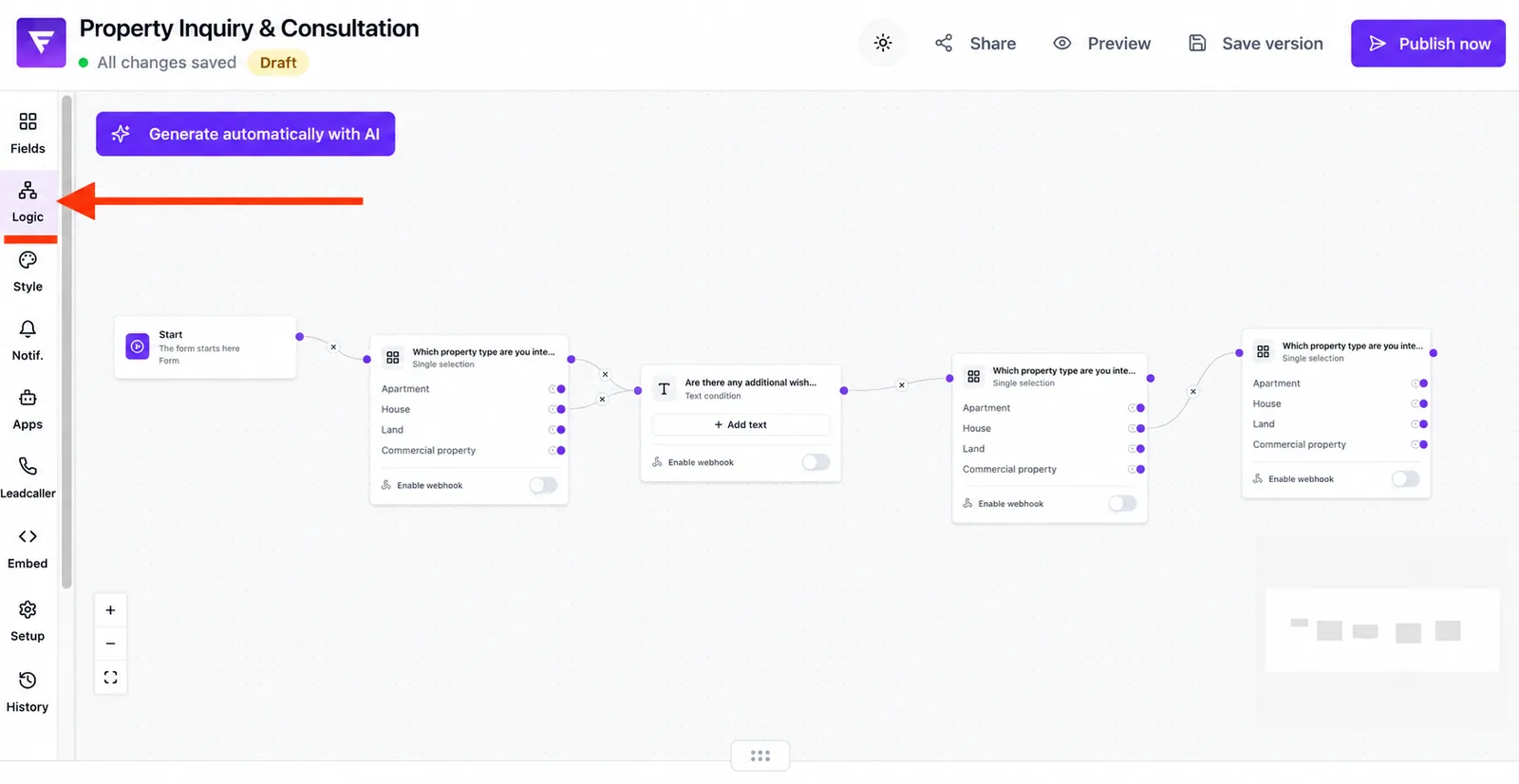
Conditional logic guides every visitor down the exact path that matches their answers. Instead of showing everyone the same questions, Funnelforms jumps to the matching next step based on each answer – or skips entire branches that are not relevant. You set this up in the Logic tab of the form editor through a visual flow of nodes and connections.
Requirements
- A form with at least two fields
- At least one field that supports a meaningful condition (selection, dropdown, text, number, slider, scale, date, address)
- An active plan – simple conditions (selection, text equals, slider) are available on every plan; more complex conditions (e.g. address, date, date range, combined operators) depend on your plan. If the logic feature is not included in your current plan, the entire Logic tab is locked
Where to find it
- Path: Form editor → left sidebar → tab Logic
Feature overview
- Visual flow editor with every field as its own node
- Connections (edges) between nodes, optionally with a condition
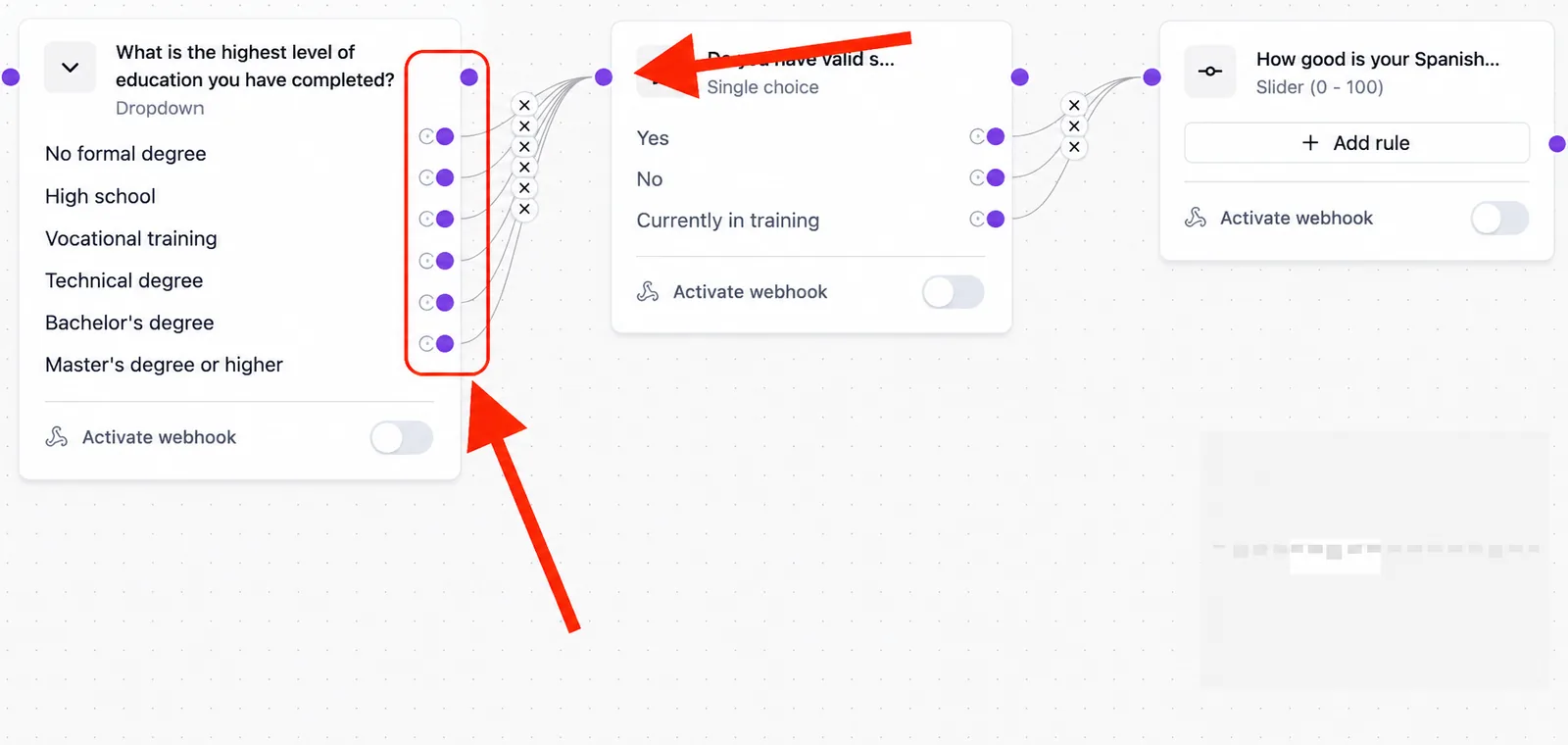
- For single selection and single-choice dropdown: one handle per answer option directly on the node – no extra condition needed
- For all other field types: conditions are added through buttons inside the node and create their own connection handle
- Automatic fallback to a default edge when no condition matches
Step by step: create a branch
Option A – Single selection or single-choice dropdown
- Switch to the Logic tab in the editor.
- Locate the node of your selection field. Each answer option already exposes its own connection handle on the right-hand side of the node.
- Drag a connection from the desired option handle to the target node.
- Repeat for every option that should lead to a different next step.
- Optional: add a default edge (handle without a condition) that is used when no option connection matches.
Option B – Slider, scale, multi-selection, multi-dropdown, text, number, date, address
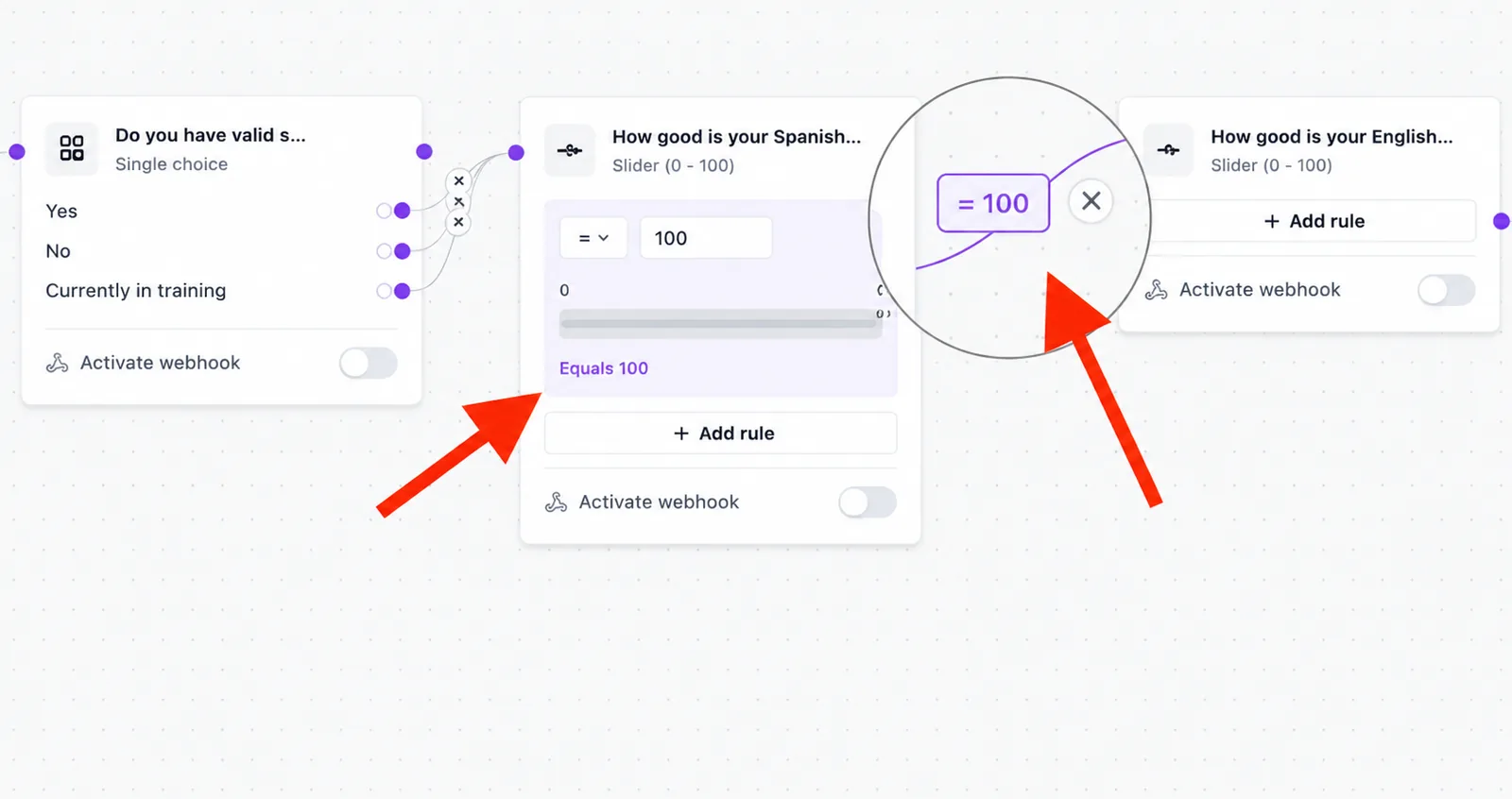
- Switch to the Logic tab and open the node of the field.
- Click Add condition at the bottom of the node (address and date fields show several specialized buttons – e.g. Country, Region, City, Postal code, or Date / Date range).
- Pick the right operator and enter the comparison value.
- Drag a connection from the new condition handle to the target node.
- Repeat for every additional condition on the same node.
- Optional: add a default edge without a condition as a fallback.
- Test the flow using Preview in the editor.
Note: Nodes do not open a separate condition menu when clicked. Conditions are always configured directly on the node – either through the option handles (Option A) or through the Add condition buttons inside the node body (Option B).
How are conditions evaluated?
When moving to the next step, Funnelforms first checks every condition on the current node, in their order. The first matching condition, in the order the connections were created on the node, determines the next node – all remaining conditions are ignored for this step. If no condition matches, the default edge is used (a connection without a condition). If neither a matching condition nor a default edge exists, the flow ends on the current node.
Operators by field type
- Text field (incl. email, phone and URL variants): Equals, Not equals, Contains, Not contains, Starts with, Ends with, Is empty, Is not empty
- Multi-selection / Multi-dropdown: Contains, Exact match, Count
- Slider / Scale (single value): Equals, Greater, Less
- Range slider (configuration mode of the slider field): Within, Outside, Overlaps
- Date (single value): Before, After, Equals, Between, Within period
- Date range (e.g. appointment booking): Within, Outside, Overlaps
- Address: separate conditions for Country, Region, City, Postal code
Best practices
- Recommendation: Sketch the flow on paper or a whiteboard first – it saves a lot of clicks later.
- Recommendation: Keep the number of conditions per node manageable (rule of thumb 2–4) – it stays maintainable.
- Deliberately add a default edge instead of relying on the flow ending.
- Use descriptive field variables – conditions will be much easier to recognize later.
- Test every path in the preview, not only the main path.
Common pitfalls
- Condition never matches: usually the wrong operator or a typo in the comparison value.
- Wrong target node: the connection was dragged from the wrong condition or option handle.
- Second condition is ignored: the first matching condition wins – check the order.
- Add button is locked: that complex condition is not included in the current plan.
- Flow ends unexpectedly: no default edge configured and no condition matched.
Tips & notes
Note: Dates are displayed as a date and compared internally as dates. A typo in the comparison value means no condition will match.
Tip: For single selection and single-choice dropdown, the automatic option handle is enough – you don't need to add a separate condition.
Heads-up: Complex conditions depend on your plan. Locked buttons in the editor show this directly.
FAQ
Can I add multiple conditions to the same node? Yes. Funnelforms evaluates them in order; the first matching condition wins, all others are ignored for that step.
What happens if no condition matches? Funnelforms follows the default edge (a connection without a condition). If there is none, the flow ends on the current node.
Can I branch on answers from earlier steps? Conditions always evaluate the answer of exactly the field whose node hosts them – that field must appear in the flow before the branching point. Cross-field conditions (a condition on field B's node that reads field A's answer) are currently not supported.
How do I test a specific branch? Using the preview in the editor: enter the relevant answer and verify the expected next step appears.
Do conditions work without upgrading the plan? Simple conditions are available on every plan. Complex conditions (e.g. address, date, combined operators) depend on the plan.