Understand and use field types correctly
Funnelforms offers 15 different field types, split into two categories: question types (12) capture answers from your visitors, while content types (3) display information without requiring input. This article walks you through every field type, its typical use case, configuration options, and notes on usage.
Prerequisites
- An active Funnelforms account with a valid subscription or running trial.
- A form you are editing inside the editor.
- Some field types may be unavailable depending on your plan (locked fields appear greyed out in the sidebar).
Where to find it
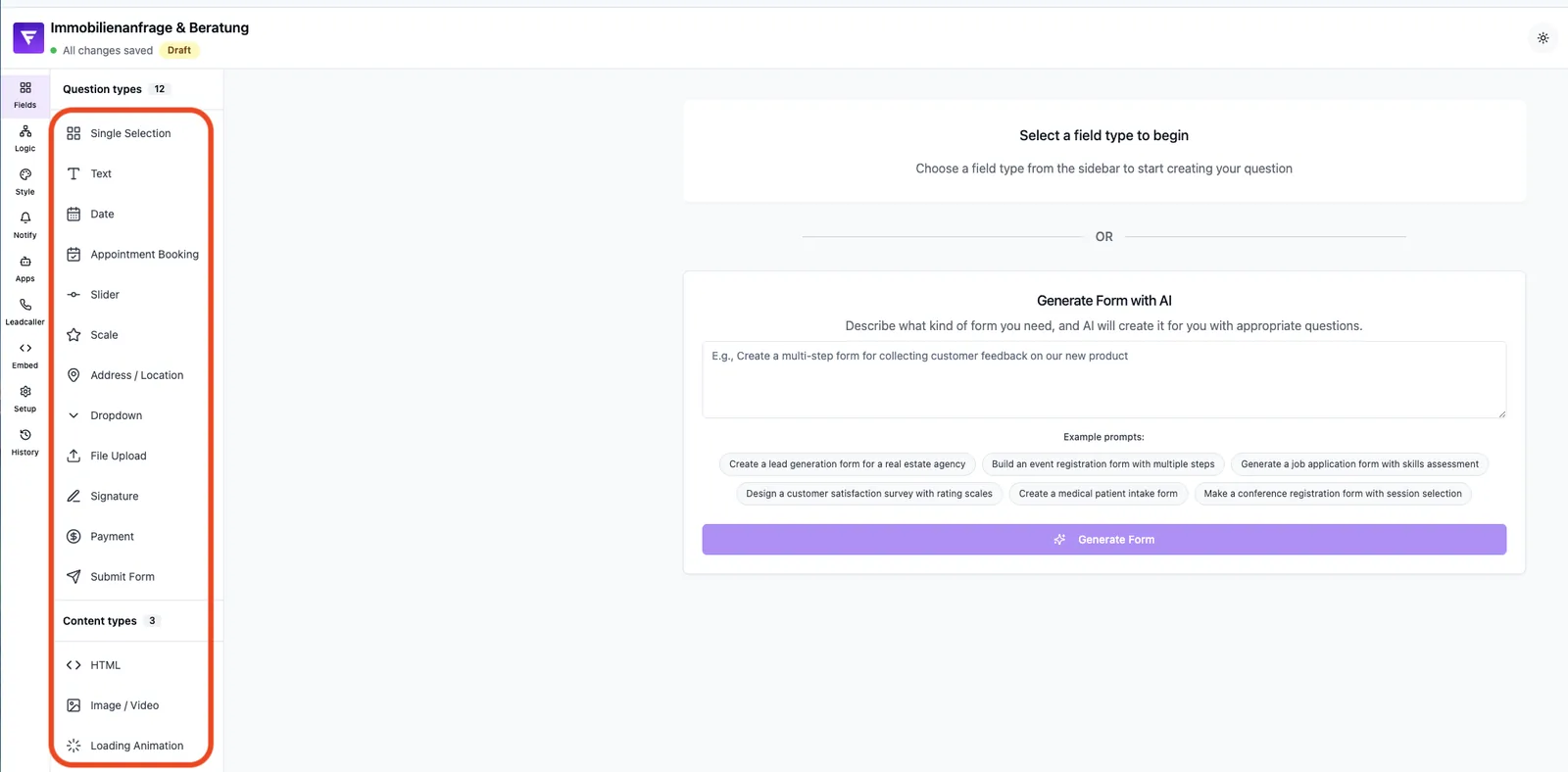
Path: Forms → select form → Editor → Fields. The left sidebar lists both categories with their counts: Question Types and Content Types.
Features at a glance
- 12 question types covering all common inputs (selection, text, date, numbers, files, payment, etc.).
- 3 content types for HTML, media and loading animations.
- Each field type has its own configuration in the Settings tab on the right.
- Fields can be added, duplicated, reordered and deleted with a single click.
Question types in detail
Single Selection
A selection question with multiple answer options. Great for qualification, segmentation and simple yes/no questions. Optionally configurable with icons, custom images or multi-select.
Text
Single-line input for short answers such as name, email or phone number. Can be switched to a multi-line textarea (Multi-line toggle). Supports "text only" or "numbers only" validation and character limits.
Date
Date picker via a calendar. Useful for birthdays, preferred dates or deadlines. The default format is MM/DD/YYYY and can be changed per date field in its settings.
Appointment Booking
Direct appointment booking inside the form. Connects to your configured calendar and shows available slots. Ideal for consultations, sales or intro calls.
Slider
Slider for numeric values within a min/max range. Suitable for budget, quantity or rating questions. Step size and unit (e.g. USD, %) are configurable.
Scale
Rating scale (e.g. 1-5 or 1-10 stars/points). Suitable for satisfaction and NPS-style questions.
Address / Location
Address or location input. Autocomplete via Google Places is optional and must be configured separately (see Address field with autocomplete article). Components (street, ZIP, city, country) can be captured separately.
Dropdown
Collapsible selection list. Useful when there are many options that don't need to be visible at once (e.g. country, industry, title).
File Upload
File upload for images, documents or PDFs. The maximum file size depends on your plan. Allowed file types can be restricted.
Signature
Digital signature field. The visitor draws their signature with mouse or touch. The signature is saved together with the lead.
Payment (in development)
Payment collection directly inside the form. This field is currently in development – see the Payment Field (in development) article for details.
Submit Form
Closing field that submits the form and creates the lead. Every form needs at least one Submit field for data to be saved.
Content types in detail
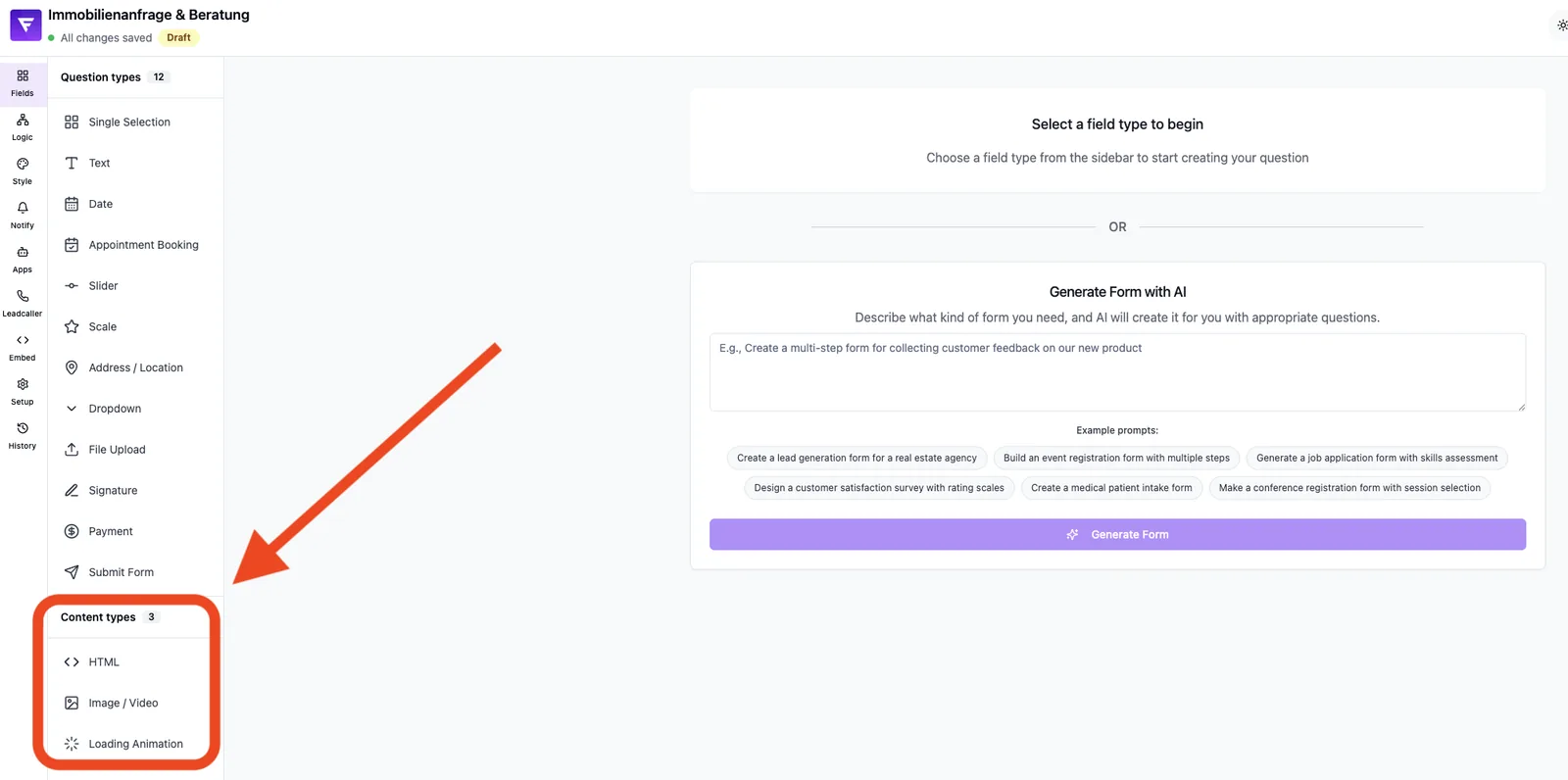
HTML
Free HTML block for custom text, notices, tables or style snippets. Switch between editor and preview mode. Useful for legal notices, explanations or trust elements.
Image / Video
Image or video as a content element. Suitable for explainer videos, product images, testimonials or visual separators between questions.
Loading Animation
A loading animation that, for example, simulates "Analysing answers" after an input. Builds perception and anticipation before the result, perfect for configurators or quizzes.
Step-by-step: add a field
- Open the Fields tab in the editor.
- Click the desired field type in the left sidebar.
- The field is added at the end of the current step.
- Configure title, description and field-specific options on the right.
- Enable the Required toggle in the Common section if needed.
- Set a Variable Name for input fields you want to reference later in logic or integrations.
Best practices
- Use as few fields as possible per step - it boosts completion rates.
- Place simple selection questions (Single Selection) before text inputs - it lowers the entry barrier.
- Use Submit intentionally: only when all required data has been collected.
- Use content types sparingly - they extend the form without producing data.
Common pitfalls
- Locked field in sidebar: your plan doesn't include this field type. The hover tooltip explains the restriction.
- No submit field: the form cannot be submitted - at least one Submit is mandatory.
- Variable name already in use: Funnelforms prevents duplicates; pick a unique name.
Tip: Use the preview to test new field types before publishing - without risking real leads.
Frequently asked questions (FAQ)
Can I create my own field types?
No. Funnelforms offers a fixed catalog of 15 field types. For free-form content, use HTML.
Why is a field greyed out?
The field type is not included in your current plan. Upgrading unlocks it.
How many fields can a form contain?
There is no hard technical limit, but fewer fields generally lead to higher completion rates.
Does every form need a submit field?
Yes. Without Submit, the form cannot be submitted and no leads are created.
Are content types evaluated?
No. HTML, media and loading animation fields don't generate lead data. They are purely for display.