Set up required fields and input validation correctly
Required fields, validation and input helpers make sure you get clean, usable data - without slowing your visitors down unnecessarily. This article explains the validation and helper options Funnelforms provides inside the form editor and how to combine them effectively.
Prerequisites
- An active Funnelforms account.
- A form with at least one input field (text, selection, file, date, etc.).
- The editor open with a field selected.
Where to find it
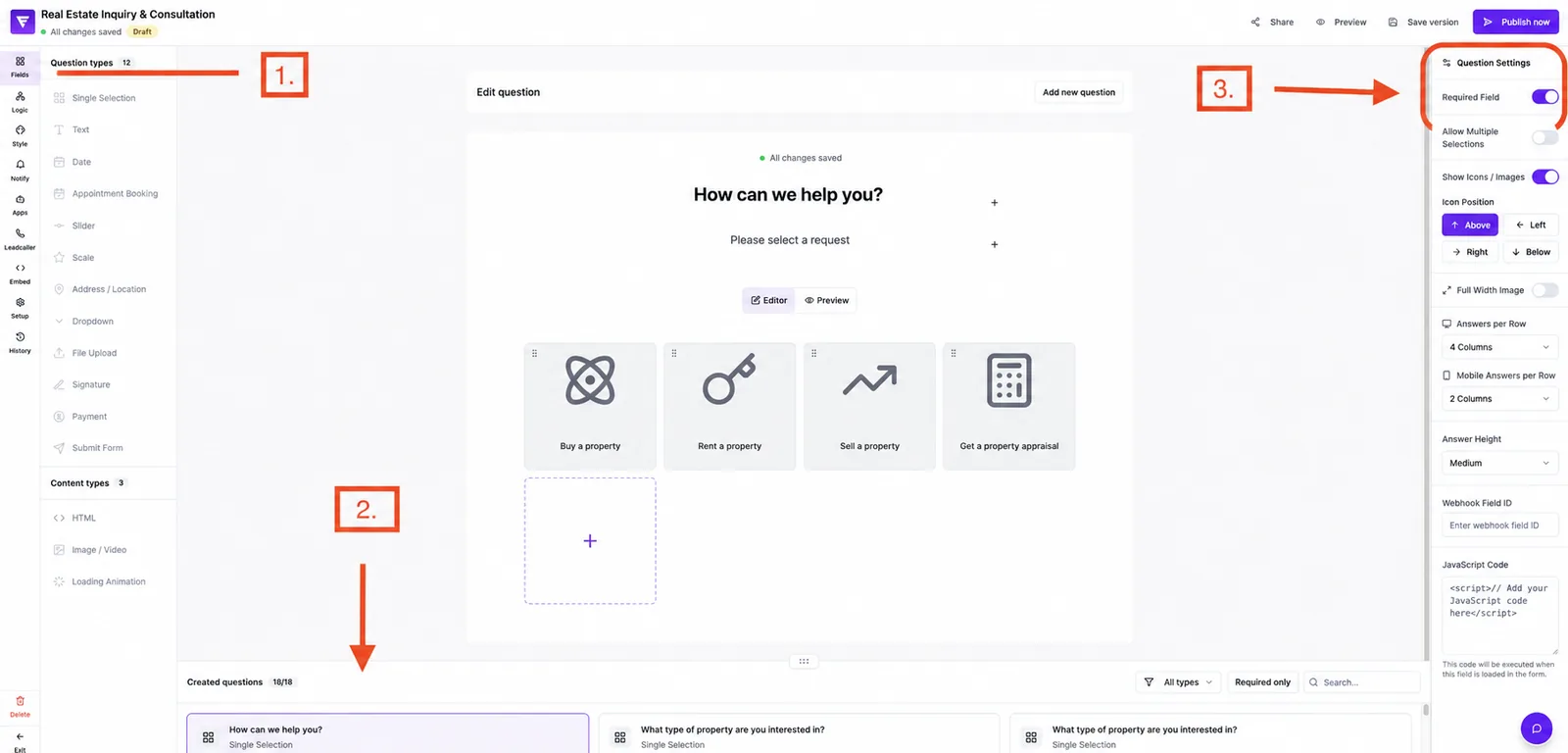
Path: Forms → select form → Editor → Fields → click field → Settings (right). Validation and helper options are split between the Common section (required) and the field-specific settings.
Features at a glance
- Required: forces an input before the next step is unlocked.
- Text only / Numbers only: restricts allowed characters in text fields.
- Min/Max characters: defines minimum and maximum length for text inputs.
- Placeholder: shows a hint inside the empty input field.
- HTML autocomplete: enables the browser's native autocomplete (e.g. name, email, phone).
- Variable Name: unique internal identifier for logic & integrations.
Setting required fields
- Click the desired field in the editor.
- Open the Common section on the right.
- Enable the Required toggle.
- Changes save automatically.
Note: content types (HTML, Media, Loading) and the Submit field have no "required" option as they don't capture input.
Validating text inputs
Text only
Allows only letters and punctuation. Digits are stripped automatically during typing. Suitable for first/last names or city names.
Numbers only
Allows only digits plus dot, comma and minus. Suitable for phone numbers, street numbers, quantities or ZIP codes. Not all special characters are allowed - for complex phone formats consider HTML autocomplete: phone.
Note: "Text only" and "Numbers only" are mutually exclusive. Enabling one automatically disables the other.
Min/Max characters
Min Chars enforces a minimum number of characters (useful for descriptions). Max Chars caps the input - practical for phone numbers or tweet-like texts.
Input helpers
Placeholder
The Placeholder appears in light grey inside an empty input and disappears as the user starts typing. It does not replace a label - it serves as an example or format hint (e.g. "e.g. john.doe@company.com").
HTML autocomplete
Sets the HTML autocomplete attribute to a standard value. The browser can then reuse the user's known values (e.g. saved addresses, phone numbers). Available options in the dropdown:
- None
- Full name, first name, last name
- Email, phone
- Street address, address line 1, address line 2
- State / province, city, postal code, country
- Organization, website URL
Variable Name
The Variable Name is a technical identifier (e.g. first_name). It is referenced in the answers view, in webhooks and in logic. We recommend short, descriptive identifiers using letters, digits and underscores (start with a letter). If the same variable name is reused within the form, Funnelforms shows a duplicate-name notice.
Best practices
- Only mark what is truly required - every required field potentially lowers completion rate.
- Always phrase placeholders as examples, not as the title or label.
- Enable HTML autocomplete for classic contact data (name, email, phone, address) - it saves typing time and reduces typos.
- Name variables consistently (e.g.
first_name,email,phone) - it makes integrations much easier.
Common pitfalls
- Required toggle missing: you selected a content field (HTML, Media, Loading) or the Submit field - those don't have a required option.
- Validation doesn't trigger in preview: the editor preview shows the field. The character filter ("Text only"/"Numbers only") runs live as the user types; required and length checks (Min/Max characters) run on step transition in the live form.
- Duplicate variable name: Funnelforms shows a duplicate-name notice – pick a unique name.
- Autocomplete doesn't work: browsers only fill fields when matching previously saved data exists.
Frequently asked questions (FAQ)
Can I define custom validation rules (e.g. regex)?
No. Currently only the validations above are available. For special formats (e.g. IBAN) we recommend Numbers only plus a matching Max Chars value.
Are required fields checked across steps?
Yes. Required fields are validated when moving to the next step. The transition is only possible once all required fields in the current step are filled.
What happens if I don't set a field as required?
Visitors can leave the field empty. The lead record will then contain an empty value.
Can I change the Variable Name later?
Technically yes, but it can break existing mappings in running integrations. Change it only when necessary and update integrations accordingly.
Does HTML autocomplete affect data quality?
Indirectly yes: browser autocomplete reduces typos and increases the likelihood of correct data (e.g. valid email addresses).