Set up the address field with autocomplete
The Address field offers convenient address entry with Google Places autocomplete, an optional map view and stored geo coordinates. You collect clean, structured location data without typos.
Requirements
- A form in the Funnelforms editor
- For autocomplete: the toggle Enable Google services turned on
- For GPS location: permission in the visitor's browser
Where to find it
Form editor → left sidebar Fields → add Address field → click the field to open the settings on the right.
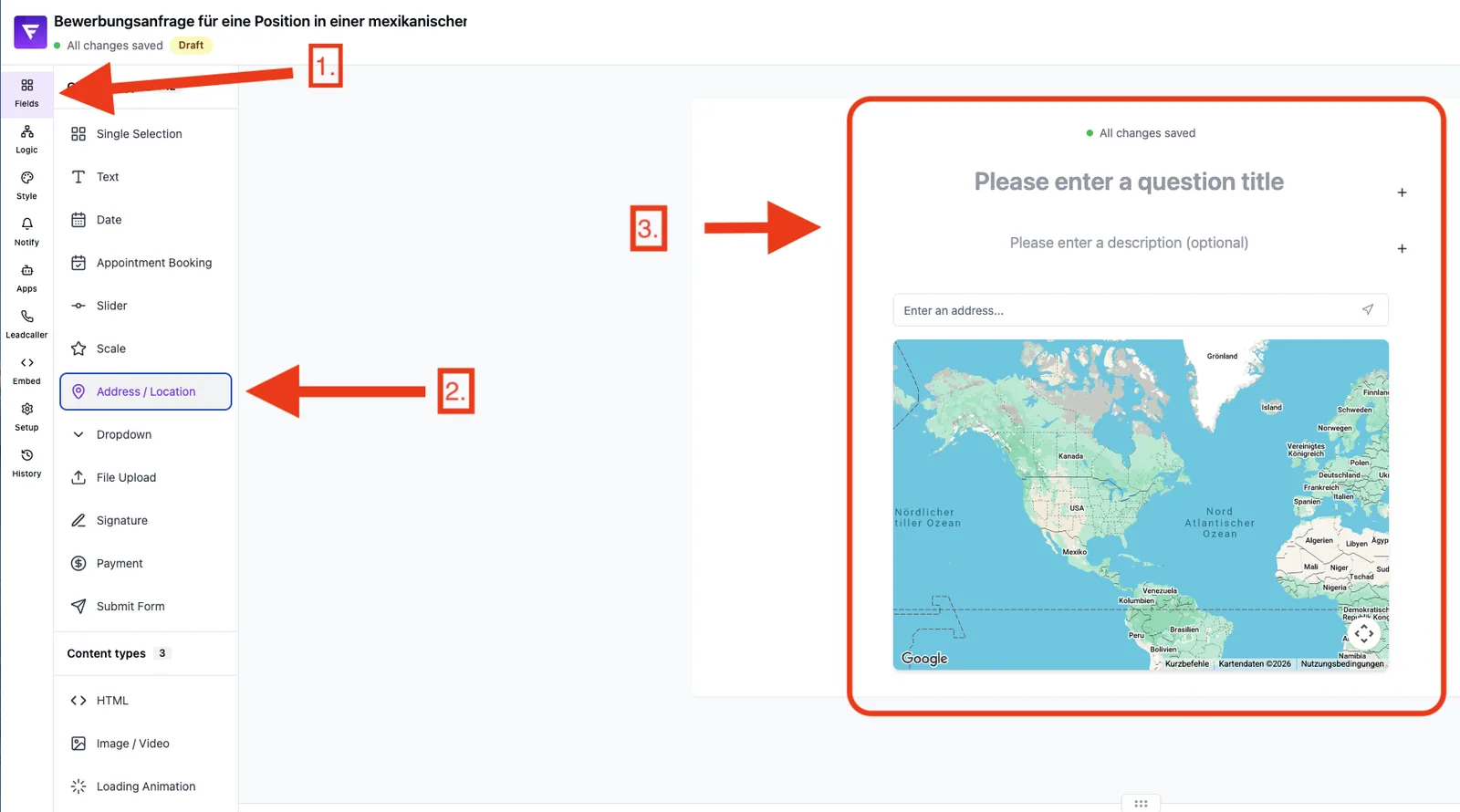
Feature overview
- Enable Google services: turns on autocomplete and map features
- Fetch GPS location: detects the visitor location automatically
- Starting position: city/place the map is centred on initially (with auto suggestions)
- Initial zoom: zoom level of the map on load (1–20, default 15)
- Placeholder text: custom text inside the input
- Save coordinates: stores latitude/longitude alongside the address
- Map style: Standard, Satellite, Terrain, Night, Retro
Step by step
- Open your form in the Form editor.
- Add an Address field from the left sidebar.
- Click the field to open its settings.
- Turn on Enable Google services if you want autocomplete and a map.
- Optionally enable Fetch GPS location to use the visitor's location.
- Type a city under Starting position and pick a suggestion – the map centres on it.
- Choose Initial zoom and Map style.
- Enable Save coordinates if you also need latitude/longitude (e.g. for routing or distance calculations).
- Save and test the field in the preview.
Tips & notes
Tip: enable Save coordinates if you want to use the address data later for map or distance evaluations.
Note: without Google services enabled the field acts as a simple text input – no autocomplete and no map.
Tip: set the Starting position to your target region so visitors immediately see a meaningful map.
Common pitfalls
- No suggestions: usually Enable Google services is off.
- GPS not working: the visitor must approve the location prompt in the browser.
- Wrong region on the map: check and re-set the starting position.
Frequently asked questions (FAQ)
Do I need my own Google API key? No – Funnelforms provides the Google Places connection centrally.
Are coordinates included in webhooks? Yes – when Save coordinates is enabled, latitude and longitude are delivered alongside the address to the configured webhooks. The exact key format depends on the webhook configuration; we recommend a test delivery before going live to inspect the field names in the payload.
Does autocomplete work internationally? Yes, Google Places delivers suggestions worldwide.