Create forms automatically with AI
The AI form generator lets you describe in natural language which form you need – Funnelforms then automatically creates a complete field structure including step order and an initial logic flow. This saves you the effort of building each field manually and gives you a solid base to fine-tune.
Prerequisites
- A plan that includes the AI form generator and AI logic generator features (both plan-restricted; with both enabled fields and logic are produced in one step – with only the form generator enabled only fields are created)
- A new or existing form in the Form Editor
- A clear description of the target form (industry, goal, data you need)
Where to find it
Form Editor → Fields tab → "Generate with AI" card (visible as long as the form has no or only few fields).
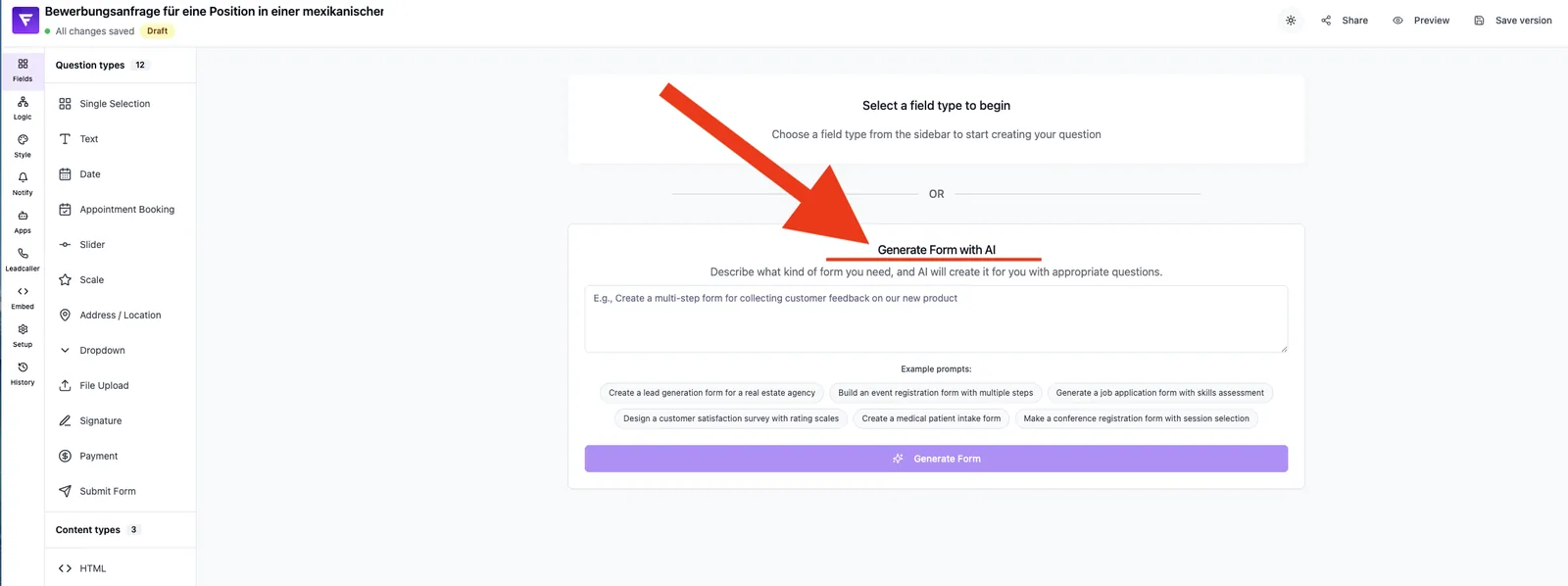
Features at a glance
- Free-text prompt to describe the desired form
- Preset example prompts for inspiration and quick start
- Automatic generation of question fields in a sensible order
- Automatic logic linking: linear chain in the generated order; for multi-select fields, an additional branching target per answer option
- Automatic adoption of the suggested form title
- Progress indicator during generation
- Restricted feature: locked card with notice when the plan does not include the feature
Step-by-step: generate a form with AI
- Create a new form or open an empty one in the Form Editor.
- Switch to the Fields tab.
- In the Generate with AI card either click an example prompt or enter your own prompt.
- Click Generate form – the progress bar shows the status.
- When finished, the new field structure appears directly in the field list.
- Review order, required toggles and variable names – adjust as needed.
- The generator automatically places a Submit field at the end of the flow – review its position and capture fields, and adjust as needed.
- Test the flow in the preview (see article "Response preview and live test in the editor").
How does generation work internally?
Funnelforms calls two edge functions in the background: form-ai-generator creates the field structure (title, field type, options, order) from your prompt and stores it in the database. Then form-logic-generator builds a linear chain in the generated order and, for multi-select fields, adds a branching target per answer option (qualifying answers continue to the next step, disqualifying answers jump straight to the Submit field). You keep full control – every generated component can be edited manually afterwards.
What makes a good prompt?
- State the goal: e.g. "Lead magnet for solar consultations".
- Target audience: e.g. "for homeowners".
- Required data points: e.g. "address, roof type, electricity usage, contact details".
- Number of steps: optional guidance – 6–8 steps work well in practice (a recommendation, not a technical limit).
Best practices
- Be concrete – "Inquiry form for wedding photographers with date, location and budget" beats "wedding form".
- Treat generated fields as a draft and review them manually at least once.
- Standardise variable names before the form goes live (important for webhooks/integrations).
- After every generation, validate the flow in the preview to confirm the order makes sense.
- Save reusable prompts – similar forms can be built much faster that way.
Common pitfalls
- Feature locked: if the AI card is shown with a notice, the feature is not included in your current plan.
- Prompt too vague: delivers generic fields without industry context.
- Logic missing despite successful field generation: happens when the plan includes the AI form generator but not the AI logic generator – add the connections manually in the Logic editor.
- Logic does not fit your use case: generated edges are a linear chain (plus multi-select branching) and can be freely adjusted in the Logic editor.
- Generation fails: usually a transient issue – tweak the prompt slightly and retry.
Tips & notes
Note: AI does not replace a final review. Check every generated field for label, required state and variable name before publishing the form.
Note: generated fields are written straight to the database. Unwanted fields can simply be deleted from the field list afterwards.
Tip: use the example prompts as templates and only adapt the parts specific to your scenario.
Frequently asked questions (FAQ)
Does AI overwrite my existing form? No – generated fields are added to the existing form. Existing fields are preserved.
Is a logic flow generated as well? Yes – provided your plan includes the AI logic generator. The output is a linear chain in the generated order plus a per-answer branching on multi-select fields. More complex conditions are then built manually in the Logic editor.
How long does generation take? Usually a few seconds – the progress bar shows the current state.
What happens on an error? Funnelforms shows an error message. You can tweak the prompt and re-run – no half-built forms are left behind.
Does generation work in any language? Based on experience, prompts in German and English deliver the most consistent results. Other languages are technically supported, but output formatting may vary.