Set up and use the signature field confidently
The Signature field lets visitors leave a simple electronic signature (SES, eIDAS Art. 25) directly in the form – via drawing, typing or uploading a signature image. Ideal for order confirmations, consents and contracts inside the funnel.
Requirements
- A form in the Funnelforms editor
- At least one signature method enabled (drawing, typing or upload)
Where to find it
Form editor → left sidebar Fields → add Signature field → click the field to open the settings on the right.
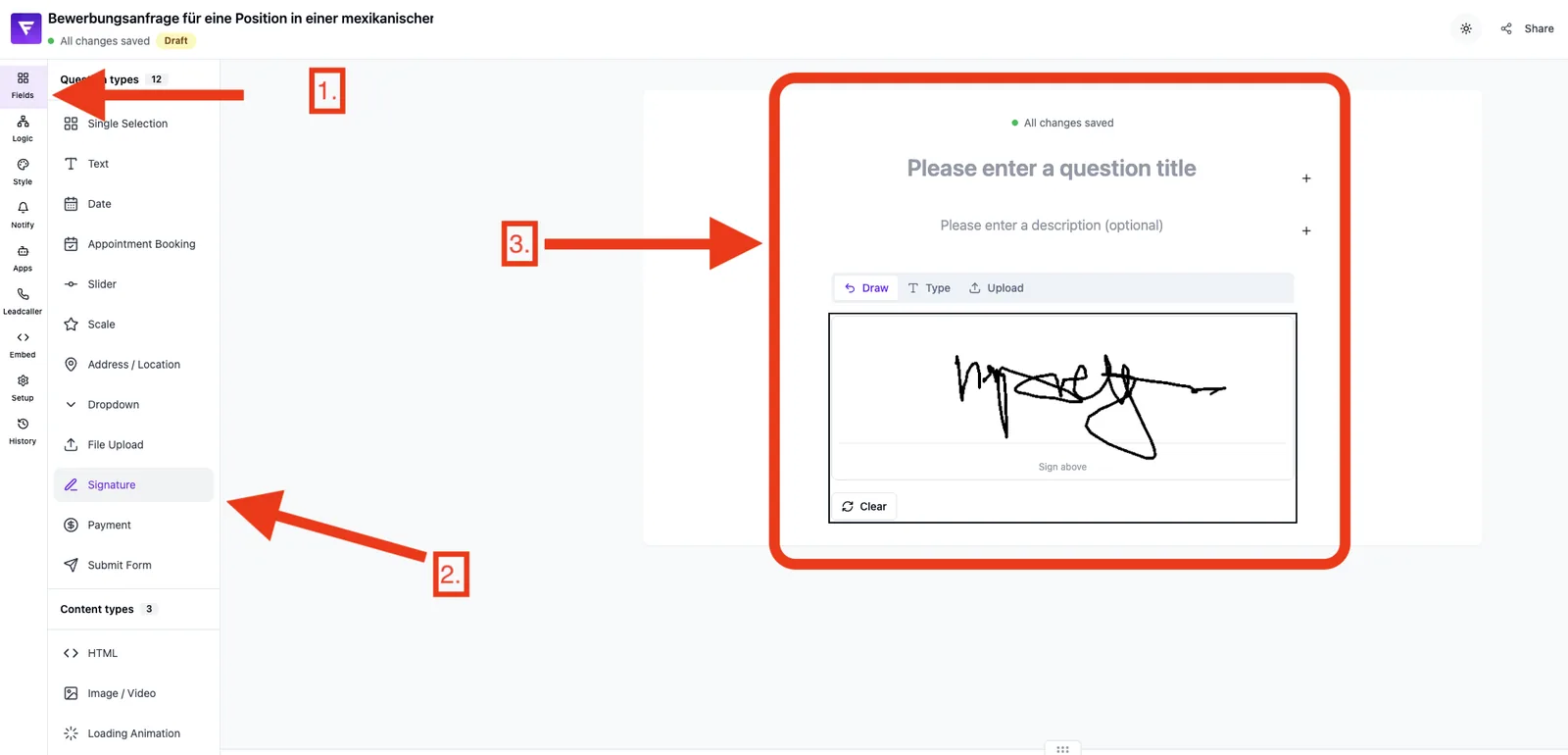
Feature overview
- Signature color: via color picker or HEX input (default #000000)
- Drawing: signature with mouse or finger (touch devices)
- Typing: enter the name rendered in a handwritten font
- Upload: upload an image of the signature (image files only, e.g. PNG or JPG)
- At least one method must remain active – the system prevents disabling all three
Step by step
- Open your form in the Form editor.
- Add a Signature field from the left sidebar.
- Pick the desired Signature color.
- Enable the methods you want to offer: Drawing, Typing, Upload.
- Save and test the field in the preview on desktop and mobile.
Tips & notes
Tip: enable all three methods so visitors can choose what works on their device – drawing is usually most comfortable on mobile, upload often on desktop.
Note: at least one method must stay enabled. Trying to disable the last one triggers a notice and the change is blocked.
Tip: a dark signature color (black or dark blue) looks most professional on confirmation screens and in downstream exports. Funnelforms itself does not generate a contract PDF – any PDF export happens in your downstream process (e.g. via Zapier/Make).
Common pitfalls
- All methods disabled: not possible – at least one stays active.
- Hard to read on mobile: point visitors to the typing method or render the field larger.
Frequently asked questions (FAQ)
In what format is the signature stored? As a PNG image: Funnelforms uploads the signature to Supabase Storage right after entry and transmits only the public image URL in the response and to integrations (webhooks, Zapier/Make). If the upload exceptionally fails, the Base64 data URL is delivered as a fallback (the webhook payload is capped at 1 MB; large uploads should be retried).
Is the signature legally valid? Funnelforms produces a simple electronic signature (SES, eIDAS Art. 25). For many business cases this level is sufficient. For special legal requirements (e.g. qualified electronic signature) please check with a legal advisor.
Can I change the color later? Yes, anytime via the field settings.