Set up the submit field and thank-you page
The Submit field is the closing step of every Funnelforms form: only here are the collected answers persistently stored, the lead is created and every integration (notifications, webhooks, Zapier, Make) is fired. The Thank-You page determines what the visitor sees immediately afterwards – from a simple confirmation to a redirect with passed parameters.
Prerequisites
- A form with at least one question field
- A Submit field as the final step in the flow
- For redirects and tracking scripts: a plan that includes those features (plan-restricted)
Where to find it
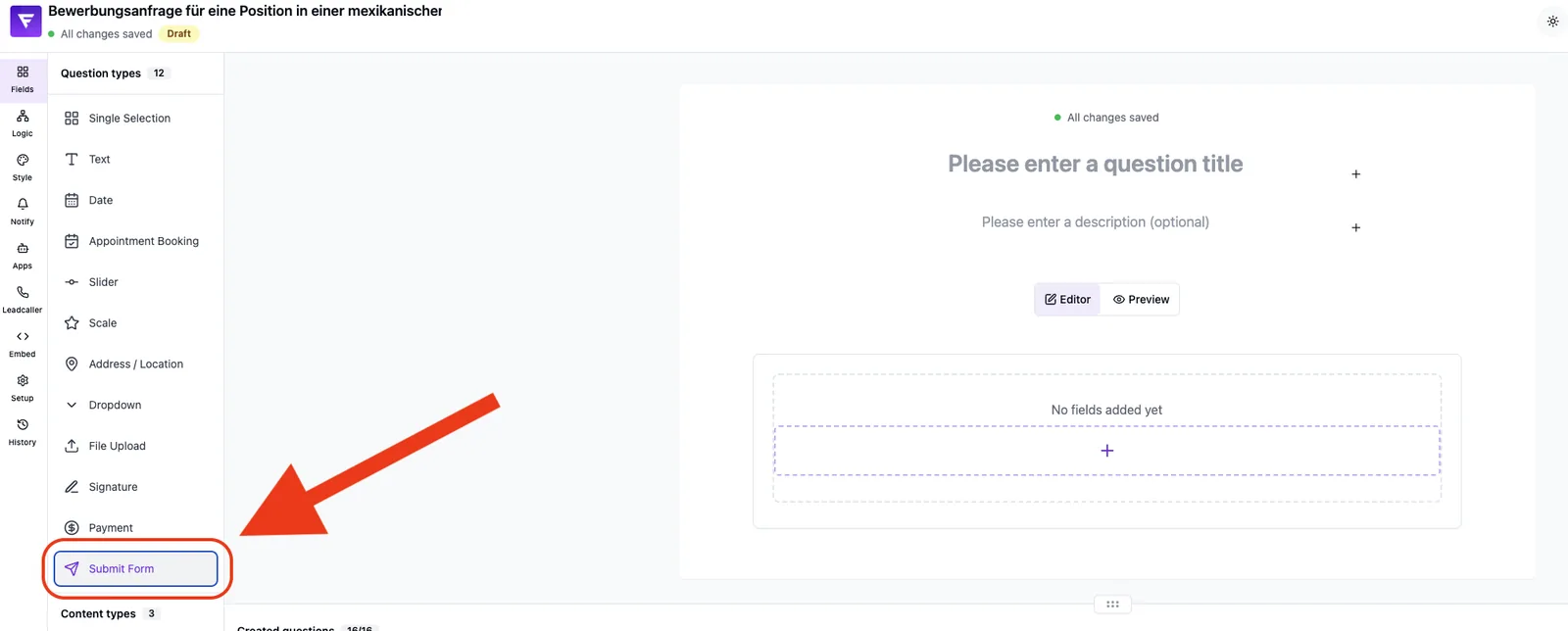
Submit field: Form Editor → left sidebar Fields → add Submit field → click the field to open its settings. Thank-You page: Submit field settings → section Thank You Page.
Features at a glance
- Capture fields inside the Submit field: text input, email, phone, name, dropdown, text area, checkbox
- Per capture field: label, placeholder, autocomplete, required, variable name (used in notifications/integrations)
- Global layout options: field icons, hide labels, input height
- Submit button: text, size, alignment
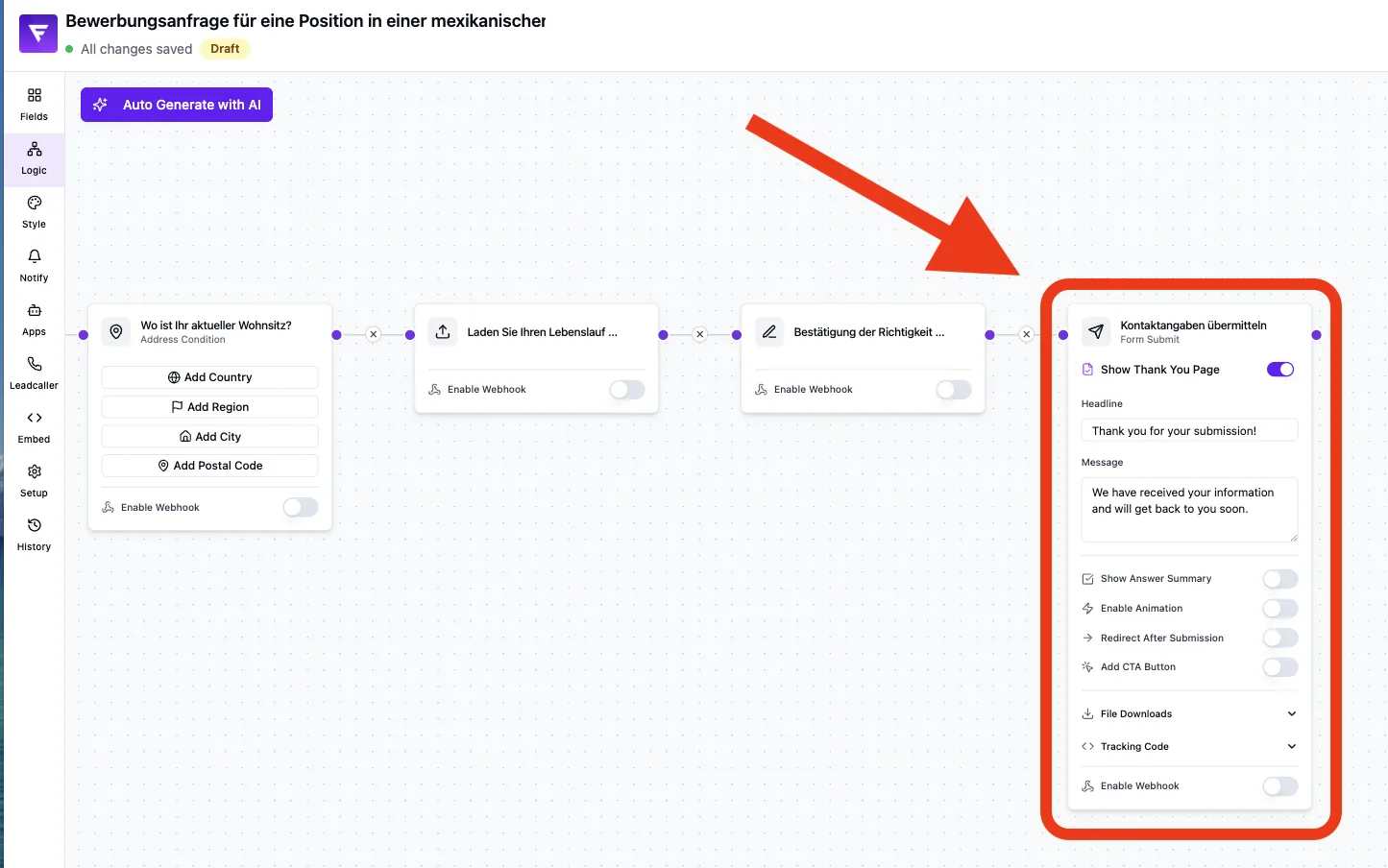
- Thank-You page: headline, message, answer summary, animation (confetti or checkmark; optionally disabled entirely), CTA button, file downloads, tracking code
- Redirect: target URL, timer in seconds, open in new tab, pass parameters (form answers as URL parameters)
Step-by-step: configure the Submit field
- Open your form in the Form Editor.
- Switch to the Fields tab and add a Submit field as the final step.
- Click the Submit field to open its detail settings.
- Add the desired capture fields (e.g. name, email, phone).
- Set label, placeholder, optional autocomplete and the required toggle per capture field.
- Assign a meaningful variable name – it is used in notifications and webhook payloads.
- Adjust submit button text, size and alignment.
- Save and test the closing step in the preview.
Step-by-step: configure the Thank-You page
- Open the Submit field settings and scroll to Thank You Page.
- Enter headline and message.
- Optionally enable the answer summary so visitors can review their entries.
- Pick an animation type (confetti or checkmark; the animation can additionally be disabled entirely).
- Optional: enable a redirect, enter the URL and set a timer in seconds.
- Optional: add a CTA button (only visible when no redirect is active).
- Optional: configure file downloads or a tracking code (e.g. Google Analytics or Facebook Pixel; arbitrary HTML/JS supported).
- Save – the changes apply immediately to new submissions.
What happens on "Submit"?
Funnelforms persists the full response only on submit and creates the lead at that moment (before submit only step- and dwell-time events are captured for flow analytics) and triggers every active integration. Webhook payloads carry answers under their respective variable names – clean naming matters. Afterwards either the Thank-You page is shown or the visitor is redirected to the configured URL.
Redirect with parameter passing
To forward answers to the target page, enable pass parameters. For each parameter you pick a name (e.g. email) and the source field. Funnelforms appends the values to the redirect URL as a query string.
Best practices
- Keep capture fields as short as possible – every additional required field lowers completion rates.
- Use consistent, special-character-free variable names (e.g.
email,phone,firstName). - Mark at least one unique contact field (email or phone) as required.
- Use the Thank-You page to communicate the next step clearly – "we will reply within 24 hours".
- Always start the redirect URL with
https://.
Common pitfalls
- No Submit field: without it, answers are not stored.
- Duplicate variable names: if two capture fields share a variable name, only the last value reaches the top-level webhook payload; the
submitarray still contains every individual value. - CTA button missing: when a redirect is active, the CTA button is intentionally disabled.
- Redirect does not fire: usually an invalid target URL (we recommend
https://) or a pop-up blocker on "open in new tab". - Tracking code does not fire: with an immediate redirect there is no time – set the timer to 1–3 seconds so the tracking script can execute.
Tips & notes
Note: the Thank-You page and URL redirect features can be plan-restricted. If options are greyed out, check your plan.
Note: the variable names from the Submit field double as keys in the webhook payload. Renaming existing variable names can break live Zapier/Make automations.
Tip: enable the answer summary – it reduces follow-up questions because visitors can review their input.
Frequently asked questions (FAQ)
Can I have multiple Submit fields in one form? A flow can contain multiple Submit fields as end nodes in branched paths. Each branch ends with its own Submit field – variable names and integrations are evaluated per end node.
Where do I configure lead notification recipients? Not in the Submit field but under Notify in the left sidebar of the editor.
What takes precedence: Thank-You page or redirect? If a redirect URL is set, it is triggered after the timer and replaces the Thank-You page.
Can I disable confetti? Yes – in the animation section, disable the animation toggle.
Are answers stored without a click on "Submit"? Before submit only step- and dwell-time events are captured for flow analytics; a full lead is created only on submit.