Create your account and verify your email
This article walks you through signing up for Funnelforms, verifying your email and completing the CAPTCHA security check. At the end you will have a fully functional account and can immediately build your first form.
Prerequisites
- A valid business or personal email address you can access.
- A browser with JavaScript enabled.
- A strong password: at least 8 characters, upper and lower case, at least one digit and one special character.
Where to find it
You reach the sign-up flow from the login page via the Register tab. Existing accounts sign in via the Sign in tab.
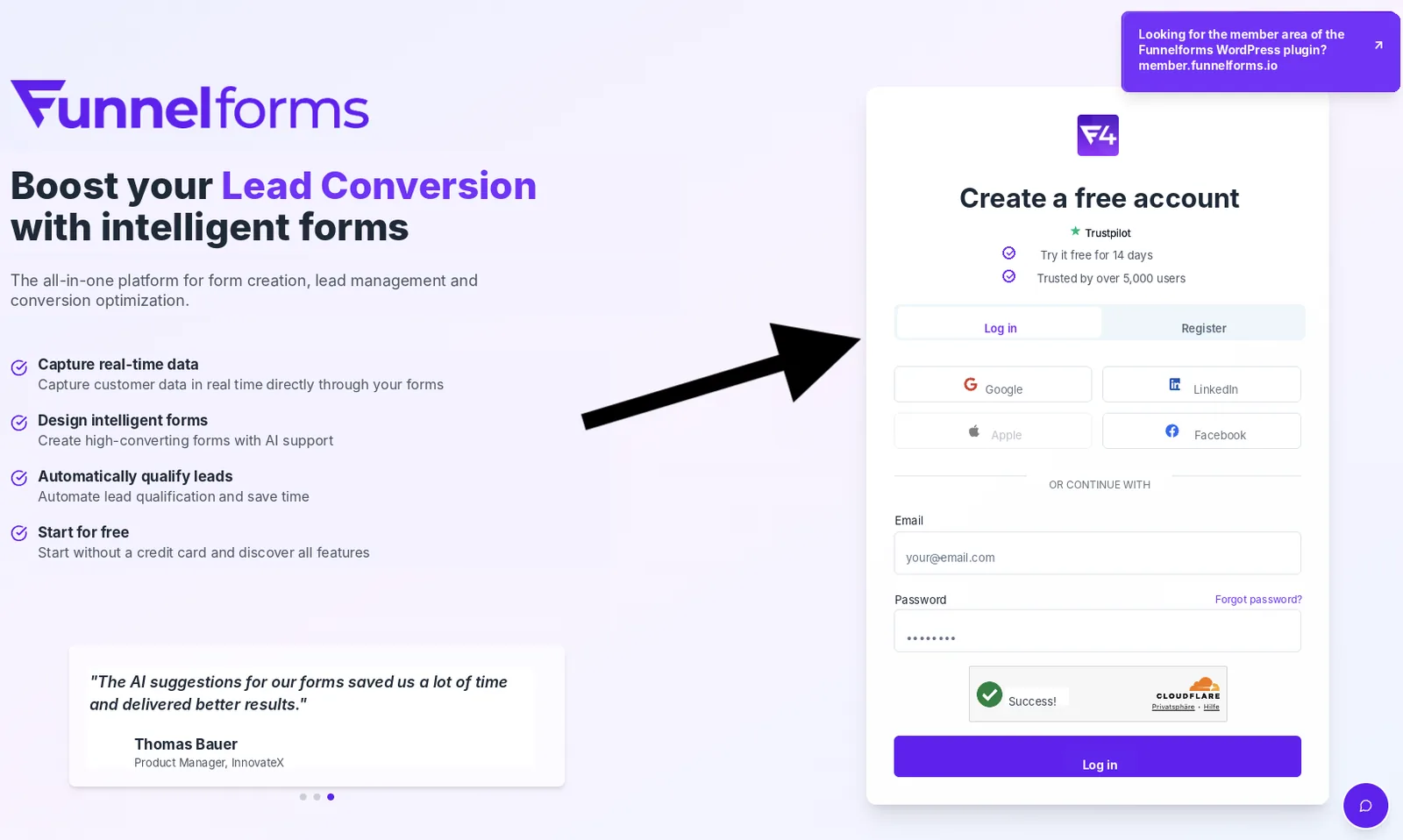
Functions
- Create account: enter first name, last name, email and password.
- CAPTCHA verification: protects your account and our platform from abuse.
- Email confirmation: click the link in the welcome email.
- Password reset: via Forgot password? on the login page.
Step by step: create an account
- Open the login page and switch to the Register tab.
- Fill in the fields: First name, Last name, Email, Password.
- Accept the terms of use and privacy policy.
- Complete the CAPTCHA verification.
- Click Create account.
- Open your inbox and click the confirmation link.
- After a successful confirmation you are signed in and land in the dashboard.
What happens behind the scenes
When you click Create account, Funnelforms first checks the CAPTCHA response. Your account is then created and Funnelforms sends a confirmation email to the address you provided. Only after you click the link is your email considered verified and the dashboard becomes accessible. Until then the account stays inactive.
Best practices
- Use a shared business email address when a team account is planned, so several people can reach it.
- Use a password manager and a randomly generated password.
- Mark the Funnelforms sending domain as a trusted sender so system emails arrive reliably.
Troubleshooting
- CAPTCHA cannot be completed: tracking blockers or strict privacy settings can block the widget. Temporarily disable them for the login domain or switch browser.
- Confirmation email does not arrive: check the spam folder and make sure the email address is spelled correctly. Signing in again from the login page triggers a new email.
- Password is rejected: it must contain upper and lower case, at least 8 characters, a digit and a special character.
- Login fails after verification: reload the page and type the password manually to rule out autofill errors.
Tips
Note: CAPTCHA verification is mandatory. It cannot be bypassed or disabled — not even in development.
FAQ
Can I change the email address later?
Yes. The change happens in profile settings and is secured by a new confirmation email.
Is the trial active automatically?
Yes. The 14-day trial starts automatically with your first successful sign-in. No credit card required.
Can I delete my account again?
Yes. Profile settings contain the account-deletion function. Deletion permanently removes all associated data.
What if I forget my password?
Click Forgot password? on the login page, enter your email and follow the link from the reset email.