Open the logic editor and understand automations
Logic & Automation lets you control which fields a lead sees next based on their answers, and which actions Funnelforms triggers at the end of the funnel. One form can serve many paths — and finish with a webhook to your tools, a redirect to a matching page, or both. This article shows how the logic editor is structured and how to open it.
Requirements
- A form with at least two fields (otherwise there is nothing to branch).
- An active subscription or trial — the logic editor is available on every plan. The AI "Generate Logic" feature requires the Advanced plan or higher (not included in Basic).
Where to find it
Forms → [Form] → "Logic" tab. The tab opens the flow builder, where every field of your form is displayed as a node.
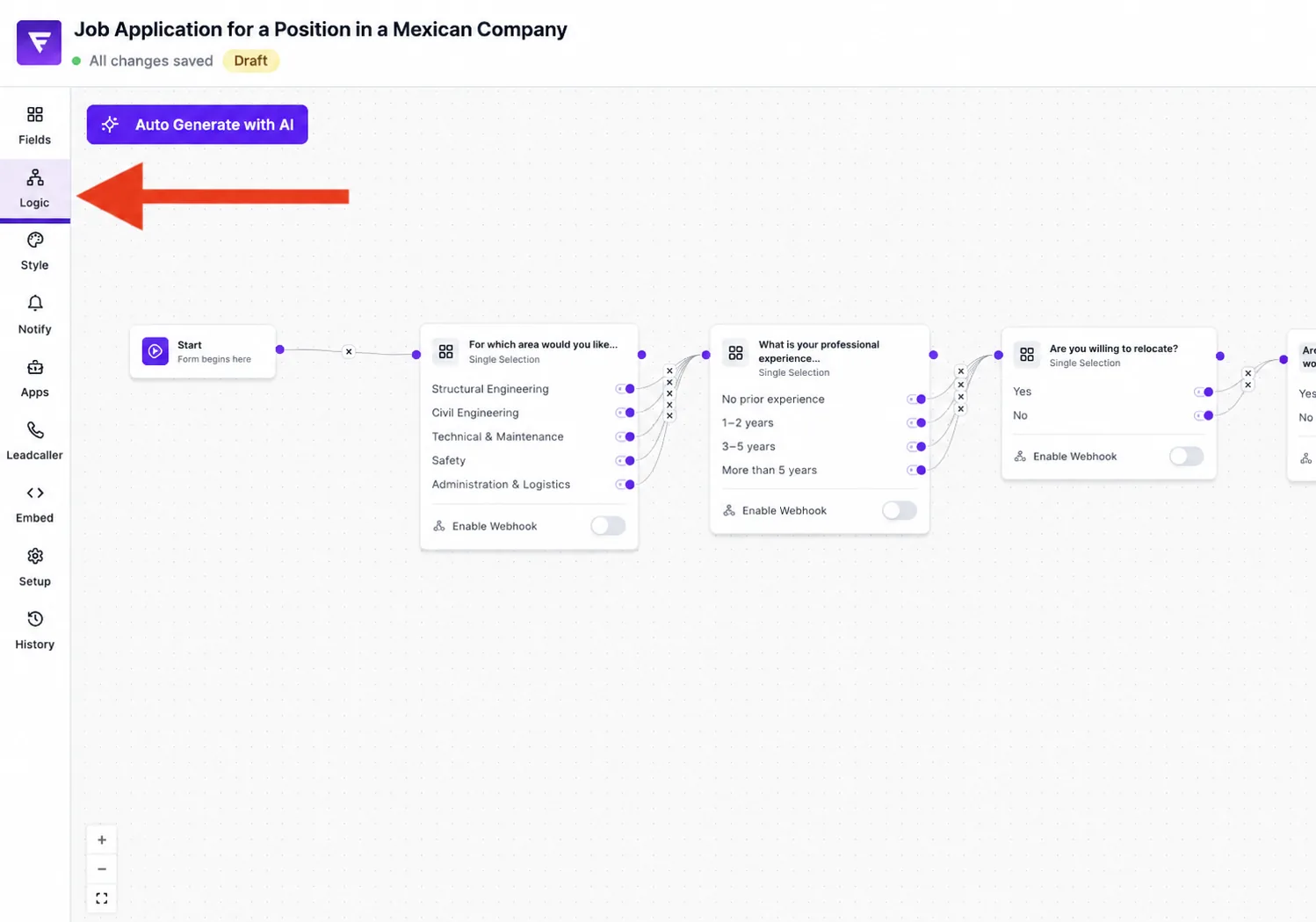
What the logic editor can do
- Connect fields with edges — the order defines the default path.
- Attach conditions to a field that create alternative edges to other fields.
- Place action nodes (webhook, redirect) at the end of a path.
- Use the "Generate Logic" button to let Funnelforms AI propose an initial structure.
Step-by-step: open the logic editor
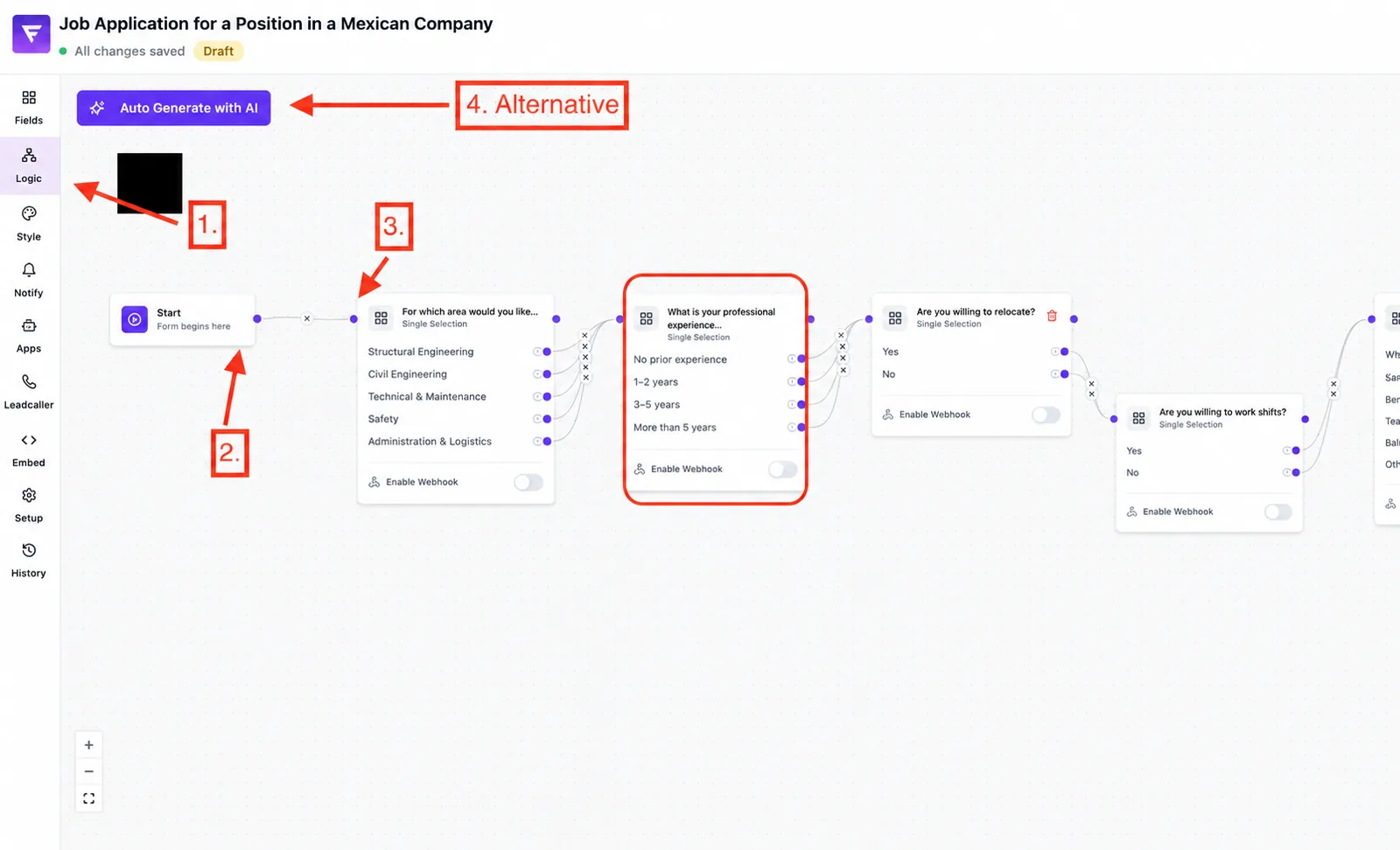
- Open your form and switch to the Logic tab.
- You see the start node and every field node in their current order.
- The edges between the nodes show the default path (each field is shown one after another).
- The toolbar at the top lets you zoom, reset the view, or trigger the AI suggestion.
Best practices
- Sketch the funnel first on paper or a whiteboard — complex branches quickly become hard to read inside the editor.
- Start with the default path. Only add conditions and branches once the linear flow works end-to-end.
- Place action nodes as late as possible — they fire after the funnel completes.
Common pitfalls
- Removing a node in the logic editor only deletes the connection, not the field itself. Fields are managed in the "Fields" tab.
- Nodes without an outgoing edge lead the user into a dead end — the path should always reach the submit/action node.
Tips
Tip: Use the "Generate Logic" button as a starting point — it saves time on a fresh funnel and the suggestions can be edited afterwards. AI generation may require a specific plan.
Note: Changes to the logic editor are saved automatically — about one second after your last edit. No manual save is required.
FAQ
Do I need logic for every form?
No. A form without branches simply runs the linear default path. Logic adds conditions and actions on top.
Can I run more than one action?
Yes — you can attach multiple action nodes in parallel at the end of the funnel (e.g. webhook and redirect at the same time).
Are changes live right after saving?
Yes. Once the form is saved, the new logic applies to every following submission.