Use conditions and operators correctly
Conditions are the lever that lets your funnel react to a lead's answers. You attach them to a field and connect the resulting branch to the field that should follow in that case. This article explains where to set conditions up, which operators exist, and when to use which one.
Requirements
- The source field already exists in the form (e.g. slider, selection, text, date).
- At least one further field the condition can branch to.
Where to find it
Forms → [Form] → Logic. Conditions are configured on the source field in the logic editor; the resulting branch is connected to the target field with an edge.
What a condition can do
- Compare the lead's answer with a reference value.
- On a match, take an alternative path.
- Multiple conditions per field enable multi-way branches.
Operators overview
Funnelforms evaluates the following operators. The available choices depend on the field type.
Generic (text, selection, dropdown)
- equals — answer matches the reference value exactly.
- not_equals — answer differs from the reference value.
- contains — answer contains the reference value.
- starts_with — answer starts with the reference value.
- ends_with — answer ends with the reference value.
- exact_match — strict equality (used for multi-selections).
Numbers / sliders
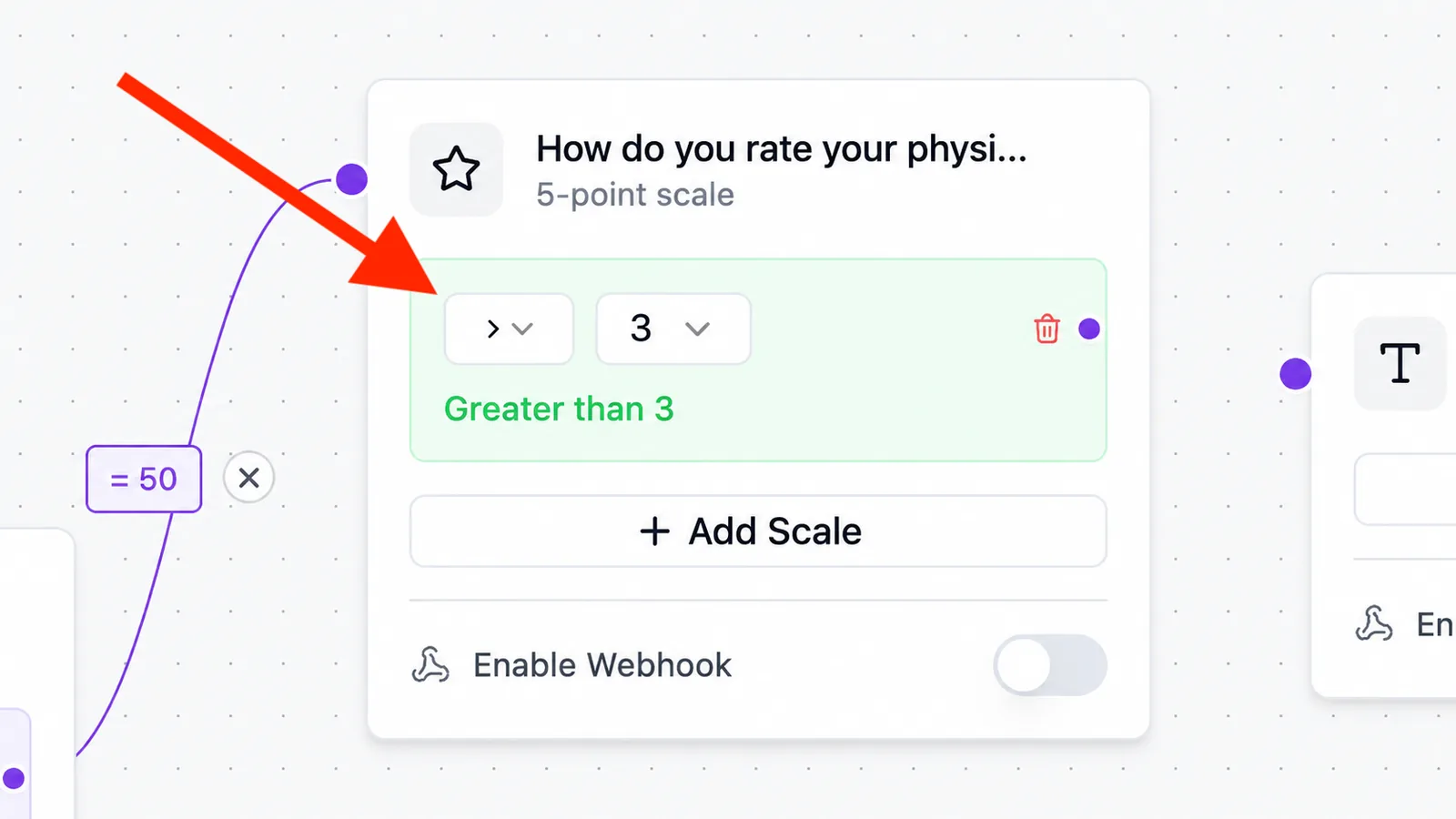
- greater — answer is greater than the reference value.
- less — answer is less than the reference value.
- between — answer lies between two values.
- range — the chosen range overlaps the reference range (available for range sliders and for postal code fields as a postcode range).
- count — checks how many options were selected.
- overlaps — two ranges overlap.
Date
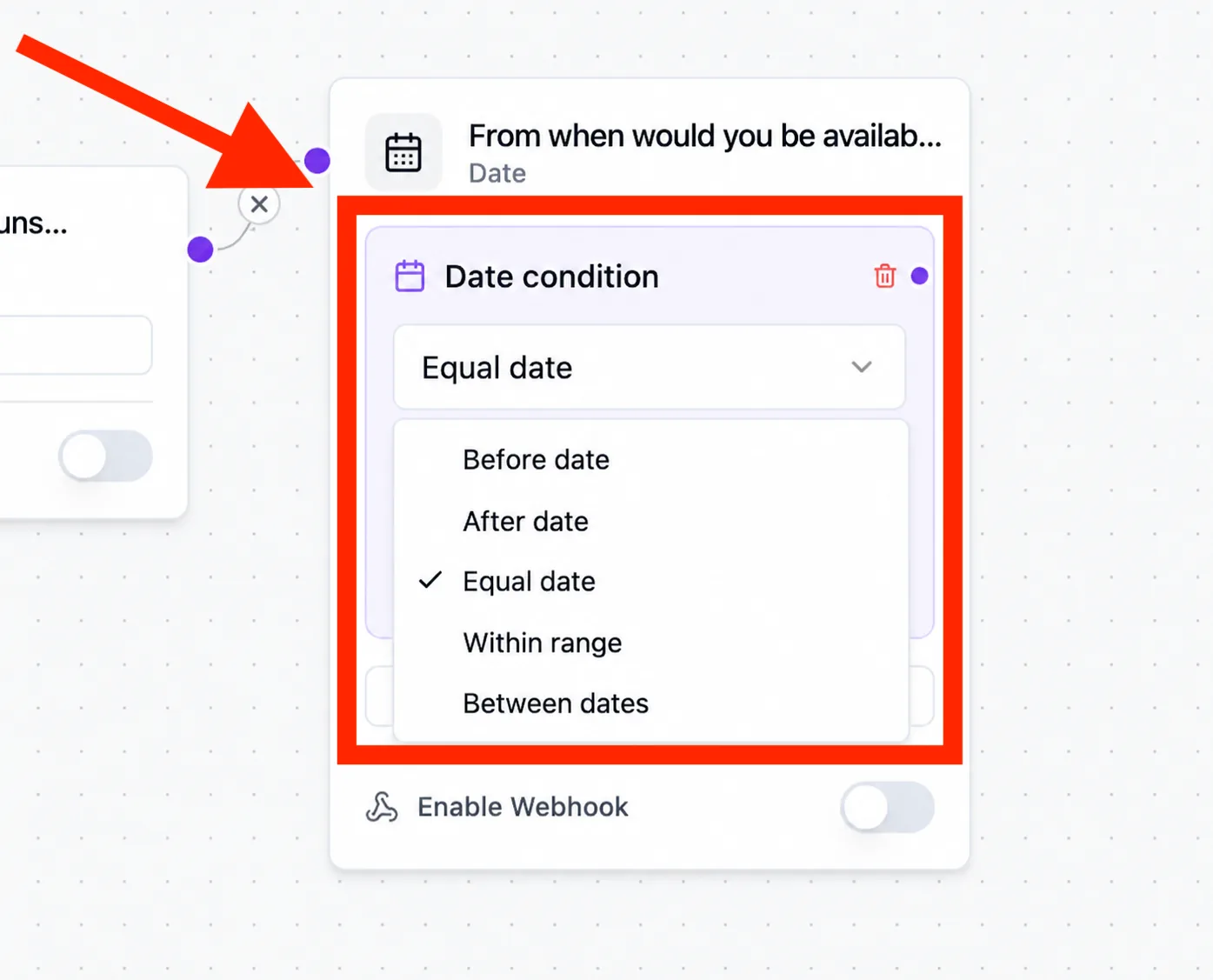
- before / after — answer is earlier or later than a date.
- within / outside / within_period — see the dedicated date article.
Step-by-step
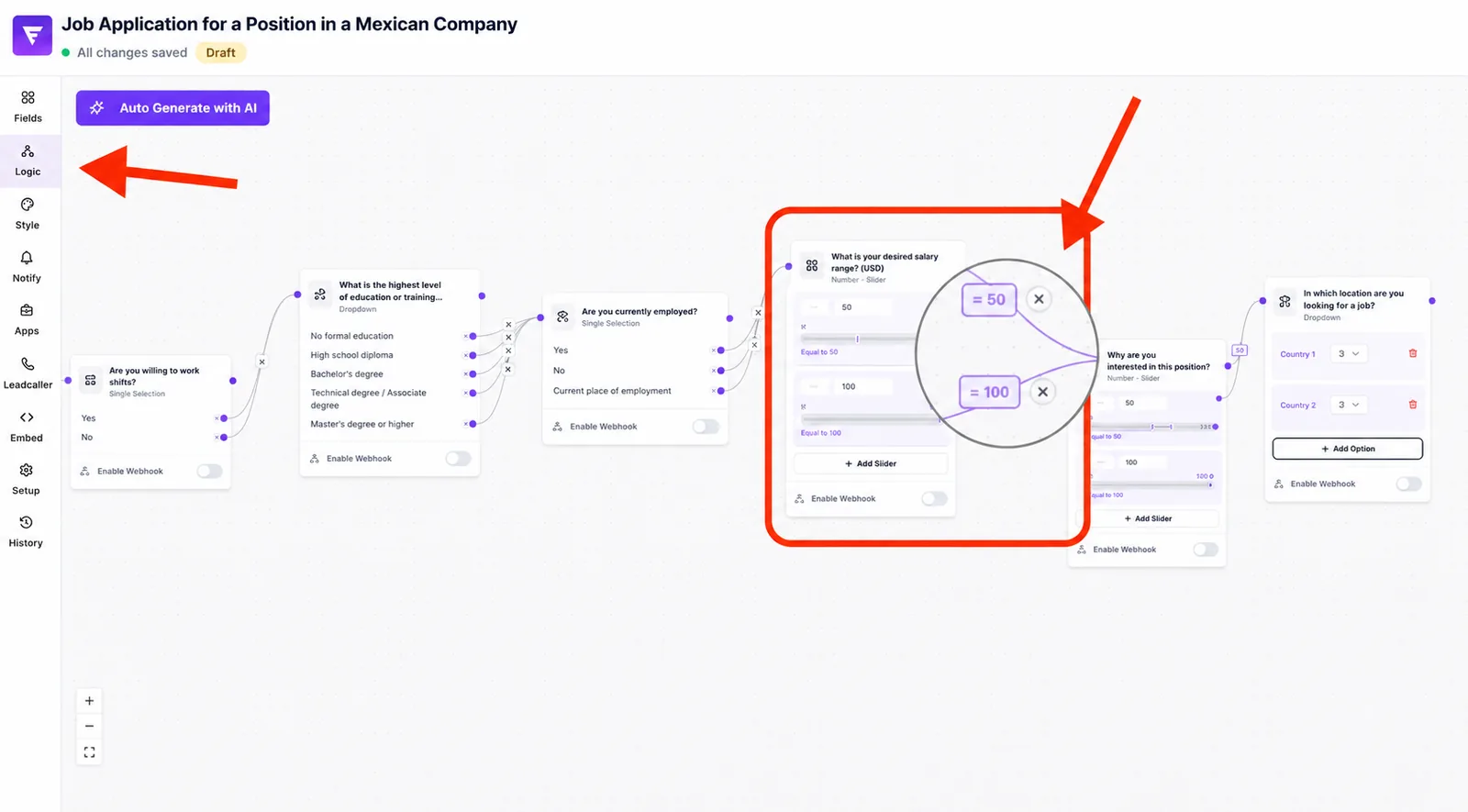
- Open the Logic tab and select the source field the condition should apply to.
- Add a condition (e.g. "Slider greater than 50"). Choose the operator and reference value.
- Connect the resulting branch to the target field that should follow in that case.
- If no condition matches, the lead continues along the default edge.
Best practices
- Group similar answers via an equals condition on an options group — clearer than many tiny rules.
- Use unambiguous reference values, especially for text inputs (typos won't match).
- Plan a default path that takes over when no condition matches.
Common pitfalls
- A condition without an outgoing edge does nothing — the lead simply follows the default edge.
- Sliders/ranges are compared by numeric value, not by label.
- For multi-selections, contains can be ambiguous — verify with sample answers.
Tips
Tip: Complex logic becomes more readable when you use several small conditions instead of one big one.
Note: Date operators have specifics of their own — see the linked date article.
FAQ
What happens when multiple conditions match at the same time?
Funnelforms evaluates conditions in the order they are defined and uses the first one that matches. Order important cases first.
Can I combine conditions (AND/OR)?
Each condition stands on its own. For AND-chains, split the funnel into multiple sequential branches.
Does a condition take effect immediately?
Yes — it is evaluated as soon as the lead moves to the next field.