Submit feature suggestions and read the changelog: how to share your ideas and see what's new
Inside your Funnelforms profile you can submit your own feature requests, vote on suggestions from other users and read the public changelog with all platform updates. This lets your voice flow directly into our roadmap and keeps you in the loop on new functions, improvements and bug fixes.
Prerequisites
- An active, signed-in Funnelforms account (Free or higher).
- To submit: a clear title and a description of at most 500 characters.
- To vote: a registered account – exactly one vote per suggestion is allowed.
Where to find suggestions and the changelog
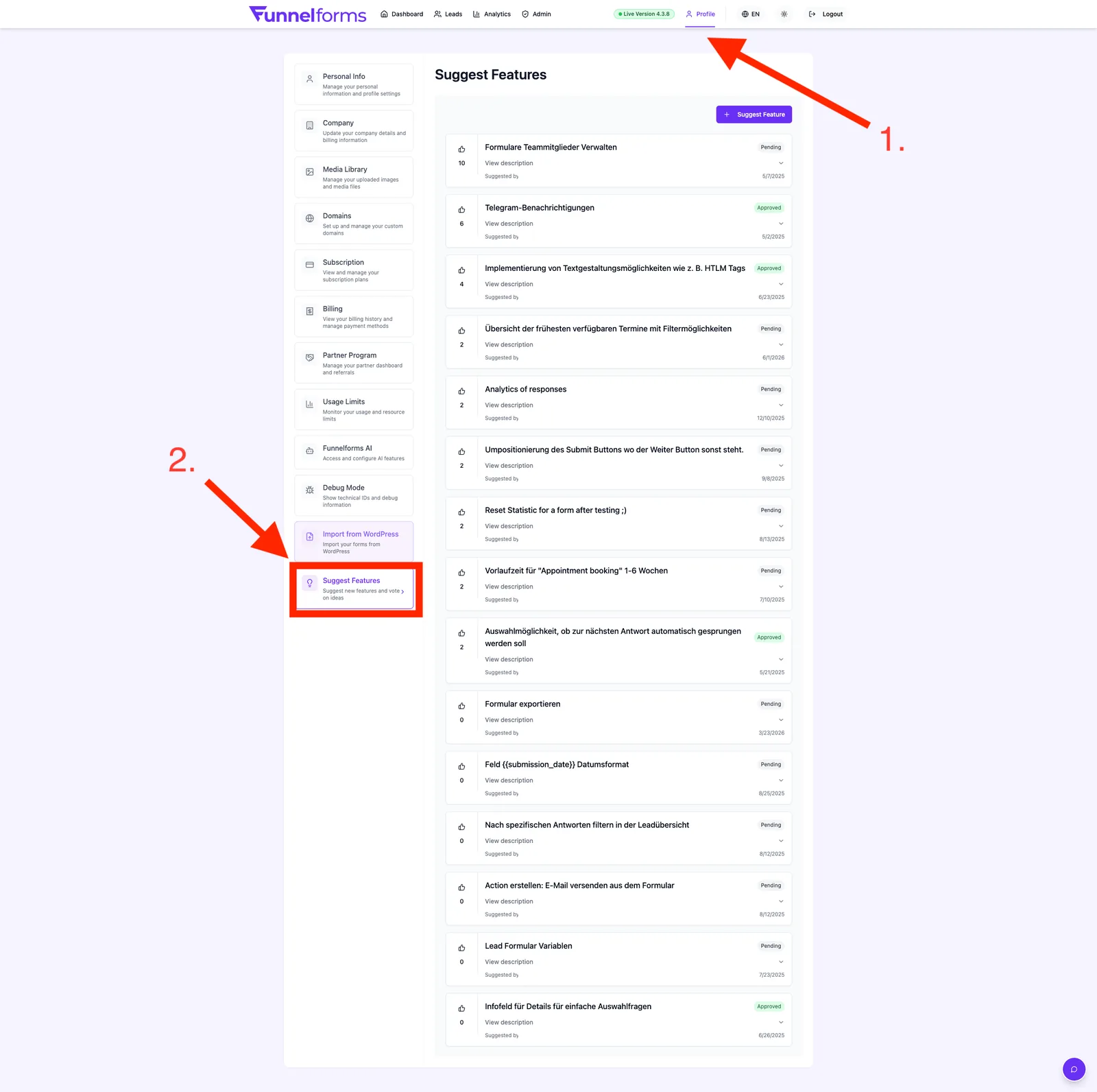
- Feature suggestions: click your avatar in the top right → Profile → tab Suggest Features.
- Changelog: open the Changelog menu entry or visit
/changelog. After a new app release, Funnelforms also shows a popup with the highlights and a View Changelog button.
Submit a suggestion – step by step
- Open Profile → Suggest Features.
- Click Suggest Feature. The input form appears.
- Enter a short, clear title (for example "Multiple choice with image options").
- In the Description field, explain what you want and which problem it solves. The counter in the top right shows the remaining characters (max. 500).
- Click Submit Suggestion. You receive a confirmation ("Suggestion submitted"), the form is cleared and your entry appears immediately in the list.
Vote on suggestions
Each entry has a thumbs-up button with the current vote count on the left.
- Click once to add your vote, click again to remove it.
- The count updates instantly. Suggestions with many votes help our team set priorities.
- Click View description to expand the full text, including author and submission date.
Understanding the status
Every suggestion carries a status badge in the top right:
| Status | Meaning |
|---|---|
| Pending | Default state right after submission. The team is still reviewing the suggestion. |
| Approved | The suggestion is accepted and scheduled for implementation. |
| Implemented | The feature is live. You will find the matching version in the changelog. |
| Rejected | The suggestion is not being pursued at the moment (e.g. because a similar function already exists). |
Reading the changelog
The changelog lists all platform versions – the live version is shown at the top, followed by a timeline with the version history.
- Current Version: the version currently in production, highlighted with the purple accent and the release date.
- In Development (animated card with a construction icon): the version that is being worked on right now – contents may still change.
- Released: older, completed versions.
Inside each version the entries are grouped into three categories:
- Features – new functionality.
- Fixes – resolved bugs.
- Improvements – enhancements to existing functions.
Versions with the internal Draft status are not shown in the public changelog – you only see released, in-progress or planned versions.
Best practices for great suggestions
- Be specific: describe the use case ("I want to … so that …") instead of just the wish ("Please add XY").
- One idea per suggestion: submit multiple ideas as separate entries so each gets its own votes.
- Vote first: check whether a similar suggestion already exists and vote there – that has more impact than a duplicate.
- Keep it concise: 500 characters are enough for purpose, benefit and a short example.
Troubleshooting
- "Please fill in title and description": both fields are required – whitespace alone is not enough.
- "Description must be 500 characters or less": the counter in the top right turns red as soon as you exceed the limit. Shorten the text before submitting.
- Suggestion does not appear in the list: reload the page. If you are not signed in, you will be redirected to the login when saving or voting.
- Cannot cast a vote: exactly one vote per suggestion is allowed. The first click adds it, the second click removes it.
Frequently asked questions
Do other users see my name? Yes. Every suggestion shows "Suggested by" with the first and last name from your profile. If no names are set, the entry shows Anonymous.
Can I edit or delete a suggestion later? The tab does not offer editing. If you want to correct or withdraw a suggestion, please contact support.
Will I be notified when my suggestion is implemented? Not automatically. You can follow the status via the badge in the suggestions tab and check the matching version in the changelog.
Why don't I see a particular version in the changelog? Versions in Draft status are visible internally only and are intentionally hidden until they are released.
Related articles
- Overview: Settings & Administration
- Partner Program: become a Funnelforms partner
- Understanding plan, limits & usage