The Embed workspace brings all ways to show a form together in one place: in a page of your website, on a page of its own with a direct link, as a popup, as a button in a corner or on a website outside WordPress. For each way you set what is needed, copy the finished code with one click and see how to use it. A small preview shows where the form appears.
Requirements
- You may edit forms (right "Edit forms").
- The form is published. Until then, the code is headed by: "The form is not published yet. The code shows it once you publish it."
- Popup (Pro only), Widget (Pro only) and Other website (Pro only) belong to Funnelforms Pro. In Funnelforms Free they carry a Pro badge.
Where to find it
- Funnelforms → Forms → open a form → Embed in the top bar (between Settings and Statistics).
- Right after publishing: the More ways to embed button in the Published dialog.
Features at a glance
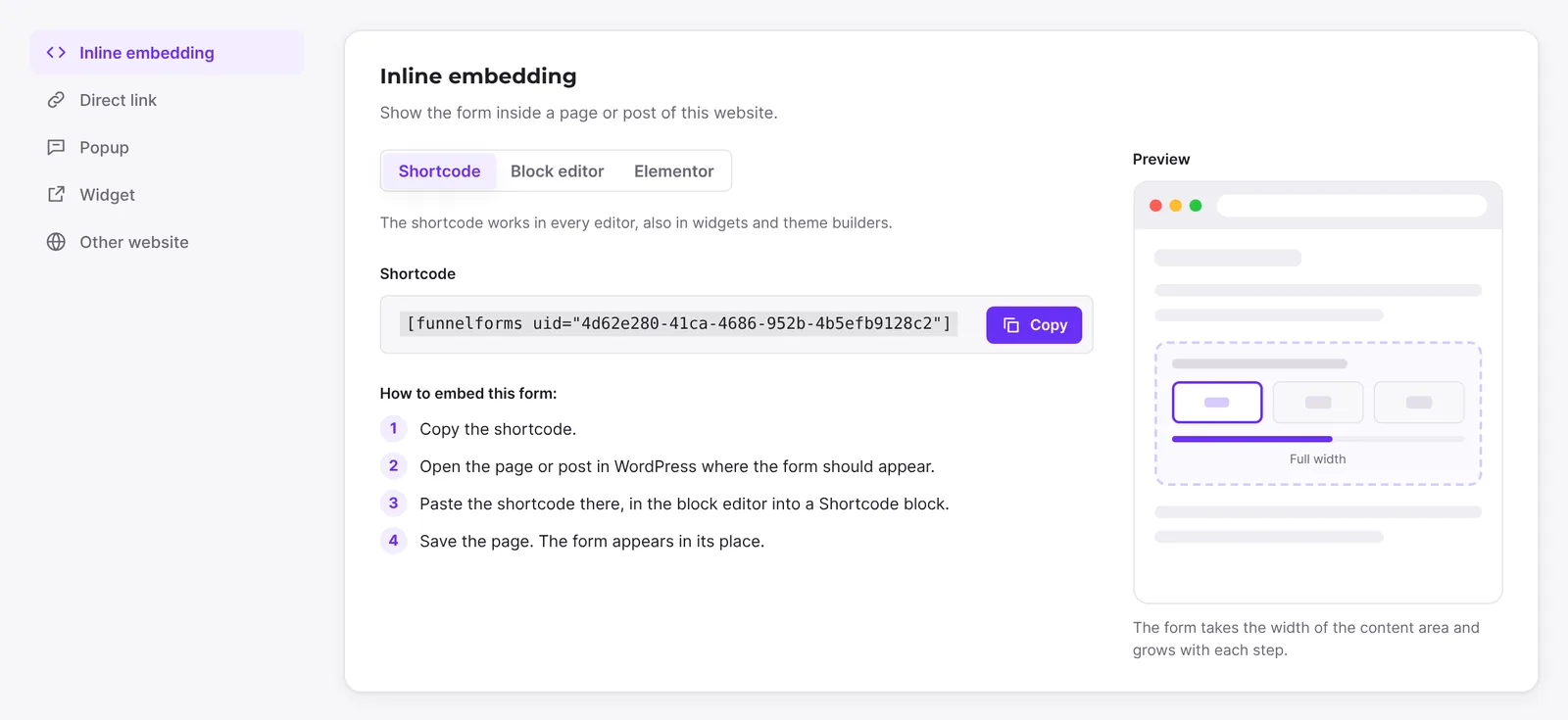
On the left are the Ways to embed:
- Inline embedding: the form sits in a page or post of this website, with the shortcode, the block or the Elementor widget.
- Direct link: the form sits alone on a page of its own with the address
/funnelforms/…. - Popup (Pro only): the form opens above the page, after a delay, on a click, after scrolling or when the visitor is about to leave.
- Widget (Pro only): a floating button in a corner opens the form.
- Other website (Pro only): an embed code shows the form on a website outside WordPress.
In the middle are the settings of the chosen way, the code with Copy and the steps under "How to embed this form:". On the right, the Preview shows a sketch of the page with the form.
Step by step
In a page (inline embedding)
- Open Embed and choose Inline embedding.
- Under "Where do you build your pages?", choose Shortcode, Block editor or Elementor. The steps adapt.
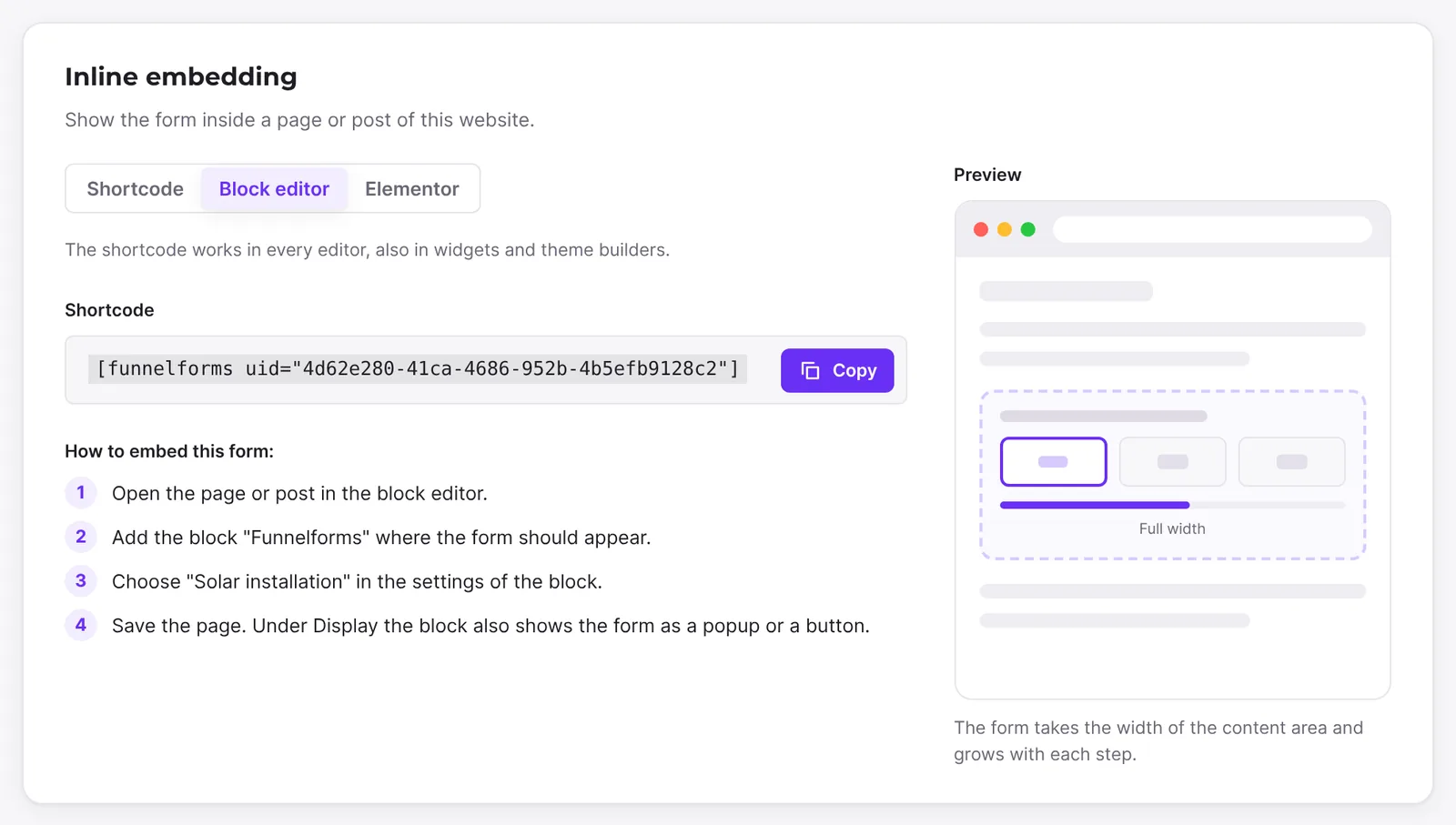
- At the Shortcode, click Copy.

- Open the page in WordPress and paste the shortcode, in the block editor into a Shortcode block. In the block editor or in Elementor you can add the "Funnelforms" block or widget instead and choose the form there.
- Save the page.
With a direct link
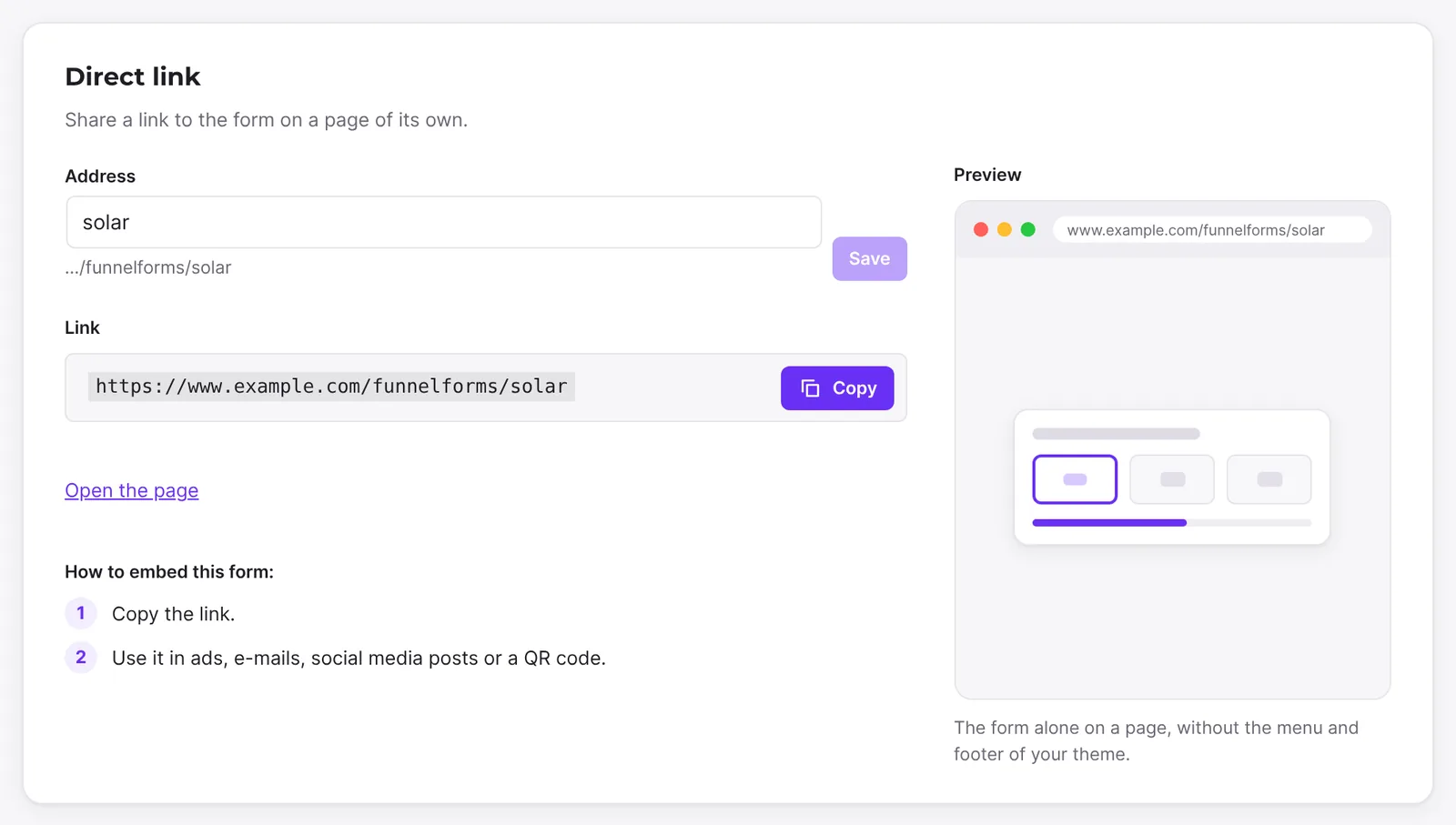
- Choose Direct link.
- Under Address, enter a name, for example
angebot, and click Save. If an address is there already, such as the direct link from Funnelforms 3, it applies already; the steps then do not mention saving. - Copy the Link with Copy, or open it with Open the page.
- Use the link in ads, e-mails, social media posts or a QR code.
As a popup (Pro only)
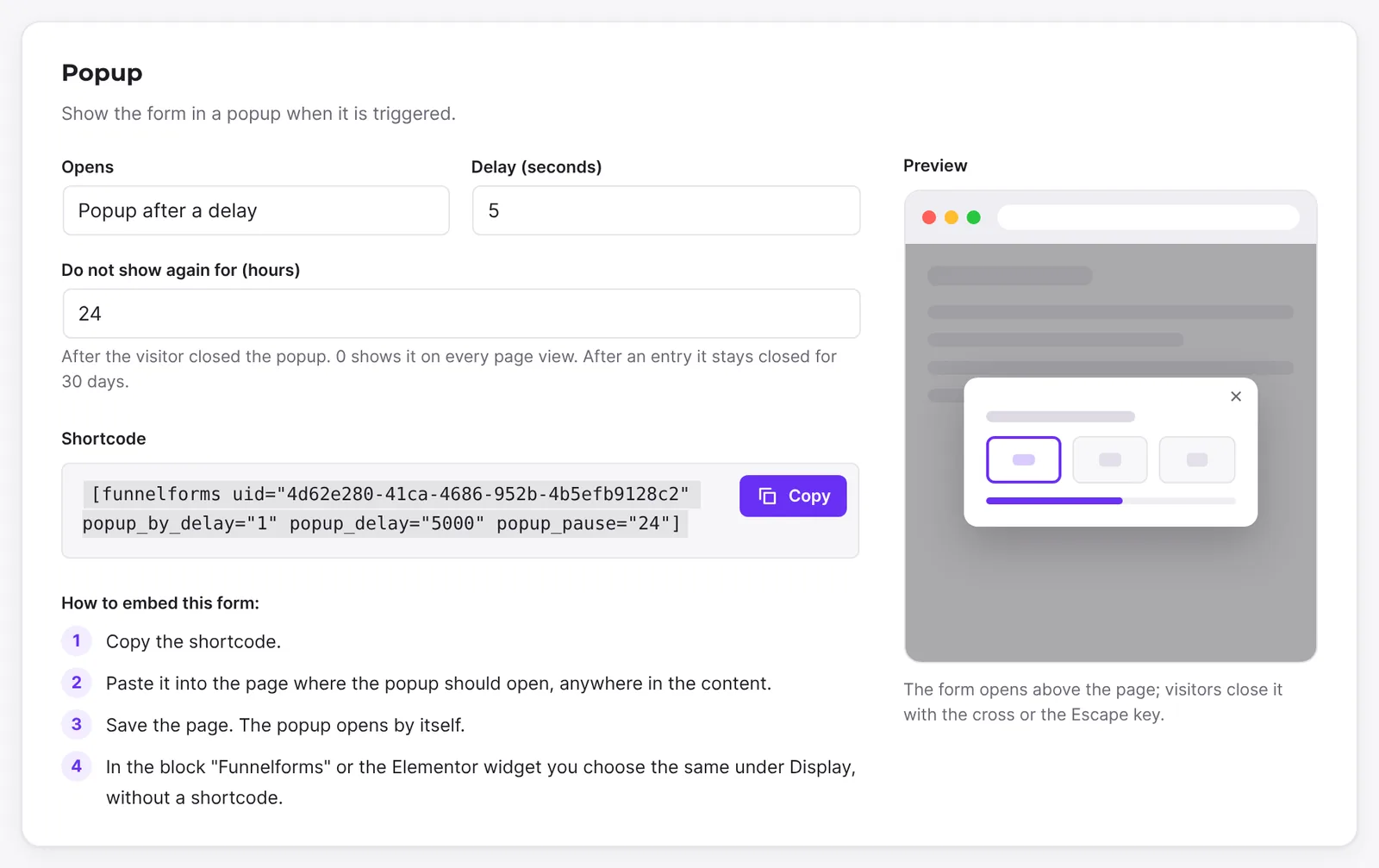
- Choose Popup.
- Under Opens, choose Popup after a delay, Popup on a click, Popup after scrolling or Popup when the visitor is about to leave.
- Depending on the kind, set the Delay (seconds), the CSS class of the buttons or links or Opens after this share of the page (%), and for popups that open by themselves Do not show again for (hours).
- Copy the shortcode and paste it anywhere in the content of the page.
- With Popup on a click: give the buttons or links that should open the form the CSS class shown.
As a button in a corner (Pro only)
- Choose Widget.
- Set Corner, Animation, Text of the button and Colour of the button. Without a colour, the button takes the accent colour of the form.
- Copy the shortcode and paste it into every page that should show the button, for example in a widget area of the footer for the whole website.
On another website (Pro only)
- Choose Other website.
- Set Width, Height and Automatic height.
- Copy the Embed code and paste it into the HTML of the other website.
How it works
What does the preview show?
The preview is a sketch, not a real form. It shows where the form appears: in the content of the page at full width, alone on a page with the address in the address bar, as a window above the page, as a button in the chosen corner with its text and colour, or as a frame with width and height. Below it is a sentence about the chosen way, for example "The form opens above the page; visitors close it with the cross or the Escape key."
Are the settings saved?
Only the address under Direct link is saved with the form, by Save. The settings of Popup, Widget and Other website live only in the copied code. They apply wherever you paste the code. To change them, set them again, copy the code once more and replace it on the page. When you leave the workspace, the defaults are back the next time you open it.
What is there in Funnelforms Free?
Inline embedding and Direct link work in Free as in Pro. Popup, Widget and Other website are in the list with a Pro badge. If you choose one, Free shows a card instead of the code with the heading "These come with Funnelforms Pro:", what the way offers, and the link More about Funnelforms Pro. In Free the steps for the block editor and Elementor end with "Save the page. The form appears in its place.", because the block and the widget have no Display area there.
What applies to forms that still run on Funnelforms 3?
The workspace then shows a note at the way concerned. Direct link: "Its own page appears once it uses the new renderer." Popup after scrolling and on leaving, and Widget: Funnelforms 3 shows the form in the page instead. Other website: "The embed code shows it once it uses the new renderer." Inline embedding and popups after a delay or on a click also work with Funnelforms 3.
Can I open the workspace by address?
Yes. If you add &view=embed to the address of the builder, the form opens straight in the Embed workspace.
Best practices
- Publish the form first and then open Embed, so the code shows a form right away.
- Always copy codes with Copy instead of typing them.
- After pasting, check the page in a browser without signing in, as a visitor sees it.
- For popup and widget (Pro only), you can also use the "Funnelforms" block or the Elementor widget instead of the shortcode and choose the same under Display.
Troubleshooting
| Problem | Cause | Solution |
|---|---|---|
| Above the code it says "The form is not published yet. …" | The form has never been published | Click Publish |
| Copy does not show Copied | The browser does not allow the clipboard, for example without HTTPS | Select the code by hand and copy it with the keyboard |
| Save under Direct link is locked | The Address field is empty or equals the saved address | An address that is already in the field applies already. To change it, enter another one |
| Popup, Widget and Other website only show a Pro card | Funnelforms Free is active on the website | These ways belong to Funnelforms Pro |
| "The embed code for other websites is not available on this website." | This copy of the plugin lacks the part for embedding | Install Funnelforms Pro again completely |
| In Funnelforms Free the block and the Elementor widget have no Display section | Popup and button belong to Funnelforms Pro | In Free the form always appears right in the page |
Tips
- The shortcode works in every editor, also in widgets and theme builders.
- For Popup and Widget, the code field holds the finished shortcode with its attributes. You do not need to know the attributes.
- The pause Do not show again for (hours) starts here at 24 hours, also for Popup after a delay.
FAQ
Do I need a separate code for every way? Yes. Every way has its own code. You can still show the same form in several ways at once, for example in a page and with a direct link.
Does the code change when I edit the form? No. After publishing, every code shows the new version.
Is the workspace available in Funnelforms Free? Yes. Inline embedding and the direct link also work in Free.