A Funnelforms form is a flow of steps that you arrange on the canvas and connect with paths. This article shows how to add steps and fields, decide where visitors go after an answer, style the contact step and adjust the progress bar.
Requirements
- You need the right to edit forms.
- Steps, paths by the chosen answer, the contact step, ends and the progress bar are available in Funnelforms Free and Funnelforms Pro.
- Rules with "and" and "or" or on numbers, texts or dates are Pro only. Some field types are Pro only as well, see Field types at a glance.
Where to find it
Funnelforms → Forms → open a form → Structure. The side panel on the left has the tabs Add and Questions. On the right, Properties shows the settings of the selected step in two tabs.
Features at a glance
- New steps from the groups Pick answers, Type in and Content and more, ends under Finish (Contact step and End)
- Several fields in one step via Field in this step, ordered with Move up and Move down
- Two tabs per step: Question or Fields for the content, Logic for what comes next; at the contact step Contact step and After sending
- On the Logic tab: By answer with its own next step per answer, rules and Otherwise go to
- Flags on the canvas: Start, Not reachable, Stuck and Check
- Overview with nothing selected, with the Logic check
- How visitors get here on every end
- A notice with Undo when deleting removes rules
- Overview map and the Keyboard shortcuts dialog
- Progress bar with "Step … of …", optionally with a percentage
Step by step
Add a step
- On the Add tab of the side panel, pick a field type under New step.
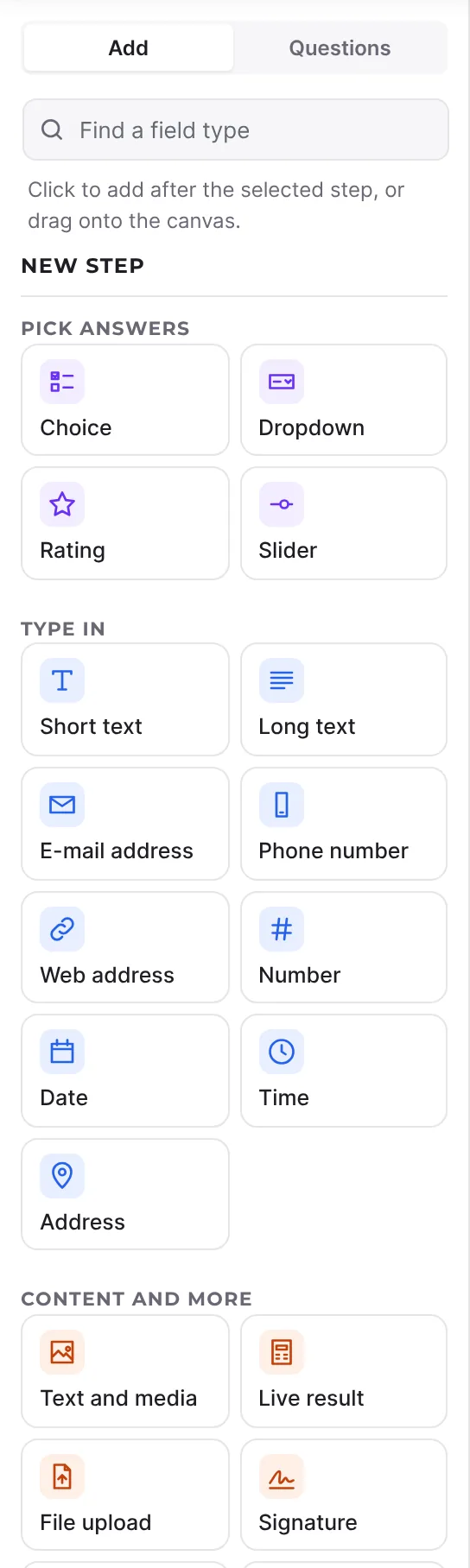
- Click it to insert the step after the selected step, or drag it to the spot you want on the canvas.
- Use Find a field type to find a type faster.
Several fields in one step
- Select the step on the canvas.
- In the side panel, click a field type under Field in this step. You can also drag it onto the step.
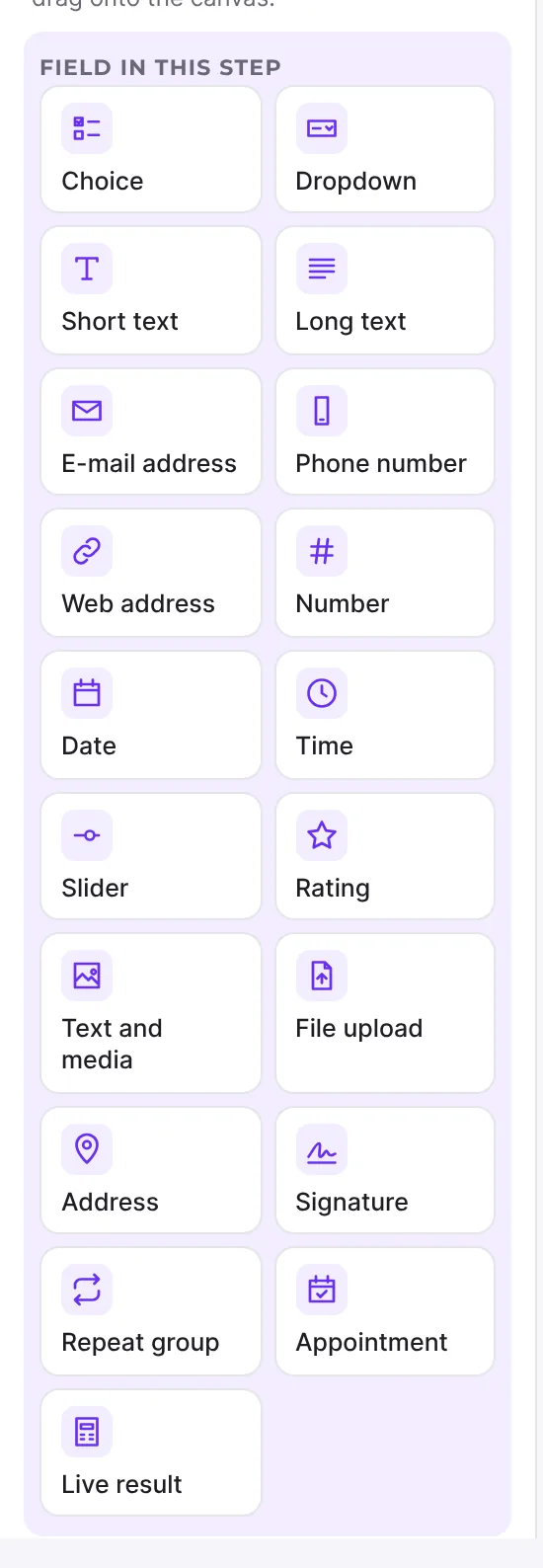
- On the Fields tab on the right, select a field to edit it.
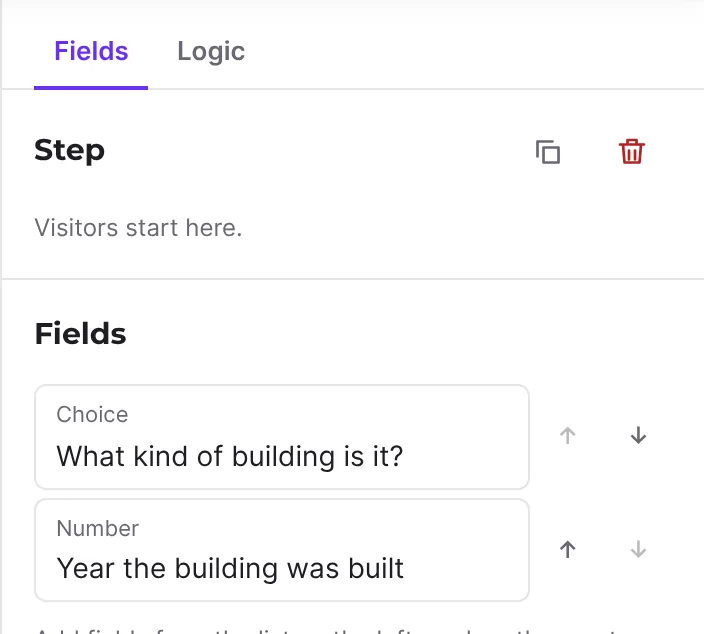
- Change the order with Move up and Move down.
- If a field should appear only on certain answers, set Show this field to Only if … on the field. More in Show fields only on certain answers.
Decide where visitors go after an answer
- Select the step and open the Logic tab on the right (or press the L key).
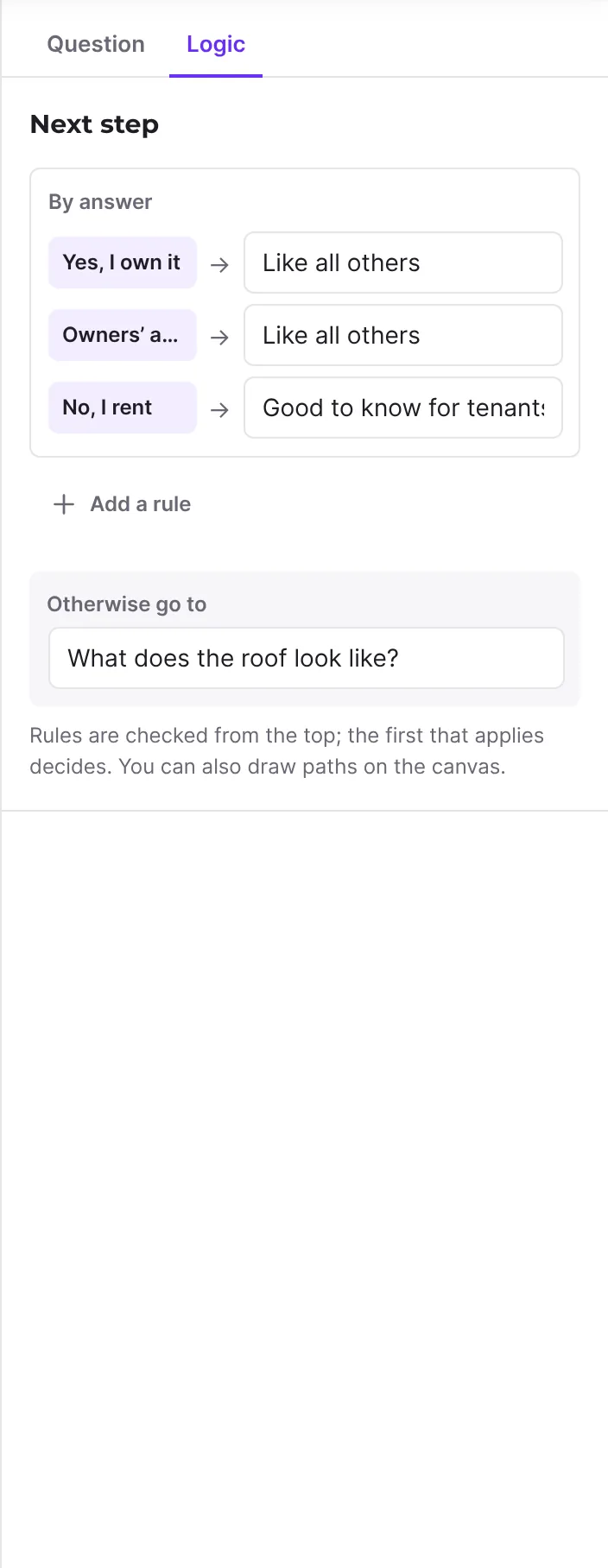
- If the step has a choice or dropdown question, Next step shows the list By answer. With several fields it reads By answer to "…" and names the question. If there are several such questions, pick one under By the answer to.
- Next to each answer, choose its next step. Like all others takes the path set under Otherwise go to.
- Under Otherwise go to (called Go to while there are no rules), choose the target for everyone else.
- For more rules, click Add a rule and set when it applies and where it leads. Check earlier and Check later change the order.
Connect steps on the canvas
- Drag a line from the dot on the right of a step to the next step. The first line is the path without condition.
- If you drag another line from a step with a choice question, the editor creates a path for the first answer that has no path of its own yet. Without such an answer, Funnelforms Pro creates a rule for the first suitable field of the step; Funnelforms Free creates no rule and moves the path without condition to the new target instead.
- Click a line to select it. On the right you see the Path with Go to and its condition. Make it the path without condition makes it the default.
- Each line carries a short label saying when it applies. For paths by answer, these are the answers, for example "House or Flat".
Style the contact step
- Select the Contact step. The Contact step tab is open on the right.
- Change Heading, Text below the heading and Button.
- Open Look of the contact step and choose One field per row or Two fields per row under On large screens and On phones.
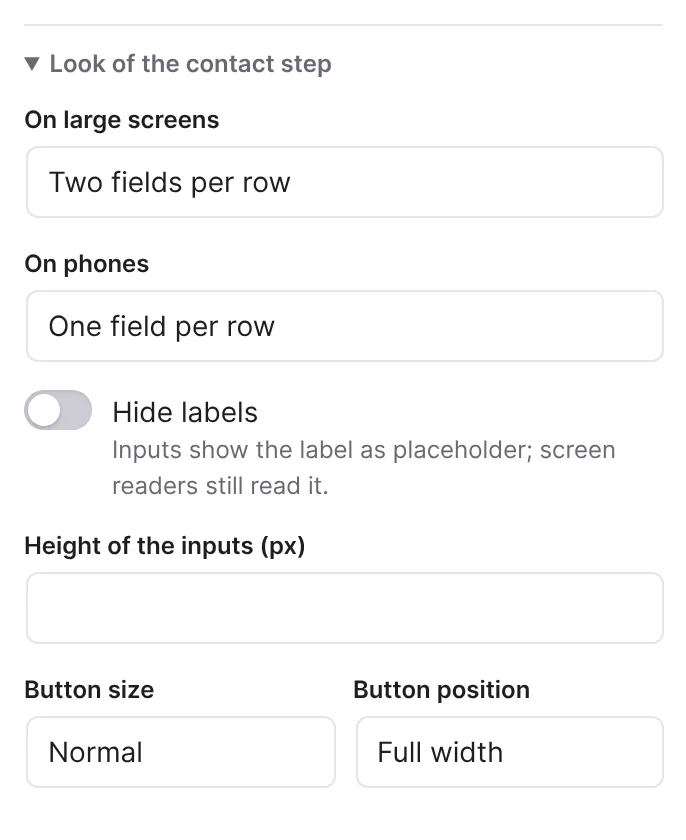
- If needed, set Hide labels, Height of the inputs (px), Button size and Button position.
- Open the After sending tab. There you set the mails and other actions, and under Then visitors see the end. The articles on actions after sending have the details.
Set the first step
- Select a step.
- Click Make this the first step. The step gets the Start flag, and the panel says "Visitors start here."
How it works
How are step, contact step and end built?
- A step has at least one field. With exactly one, the first tab is called Question and you edit the field directly. With several, it is called Fields and shows the list.
- The contact step submits the form. It has a heading, a text below it, the contact fields and the submit button. A new contact step contains the fields Name and E-mail address. On the canvas its card shows After sending at the bottom with the actions set up, or "Only saved. Add a mail …". Clicking it opens the After sending tab.
- The end shows a message, redirects, or both. Its card says Message, Redirect, Message, then redirect or Shows nothing yet. A form can have several ends, for example for different results.
What does the Logic tab show?
It answers where visitors go after this step. First come the By answer paths, then the other rules, last Otherwise go to. Rules are checked from the top; the first that applies decides. When every answer has its own step, you see "Every answer has its own next step." and Otherwise go to shows Not needed. With several answers chosen, the first answer in the list with its own step decides. A number on the tab tells how many hints about the logic there are.
What is different in Funnelforms Free?
In Funnelforms Free a path asks only for a chosen answer: "when [question] is answered with [answer]". That needs a choice or dropdown question before it. Rules with "and" and "or", on numbers, texts, dates or calculations are Pro only. If a path has such a condition, for example from an import or from Pro, you see "This path has a condition of Funnelforms Pro. Choose a question and an answer to replace it." While it stays, the form cannot be published in Free.
What do the flags on the canvas mean?
- Start: visitors begin here.
- Not reachable: no path leads here from the start, so visitors never see the step.
- Stuck: visitors get stuck, for example because no path leads on from this step.
- Check: a hint that need not be an error. Hover over the flag to read the reason.
With nothing selected, the right column shows the form at a glance: Name of the form, the number of Steps, Questions and Ends, and the Logic check. When everything is fine, it says "Every step leads on and every end can be reached." Below, links lead to Design, After sending and Settings.
How visitors reach an end
When you select an end, How visitors get here lists every path to it with its condition. For a path from the contact step it says what happens after sending, for example "After sending: the entry is saved, nothing else happens." For a path from a question it says "Leaves without sending: no entry, no mails." If no path leads here yet, a hint explains how to add one.
What happens when you delete?
The trash icon or the Delete key removes the selected step, field or path. A step takes its paths with it, a contact step also its actions after sending. The editor removes rules that asked for the deleted field: a path with no rule left goes away, and a field with no condition left is always shown again. When that happens, a notice says "Deleted. Rules asked for it, so the logic changed: …" with the number of paths removed, paths with fewer rules and fields now always shown. Undo in the notice brings everything back; the notice disappears after about 12 seconds. If it was the first step, the first remaining step becomes the start. The last step of a form cannot be deleted.
How does the progress bar work?
Turn Show progress bar on or off under Settings → General. Under Design, in the section Alignment, progress and transition, the same option is called Show the progress bar, together with Show the percentage next to it. Visitors see the bar in the bottom bar between Back and Next, with "Step … of …" above it. The bar counts the steps on the longest way to the contact step; the current step counts as begun, so step 1 of 9 already shows 11 %. When a path skips steps, the bar moves on accordingly. Change the colours under Design → More colours with Progress bar and Progress bar background.
Best practices
- Ask one question per step when visitors should click through quickly. Group related fields, such as street and postcode, in one step.
- Build branches on the Logic tab with By answer. That is clearer than many lines and works in Free and Pro.
- Always choose a target under Otherwise go to so nobody gets stuck.
- Check the Logic check in the overview before publishing.
- Use the Questions list in the side panel to find a question in large forms. Required only shows what visitors must answer.
Troubleshooting
| Problem | Cause | Solution |
|---|---|---|
| A step is flagged Not reachable. | No path leads to it from the start. | Choose it as a target on another step's Logic tab or draw a line to it. |
| A step is flagged Stuck. | No path leads on from it, or no rule applies for some answers. | Choose a target under Otherwise go to on the Logic tab. |
| Publishing shows "The form has no start step." | The start step no longer exists. | Select a step and click Make this the first step. |
| "After sending, visitors see an empty form." | No path leads from the contact step to an end. | On the After sending tab, choose an end under Then visitors see. |
| Free: a path says "This path has a condition of Funnelforms Pro." | The condition uses rules that exist only in Pro. | Choose a question and an answer to replace it, or delete the path. |
| Free: a second line from a step without a choice question replaces the previous path. | Free branches only on the chosen answer. Without a free answer of a choice or dropdown question, the line moves the path without condition. | Add a choice or dropdown question to the step and branch on its answers on the Logic tab. |
| A new step lands in an unexpected place. | A click inserts after the selected step. | Select the step it should follow first, or drag the type to the spot. |
| A step cannot be deleted. | It is the only step in the form. | Add another step first. |
Tips
- Press ? to open the Keyboard shortcuts dialog. Ctrl+D (Cmd+D on a Mac) duplicates the selected step or field, L switches between content and logic, Esc deselects.
- The overview map is off at first. Turn it on at the bottom left of the canvas; the editor remembers your choice in this browser.
- Large forms open on their first steps so you can read them.
- While the form is still taking shape, the canvas shows a tip for the next thing to do at the top, such as "Connect the steps: drag from the dot on the right of a step to the next one."
FAQ
Can I move fields between steps? Within a step you move fields with Move up and Move down. For another step, add the field there and delete it in the old one.
How many steps can a form have? The editor sets no limit, in Free neither. Check long forms in the Preview.
Where do I set what happens after sending? At the contact step, on the After sending tab. Clicking After sending on the contact step's card opens it directly.
What is the difference between a step and the contact step? A step asks questions. The contact step collects the contact details and submits the form.