The editor saves your work continuously as a draft. Visitors see something new only when you publish. The article explains how saving, publishing, versions and the lock for simultaneous editing work together.
Requirements
- You need the right to edit forms. Some changes need further rights when publishing (see the section "What happens if I lack a right?").
- Saving, publishing, versions and the editing lock are available in Funnelforms Free and Funnelforms Pro.
- Funnelforms Free publishes only forms without Pro features.
Where to find it
In the editor, in the top bar: the save state next to the name, Undo, Redo, Versions, Preview and Publish.
Features at a glance
- Automatic saving as a draft, also with Ctrl+S
- Undo and Redo
- Publish with a check and an optional note
- Versions: load earlier published states as a draft
- Discard changes: back to the published version
- A lock when someone else edits the form, with Take over
- Keyboard shortcuts for common actions and the Keyboard shortcuts dialog
- A notice with Undo when deleting removes rules
Step by step
Publish
- Click Publish at the top right. A number on the button tells how many problems there are.

- In the dialog Publish form, read the notes. Problems are listed under Fix these first.
- Optionally write what you changed in What changed? (optional).
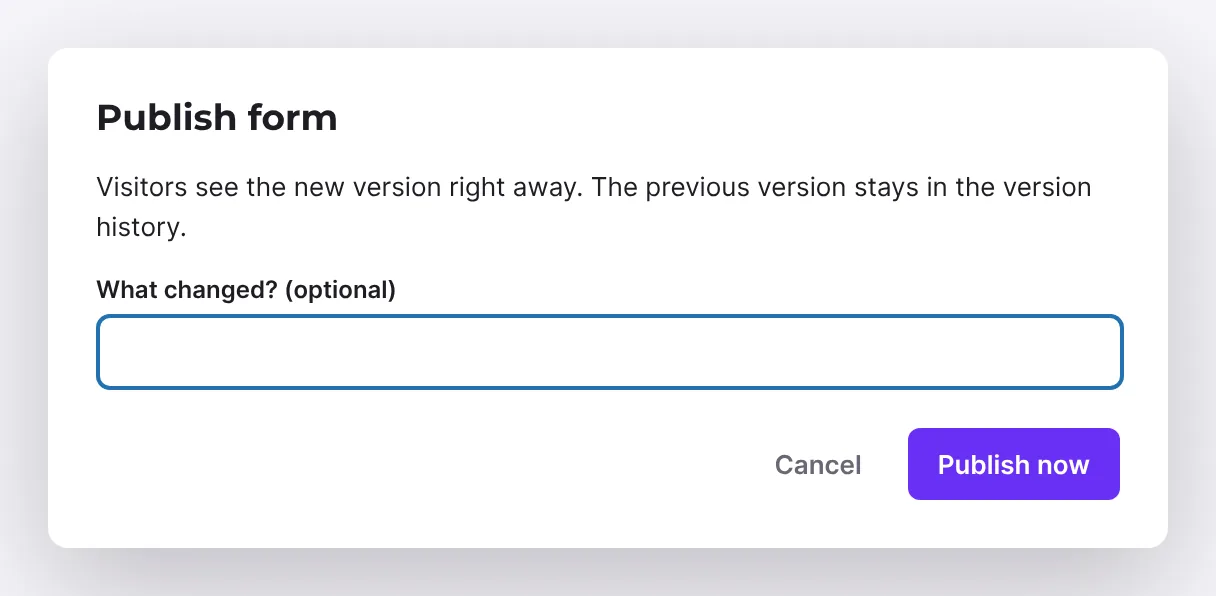
- Click Publish now.
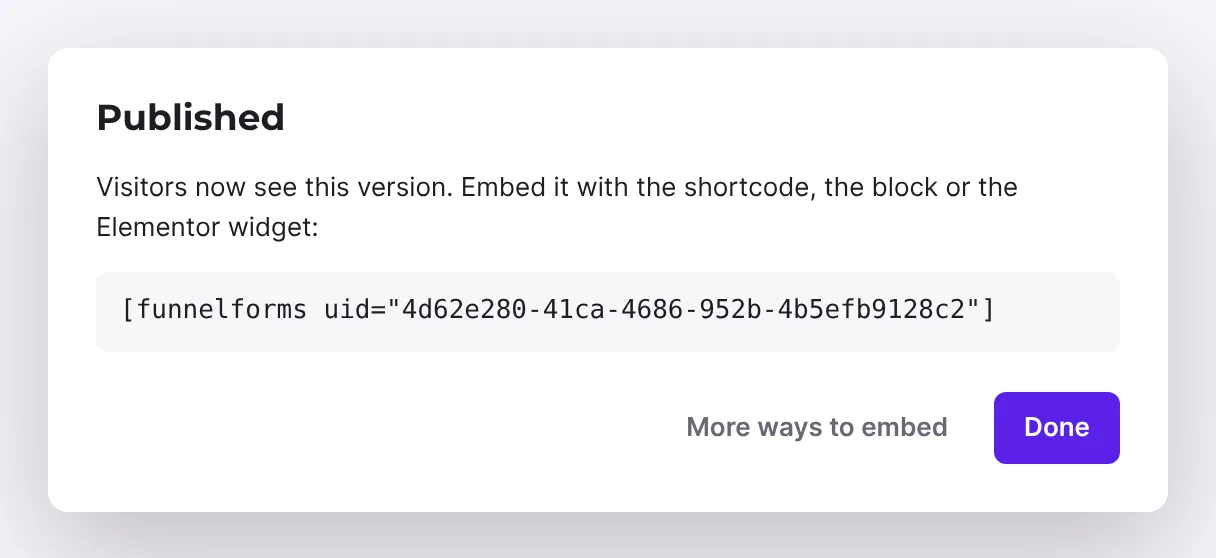
- The dialog Published shows the shortcode. If there are notes, they appear under Please check. More ways to embed opens the Embed workspace with every way to show the form. Otherwise close with Done.
Bring back an earlier version
- Click the Versions symbol at the top.
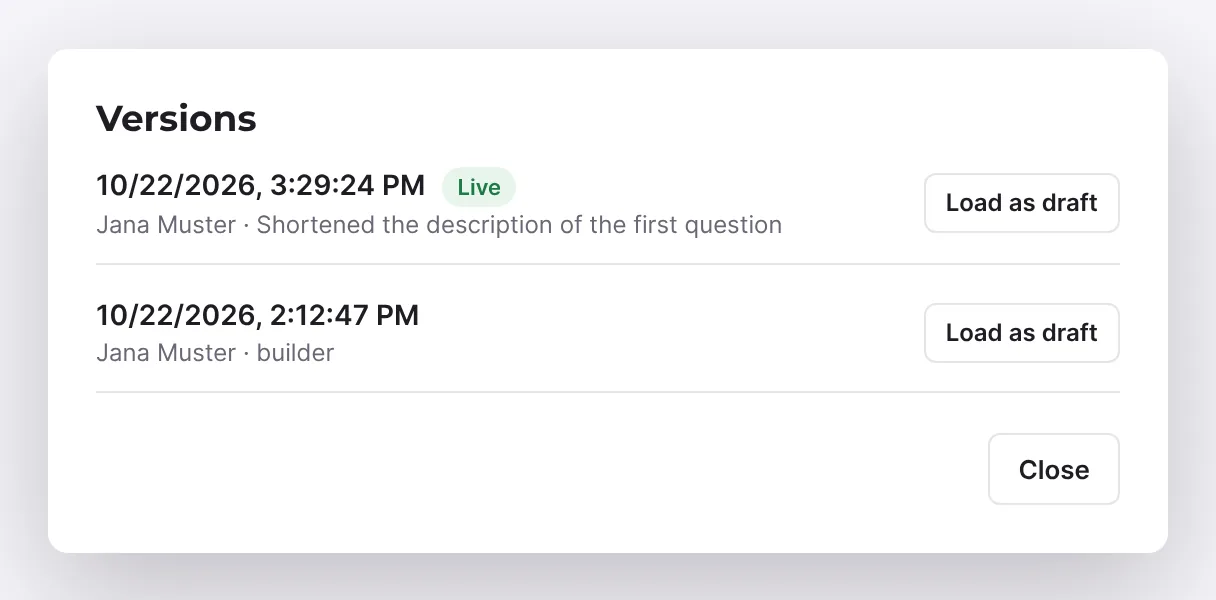
- Find the version in the list. The current one carries the mark Live.
- On the version you want, click Load as draft. An existing draft is replaced.
- Check the draft and publish it if it is right.
Discard changes
- Open Versions. If there are unpublished changes, Unpublished changes appears at the top.
- Click Discard changes. The draft returns to the published version. This cannot be undone.
Take over editing
- If you see "… is editing this form.", the form is read-only for you (Read only).
- Click Take over if you want to keep working. Changes the other person has not saved yet are lost.
How it works
How does the editor save?
After each change, the editor saves by itself after a short pause. The state at the top shows:
- All changes saved
- Unsaved changes
- Saving…
- Not saved. Trying again… with the link Save now
- Offline. Saving when you are back online.
- Read only
With Ctrl+S (Cmd+S on a Mac) you save at once. If you leave the page with unsaved changes, the browser asks first.
What do visitors see?
Only the published version. The draft stays invisible even when it is saved. In the list of forms, a form with a newer draft appears as Published, with changes.
What does the editor check when publishing?
It saves first and lets the server check the form. Reported are, for example, a missing first step, paths to steps or fields that no longer exist, duplicate elements, incomplete payments, a double opt-in without an e-mail field and incomplete actions. As long as problems remain, Publish now is disabled.
Why doesn't Funnelforms Free publish my form?
Funnelforms Free publishes only forms that use no feature of Funnelforms Pro. If the form uses one, Fix these first lists, for example, "The form uses "Slider", which is part of Funnelforms Pro, so Funnelforms Free cannot publish it." This concerns, for example, Pro field types, paths with any condition other than "when … is answered with …", more than one notification or more than one confirmation mail per contact step, custom CSS and Pro settings such as languages or access. Remove the named feature and the form can be published. Which features belong to Pro is listed in Pro features in the Funnelforms Free editor.
What happens if I lack a right?
Tracking code, scripts and custom CSS need the right to use unfiltered HTML. Changes to actions, redirects and entry settings need the right to see entries. If you lack a right, the dialog says "Someone with more rights has to publish this" with the reason. You can still prepare the draft.
What is the lock?
So that two people do not overwrite each other, only one person holds the editing at a time. The editor renews this lock regularly. If someone else opens the form, they see the note with the name of the person working and can only look at it until they take over. In the list of forms it says "… is editing".
What does the list of versions contain?
Every publication creates a version with date, author and your note. Forms from Funnelforms 3 carry the note "Imported from Funnelforms 3". Load as draft turns a version into the current draft; the published version changes only when you publish again.
Which keyboard shortcuts are there?
- Ctrl+S: save at once
- Ctrl+Z: Undo
- Ctrl+Shift+Z or Ctrl+Y: Redo
- Ctrl+D: duplicate the selected field or step
- Delete or Backspace: delete the selected step, path or field
- L: switch between the content and the logic of the selected step
- Esc: clear the selection
- ?: open the Keyboard shortcuts dialog
Apart from Ctrl+S, the shortcuts do not apply while you are typing in an input field. On a Mac use Cmd instead of Ctrl. You also open the Keyboard shortcuts dialog with the ? button at the bottom left of the canvas.
What does the notice after deleting show?
When you delete a step, field or answer that rules asked for, the editor adjusts the logic and reports at the bottom "Deleted. Rules asked for it, so the logic changed: …", for example with "paths removed: 1". Undo in the notice reverses the deletion together with the logic. The notice disappears after about 12 seconds; after that the Undo button at the top still helps.
Best practices
- Write a short note with every publication; it helps you find the right version later.
- Test in the preview before you publish.
- Agree in the team who is editing a form before you take it over.
- Publish changes that belong together at once.
Troubleshooting
| Problem | Cause | Solution |
|---|---|---|
| The state shows "Not saved. Trying again…". | Saving failed and the editor tries again. | Click Save now. Check your connection. |
| The state shows "Offline …". | Your device is not online. | Wait for the connection. The editor saves afterwards. |
| The editor shows "Read only". | Someone else is editing the form. | Wait until they are done, or click Take over. |
| Publish now is disabled. | The form has problems. | Fix the points under Fix these first. |
| Free: "The form uses "…", which is part of Funnelforms Pro, …" | The form contains a Pro feature, for example from an import or from Pro. | Remove the named feature or switch to Pro. |
| Visitors do not see my change. | You have not published yet. | Click Publish. A form with a newer draft appears in the list as Published, with changes. |
| Ctrl+Z does nothing. | The cursor is in an input field, where the field's own undo applies, or there is nothing to undo. | Click an empty spot on the canvas or use the Undo button. |
Tips
- Undo and Redo are disabled while you can only read.
- Consecutive changes to the same text count as one undo step.
- You recognise the note "Imported from Funnelforms 3" in the list of versions.
- Press ? if you have forgotten a shortcut.
FAQ
Do I have to save in between? No. The editor saves automatically. Ctrl+S speeds it up.
Can I restore a published version? Yes. Load it under Versions with Load as draft and publish the draft.
Are versions lost when I publish? No. The previous version stays in the versions.
What happens to the other person's changes when I take over? What they have not saved yet is lost.