Funnelforms Pro is a plugin of its own that contains everything in Funnelforms Free. Both work with the same data tables. When you activate Pro, it takes over your forms, entries and settings as they are. Nothing needs to be exported, imported or moved. Free itself shows the way to Pro on the page Pro features: choose a plan, upload Pro, activate it. This article shows the switch step by step and what to do afterwards.
Requirements
- Funnelforms Free 5.0 is installed.
- A plan for Funnelforms Pro in your Funnelforms account. You choose it with Upgrade to Pro.
- The ZIP file of Funnelforms Pro 5.0. A download of the ZIP file in the Funnelforms account does not exist yet. This feature is currently in progress.
- A user account that may upload and activate plugins, usually an administrator. For the page Pro features, the right Edit forms is enough.
- For updates of Pro: a Funnelforms account with a running plan.
Where to find it
- In Free: Funnelforms → Pro features with the comparison, the button Upgrade to Pro and the link Already bought Pro? Install it to the install step Install Funnelforms Pro.
- Or: Plugins → Add New Plugin → Upload Plugin
- After the switch: Funnelforms → Account to connect with your Funnelforms account
Features at a glance
- Upgrade to Pro opens the plan selection of your Funnelforms account in a new tab.
- The install step in Free uploads the ZIP file through the plugin upload of WordPress, without a detour through the plugin page.
- Activating Pro deactivates Free by itself.
- Forms, entries, settings and the state of the setup assistant are kept.
- You can delete Free afterwards. While Pro is installed, deleting Free removes no data.
- Free cannot be activated next to an active Pro.
- The way back to Free is possible. Free then shows forms with Pro features only if they are complete without them.
Step by step
Choose a plan
- In Funnelforms Free, open Funnelforms → Pro features.
- Click Upgrade to Pro. The plan selection of your Funnelforms account opens in a new tab.
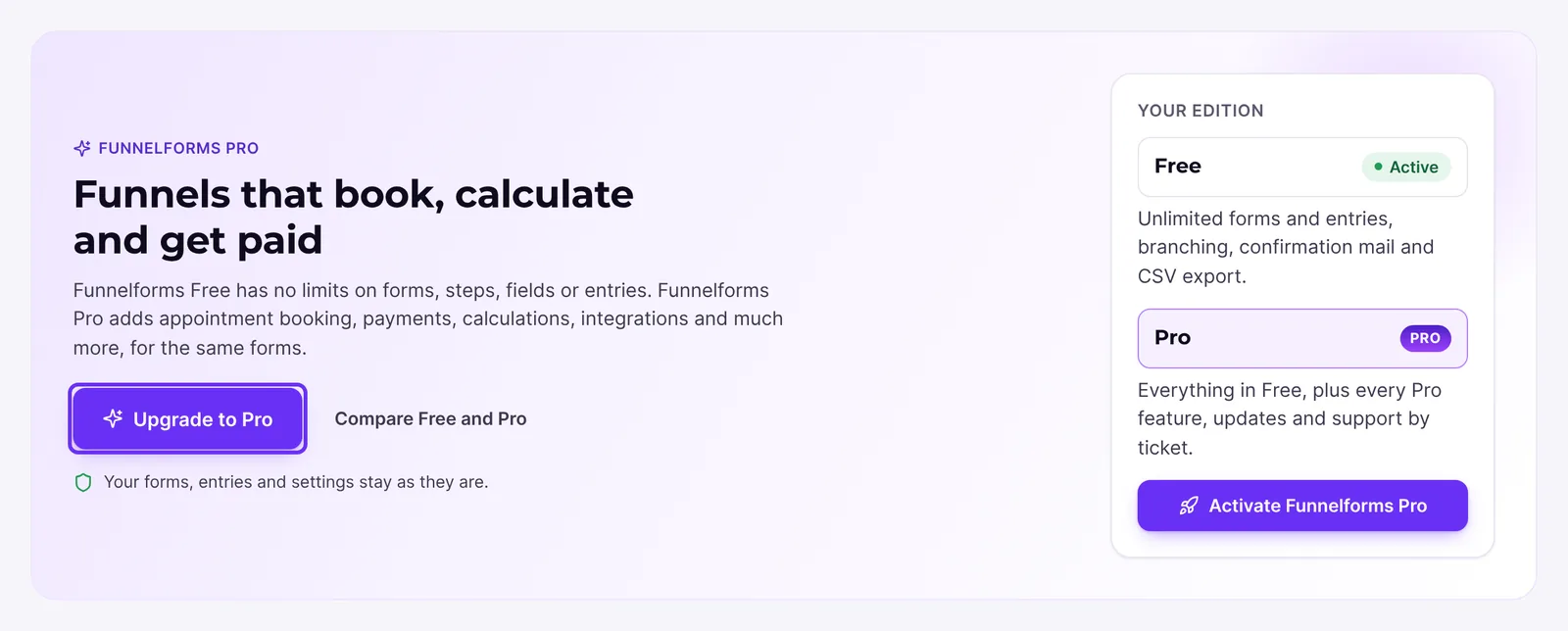
- Choose your plan, sign in or create your Funnelforms account, and pay on the checkout page.
Install Pro on the page Pro features
- Open Funnelforms → Pro features and, in the card Your edition, click Already bought Pro? Install it. The page Install Funnelforms Pro shows three steps.
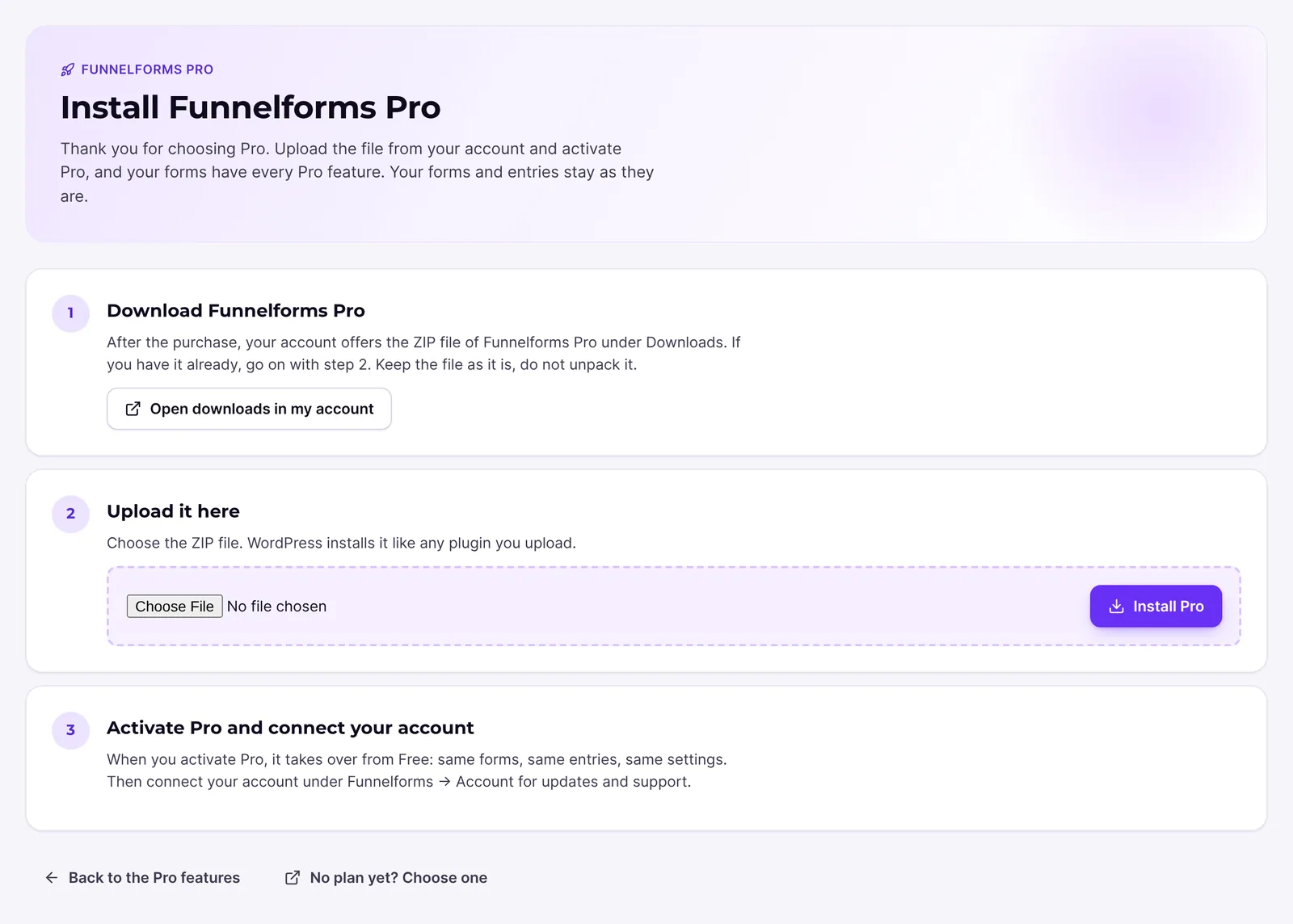
- Step 1, Download Funnelforms Pro: have the ZIP file of Funnelforms Pro ready. Keep it as it is and do not unpack it. The button Open downloads in my account leads to the downloads of your account; this page in the account does not exist yet. This feature is currently in progress.
- Step 2, Upload it here: choose the ZIP file and click Install Pro. WordPress installs it like any plugin you upload.
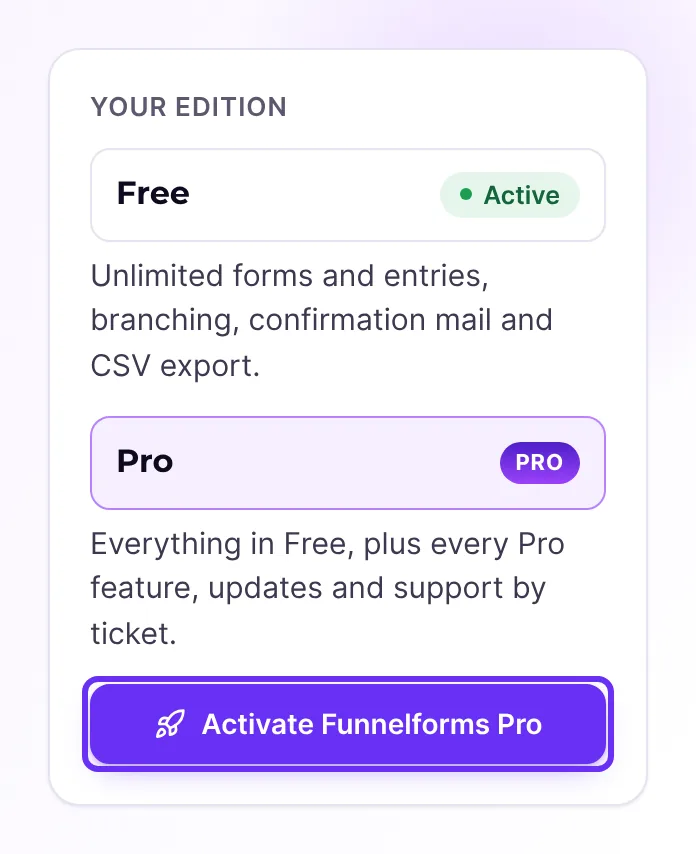
- On the result page of WordPress, click Activate Plugin. Or open Funnelforms → Pro features again and click Activate Funnelforms Pro. Funnelforms Pro deactivates Funnelforms Free on the way.
- Open Funnelforms → Forms. Your forms and entries are there, as you left them.
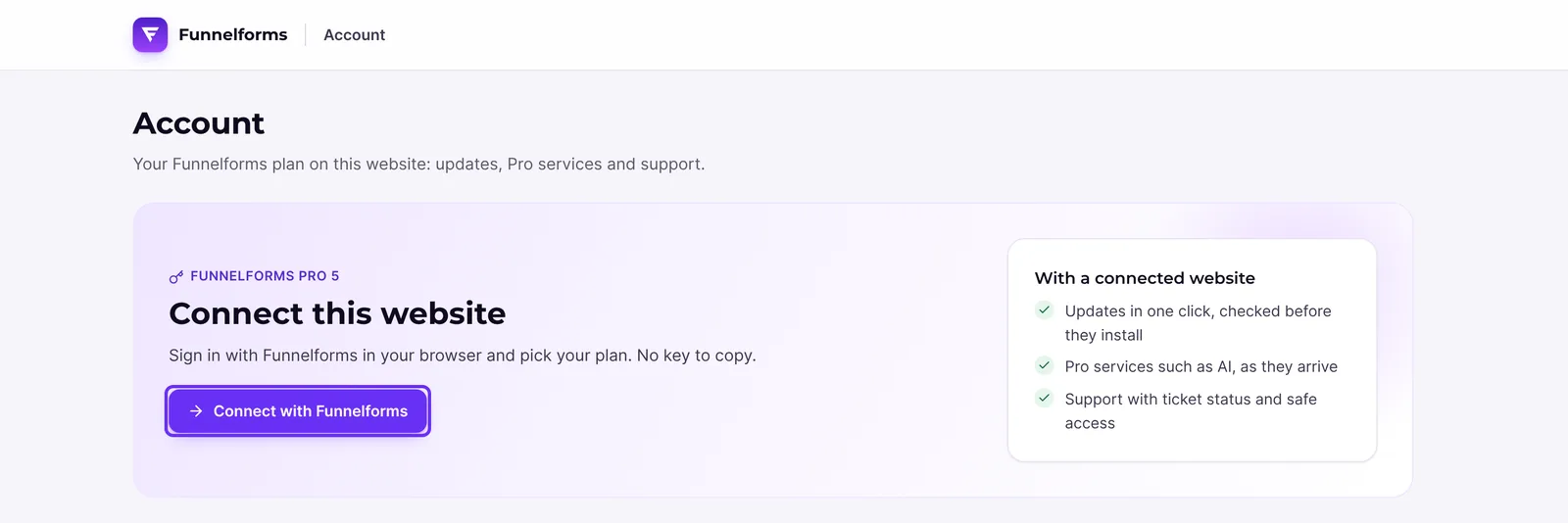
- Open Funnelforms → Account and connect the website with your Funnelforms account so that it gets updates.
Install Pro through the plugin page
- Open Plugins → Add New Plugin and click Upload Plugin.
- Choose the ZIP file of Funnelforms Pro and click Install Now.
- Click Activate Plugin. Funnelforms Pro deactivates Funnelforms Free on the way.
- Connect the website with your Funnelforms account under Funnelforms → Account.
Remove Funnelforms Free
- Open Plugins.
- If Funnelforms Free is still active, click Deactivate next to Funnelforms Free.
- Click Delete next to Funnelforms Free and confirm.
Back to Funnelforms Free
- Open Plugins and deactivate Funnelforms Pro.
- Activate Funnelforms Free. If Free is no longer installed, install it from the plugin directory.
- Open every form in the builder and check whether anything carries the badge Pro and whether the Settings show sections from Pro, such as Calculations or Payment.
- Remove the Pro features from forms that should keep appearing on the website, and publish them again.
How it works
Why does Free not download Pro itself?
Funnelforms Free comes from the WordPress plugin directory. Its rules do not allow a plugin to download or install its paid version itself. That is why Upgrade to Pro only opens the pages of your Funnelforms account, and you upload the ZIP file yourself. For the switch, Free sends nothing in the background. The link to the account carries the address of the install step of your website.
What does the install step show?
- If Funnelforms Pro is already in the plugins folder, steps 1 and 2 are marked as done. Step 2 says "Funnelforms Pro is installed.", and step 3 shows the button Activate Funnelforms Pro.
- If you may not upload plugins, step 2 says: "Only an administrator can upload plugins on this website. Send the ZIP file to them."
- At the bottom, Back to the Pro features leads to the comparison page and No plan yet? Choose one to the plan selection in the account.
- The page Pro features and the install step also open while the setup assistant is still open.
Why does nothing need to be moved?
Free and Pro share the same base with a different set of features. Both read and write the same forms, entries and settings. Pro unlocks the extra features as soon as it is active. Shortcodes, blocks and Elementor widgets on your pages stay unchanged.
What happens to the setup assistant?
If you finished it in Free, it counts as finished in Pro. The step Your account exists only in Pro. You make up for the connection with your Funnelforms account under Funnelforms → Account. The overview reminds you with the item Connect your Funnelforms account.
What happens when I delete Funnelforms Free?
As long as the folder of Funnelforms Pro is on the website, active or not, deleting Free removes no data. Without Pro, your forms and entries are kept when you delete Free as well. Funnelforms never touches the data of Funnelforms 3.
Why can Free not be activated?
While Funnelforms Pro is active, WordPress refuses to activate Free, with the notice "Funnelforms Pro is active on this website and already contains everything in Funnelforms Free. Funnelforms Free was not activated." If Free is active next to Pro anyway, Free stands back, and the plugin list shows a notice that you can deactivate and delete Free.
What do I need after the switch?
Funnelforms Pro works without a connection too. You need the connection with your Funnelforms account for updates. Pro does not get its updates from the WordPress plugin directory but from the Funnelforms update service.
What happens on the way back to Free?
Free keeps showing all forms and entries in the builder. Forms with Pro features cannot be published in Free until you have removed the Pro features. For this, Free shows the Pro settings a form uses in the Settings of the form. On the website, Free does not show a form that would be incomplete without its Pro feature, for example with a file upload, a calculation or a payment. Other Pro features such as a webhook or custom CSS stay unused. Appointments, payments and connections from Pro stay stored, but Free does not use them. Lead status, tags, assignments and notes of the entries stay stored as well; Free does not show or change them. Under Funnelforms → Statistics, Free shows the figures of all forms; the analytics of each form, the sources and the export are only in Pro.
Best Practices
- Switch at a quiet time and check a form on the website afterwards.
- Connect Pro with your Funnelforms account right after activating it.
- Delete Free only once Pro runs. You do not need Free next to it.
Troubleshooting
| Problem | Cause | Solution |
|---|---|---|
| "Only an administrator can upload plugins on this website. Send the ZIP file to them." | Your user account may not upload plugins. | Give the ZIP file to an administrator. They upload it on the same page. |
| The file selection of the install step does not show the file | The file is unpacked or not a ZIP file. | Use the ZIP file as you received it. |
| Free cannot be activated, with a notice about Funnelforms Pro | Funnelforms Pro is active. | Use Pro. If you want to go back to Free, deactivate Pro first. |
| Pro shows no update | The website is not connected with your Funnelforms account. | Connect it under Funnelforms → Account. |
| After going back to Free, a form is missing on the website | It uses a Pro feature without which it would be incomplete. | Remove the Pro feature in the builder and publish the form again. |
| Forms are missing after the switch to Pro | Very unlikely, because both use the same data. | Check under Plugins that Pro is active, and contact support. |
Tips
- Under Funnelforms → Pro features in Free you compare Free and Pro area by area before the switch.
- After the switch, Pro also has Appointments, Integrations, Account and Support in the menu.
FAQ
Do I have to export my forms before switching? No. Pro takes over forms and entries as they are.
Does Free install Pro for me? No. Free only opens the pages of your Funnelforms account. You upload the ZIP file yourself, on the page Pro features or under Plugins.
Can I keep Free? Yes, deactivated. It is not needed next to Pro, and you can delete it.
Do I need a license code after the switch? Not for the forms. For updates you connect the website with your Funnelforms account under Funnelforms → Account.
Can I go back to Free? Yes. You then have to adjust forms with Pro features so that Free publishes them.