Appointment Notifications: Keep Customers and Your Team Informed
As soon as a contact books an appointment, they should receive a confirmation — and you want to be informed too. Both run through the central notifications tab in Funnelforms. This article shows how to set up confirmations for the customer and the admin and which variables you can use for date, time and duration.
Note: Native time-based appointment reminders (e.g. 24 h before the appointment) are not yet available and are currently in development. Confirmation notifications sent right after booking work as described in this article. For time-based reminders, use your calendar provider's built-in reminder feature for now.
Requirements
- A form with a configured appointment booking field
- A connected calendar (for slot generation; not strictly required for notifications)
- At least one notification channel set up (email, SMS, WhatsApp or Slack)
Where to set up appointment notifications
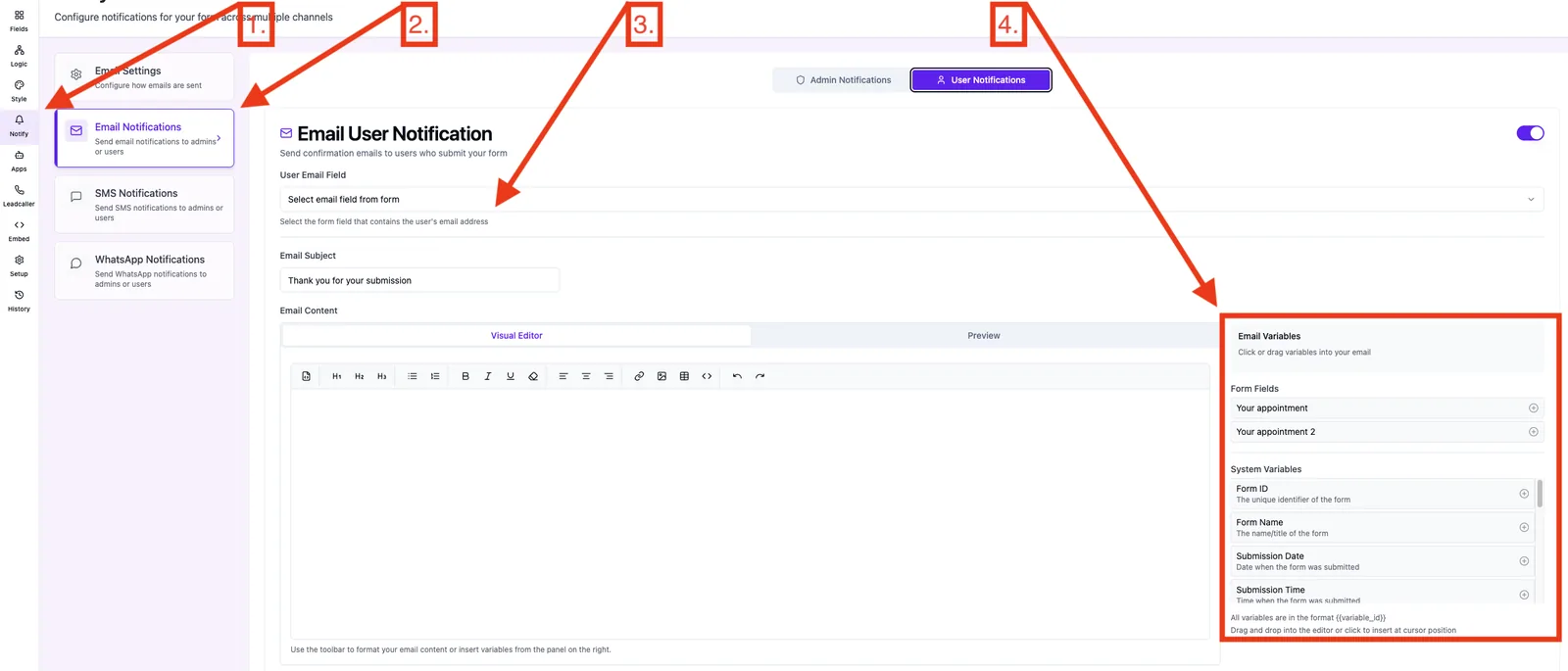
- Path: Form editor → tab Notifications → desired channel (Email Admin/User, SMS, WhatsApp, Slack)
- Insert variable: in each editor via the Insert variable button
What you can send
- Confirmation email to the customer with date, time and duration
- Internal notification to you or your team — email, Slack, SMS or WhatsApp
- Lead data and appointment data in a single message
Step by step: customer confirmation
- Open the Notifications tab and switch to the Email to customer section.
- Wire the customer email address field to the matching form field.
- Set a subject, e.g.
Your appointment on {{date}} at {{time}}. (\{{date}}\and \{{time}}\are example names — replace them with the variable names you defined on your appointment booking field.) - Write the body and use Insert variable to add the appointment variables (date, time, duration — variable names come from your form field).
- Save and test the email in preview mode.
Step by step: admin notification
- Switch to the Email to admin section (or Slack, if preferred).
- Add one or more admin addresses.
- Use
{{form_name}}, the contact variables (name, email, phone) and the appointment variables in the body. - Save and book a test appointment in preview mode.
Which variables are available
The variable picker exposes every form field variable plus system variables such as {{form_name}}, {{submission_date}} and {{all_responses}}. The actual appointment fields (date/time) carry the variable names you set on the appointment booking field.
Reply-To address for admin emails
The Reply-To address of admin emails is set automatically to the contact's email address. You can reply directly from your inbox without copying the address manually.
Best practices
- Always send at least a confirmation email to the customer — it noticeably reduces no-shows.
- Keep subject lines short and include appointment data, e.g.
Confirmed: {{date}} {{time}}(variable names match your form field). - Use Slack for internal notifications — response time in sales drops significantly compared to email.
- Avoid
{{all_responses}}inside WhatsApp templates; Meta forbids dynamic lists of variable length.
Common pitfalls
- Customer does not receive an email: the contact's email field is not wired to the user notification.
- Appointment date shows up as
{{date}}literally: the variable name on the form field does not match — casing matters. - Admin Slack message never arrives: the Funnelforms bot has not been invited to the private channel.
- SMS is cut off: SMS is limited to 160 characters — shorten the text and skip
{{all_responses}}.
Tips
- Native appointment reminders with custom intervals before the appointment are not yet available. Until then, use the reminder feature of your calendar provider (Google, Outlook, iCloud).
- The date format in every Funnelforms notification is DD.MM.YYYY.
- For multiple admin recipients prefer clearly separated lists (commas) over CC/BCC distribution.
FAQ
Can I send an automatic reminder 24 hours before the appointment? Native time-based reminders are not yet available. For now, reminders run via the reminder feature of your calendar provider.
Do contacts see a calendar link in the confirmation email? Funnelforms creates the event directly in the provider calendar (Google, Outlook, iCloud). If the contact is added as an attendee, they receive the calendar invite directly from the calendar provider. A separate iCal attachment in the Funnelforms confirmation email is currently not available.
Can I send different emails for different appointment types? Yes — create dedicated notification texts per form or per appointment booking field.