Availability & Slots: Control Appointment Booking Times
How many slots your form offers depends on three levers: availability windows per weekday, buffer time between bookings, and the planning period. This article explains how the settings interact, which defaults apply, and how to solve typical "no slots available" issues.
Requirements
- A form with a configured appointment booking field
- Optional: a connected calendar (Google, Outlook, iCloud) for the conflict check
- Write access to the form
Where to find the settings
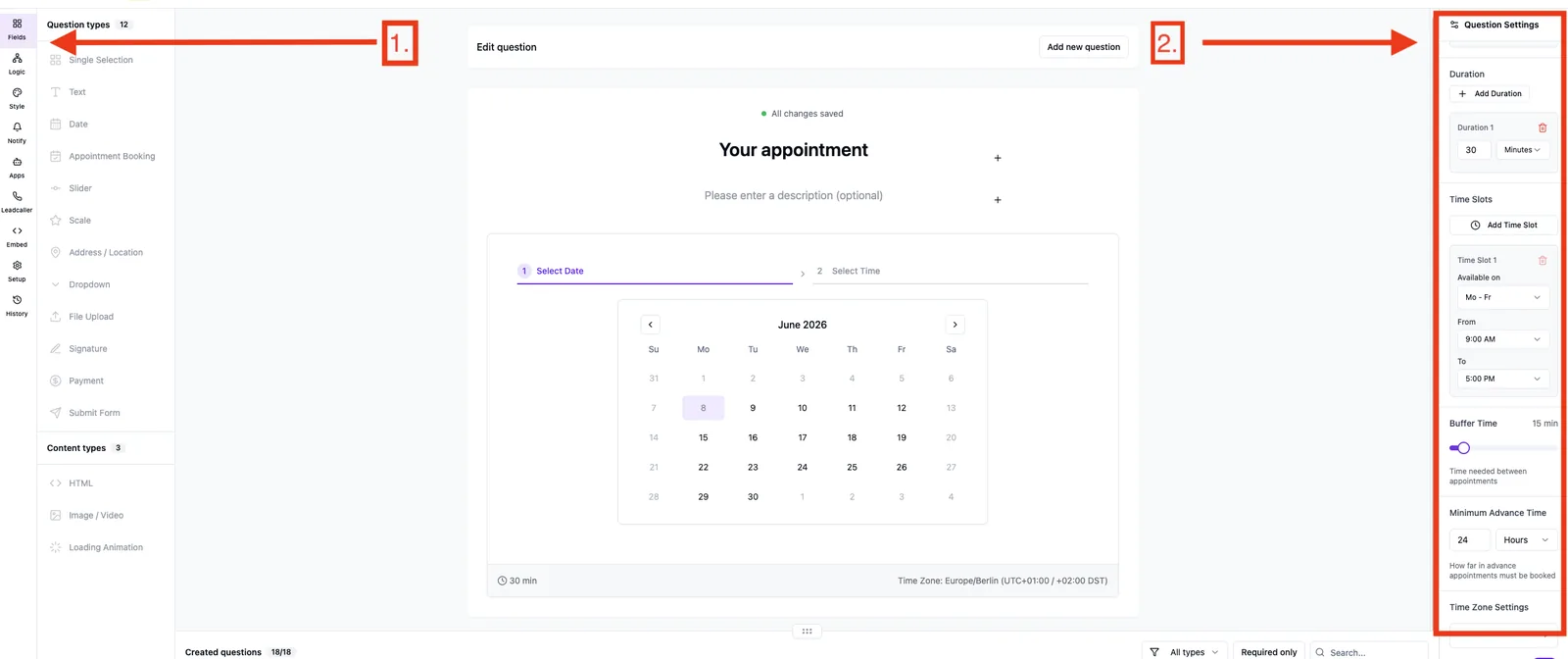
Form editor → click the appointment booking field → right sidebar. The relevant blocks are Duration, Availability (time windows), Buffer time, Advance time and Planning period.
The five levers in detail
1) Appointment duration
- Up to three duration options per field, each in minutes, hours or days.
- Example: 30 minutes / 60 minutes / full day — the contact picks the duration at booking time.
- Day-based durations disable time-based slot selection and block the whole calendar day.
2) Availability (time windows per weekday)
- Up to five time windows per field (e.g.
09:00–12:00 Mon–Friand14:00–17:00 Mon–Fri). - Day options: Daily, Mon – Fri, Sat – Sun or single weekdays.
- Outside these windows no slots are offered — even if the calendar is free.
3) Buffer time between bookings
- Configurable in minutes, default
0. - The buffer is kept free before and after every booked appointment. Example: appointment 10:00–10:30, buffer 15 min → 09:45–10:45 is locked for other bookings.
- Prevents back-to-back appointments without prep or follow-up time.
4) Advance time (minimum notice)
- Defines how short-notice contacts may book — e.g. "at least 2 hours in advance".
- Slots inside the advance window are hidden in the frontend.
- Example: advance time 24 h, current time 14:00 → slots before tomorrow 14:00 are not bookable.
5) Planning period (reach into the future)
- Rolling (default): X days into the future, default
30days. The window moves forward daily. - Fixed date range: start and end date (e.g. campaign window). After the end date no slots are offered.
How the values interact
A slot is only shown when all conditions are met:
- Slot lies inside the planning period.
- Slot lies inside one of the availability windows for that weekday.
- Slot lies after the advance time.
- Slot is wide enough for the chosen duration.
- Slot does not collide with an existing calendar event or Funnelforms booking — including buffer before and after.
Best practices
- Pick the buffer carefully: 10–15 minutes are enough for most sales calls. Higher values noticeably reduce the number of offered slots.
- Use multiple windows: instead of a continuous 09:00–17:00 window, prefer 09:00–12:00 and 14:00–17:00 — lunch stays free without blocking it as an event.
- Keep the advance time realistic: 2–24 h works for personal calls; 1–2 h is enough for online demos.
- Do not extend the planning period too far: 30–60 days are enough in sales. Longer windows raise the no-show rate.
- Separate day bookings: if you offer both hour-based and full-day bookings, consider a second form — the UI otherwise switches the slot logic depending on the chosen duration.
Common pitfalls
- "No slots available": the most common causes are too narrow availability windows, too short a planning period, or a calendar that is already fully booked.
- Slots appear outside business hours: wrong time zone on the field — see the time zone setting.
- Buffer does not apply between a Funnelforms booking and a calendar event: make sure the calendar was dragged onto the booking node in the logic editor.
- Weekend appointment possible although "Mon – Fri" is set: multiple windows with different day selectors can overlap. Check every window.
- Slots disappear suddenly: advance time or planning period kicks in — e.g. today is the last day of the fixed date range.
Example setup "Sales call 30 min"
- Duration: 30 minutes (single option)
- Availability:
09:00–12:00 Mon – Fri,14:00–17:00 Mon – Fri - Buffer time: 15 minutes
- Advance time: 4 hours
- Planning period: rolling 30 days
- Calendar: the sales rep's Google calendar dragged onto the node
Tips
- Date format in the frontend and confirmations: DD.MM.YYYY.
- Multiple calendars per node are all checked simultaneously — one conflict in any calendar blocks the slot.
- The rolling planning period is calculated from the current day, not from the form publish date.
FAQ
Can I set different availabilities per weekday? Yes — create one window per weekday with the matching day selector (e.g. Monday, Wednesday).
What wins first — calendar event or buffer? Both at the same time: Funnelforms blocks the slot when it falls inside the buffer zone of an existing appointment — whether a Funnelforms booking or an external calendar event.
Can I set the buffer differently before and after the appointment? Currently no — the value applies symmetrically.
How does the advance time behave for day bookings? It applies from the start of the day (00:00 in the field time zone). Advance time 48 h means: earliest booking is for the day after tomorrow.
Can I block public holidays centrally? Not from the field itself — the simplest way is an all-day event in the connected calendar. Funnelforms treats it as a conflict and blocks the day.