Connect Google Calendar: Check Availability and Book Meetings Automatically
With a connected Google Calendar, Funnelforms checks available slots before every booking and writes the final event straight into your calendar. This article shows how to connect your account in the Apps area and how to wire the calendar to your appointment booking.
Requirements
- A Google account with access to the calendar you want to use with Funnelforms
- An active Funnelforms account (owner or team member with write access to the form)
- At least one form with a configured appointment booking field
Where to connect Google Calendar
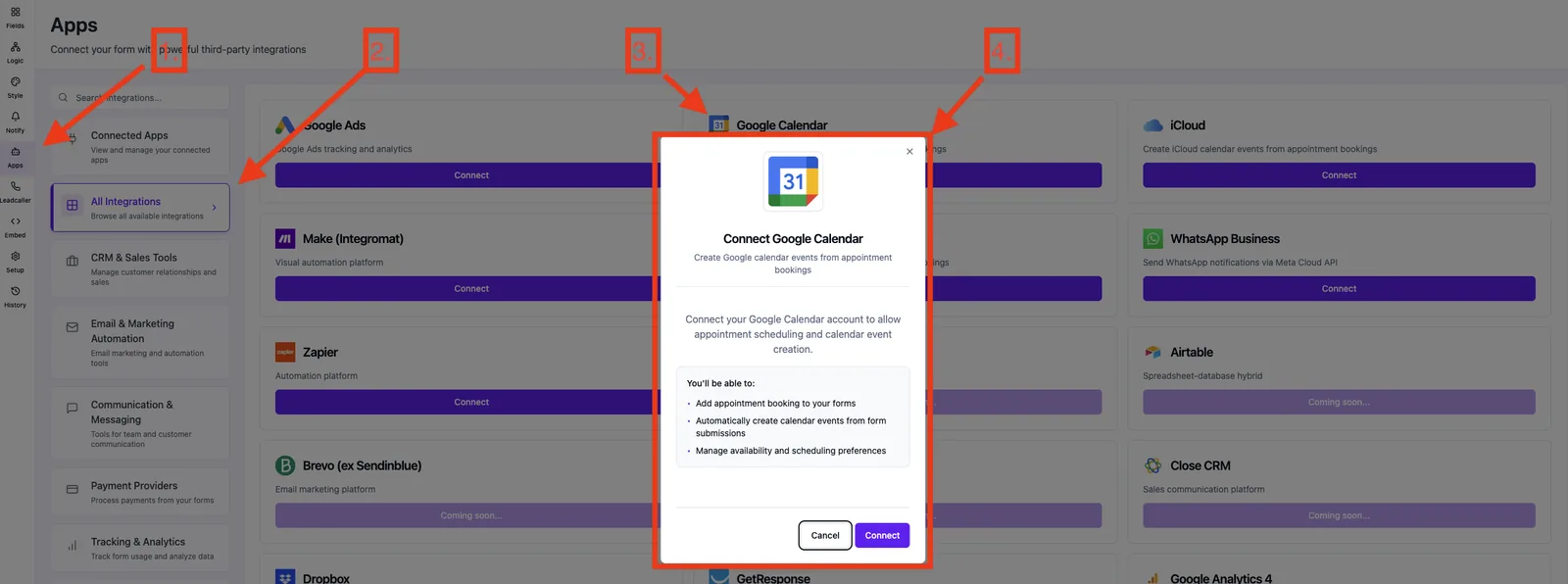
- Create the connection: Form editor → tab Apps → app Google Calendar → Connect
- Use the connected calendar: Form editor → tab Logic → node Appointment booking → drag the calendar onto the node
Which permissions Funnelforms requests
The OAuth flow requests exactly the scopes required for appointment logic:
https://www.googleapis.com/auth/userinfo.email— to show the connected account in your connection listhttps://www.googleapis.com/auth/calendar— to list your calendars and check availabilityhttps://www.googleapis.com/auth/calendar.events— to create and update events
No emails are read, no contacts are imported and no other Google services are touched.
Step by step
- Open the form in the editor and switch to the Apps tab.
- Pick the Google Calendar app and click Connect.
- Optionally assign a descriptive connection name (e.g. "Sales Berlin") — useful for multiple Google accounts.
- You are redirected to Google. Sign in with the desired Google account and confirm the permissions.
- After confirmation Google redirects you back to the Funnelforms editor. The connection is now active.
- Switch to the Logic tab. The connected calendar appears in the sidebar of the Appointment booking node.
- Drag the desired calendar onto the node. Multiple calendars per booking are allowed.
- Save the form and test the booking in preview mode.
Connect multiple Google accounts
You can connect as many Google accounts as you need — e.g. a sales and an onboarding calendar. Repeat the OAuth flow per account and use a clear connection name.
Disconnect
You can remove any connection from the Apps tab. Existing events stay in the Google calendar, new bookings will no longer sync from that moment on.
Best practices
- Create a dedicated "Funnelforms" calendar inside the Google account when possible. Private events are never exposed and the calendar can be migrated later more easily.
- Only connect calendars that are actually relevant for conflict checks — every calendar adds a small amount of latency to the slot lookup.
- Enable 2FA on the Google account, and consider a dedicated service account for sales instead of a personal account.
Common pitfalls
- "Access denied" after OAuth: not all permissions were granted. Restart the flow and accept all three scopes.
- Calendar does not show up in the logic editor: reload the page — the list is fetched fresh when the tab is opened.
- Conflicts are ignored: the wrong calendar was dragged onto the node. Confirm in the sidebar that it is the right calendar of your account.
- Event ends up in the wrong calendar: with multiple Google calendars per account, Funnelforms writes to the one you explicitly dragged onto the node.
Tips
- If the contact reschedules inside the Google Calendar, the change is not mirrored back to Funnelforms — the lead record keeps the original date.
- Date format in confirmation emails: DD.MM.YYYY.
- The time zone of the calendar event is taken from the appointment booking field, not from your Google account time zone.
FAQ
Are my existing Google events imported into Funnelforms? No. Funnelforms only reads free/busy information for the slot check and writes new events — existing events are never stored in Funnelforms.
Can I use the same Google account across multiple forms? Yes — the connection is account-wide. Drag the calendar onto the appointment booking node in every form individually.
What happens when the Google token expires? Funnelforms refreshes the token automatically in the background. If the refresh fails permanently (e.g. password change, revoked access, expired Google refresh token), the connection is flagged in the Apps tab with a reconnect prompt — bookings on that calendar pause until you reconnect.
Can I delete bookings retroactively from the calendar? Yes — deleting the event in Google Calendar frees the slot for new bookings. Important: the Funnelforms lead record stays untouched — deleting the calendar event does not remove or update the lead in your Funnelforms inbox.