Appointment Booking: Let Visitors Book Meetings Directly in Your Form
The appointment booking field lets contacts book a slot directly inside your funnel — including automatic event creation in your Google, Outlook or iCloud calendar. This article walks you through the full setup: from the field in the form, to the calendar connection, to the confirmation email.
Requirements
- Active Funnelforms account with at least one form
- Write access to the form (owner or team member)
- A connected calendar (Google, Microsoft Outlook or iCloud) for automatic slot checks and event creation. iCloud requires an app-specific password.
- Free tier: 1 form, 1 domain, 1 team member — appointment booking itself is not additionally limited
Where you set up appointment booking
Appointment booking has two parts that live in different places:
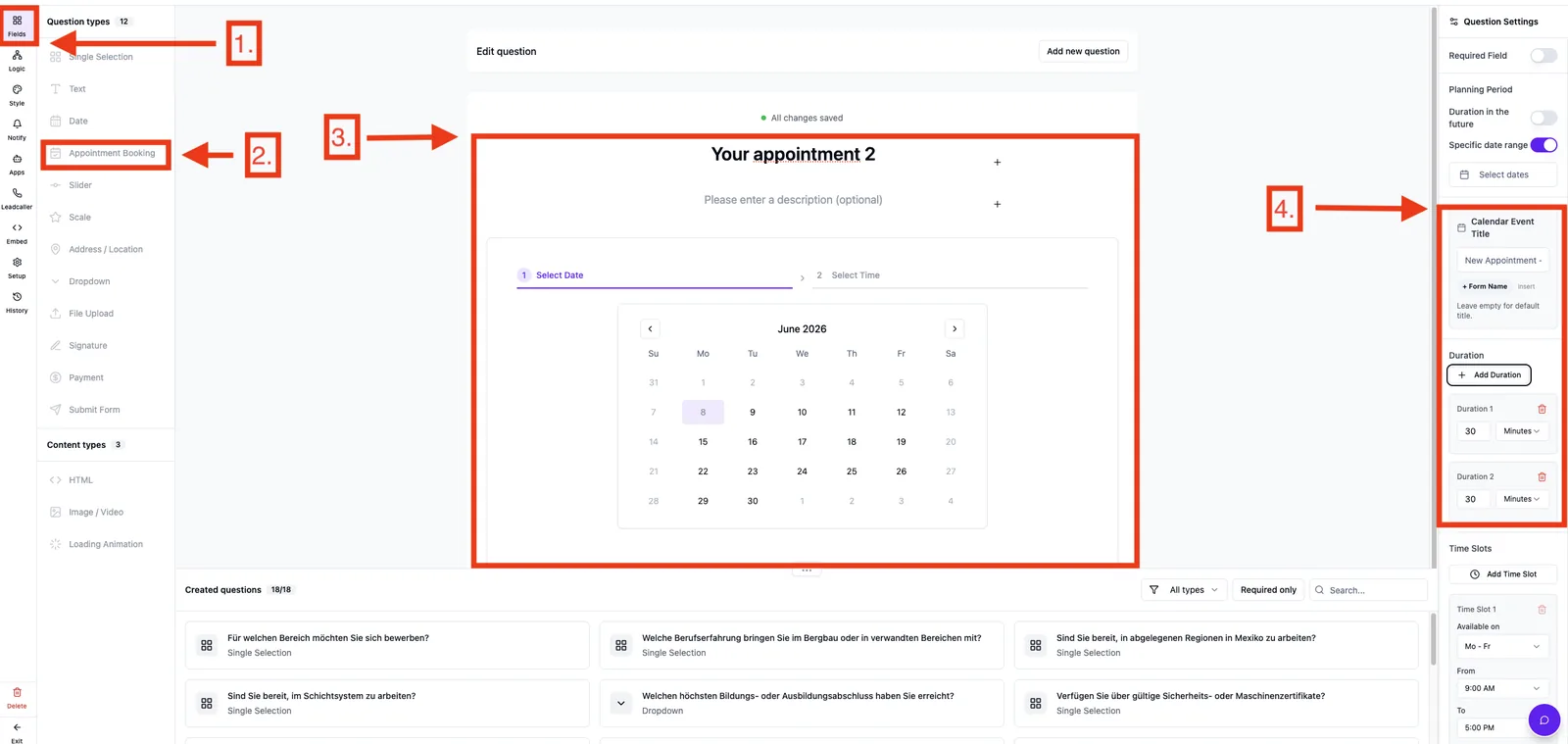
- Add & configure the field: Form editor → tab Fields → field Appointment booking → drag into the funnel
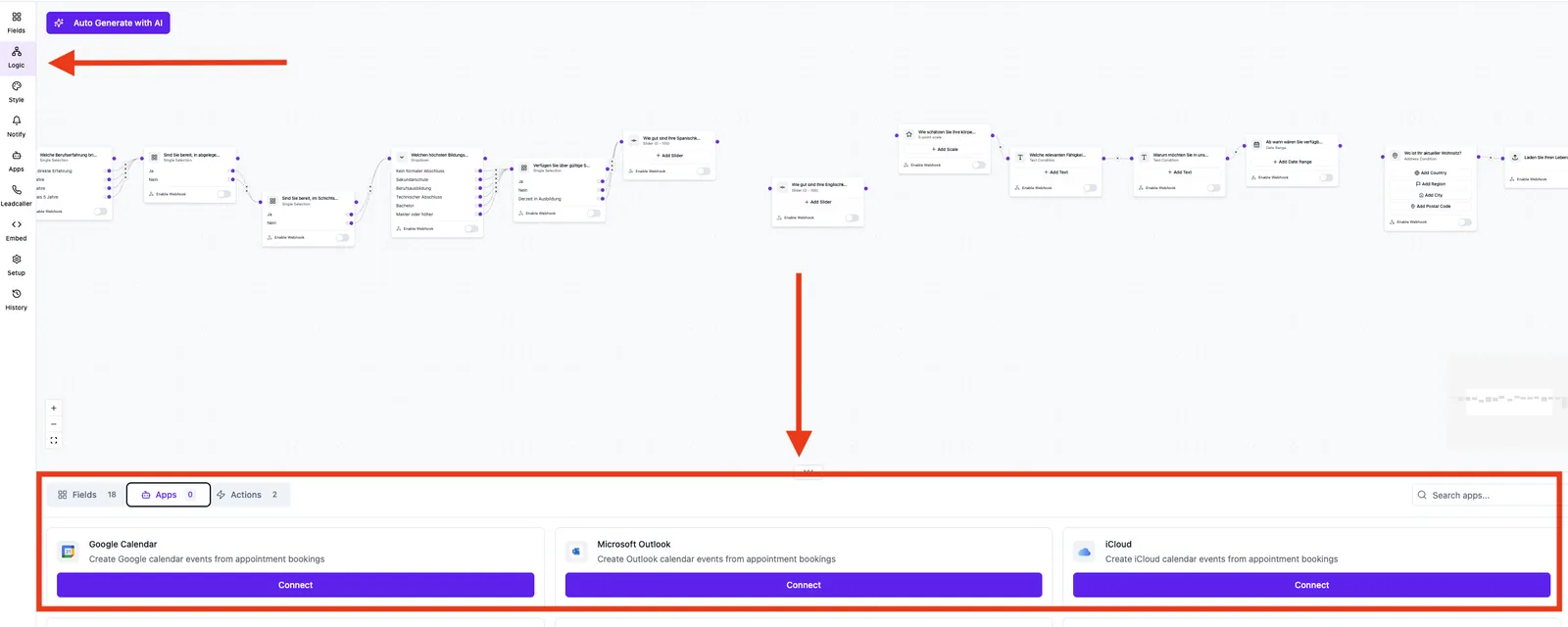
- Connect a calendar: Form editor → tab Logic → node Appointment booking → drag a calendar onto the node
- Send confirmation: Form editor → tab Notifications → email to admin and/or customer
What the field can do
- Up to three duration options per field (e.g. 30 min, 60 min, 90 min)
- Up to five time slots with individual weekday combinations, or a full-day slot
- Buffer time between appointments and minimum lead time before booking
- Planning period as a duration in the future or as a fixed date range
- Time zone selection with optional display in the frontend
- Calendar event title template (e.g.
New appointment - {{form_name}}) - Live conflict check against all connected calendars
Step by step
- Open your form in the editor and switch to the Fields tab.
- Drag the Appointment booking field to the desired position in the funnel.
- Configure at least one duration and one time slot in the properties panel.
- Switch to the Logic tab. The appointment booking appears as a dedicated node.
- Drag your connected calendar from the sidebar onto the Appointment booking node. Multiple calendars are allowed — Funnelforms checks all of them for conflicts in parallel.
- Switch to the Notifications tab and set up at least one confirmation email to the customer. Use
{{form_name}}plus your field variables for name, date and time.
- Save the form and book a test appointment in preview mode.
How the slot check works
As soon as a contact picks a day, Funnelforms queries every connected calendar and removes busy times from the picker. Buffer time and minimum lead time are applied on top. The slot is only written to your calendar once the contact clicks Book appointment — there is no soft reservation before that.
What happens after the booking
- A calendar event is created in every connected calendar
- The lead is stored with date, time and duration in the lead record
- The configured notifications (email/SMS/WhatsApp/Slack) are triggered
Best practices
- Only connect calendars that are actually relevant for conflict checks — every extra calendar adds a small amount of response time.
- Set a buffer time of at least 5–10 minutes so you have breathing room between appointments.
- Use descriptive title templates like
{{form_name}} - {{first_name}}so you immediately see in your calendar where the appointment came from. - Set the time zone to your sales team's time zone, not the customer's — this avoids confusion for cross-country bookings.
Common pitfalls
- No time slots visible: no duration is configured yet. Add at least one duration option first.
- Conflict check returns nothing: the calendar was not connected to the appointment booking inside the logic editor — the field alone is not enough.
- Appointment lands in the wrong time zone: common with Microsoft Outlook accounts — see the dedicated troubleshooting article for time zones.
- Contact receives no confirmation: in the Notifications tab a user email must be wired to the contact's email field.
Tips
- For high-volume funnels we recommend a dedicated Funnelforms calendar so private events are never exposed by mistake.
- The date format in notifications is DD.MM.YYYY.
FAQ
Do I need a separate calendar for every form? No. A single calendar can be connected to any number of appointment booking fields.
Can I reschedule a booking afterwards? Reschedules happen directly in your calendar provider (Google/Outlook/iCloud). Funnelforms does not sync the slot back automatically.
What happens if the contact does not show up? Funnelforms only records the booking. No-show tracking lives in your CRM or in the calendar view.
Are slots blocked while a contact is mid-booking? No. A slot is only written to the calendar once the booking is finalized.