Connect Outlook Calendar: Check Availability and Book Meetings Automatically
With a connected Microsoft Outlook calendar, Funnelforms automatically checks your availability and writes booked appointments straight into Outlook. This article walks you through the OAuth flow, the link to the appointment booking, and the most common pitfalls — especially around time zones.
Requirements
- A Microsoft account (personal or Microsoft 365) with access to the calendar you want to use
- Active Exchange Online mailbox on that account — admin-only accounts without a mailbox will not show any calendars after connecting
- For Microsoft 365 tenants with strict admin policies: a one-time admin consent by the tenant admin may be required
- An active Funnelforms account with write access to the form
- A form with a configured appointment booking field
Where to connect Outlook
- Create the connection: Form editor → tab Apps → app Outlook Calendar → Connect
- Use the connected calendar: Form editor → tab Logic → node Appointment booking → drag the calendar onto the node
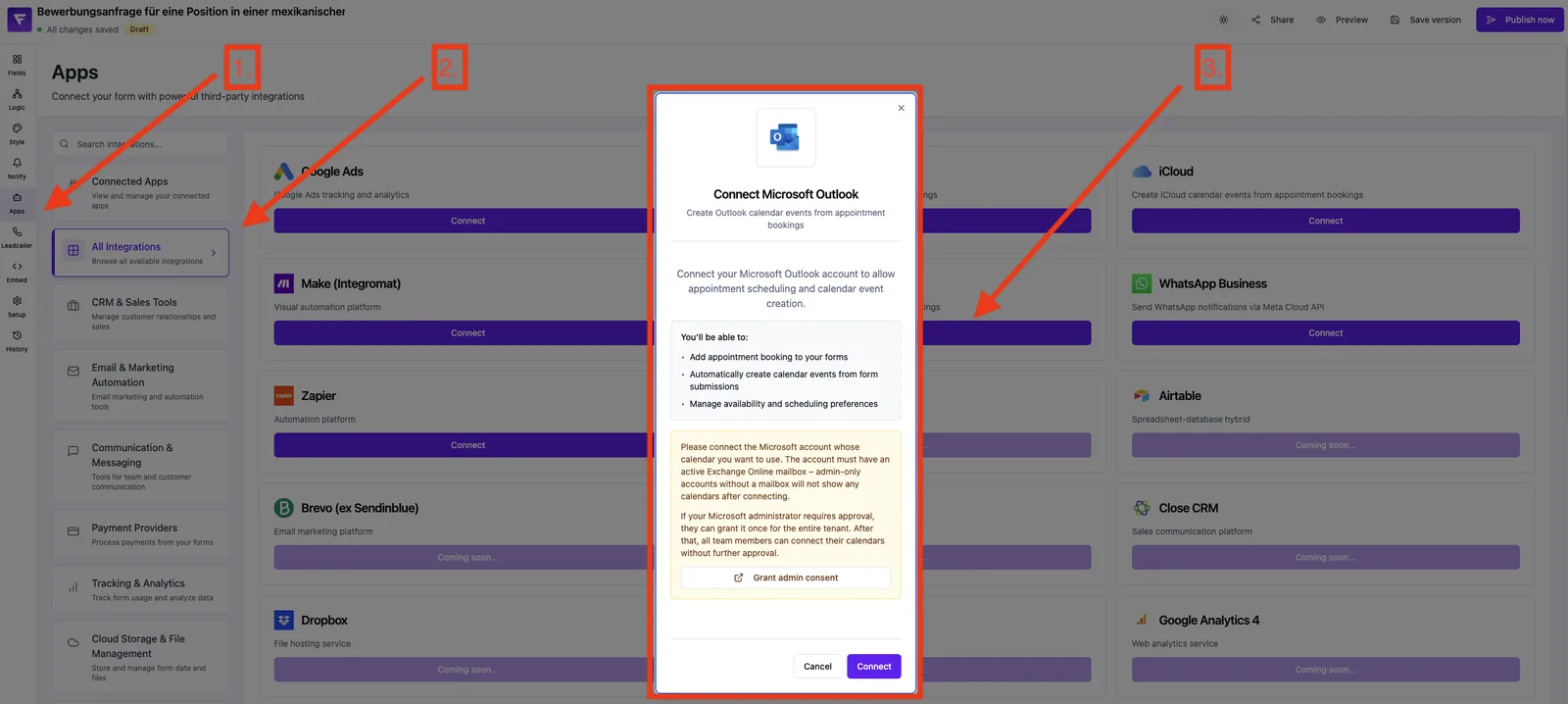
Which permissions Funnelforms requests
openid,profile,email— account identificationoffline_access— so Funnelforms can refresh the token automaticallyCalendars.ReadWrite— read availability and create eventsuser.read— basic data of the connected account (for the connection display)
Step by step
- Open the form in the editor and switch to the Apps tab.
- Pick the Outlook Calendar app and click Connect.
- Optional: assign a descriptive connection name (e.g. "Outlook Sales").
- Microsoft opens the sign-in page. Sign in with the desired account.
- Approve the requested permissions. Microsoft 365 tenants may require an additional admin consent.
- After a successful OAuth flow Microsoft redirects you back to the editor.
- Switch to the Logic tab. Your Outlook calendar appears in the sidebar of the Appointment booking node.
- Drag the calendar onto the node and save the form.
- Test the booking in preview mode and verify the event is created correctly in Outlook.
Multiple Outlook accounts
You can connect multiple Outlook accounts per Funnelforms account — e.g. one sales and one onboarding mailbox. Repeat the OAuth flow per account and use clear connection names.
Admin consent for Microsoft 365
Some Microsoft 365 tenants require a tenant admin to centrally approve the app once. Funnelforms shows a Grant admin consent button right in the Outlook Calendar app dialog — clicking it opens the Microsoft sign-in for an admin and grants consent for the entire tenant in one step. Afterwards every user in the tenant can connect without further approval.
Typical Microsoft error codes you may see before consent is granted:
AADSTS65001— user or admin has not consented to use the appAADSTS50020— account belongs to a different tenant than the one expectedAADSTS700016— application is not registered in the user's tenant; an admin must consent first
Best practices
- Create a dedicated Outlook calendar for Funnelforms bookings so private events stay separated.
- Keep the time zone in the Outlook profile on a clean IANA zone like "Europe/Berlin". See the dedicated article for details.
- For sales teams use a Microsoft 365 account instead of a personal one — tokens are more stable and the admin retains control.
Common pitfalls
- "Admin approval required": the tenant admin must approve the app permission (see section above).
- Event ends up with the wrong time: classic time-zone issue — see the dedicated troubleshooting article.
- Calendar does not appear in the logic editor: reload the page; the list is fetched fresh when the tab is opened.
- Token expires regularly: the tenant has a conditional-access policy that keeps refresh tokens short. Ask your admin to extend the refresh-token lifetime for Funnelforms (see Microsoft's configurable token lifetimes). In the meantime simply reconnect the Outlook app in the Apps tab when the token expires.
Tips
- Date format in confirmations: DD.MM.YYYY.
- Funnelforms supports multiple calendars per account — e.g. a shared sales calendar and your personal one.
FAQ
Does the connection work with Outlook.com and Microsoft 365 alike? Yes. Both account types use the Microsoft OAuth endpoint and are connected through the same app.
What happens to existing Outlook events? They remain untouched. Funnelforms only reads free/busy information and writes new events.
Can I disconnect later? Yes, from the Apps tab. Existing events stay in Outlook, new bookings will no longer sync.
Why does the time in Outlook not match the booked time? Almost always a time-zone issue. Funnelforms expects IANA time zones (e.g. "Europe/Berlin") and normalizes Windows labels automatically — details in the Microsoft time zone article.