Outlook time zones: reliably fix incorrect appointment times
Appointments created through a connected Microsoft Outlook calendar may, in some cases, appear with the wrong time or be shifted by one hour. This is often caused by different time zone formats used by Funnelforms, Microsoft Outlook, and the connected Microsoft account.
In this article, you will learn how to recognize a time zone issue, which settings you should check, and how to properly align an affected Outlook calendar with your appointment booking field.
Requirements
- A connected Microsoft Outlook or Microsoft 365 calendar
- An appointment booking field in Funnelforms
- At least one test booking where the time was displayed incorrectly in Outlook
- Access to the time zone settings of your Outlook or Microsoft 365 account
What Funnelforms expects
Funnelforms uses a clearly defined time zone for each appointment booking field. This time zone determines the local time in which available slots are calculated and displayed in the form.
Microsoft Outlook and Microsoft Graph may use different time zone formats depending on the account, API, and settings. Microsoft/Windows time zone names are commonly used, for example W. Europe Standard Time. In other contexts, IANA time zones such as Europe/Berlin may also be used or returned.
Funnelforms tries to correctly map known Microsoft time zone names. However, time differences can still occur if Outlook, the Microsoft account, and the appointment booking field do not use the same local time zone.
When does this issue occur?

A time zone issue can occur when:
- the time zone in the Microsoft account does not match the time zone in the Funnelforms appointment booking field
- Outlook displays a different local time zone than the one used by the form to calculate its slots
- an old or ambiguous time zone name is stored in the Microsoft account
- a fixed UTC offset is used that does not properly account for daylight saving time
- the booking happens around a daylight saving time change
How to recognize the issue
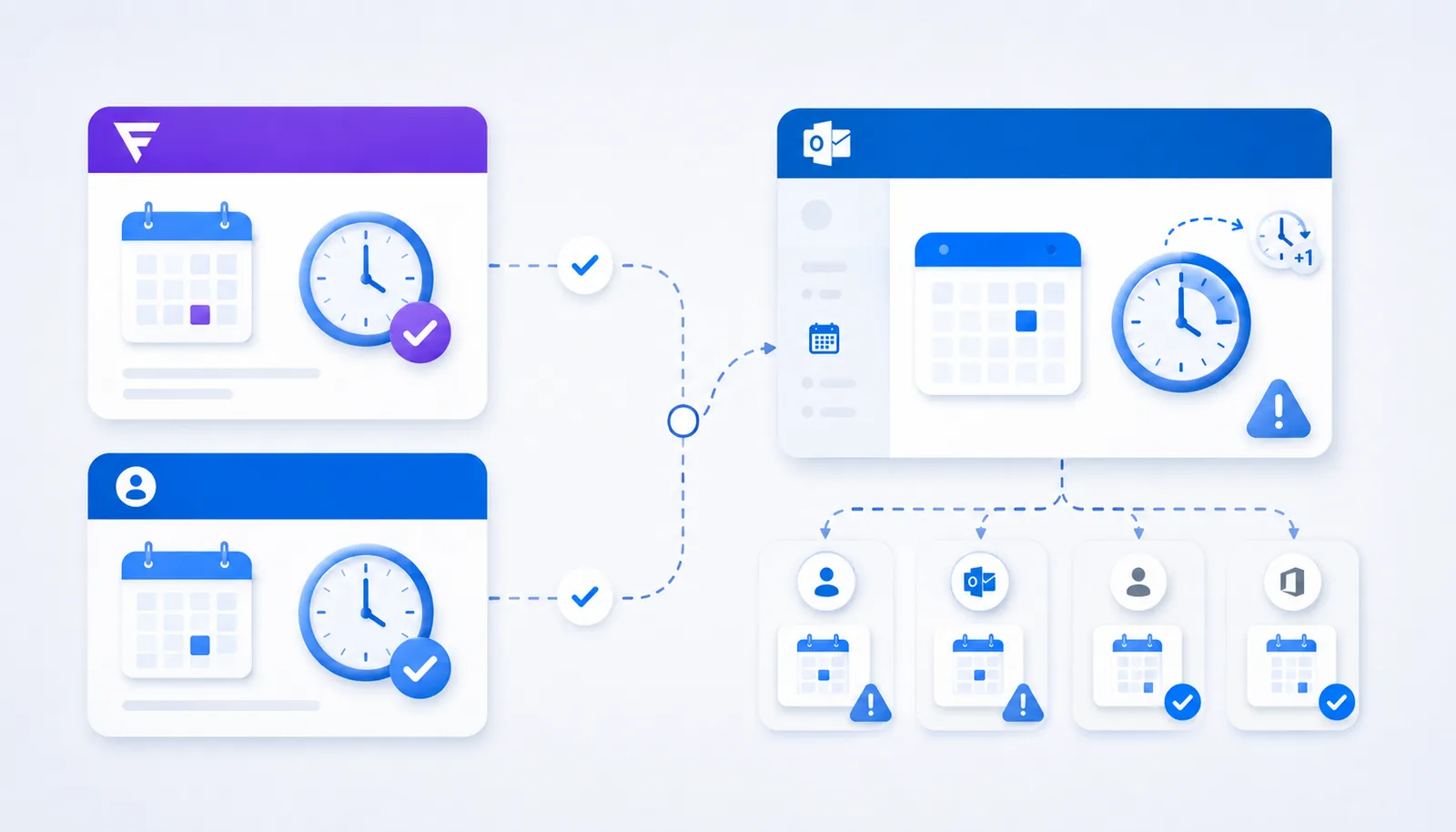
Typical signs are:
- The appointment in Outlook is shifted by exactly one hour.
- The time in the Funnelforms confirmation does not match the time in Outlook.
- The appointment is shown correctly in the lead entry, but appears at a different time in the Outlook calendar.
- The time shift only occurs for specific calendars or Microsoft accounts.
Solution in 5 steps
- Open Outlook on the web.
- Go to the language and time settings. In Outlook on the web, you can usually find them under Settings → General → Language and time.
- Check the selected time zone. Choose a clear local time zone that matches your team or location, for example the option for Amsterdam, Berlin, Bern, Rome, Stockholm, or Vienna.
- Then open the affected appointment booking field in Funnelforms and check its time zone setting. The field’s time zone should match the Outlook time zone.
- Create a new test booking through the form preview and check whether the time matches in Funnelforms, in the confirmation, and in the Outlook calendar.
Best practices
- Use the same local time zone for a team whenever all appointments are handled in one shared sales or service time zone.
- Set the appointment booking field to your team’s time zone if your team is responsible for attending the appointments.
- After changing the Outlook time zone, always create a new test booking to verify that the time is transferred correctly.
- Avoid ambiguous or purely technical UTC offset values when a real local time zone is available.
- Test especially around daylight saving time changes to make sure new bookings appear correctly in Outlook.
Common pitfalls
The booking arrives at an unexpected time: First check whether the time zone in the Outlook account and the time zone in the appointment booking field match.
The appointment is shifted by exactly one hour: This often points to a daylight saving time issue or a mismatched time zone setting. Check the Outlook time zone and then create a new test booking.
The appointment is correct in the Funnelforms lead, but wrong in Outlook: In this case, the appointment is likely calculated correctly in Funnelforms, while Outlook displays it in a different calendar or profile time zone. Align the Outlook time zone with the time zone of the appointment booking field.
Times are suddenly incorrect after a Microsoft tenant change: Check the time zone in the affected Microsoft account again. Tenant or account changes can cause Outlook to use different default values.
Tips and notes
- Funnelforms displays dates in the DD.MM.YYYY format.
- The time of a booked slot is based on the time zone of the appointment booking field.
- If you offer appointments to contacts in several countries, carefully check which time zone is displayed in the form.
- If a Microsoft time zone cannot be mapped clearly, contact support and, if possible, include an example appointment.
Frequently asked questions
Do I need a separate Outlook account for every time zone? No. What matters is that the time zone in the Outlook account and the time zone in the appointment booking field are aligned properly.
Why does Outlook show different time zone names than Funnelforms? Microsoft uses its own time zone names depending on the environment. Funnelforms can map known names, but the Outlook account and appointment booking field should still be aligned to the same local time zone.
Can I simply use UTC+01:00? A real local time zone is usually better, because pure UTC offsets do not always clearly account for daylight saving time.
Does this also work with Microsoft 365 tenants outside Europe? Yes, this is generally possible. What matters is that the time zone in the Microsoft account is set correctly and matches the time zone of the appointment booking field.
Does the time zone affect the lead entry? Yes. The time shown in the lead depends on the time zone in which the appointment is calculated and stored. If there is a time difference, always check both the lead entry and the Outlook appointment.