WhatsApp Templates: Get Messages Approved and Map Variables
WhatsApp is a channel fully moderated by Meta. Unlike email or SMS, you cannot send freely composed messages — every message must be submitted as a template to Meta and approved before it can be delivered. This article explains how to create templates, get them approved and link them to your form variables inside Funnelforms.
Requirements
- Connected Meta Business Account (WABA) incl. a verified phone number
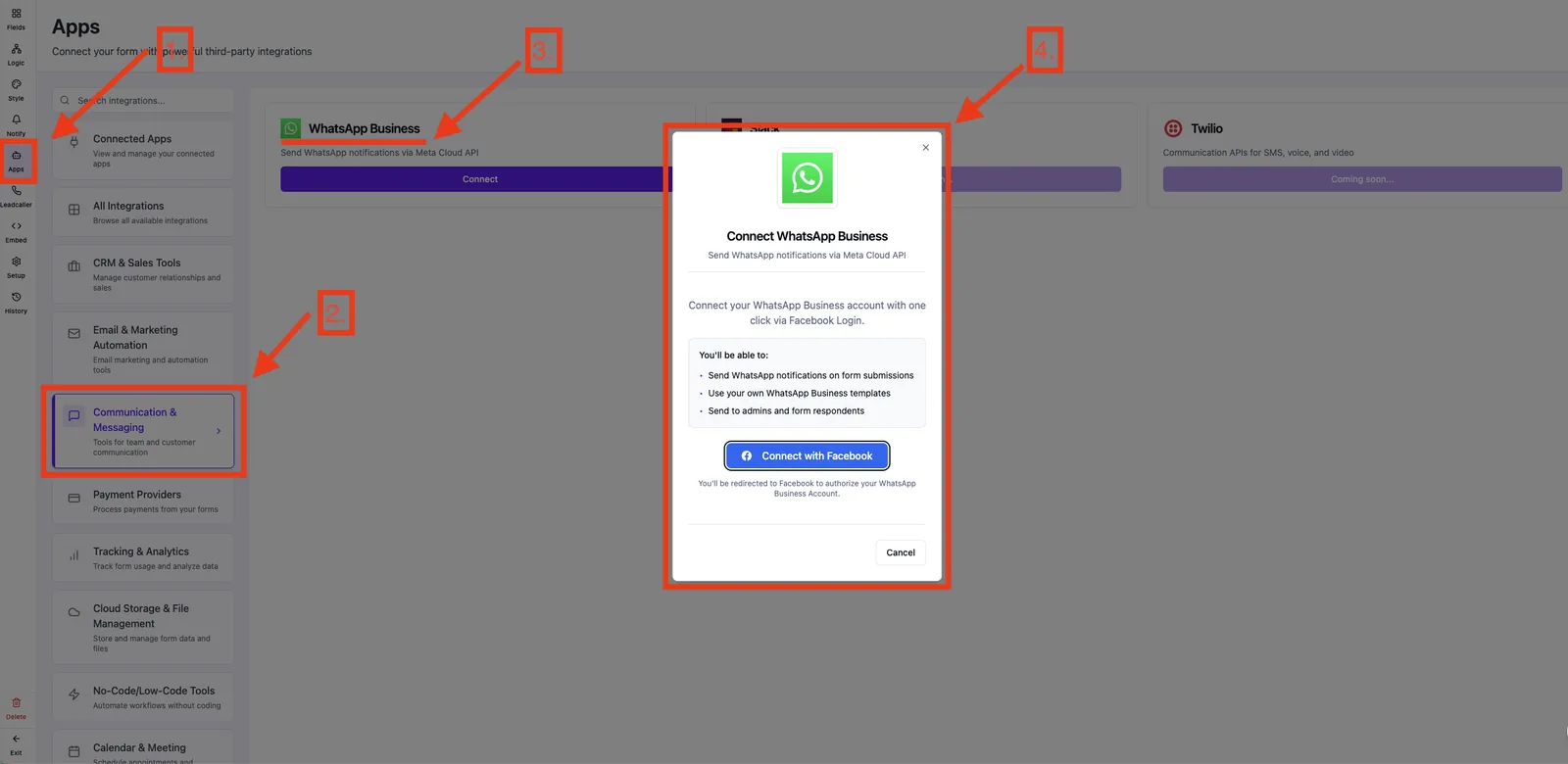
- Active WhatsApp integration in Funnelforms (Meta Embedded Signup completed)
- Write access to the form where the notification will be triggered
Where templates are created
You have two options:
- Recommended — directly in Funnelforms: In the form editor under Notifications → WhatsApp, open the Create template dialog. Funnelforms automatically submits the template to Meta for approval.
- Alternative — in Meta Business Manager: If you already maintain templates there, they also appear in Funnelforms once approved.
In either case Funnelforms fetches your approved templates live from your WABA and offers them in the form editor.
Step by step: create a template in Funnelforms (recommended)
- Open the form in the editor and go to Notifications → WhatsApp (Admin or User).
- Click Create template.
- Pick a template name (lowercase letters, digits and underscores, e.g.
order_confirmation, at least 3 characters). - Pick the category: Marketing, Utility or Authentication. For lead notifications, Utility is usually correct.
- Write the message body. Insert placeholders as
{{1}},{{2}},{{3}}… in the order they appear. - Click Create template. Funnelforms automatically submits the template to Meta for approval.
- Meta usually reviews within minutes to a few hours. Once approved, the template appears in the picker automatically.
Alternative path via Meta Business Manager: WhatsApp Manager → Message Templates → Create Template. Approved templates appear in Funnelforms automatically.
Map the template inside Funnelforms
- Open the form in the editor and go to Notifications → WhatsApp (Admin or User).
- Click Select template. Funnelforms lists every approved template from your WABA.
- Pick the language via the dedicated language field next to the picker — Meta manages language variants as separate templates with the same name.
- Pick the template — the placeholders
{{1}},{{2}}… appear as input fields under Map template variables. - For each placeholder, map a form field (e.g.
{{1}}→ first name field,{{2}}→ product field). - Save the form. On the next submit, the template is filled and delivered through the WhatsApp Business API.
What Meta allows
- Utility: confirmations, status updates, appointment reminders — usually approved quickly
- Marketing: promotions, offers — stricter review, opt-in mandatory
- Authentication: OTP codes — only for login/verification flows
Forbidden items include bare URLs without context, misleading promises and content about regulated topics without prior approval. The current policies are documented in the Meta Business Help Center.
Best practices
- Version your template names (
lead_received_v1,lead_received_v2) — approved templates cannot be edited, only re-submitted. - Use descriptive placeholder order:
{{1}}always the name,{{2}}always the product, so the mapping stays consistent. - Keep marketing templates short and specific — long promotional copy is frequently rejected.
- Create matching DE and EN templates with the same name — Meta treats them as language variants of the same template. In the Funnelforms picker, pick the language via the separate language field.
Common pitfalls
- Template rejected: most common reasons are unclear variable context (Hi {{1}} without a hint what {{1}} is) or missing opt-ins on marketing templates.
- Template does not appear in Funnelforms: it is still in status In Review. It only becomes visible in the picker after approval — Funnelforms fetches the list live from your WABA as soon as you open the WhatsApp tab.
- Placeholder mapped incorrectly: the order in the Meta template is binding — swapping
{{1}}and{{2}}in the Funnelforms mapping sends the wrong value. {{all_responses}}as a variable: not allowed — Meta forbids dynamic lists of variable length inside templates.- Variable at the very start or end of the message: Meta rejects templates where a placeholder sits at the beginning or end of the body. Always begin and end with static text.
Pro tips
- Create a dedicated utility test template
lead_test_v1with a single variable — that way you can verify the mapping quickly. - Keep an internal record of which template belongs to which funnel — with many forms it is easy to lose track.
FAQ
How long does approval take? Utility templates usually minutes to a few hours. Marketing templates can take 24 hours or more.
Can I edit an approved template? No. You need to submit a new version and remap it inside Funnelforms.
What does it cost? Meta bills per message by category (Marketing, Utility, Authentication, Service). Current rates are documented in the Meta WhatsApp Business Pricing — Funnelforms does not add a channel fee.