SMS Notifications: Reach Leads and Customers Instantly
SMS notifications deliver a short text message straight to a phone the moment a form is submitted. Perfect when you want to reach leads instantly or send the customer a quick confirmation – no inbox check required.
Prerequisites
- A published form in the form editor.
- For admin SMS: at least one mobile number in international format (e.g.
+491701234567). - For user SMS: a phone field in the form where the customer enters their mobile number.
Where do I find this setting?
Form editor → tab Notify → tab SMS → sub-tabs Admin and User.
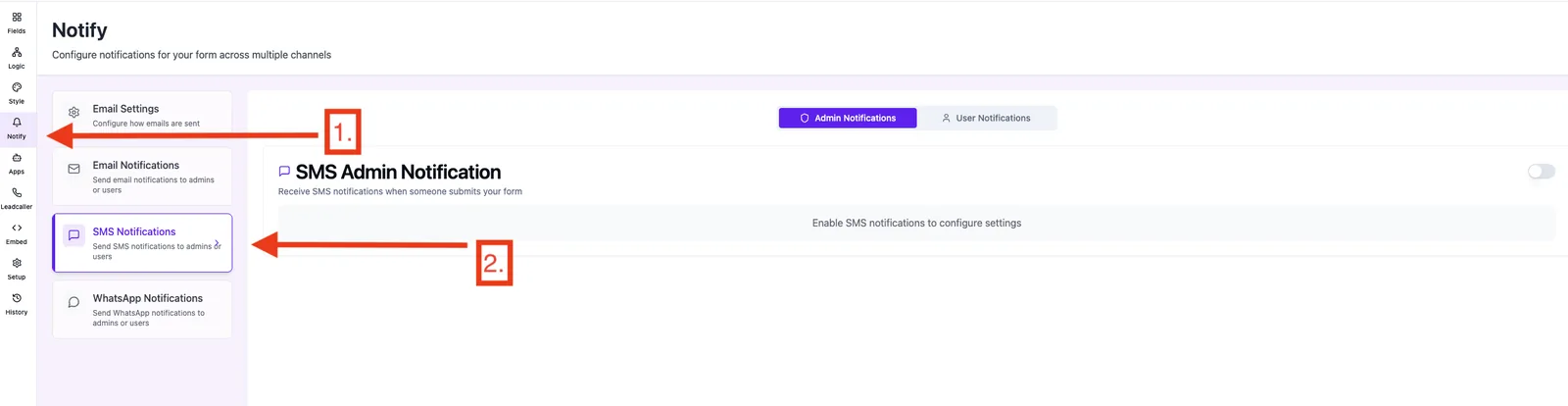
Feature overview
- On/off toggle per mode (admin and user are independent).
- Admin numbers: multiple mobile numbers; each one receives the same SMS.
- User phone field: selects the form field that provides the recipient number.
- Message with a hard limit of 160 characters and a live counter.
- Variables from form fields insertable by click (e.g. first name, email).
- Test SMS can be sent from the SMS settings.
Step-by-step: Set up admin SMS
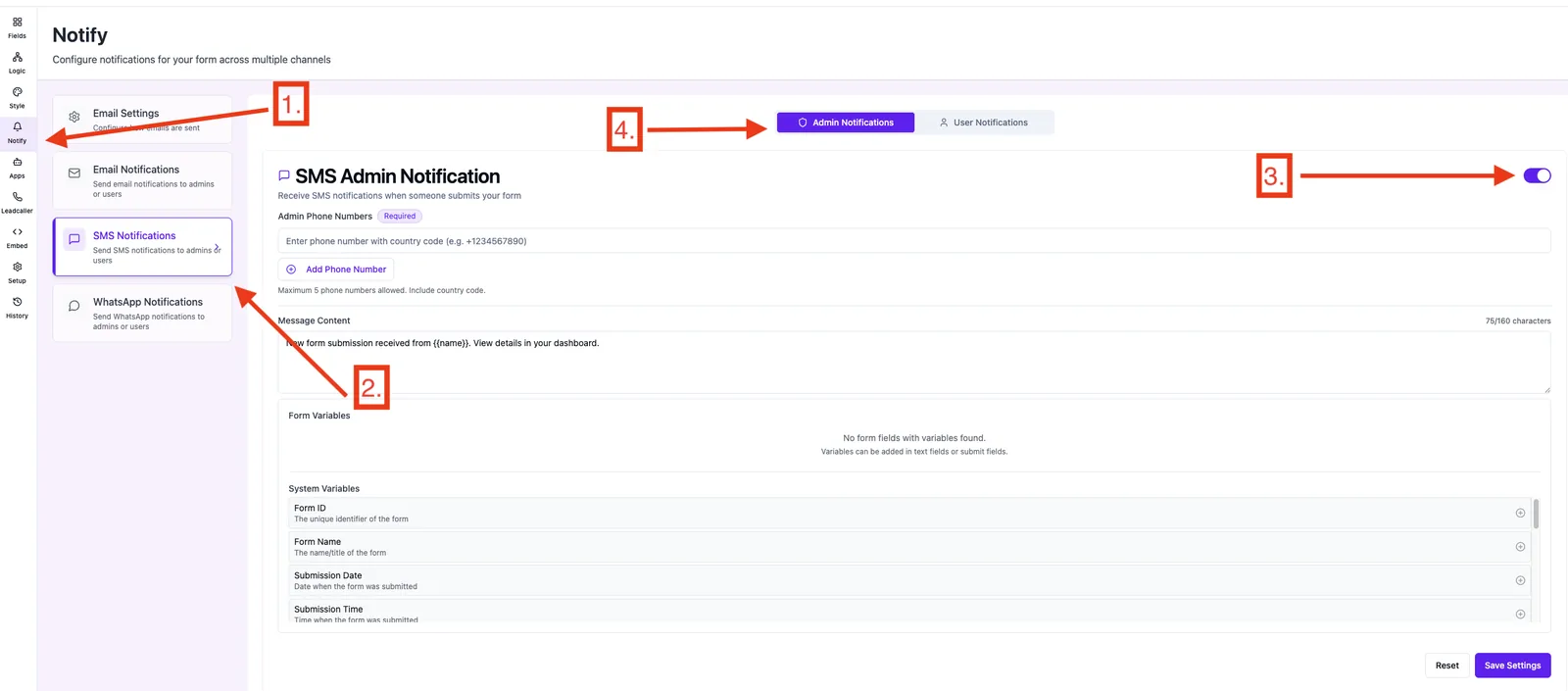
- Open the form → Notify → SMS → Admin.
- Enable the toggle "SMS notification to admin".
- Enter mobile number(s) in
+49...format. Use + Add number for more. - Write the message in the text field – max 160 characters.
- Optionally insert variables (e.g.
{{first_name}},{{email}}). - Click Save.
Step-by-step: Set up user SMS
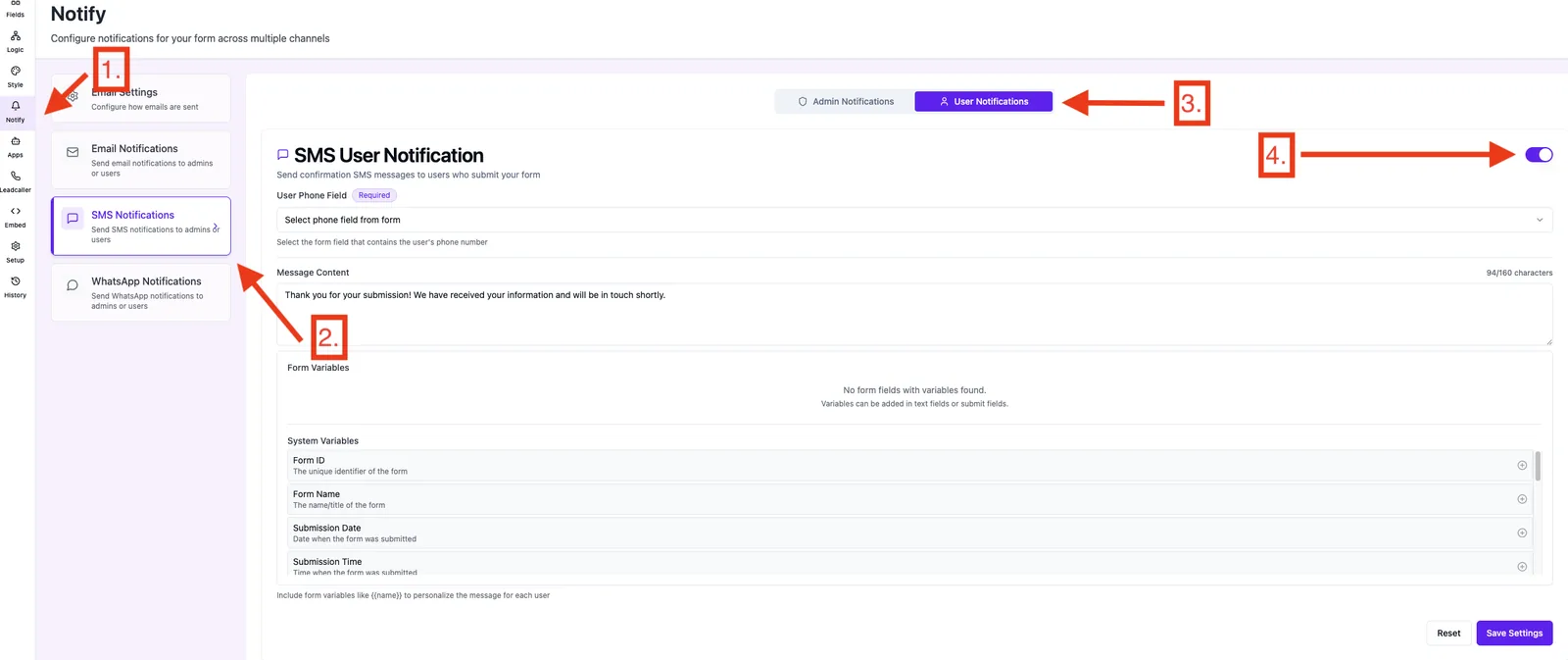
- Make sure your form has a field of type Phone.
- Open the form → Notify → SMS → User.
- Enable the toggle "SMS notification to user".
- Under Phone field select the correct form field.
- Write the message (max 160 chars) and insert variables.
- Click Save.
Best practices
- Be concise – 160 characters fill up fast. Start with the most important info.
- Always include a sender reference ("Funnelforms" or your brand name) so the SMS doesn't feel like spam.
- For admin SMS only add numbers that really need it – each number receives every message.
- Test variables by sending a sample lead before going live.
Troubleshooting
- No SMS arrives: check the format (with country code, e.g.
+49170...) and that the toggle is on. - Message is cut off: the system caps at 160 chars. Shorten the text or reduce variables.
- Field dropdown is empty (user mode): the form has no phone field yet. Create one in the form editor first.
- Variables appear as placeholders: check spelling and existence of the field.
FAQ
Does an SMS cost extra? Yes, SMS sending is usually billed separately via credit – check your plan.
How many admin numbers can I add? There is no hard upper limit, but each number receives its own SMS, so costs accumulate per recipient.
Can I use admin and user SMS at the same time? Yes – the two modes are independent and can both be enabled.
Is the setting global or per form? Strictly per form.